By the end of this lesson, we will build a sticky nav that:
- Hides when you scroll down
- Shows up when you scroll up
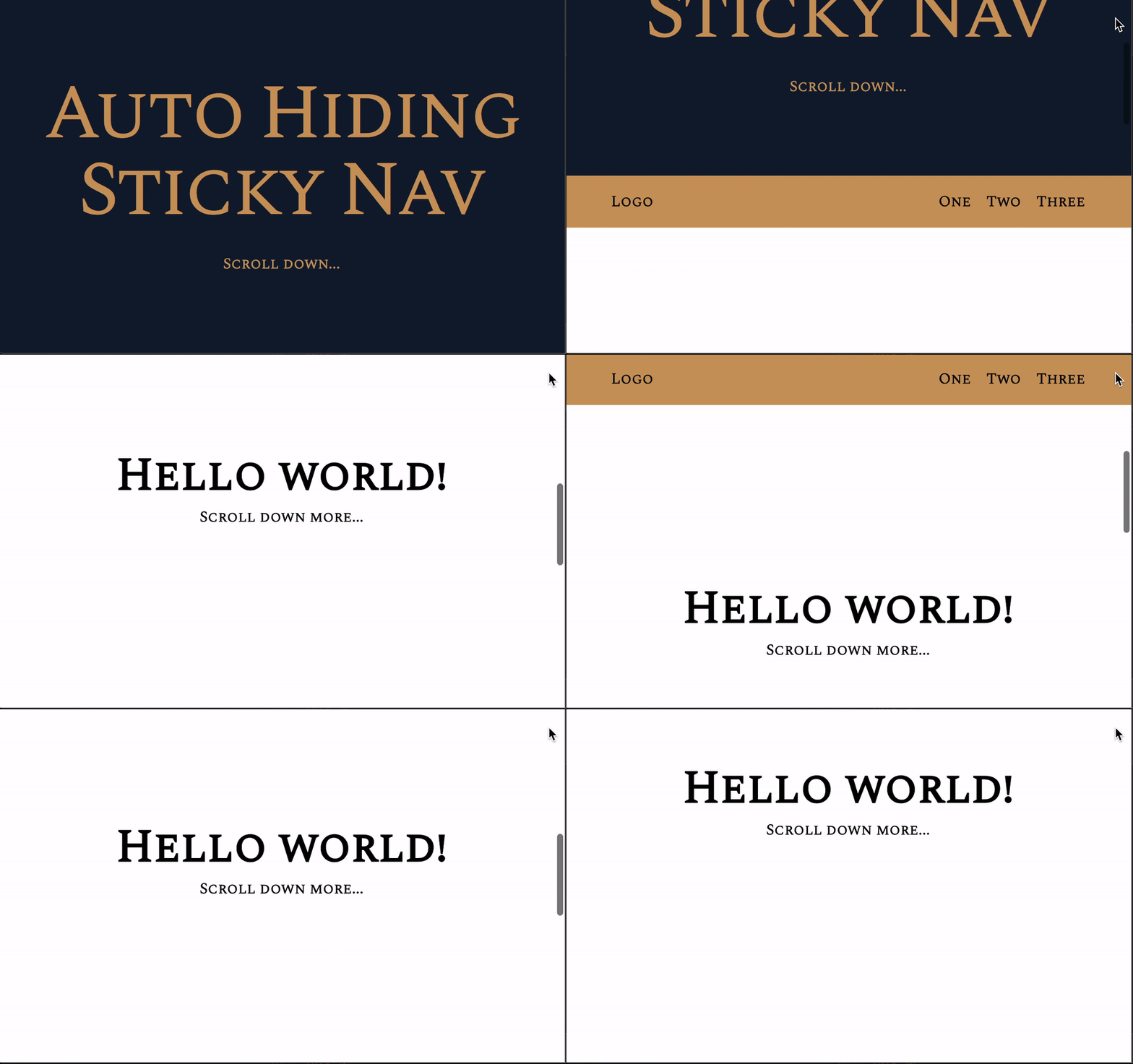
We do this because every part of a screen is precious real estate.
When users scroll down, they want to read content on your screen. We don’t want the navigation to block content.
When they scroll back up, they may want to navigate elsewhere. If we show the navigation when scrolling back up, they won’t have to scroll up ALL the way!
Scrolling upwards or downwards?
First, we need to detect whether the user is scrolling. We can do this with the scroll event.
window.addEventListener('scroll', event => { console.log('Scrolling!')})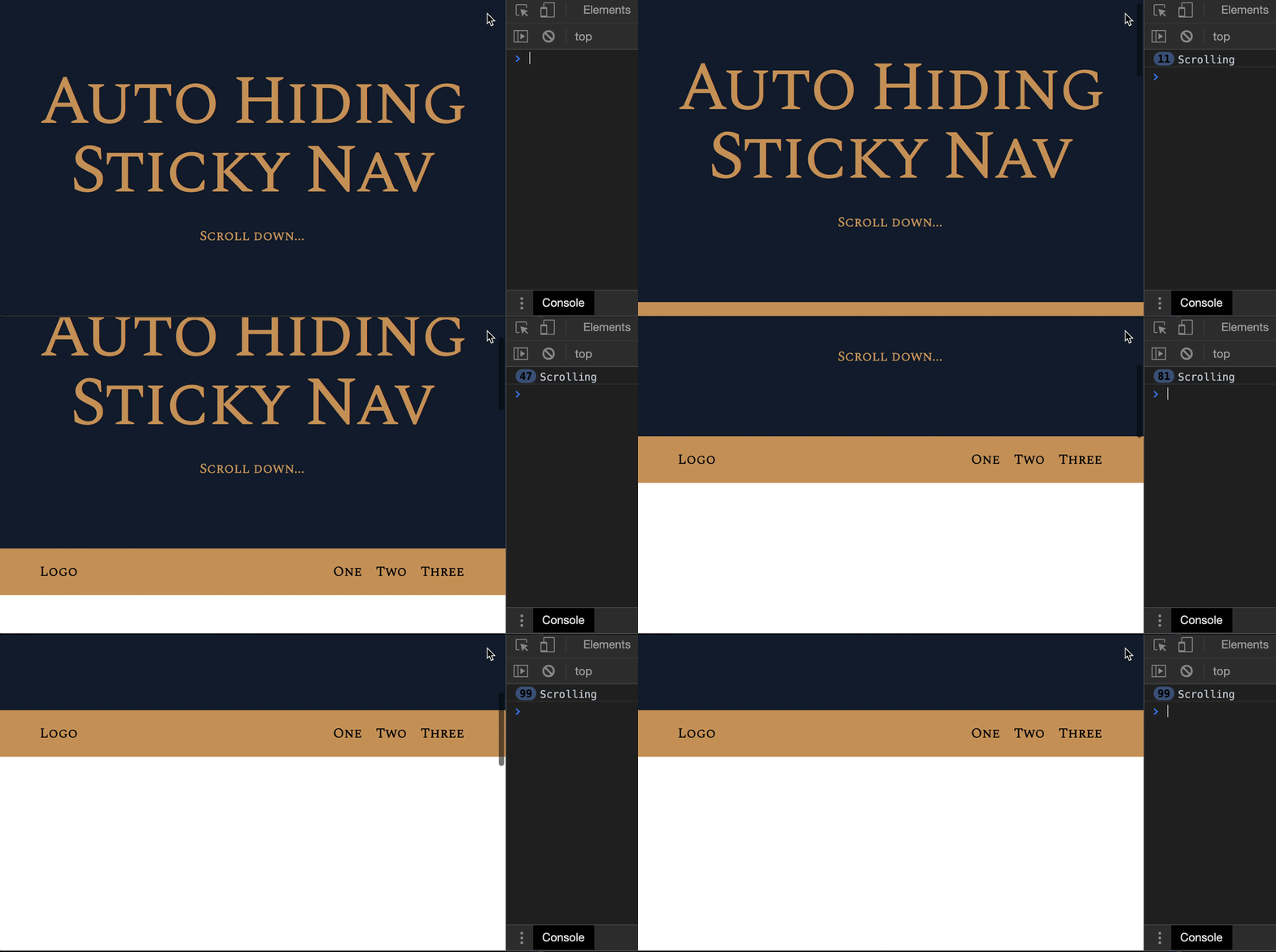
Next, we need to check whether the user is scrolling upwards or downwards. We can check the current scroll position with window.scrollY.
window.addEventListener('scroll', event => { console.log(window.scrollY)})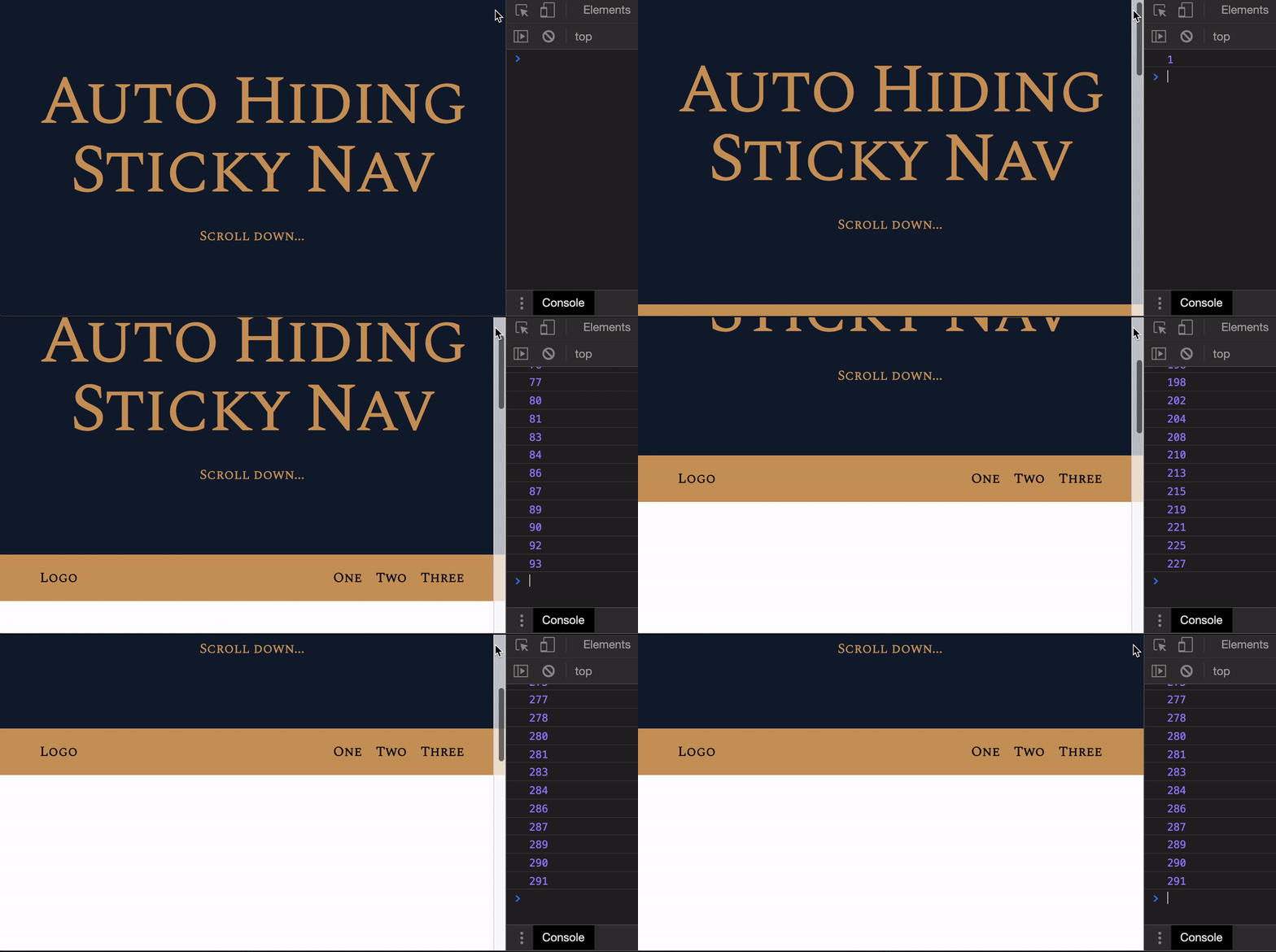
The best way to know whether a user is scrolling downwards or upwards is to keep a variable that stores the previous scroll position. We’ll call this prevScrollPos.
let prevScrollPos = window.scrollYwindow.addEventListener('scroll', event => { // ...})If the current scroll position is larger than prevScrollPos, we know we’re scrolling downwards.
If the current scroll position is smaller than prevScrollPos, we know we’re scrolling upwards.
window.addEventListener('scroll', event => {  const scrollPos = window.scrollY
  if (scrollPos > prevScrollPos) {    console.log('Scrolling downwards')  } else {    console.log('Scrolling upwards')  }
  // Updates prevScrollPos to current value  prevScrollPos = scrollPos})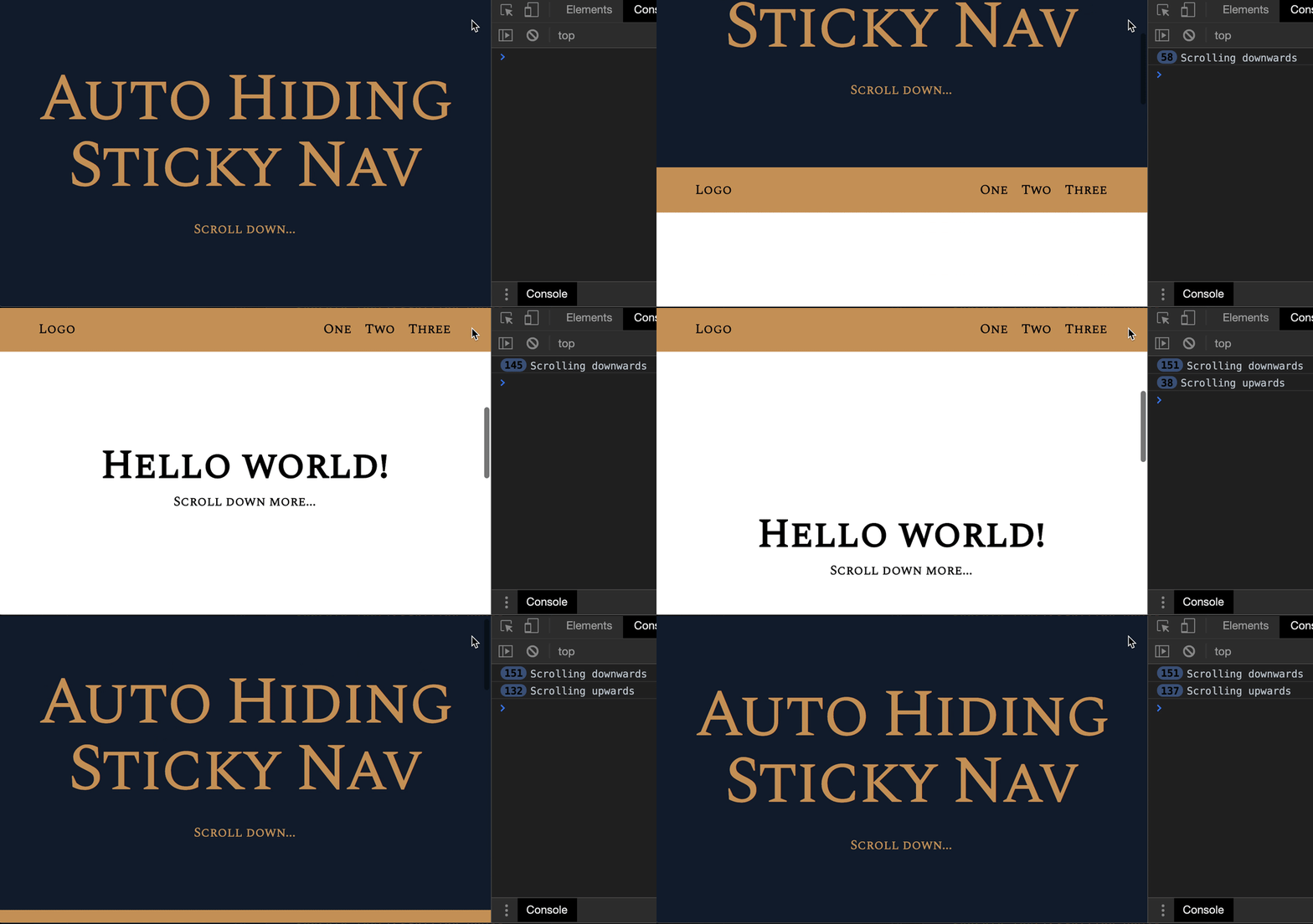
The condition I wrote above isn’t 100% accurate. If we want to be strict, there’s still one more condition where scrollPos === prevScrollPos (where we aren’t scrolling).
if (scrollPos > prevScrollPos) { // Scrolling downwards} else if (scrollPos < prevScrollPos) { // Scrolling upwards} else { // Not scrolling}But in this case, we don’t need to be 100% accurate. Why? Try scrolling upwards and downwards with this accurate statement. You’ll notice the else condition doesn’t trigger at all.
Hiding the nav when scrolling down
To hide <nav> we need to move it upwards. we can do this by setting a negative top value.
Let’s set top to -30px and see what happens.
const nav = document.querySelector('nav')window.addEventListener('scroll', event => { // ... if (scrollPos > previousScrollPos) { nav.style.top = '-30px' } else { // ... } // ...})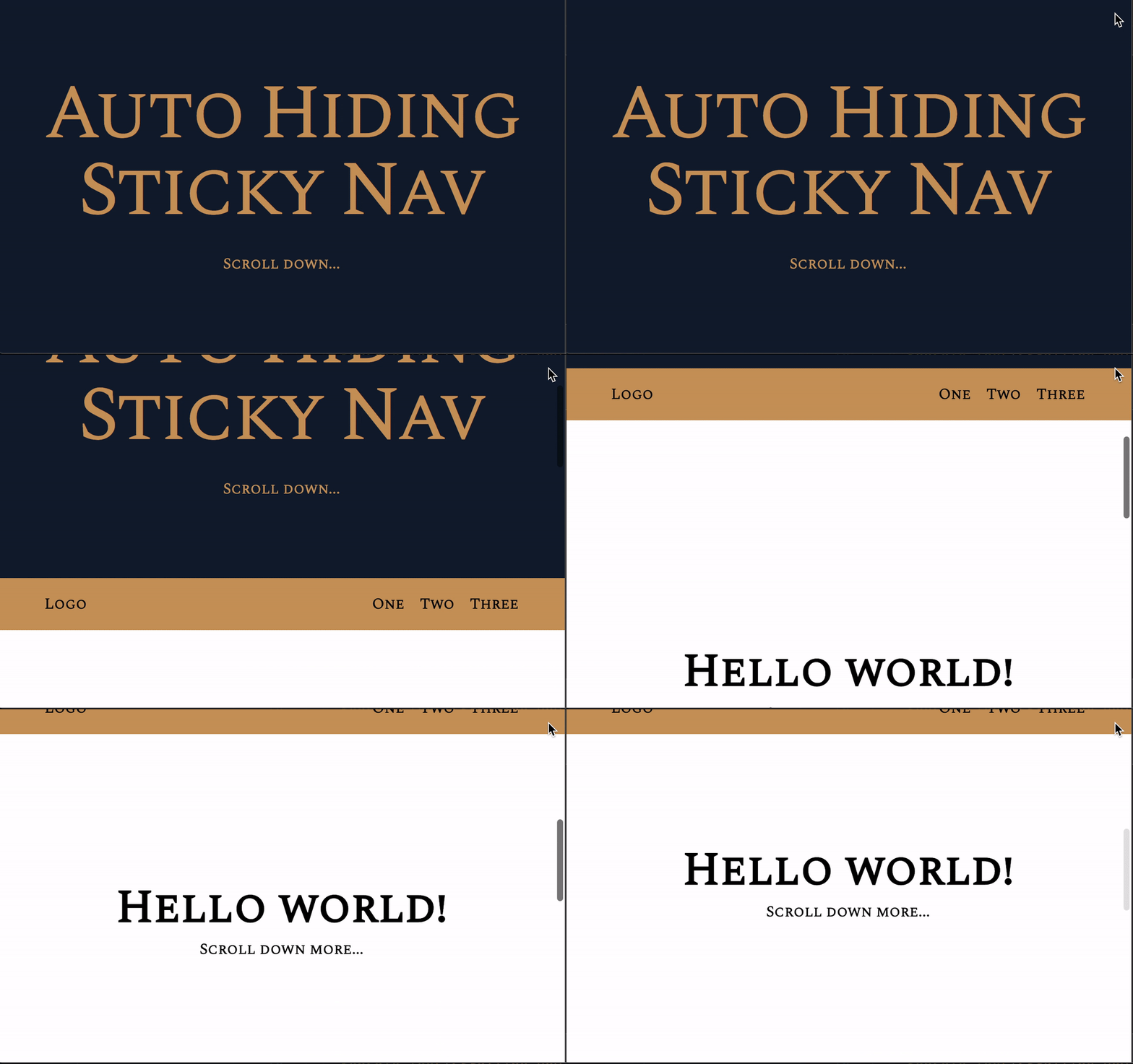
Half of <nav> got hidden as we scroll down. This confirms the hypothesis that we can set top to a negative value to hide the <nav>.
What we need to do next is to find the <nav>’s actual height. We can do this with boundingClientRect.
const nav = document.querySelector('nav')const navHeight = nav.getBoundingClientRect().height
console.log('navHeight:', navHeight)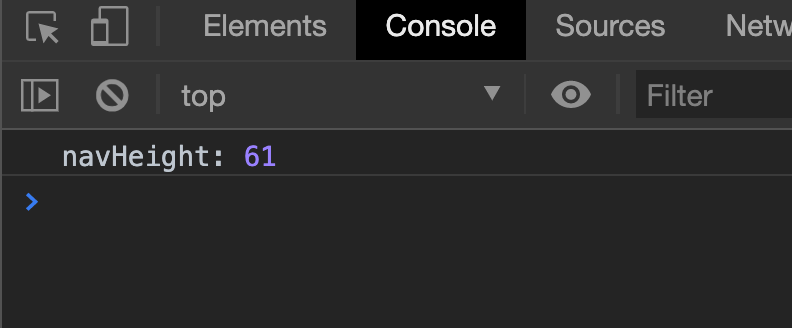
We can now set the height value when we scroll down.
window.addEventListener('scroll', event => { // ... if (scrollPos > previousScrollPos) { nav.style.top = `-${navHeight}px` } else { // ... } // ...})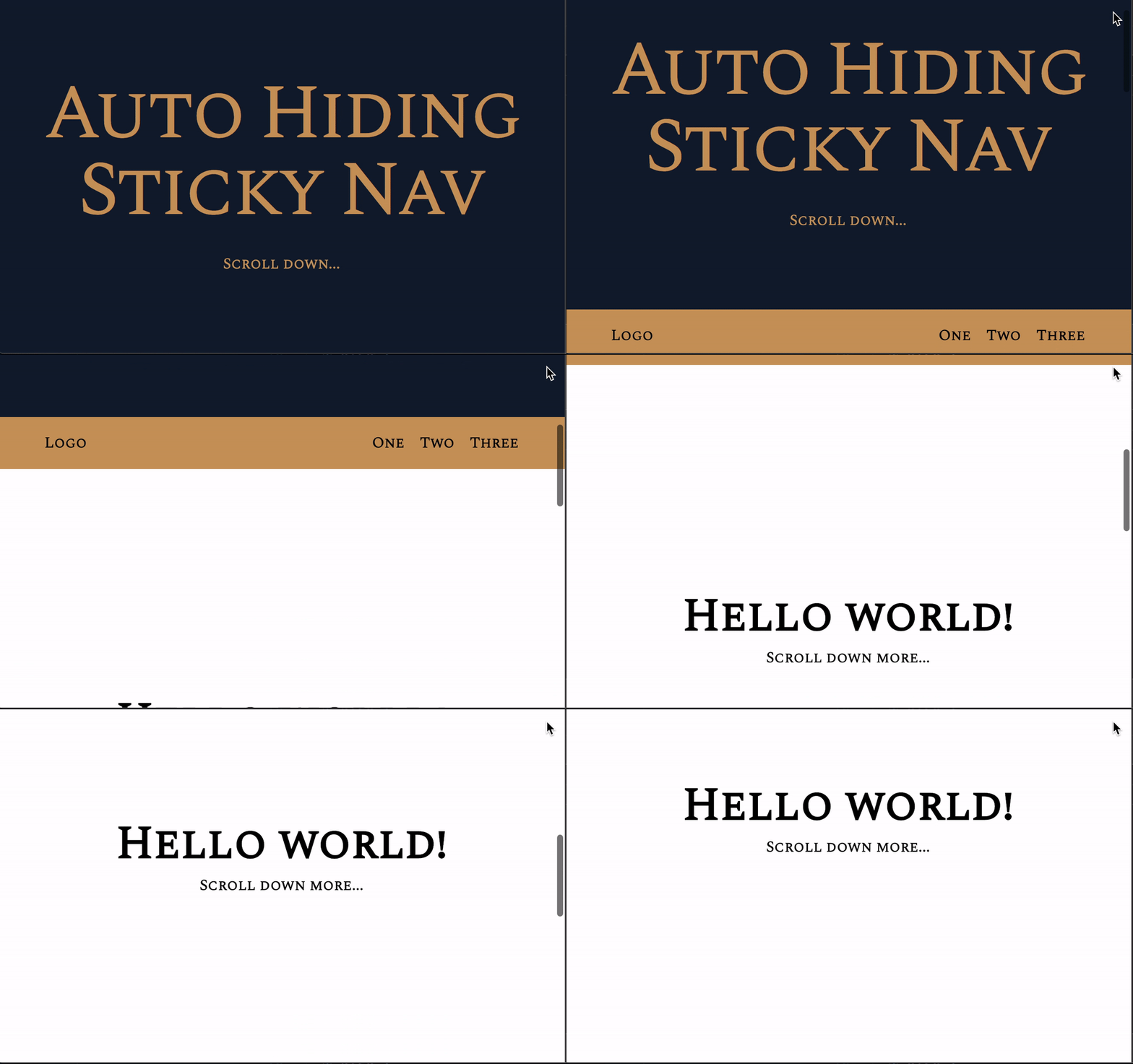
Showing the nav when scrolling back up
To show the <nav> when scrolling back up, we need to set the top back to 0.
window.addEventListener('scroll', event => { // ... if (scrollPos > previousScrollPos) { // ... } else { nav.style.top = 0 } // ...})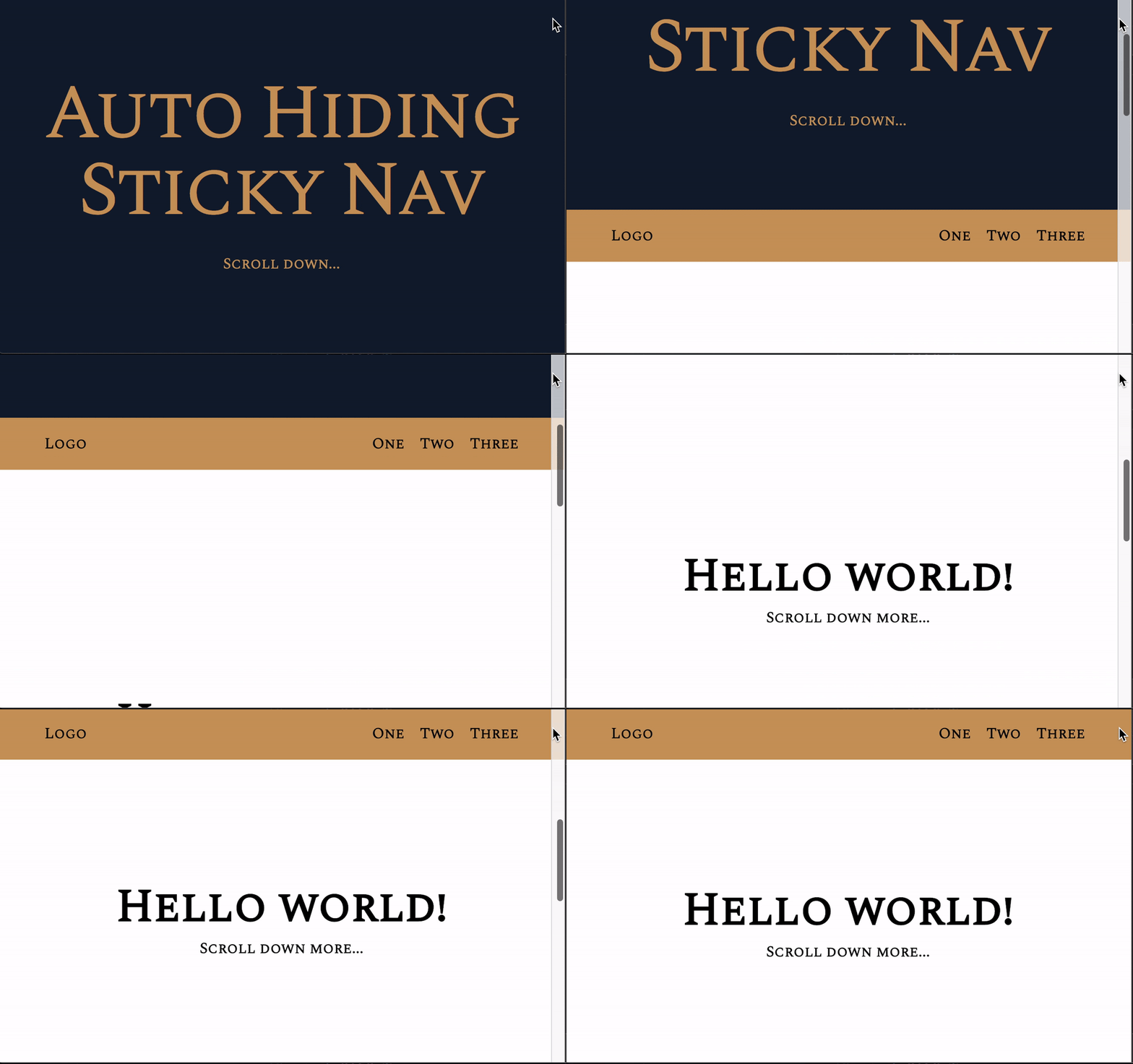
Adding animations
What’s next is to add some animations to make the transition a bit smoother.
nav { transition: top 0.15s ease-out;}We have completed basic auto-hiding sticky-nav. Let’s improve on it in the next lesson.
Welcome! Unfortunately, you don’t have access to this lesson. To get access, please purchase the course or enroll in Magical Dev School.
Unlock this lesson