As we mentioned in the last lesson, we’re going to store the access token in local storage. Before we can save the token into local storage, we need to send the token to the browser.
We covered how to do this in an earlier lesson. For this app, we’re going to use the simplest method — query strings.
Sending token to frontend via the query string
You can redirect the user back to the homepage with a query string. This query string should include at least three parameters:
- An
authStatusparameter — so we know whether the authentication is successful - A
providerparameter — so we know it’s from Github and not other identity providers. - A
tokenparameter — so we know can save the token in Local Storage.
Here’s how you can do this.
router.get('/auth/github/callback', async (req, res) => {  // ...  const token = response.body
  // Create the query string  const params = {    authStatus: 'success',    provider: 'github',    access_token: token.access_token,  }  const query = new URLSearchParams(params).toString()
  // Redirect user to the index page with the query string  res.redirect('/' + '?' + query)})
Getting the token from the query string
On the frontend, we need to get the token from the query string before we can save it to local storage.
We can do this with URLSearchParams.
// Inside main.jsconst searchParams = new URLSearchParams(location.search)
const authStatus = searchParams.get('authStatus')const provider = searchParams.get('provider')const accessToken = searchParams.get('access_token')
The accessToken will only be available when authStatus is success. We can use this as a condition to check whether we should get the rest of the parameters.
const searchParams = new URLSearchParams(location.search)
if (searchParams.get('authStatus') === 'success') {  const provider = searchParams.get('provider')  const accessToken = searchParams.get('access_token')
  console.log(provider)  console.log(accessToken)}
Saving the token
We can save the token to Local Storage with the localStore library I created. You can import the library with the following code in this starter project:
import { localStore } from './lib.js'We’ll save the token like this:
if (searchParams.get('authStatus') === 'success') {  const provider = searchParams.get('provider')  const accessToken = searchParams.get('access_token')
  localStore.set(provider, { accessToken })}
Two things to note:
First: We set key to provider because it allows us to grab access token from a specific identity provider later.
Second: We store the access token as an object (instead of a string) because other identity providers give you more information. You’ll see this in later lessons.
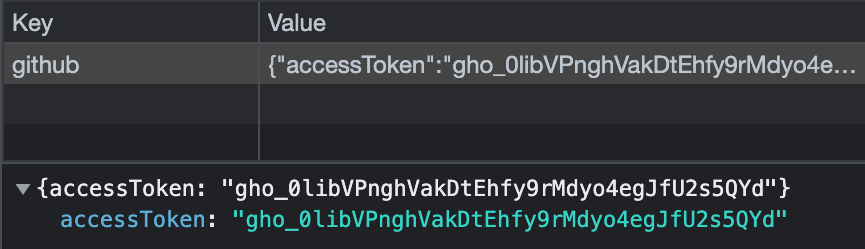
If you check the applications tab in your console, you should see the token now:
Updating the status
Once we save the access token, we want to update the status to “Logged in”. We can do this by searching for the provider’s status and replacing its text content
if (searchParams.get('authStatus') === 'success') { // ... const element = document.querySelector(`.status[data-provider="${provider}"]`) element.textContent = 'Logged In'}Wipe the query string with history
We need to wipe the query string to ensure the the access token doesn’t get copied accidentally (if the user decides to copy the page url).
This step is important because for security purposes.
We can do this with history.replace.
if (searchParams.get('authStatus') === 'success') { // ... history.replaceState('', '', location.pathname)}Welcome! Unfortunately, you don’t have access to this lesson. To get access, please purchase the course or enroll in Magical Dev School.
Unlock this lesson