We are finally ready talk about the key thing that makes Single Page Apps what they are — navigating to between pages without loading new pages.
Right now, you fetch a new page when you click on a link. The most obvious example happens when you click into a Hero, click the back button, then click into the Hero again.
To prevent browsers from fetching new pages, we need to use history to change the URL.
Where to use History?
In Single Page Apps, we want to navigate between pages without loading new pages. This means the link between pages must all use history. In other words, we will be targeting all <a> elements.
We’ll use a global event listener to target all <a> elements.
window.addEventListener('click', event => { // ...})Since <a> elements can have content within, we should use closest to make sure we grab the <a> itself.
window.addEventListener('click', event => { const link = event.target.closest('a') if (!link) return})If the <a> links to a page on the same domain, we know the destination page exists on our servers. We can safely use history for such links.
There are two ways to tell whether the <a> element points to the same domain.
- We can check if the
hrefproperty begins with/. - We can check if the link’s
originis the same as thelocation.origin
Either method works, but we’ll go with the second one.
If we want to use history, we need to prevent the default behaviour. So here’s the code we can write:
window.addEventListener('click', event => { // ... if (link.origin !== location.origin) return event.preventDefault()})Finally, we can use history.pushState to change the URL.
window.addEventListener('click', event => { // ... history.pushState('', '', link)})This works. You can see the link changing, but content on the page doesn’t change.
Why? This happens because we did not re-render the component. So, for history to work properly, we need to re-render the component by putting the event listener inside Tiny.
export default function Tiny(comp) {  // ...  if (comp.selector) {    // ...    window.addEventListener('click', event => {      const link = event.target.closest('a')      if (!link) return      if (link.origin !== location.origin) return      event.preventDefault()      history.pushState('', '', link)
_render(comp) }) }}Fixing back and forward buttons
Nothing happens if you click the back button now. That’s because we’re still on the same page, but we haven’t told Tiny to re-render the page again.
Since the back and forward buttons emit a popstate event, we can use this event to re-render the page.
export default function Tiny(comp) {  // ...  if (comp.selector) {    // ...    window.addEventListener('click', event => {      const link = event.target.closest('a')      if (!link) return      if (link.origin !== location.origin) return      event.preventDefault()      history.pushState('', '', link)
      _render(comp)    })
// Support back and forward buttons window.addEventListener('popstate', event => { _render(comp) }) }}Changing the document title
There’s only one thing left to do — we need to tell users what page they’re on by changing the document.title. Once we do this, users will know what this page is about when they’re in a separate tab.
There are two ways of doing this:
- We can put the
titleinformation in the<a>element as a custom attribute. If we do this, we can use setdocument.titleas wepushState. - We can update the
titlewhen the component renders. This means we change thedocument.titlein thetemplatefunction.
Again, either method works. We’ll go with the second one.
If users land on the Heroes List, we want to let them know they’re on the Heroes List page.
export default Tiny({ // ... template() { document.title = 'Heroes List — Dota App' // ... },})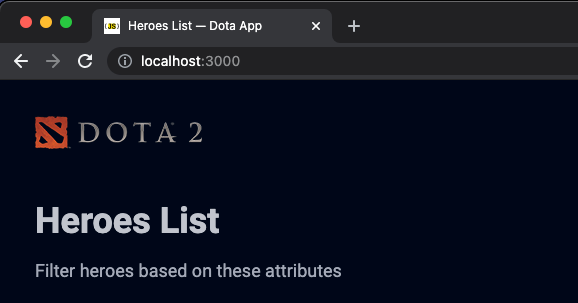
If users land on the hero page, we want to let them know the hero’s name. To do this, we need to use the hero variable that we previously shifted into heroHTML. (So we’ll have to shift it back into template)
export default Tiny({  // ...  template() {    const npcName = location.pathname.split('/heroes/')[1]    const hero = this.props.heroes.find(h => h.npcHeroName === npcName)    if (!hero) return ''
    document.title = `${hero.name} — Dota App`    // ...  },})
We will have pass the hero and npcName variable back into heroHTML.
export default Tiny({  // ...  heroHTML(hero, npcName) {    // ...  },
  template() {    // ...    return `      <div class="hero-page">        <!-- Header -->
        <main>          <div class="wrap"> ${this.heroHTML(hero, npcName)} </div>        </main>      </div>    `  },})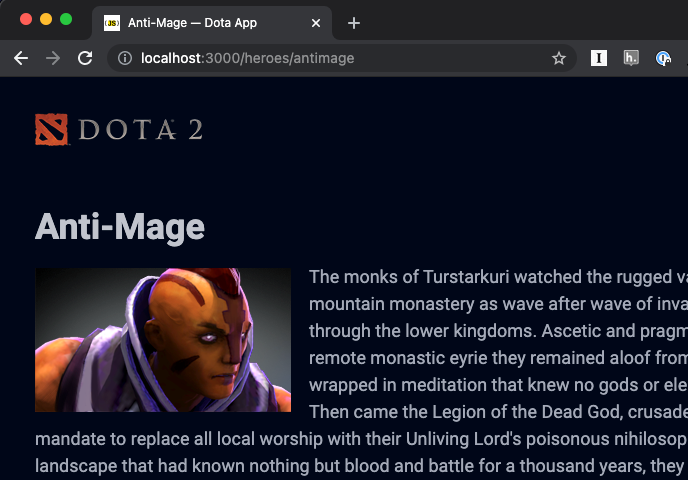
And that’s it!
Welcome! Unfortunately, you don’t have access to this lesson. To get access, please purchase the course or enroll in Magical Dev School.
Unlock this lesson