Try using the Spinning Pacman on your phone. You won’t be able to get any Pacman to follow your finger around.
Why? Because we built Spinning Pacman by listening to mouse events! We did not support touch events yet.
Detecting touch
First, you need to open the console from a device that supports touch input. You can try:
- Using your computer if there is a touchscreen. (Most Windows computers supports touch).
- Using your phone. Here are instructions for iPhone and Android.
Touch events
There are 4 touch events:
touchstarttouchmovetouchendtouchcancel
touchstart is like mousedown. It triggers when you touch the screen with a finger. Each finger triggers a new touchstart event.
touchmove triggers when you move your finger on a screen.
touchend is similar to mouseup. It triggers when a finger leaves the screen.
If you remove two fingers on the screen, touchend will trigger two times.
touchcancel triggers when a touch event gets disrupted.
I tested and found out that:
- iPhone supports up to 5 touch points. If you add a 6th touch point, you’ll trigger
touchcancel. - Windows 10 (on Surface Laptop 3) supports 10 touch points. But it doesn’t trigger
touchcanceleven when I have 15 fingers on screen.
Note: Navigator.maxTouchPoints can be used to determine the maximum number of simultaneous touch points.
Touch and Mouse
It’s easy to support Touch and Mouse if you want to trigger a click event. Touch devices will trigger mousedown,mouseup, and click automatically if you press the screen with the intention to click.
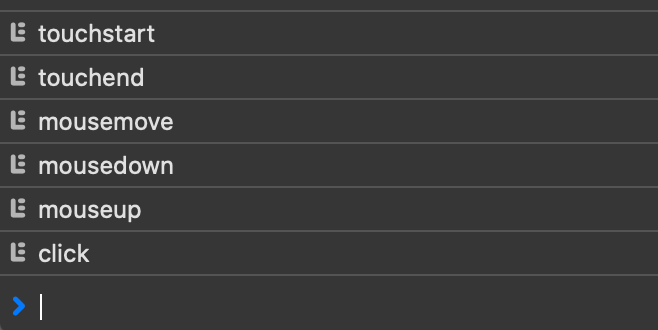
If you want to support other gestures like touchmove, you have two options:
- Add the Touch and Mouse events separately.
- Use Pointer events (See next lesson).
Touch event properties
There are three touch properties:
touches: list of Touch objects that are in contact with the surface.targetTouches:touchesthat start from the same target element.changedTouches:touchesthat have changed since the last Touch event.
Touch objects
Each Touch object has the following properties:
target: The element that was touched initially.identifier: A unique identifier for this touch object.pageX&pageY: Position of touch relative to the documentclientX&clientY: Position of touch relative to the viewportscreenX&screenY: Position of touch relative to screen
You can also find the information like force, radiusX, radiusY, and rotationAngle in each touch object. We won’t cover them since we won’t use them in this course.
Welcome! Unfortunately, you don’t have access to this lesson. To get access, please purchase the course or enroll in Magical Dev School.
Unlock this lesson