I categorize mouse events into two categories:
- Click-related events
- Move-related events
Click-related events
Click events happen when you click a mouse button. There are four click events:
clickdblclickcontextmenuauxclick
click triggers when you click the primary mouse button. For most people, this would be the left mouse button.
document.addEventListener('click', event => { console.log('click')})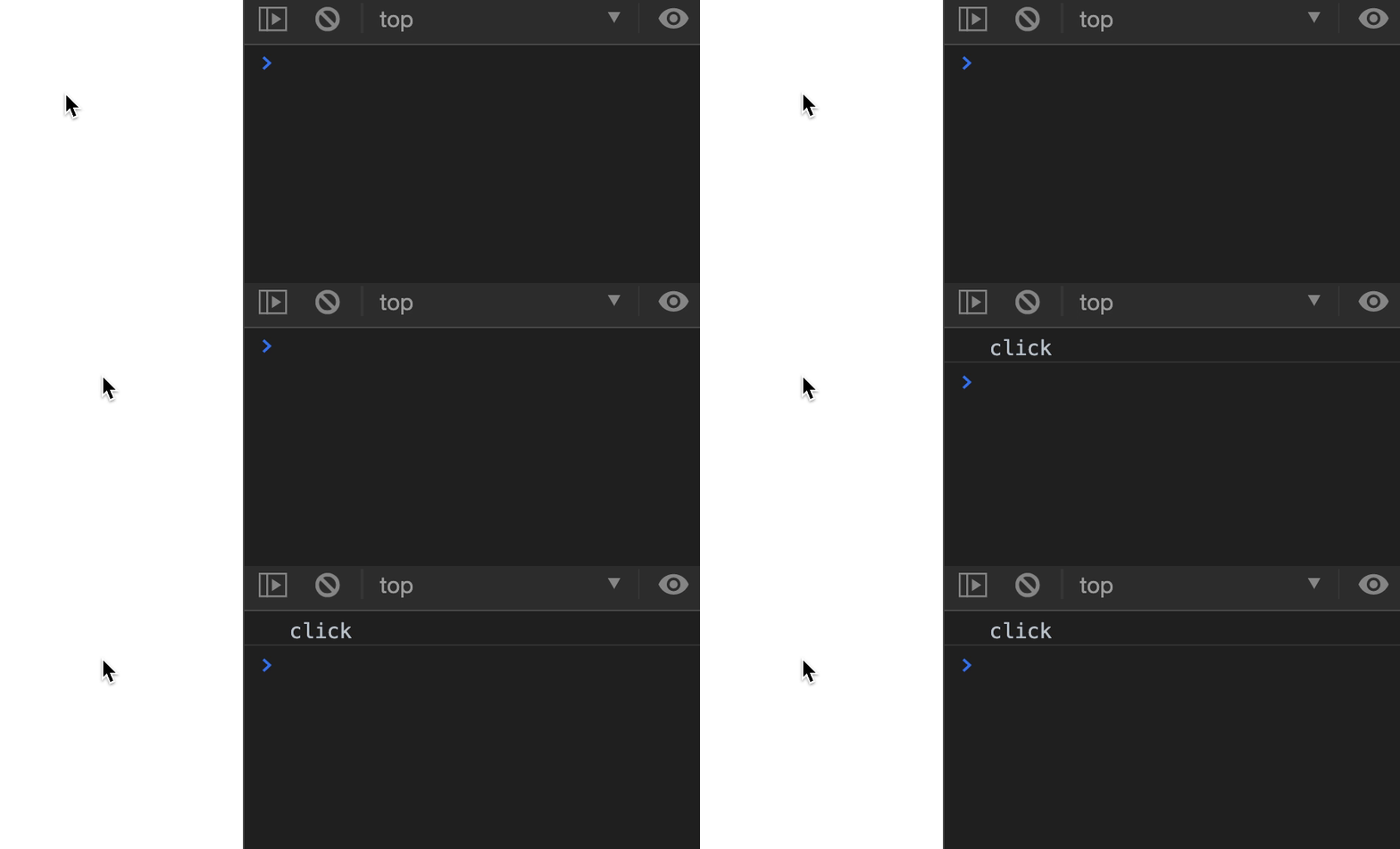
dblclick triggers when you click the primary mouse button two times quickly. There’s no standard on what “quickly” means. However, Microsoft documented “quickly” as 500ms on Windows).
Note: A dblclick event can only be triggered after two click events.
document.addEventListener('click', event => {  console.log('click')})
document.addEventListener('dblclick', event => {  console.log('dblclick')})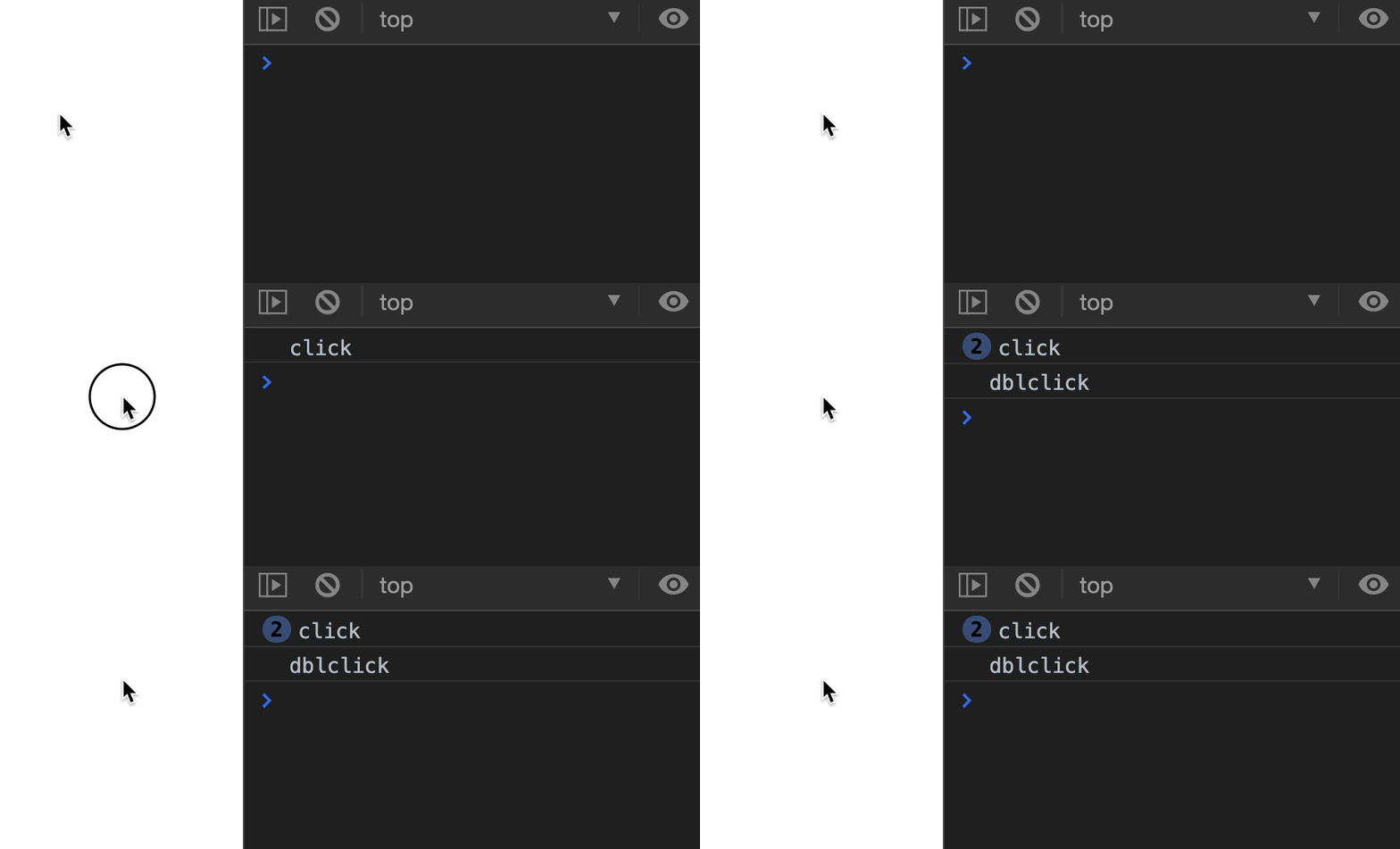
contextmenu triggers when you right click on a mouse to bring up the context menu.
document.addEventListener('contextmenu', event => { console.log('contextmenu')})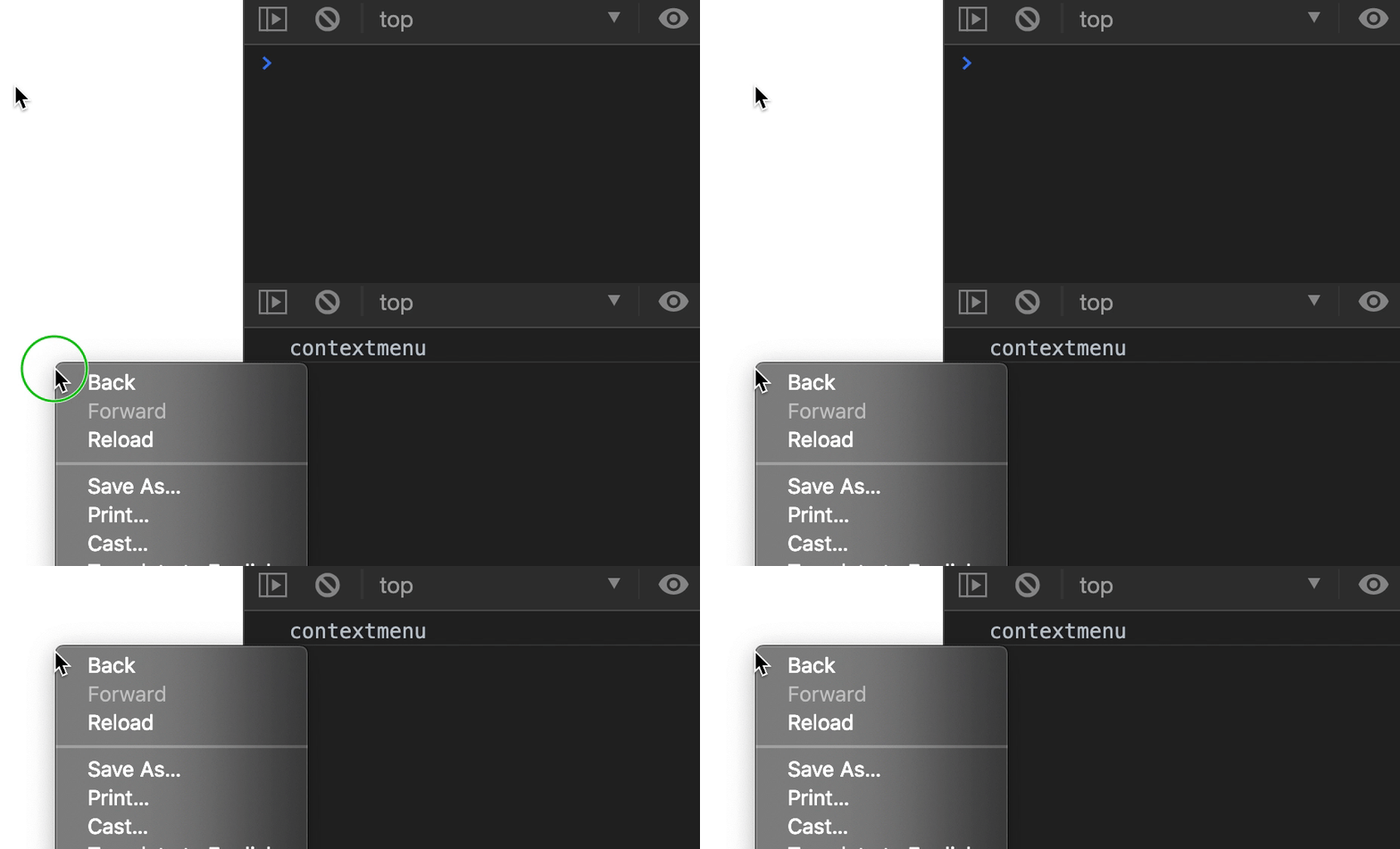
auxclick triggers when you click a mouse button that does not trigger click and contextmenu. In the gif below, I clicked the mouse wheel.
Most websites don’t use auxclick. Also Safari doesn’t support auxclick.
document.addEventListener('auxclick', event => { console.log('auxclick')})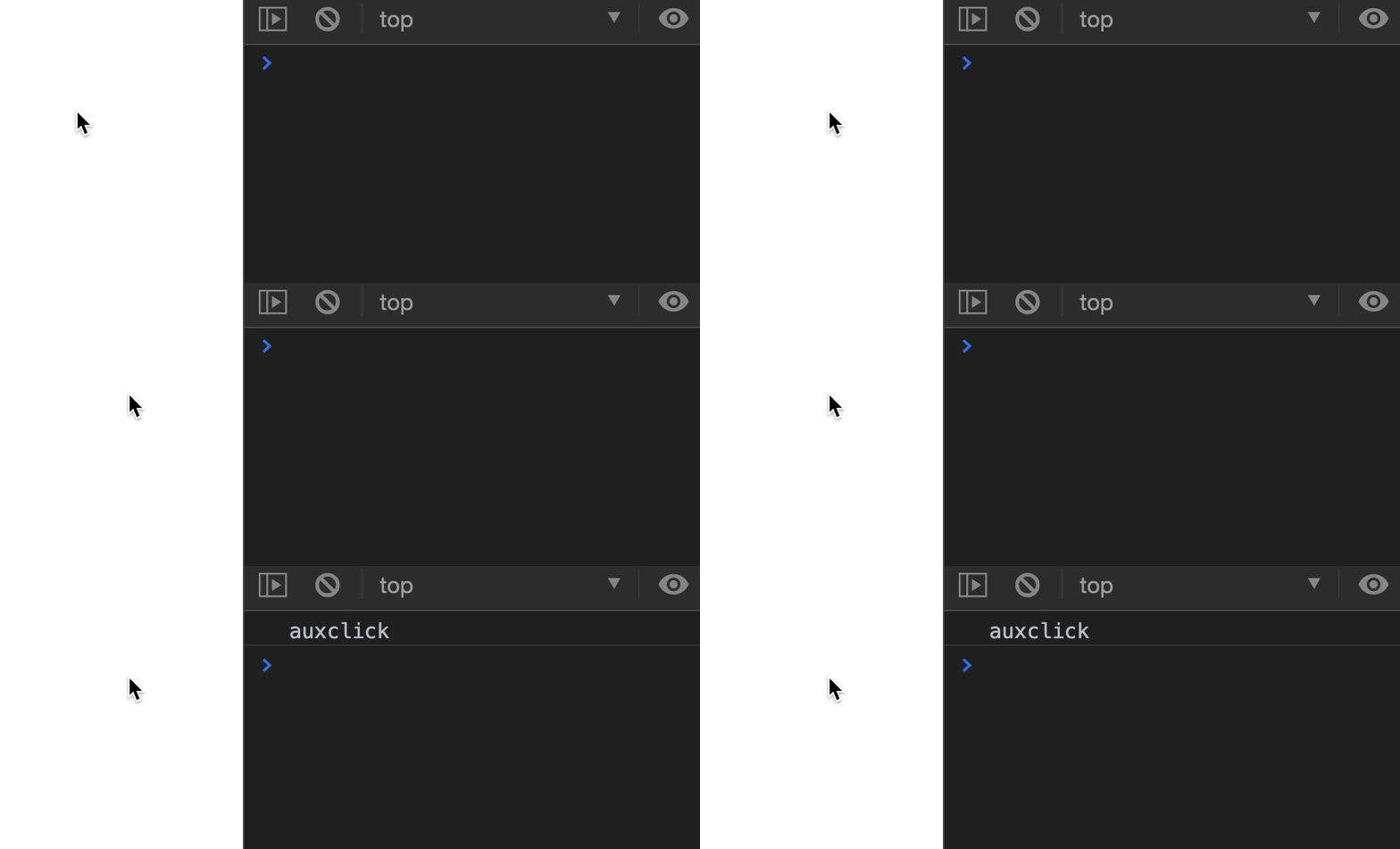
mousedown and mouseup
A mousedown event triggers when you press down a mouse button. All click events begin with mousedown.
A mouseup event triggers when you release a mouse button. It triggers before all click events. There’s one exception: mouseup doesn’t trigger when contextmenu appears.
document.addEventListener('mousedown', event => {  console.log('mousedown')})
document.addEventListener('mouseup', event => {  console.log('mouseup')})
document.addEventListener('click', event => {  console.log('click')})
document.addEventListener('contextmenu', event => {  console.log('contextmenu')})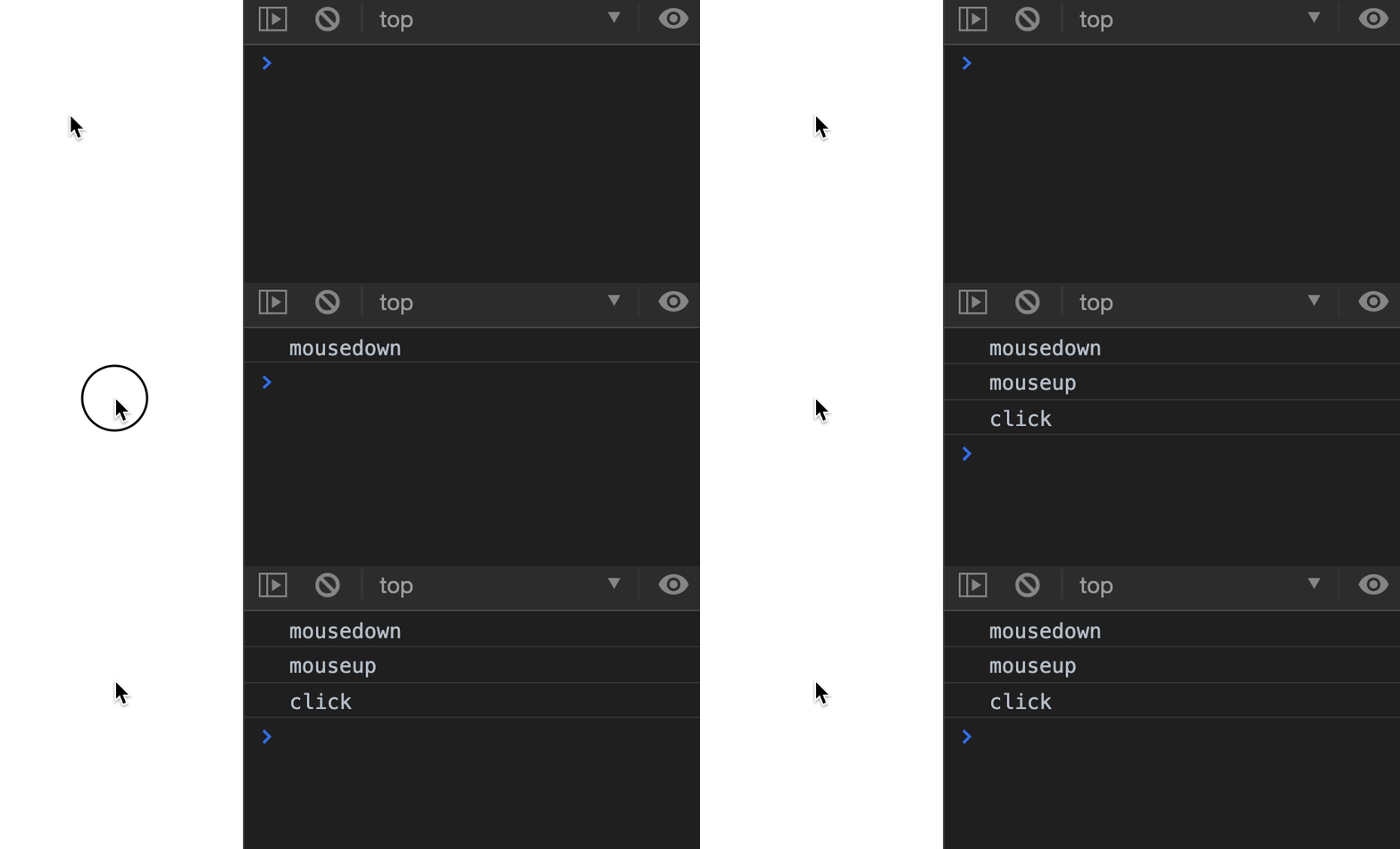
mousedown, followed by mouseup, followed by click 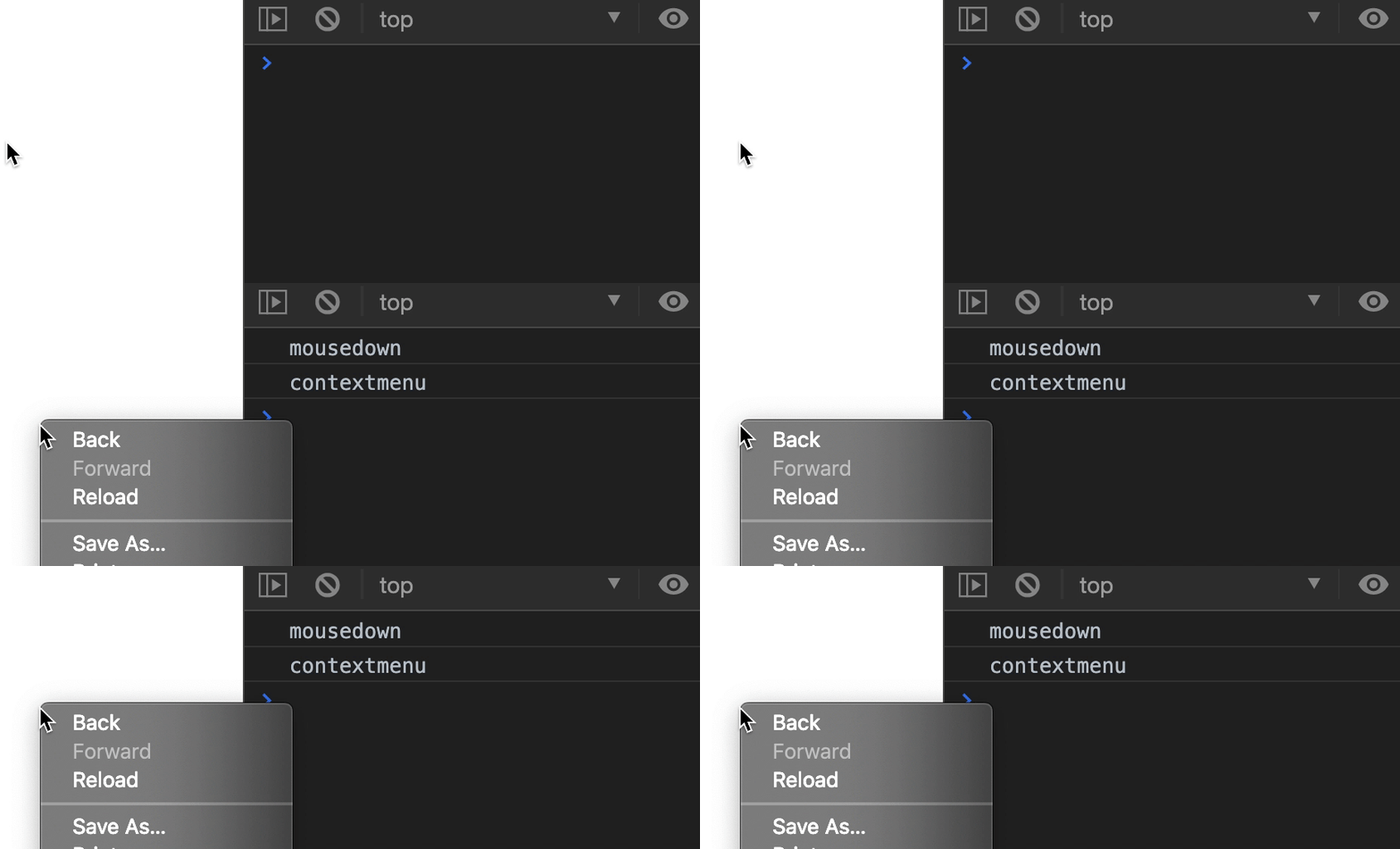
mouseup doesn’t trigger if contextmenu triggers Move-related events
Move events happen when you move a mouse. There are five possible move events:
mousemovemouseentermouseovermouseleavemouseout
Mousemove
mousemove happens when you move the mouse.
document.addEventListener('mousemove', event => { console.log('mousemove')})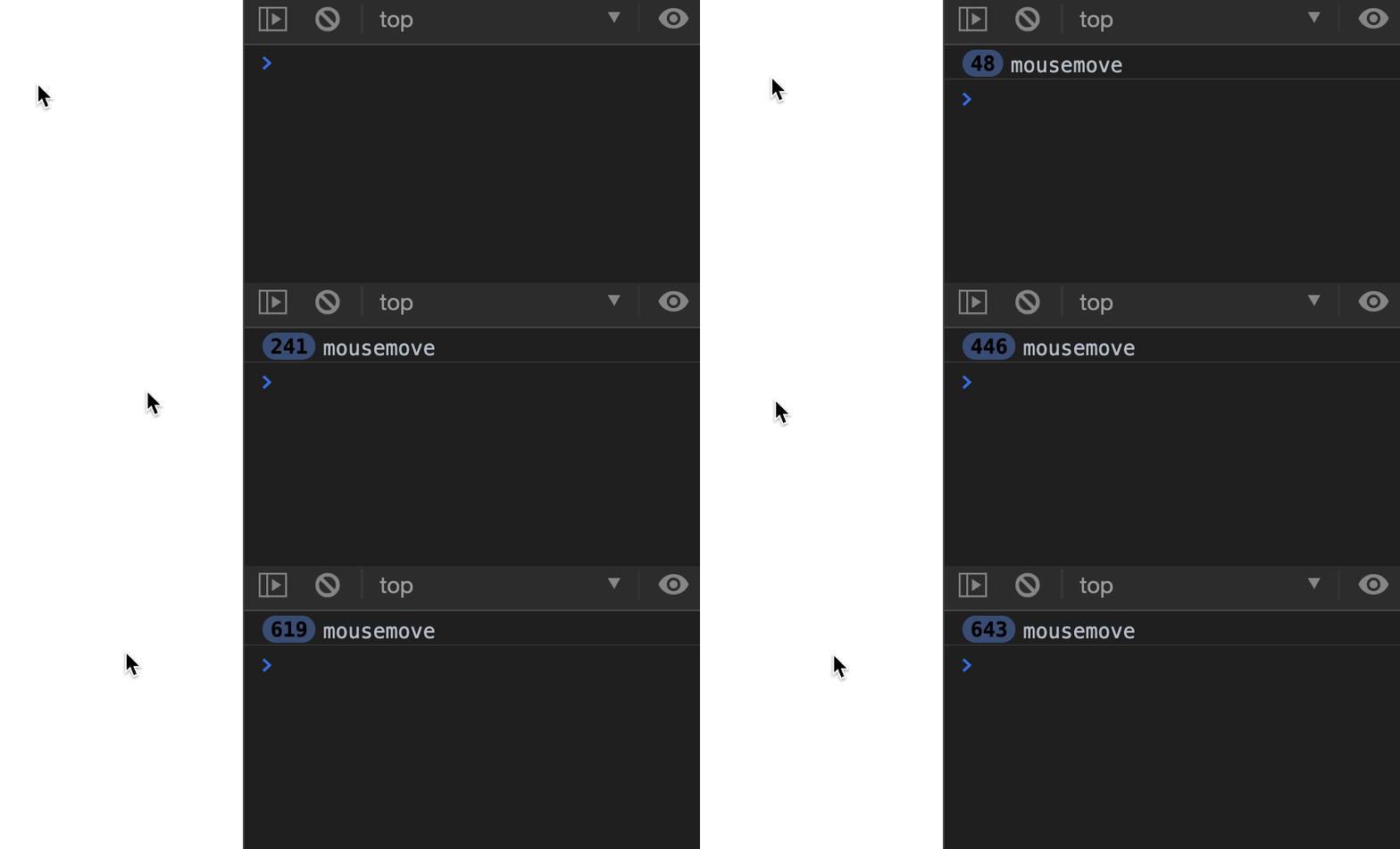
Mouseenter and Mouseover
mouseenter triggers when your mouse moves into an element.
document.addEventListener('mouseenter', event => { console.log('mouseenter')})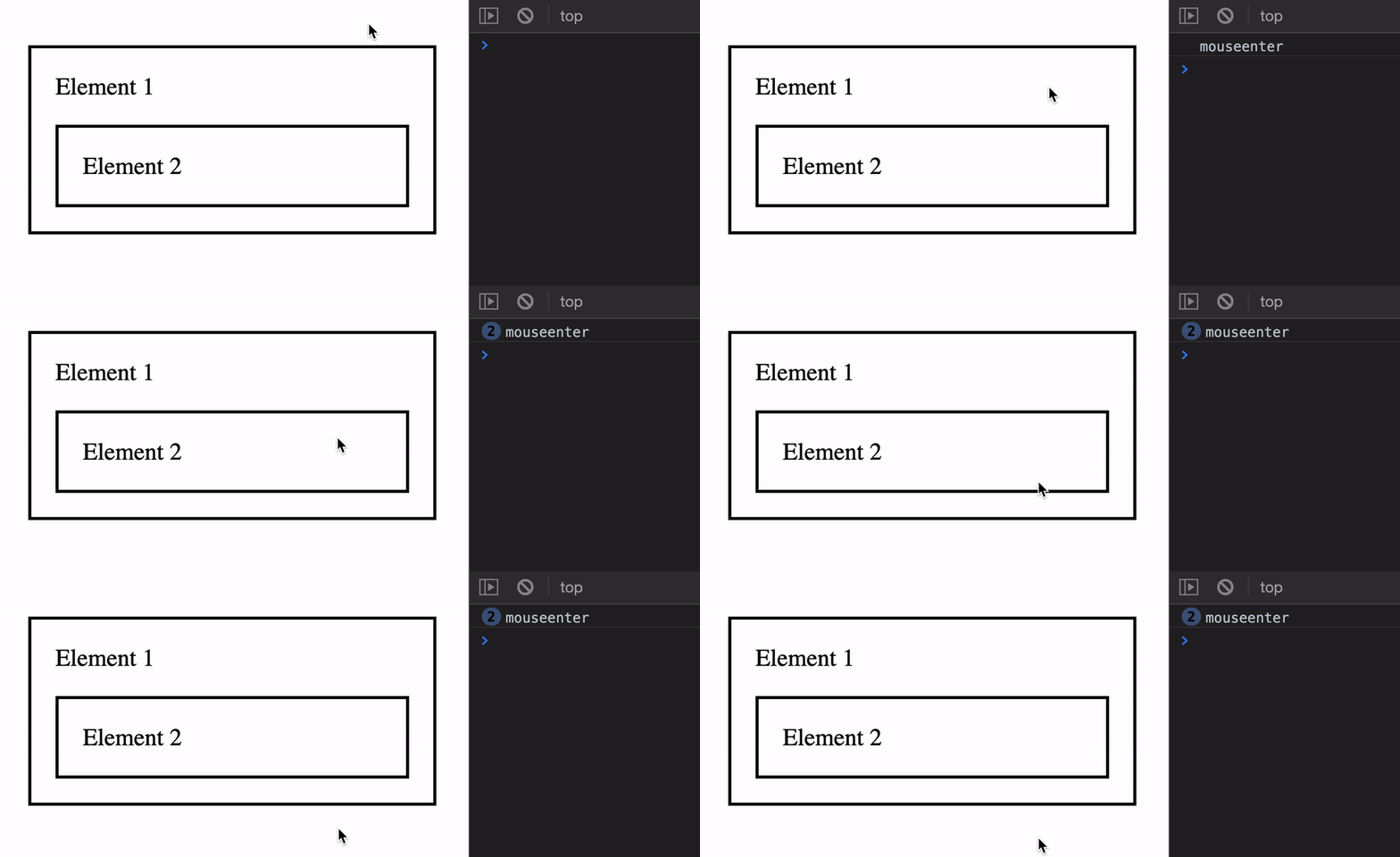
mouseover triggers when your mouse moves over an element.
document.addEventListener('mouseover', event => { console.log('mouseover')})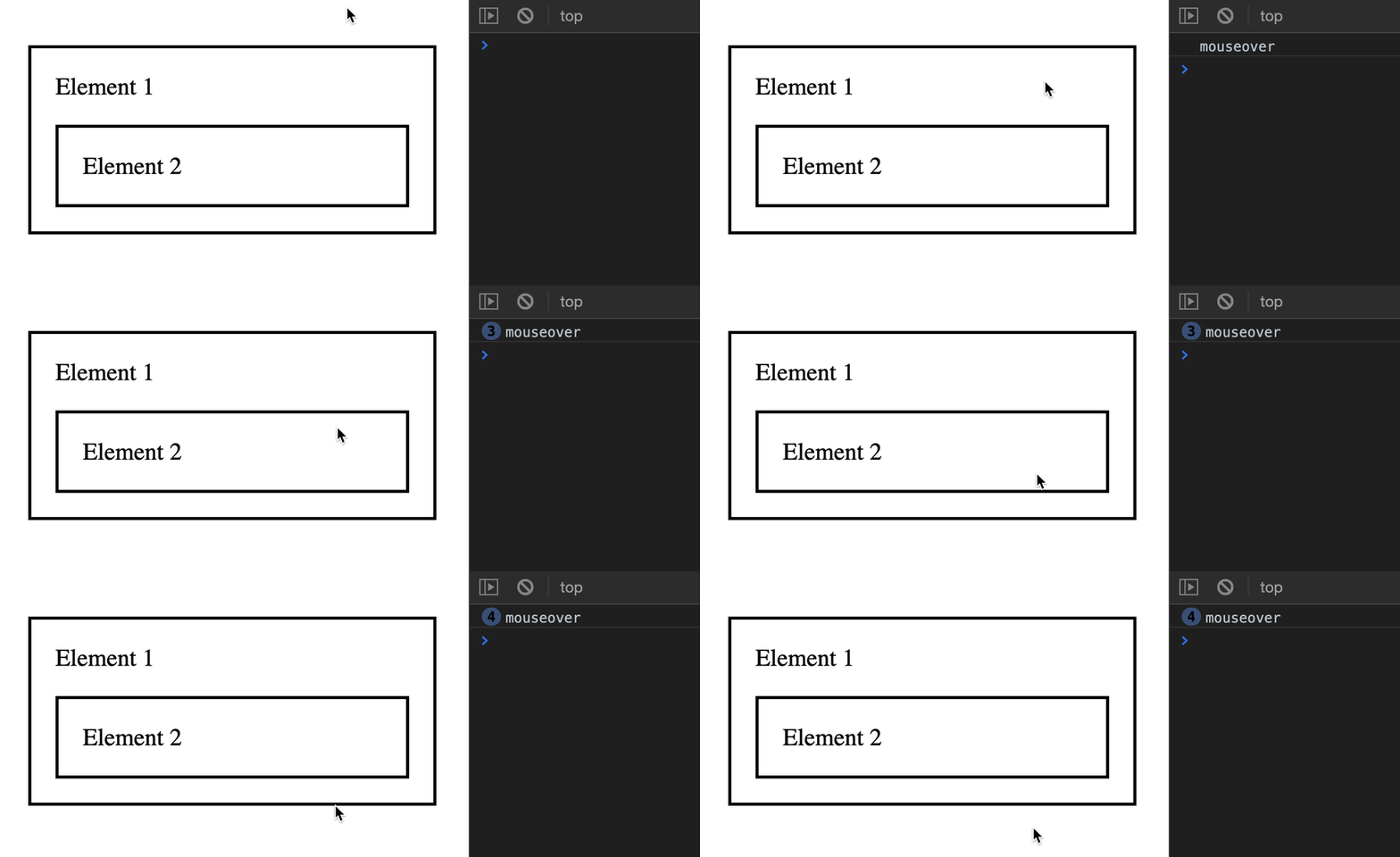
Notice the number of mouseover logs jump from 1 to 3 when the mouse goes into Element 2? This happens because mouseover bubbles.
We can verify the bubbling by logging currentTarget.
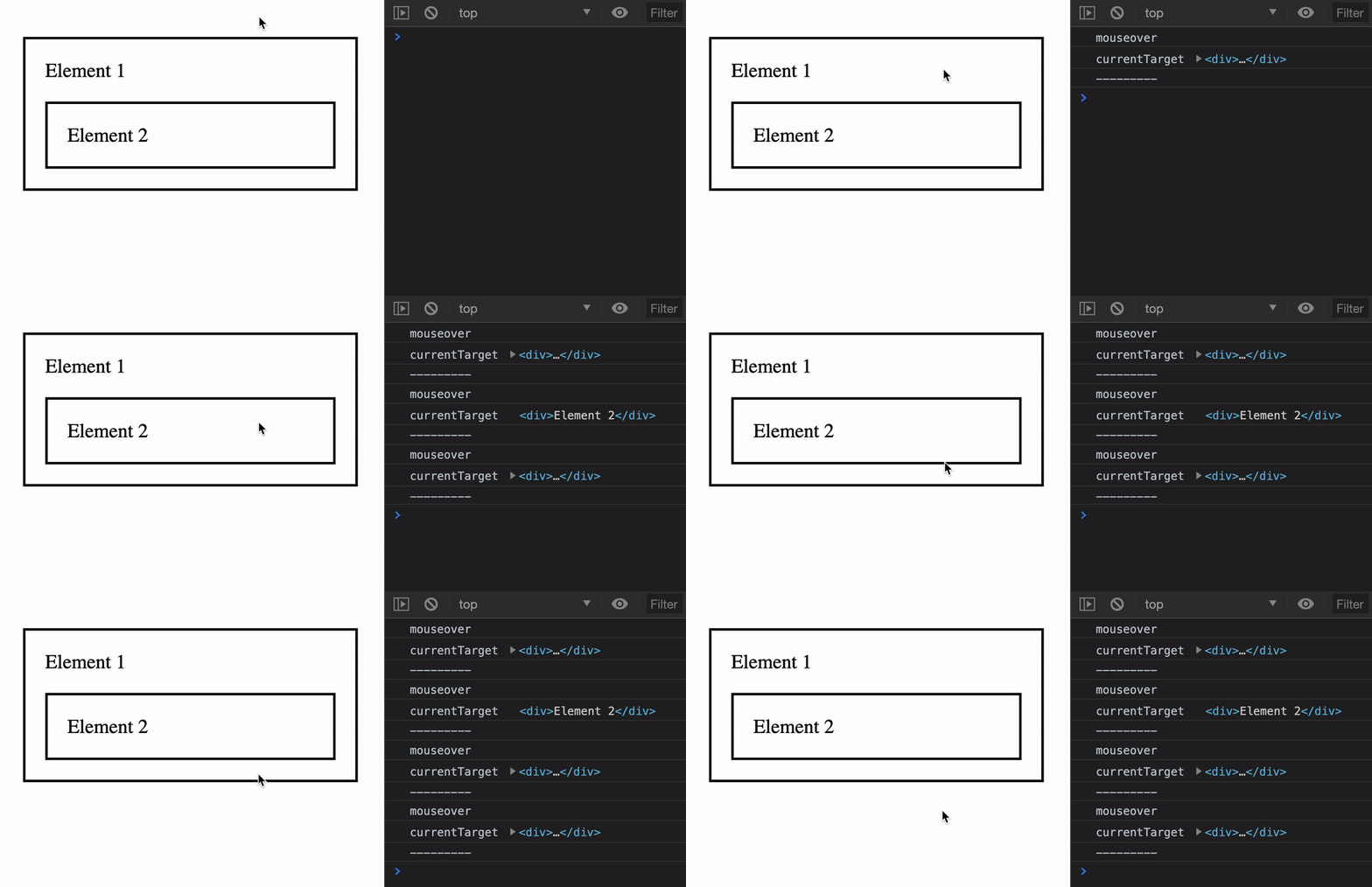
We don’t usually use mouseover because of its bubbling nature. It creates too many events.
Mouseleave and mouseout
mouseleave triggers when your mouse leaves an element.
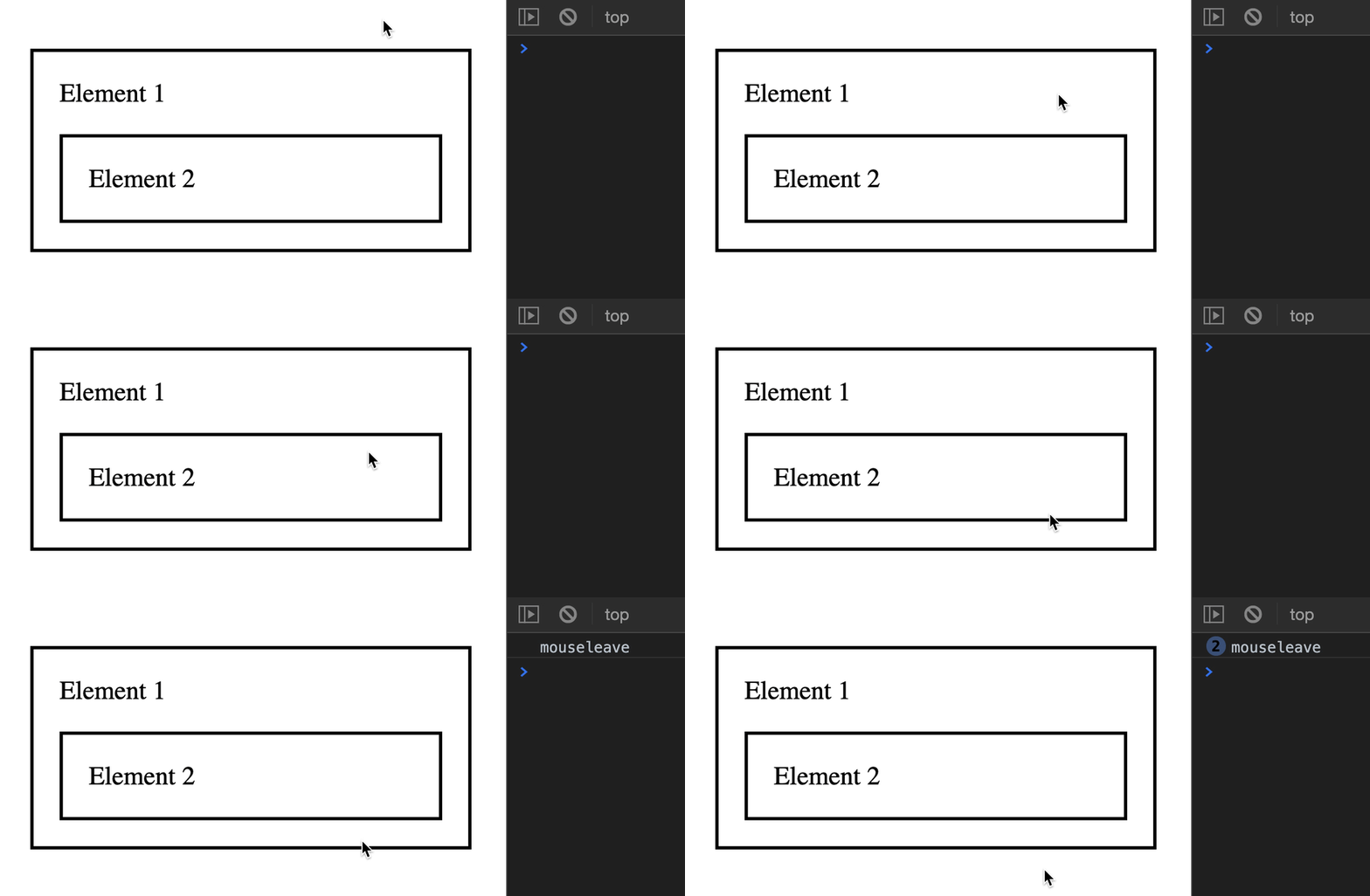
mouseout triggers when two things happen:
- When your mouse moves into a child element
- When your mouse moves out of an element
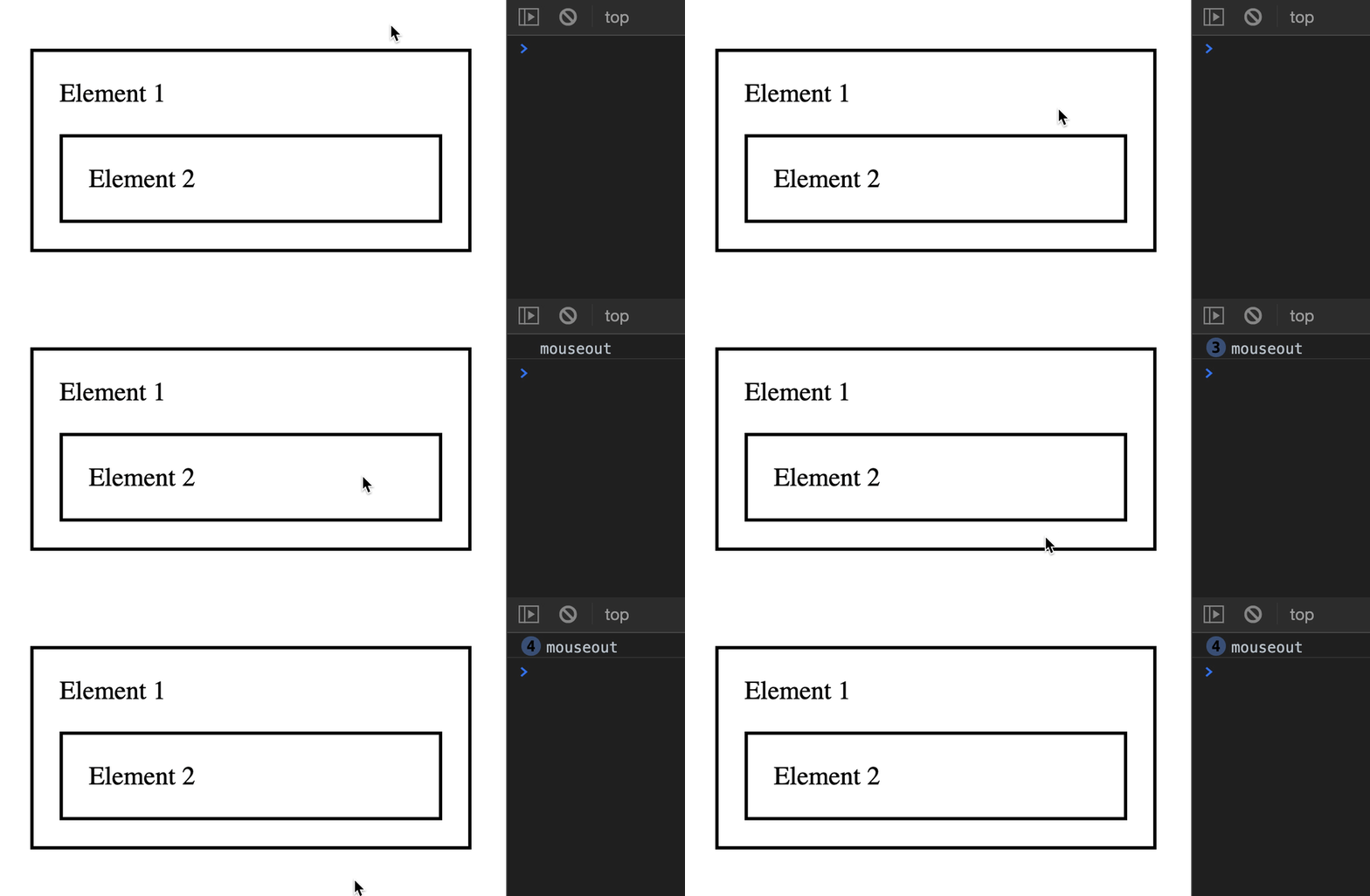
Notice mouseout logs jump from 1 to 3? Like mouseover, mouseout bubbles as well. We can confirm the bubbling by logging the currentTarget.
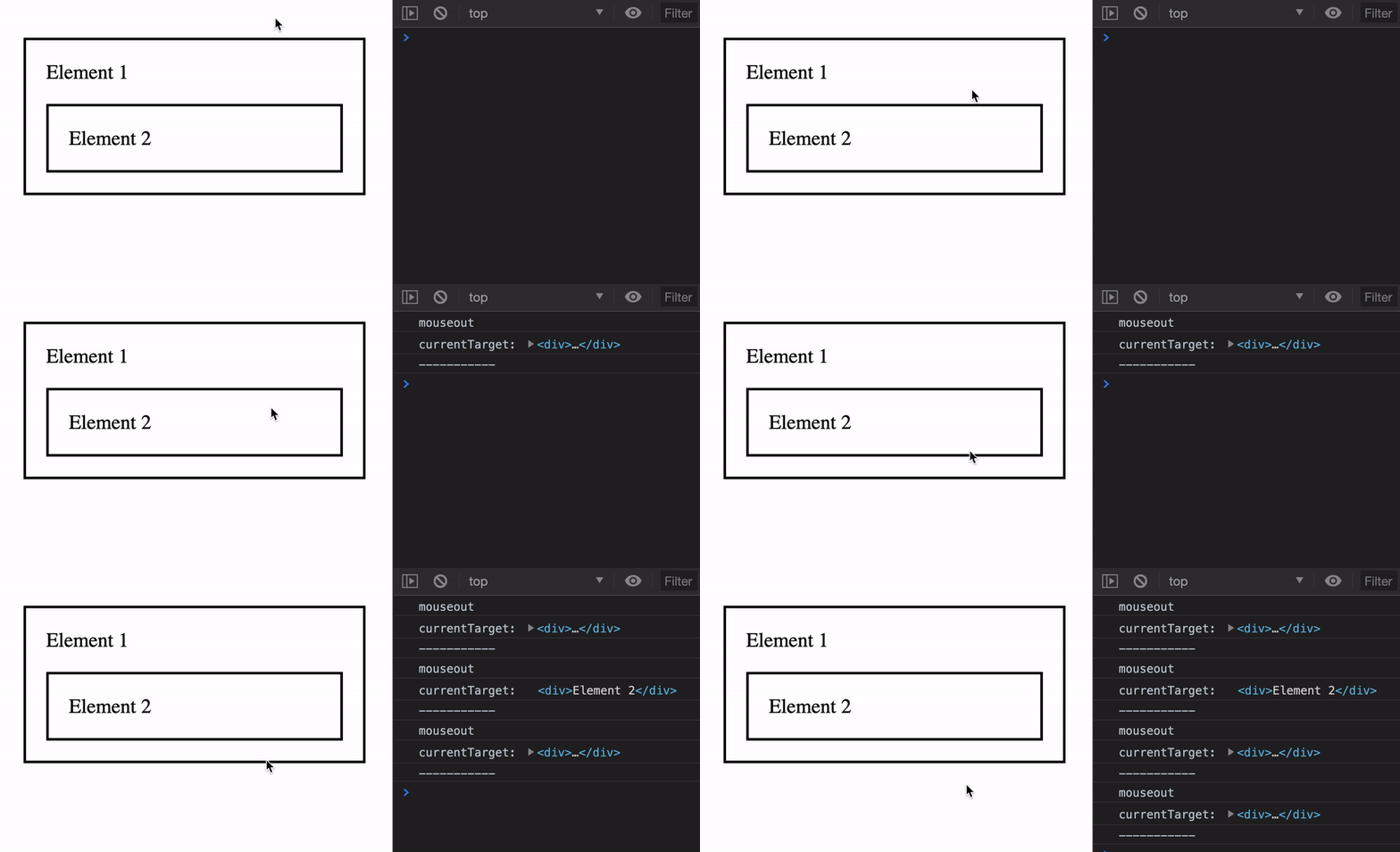
Again, we don’t usually use mouseout because of its bubbling nature. It creates too many events.
Mouse event properties
Mouse-related event properties can be categorized into 4 groups:
- Position of the mouse cursor
- Indication of keyboard modifiers
- Indication of mouse button
- Canvas
Position of the mouse cursor
There are 5 groups of methods that gives you the position of a mouse cursor:
pageX&pageY: Position of mouse relative to the pageclientX&clientY: Position of mouse relative to the DOMscreenX&screenY: Position of mouse relative to the screenoffsetX&offsetY: Position of mouse relative topaddingedge of the target nodemovementX&movementY: Position of mouse relative to the previousmousemoveevent
Note: pageX & pageY and clientX & clientY the same for most cases. But if you trigger the mouse event from an <iframe>, clientX & clientY can detect the mouse position from the <iframe>.
Feel free to use clientX and clientY over pageX and pageY.
Indication of keyboard modifiers
You can detect whether a keyboard modifier is pressed when the event triggers. These should be familiar to you since you’ve done the Keyboard module.
altkey: Whether the Alt key is pressedctrlKey: Whether the Control key is pressedmetaKey: Whether Command (Mac) or Windows (Win) is pressedshiftKey: Whether the Shift key is pressed
Indication of mouse buttons
You can tell which mouse button pressed by these two properties:
button: The button number that was pressedbuttons: Number of each button that are pressed
We rarely use this, but I’m including it for the sake of completeness. See this to understand what each button number refers to.
Indication of canvas
event.region gives you the <canvas> element if you’re inside on. You will only need it if you use the <canvas> element.
We won’t use it in this course.
Welcome! Unfortunately, you don’t have access to this lesson. To get access, please purchase the course or enroll in Magical Dev School.
Unlock this lesson