You can set three options for an Intersection Observer:
rootrootMarginthreshold
Root
root is the element you use to check if the observed elements are visible. It defaults to the browser window.
You can change root to any element. For example, you can set root to a scrollable element.
<div class="scrollable"> <ul> <li class="red box"></li> <li class="orange box"></li> <li class="blue box"></li> </ul></div>const options = { root: document.querySelector('.scrollable'),}
function callback(entries) { entries.forEach(entry => { console.log(entry) })}
const observer = new IntersectionObserver(callback, options)
const boxes = document.querySelectorAll('.box')boxes.forEach(box => observer.observe(box))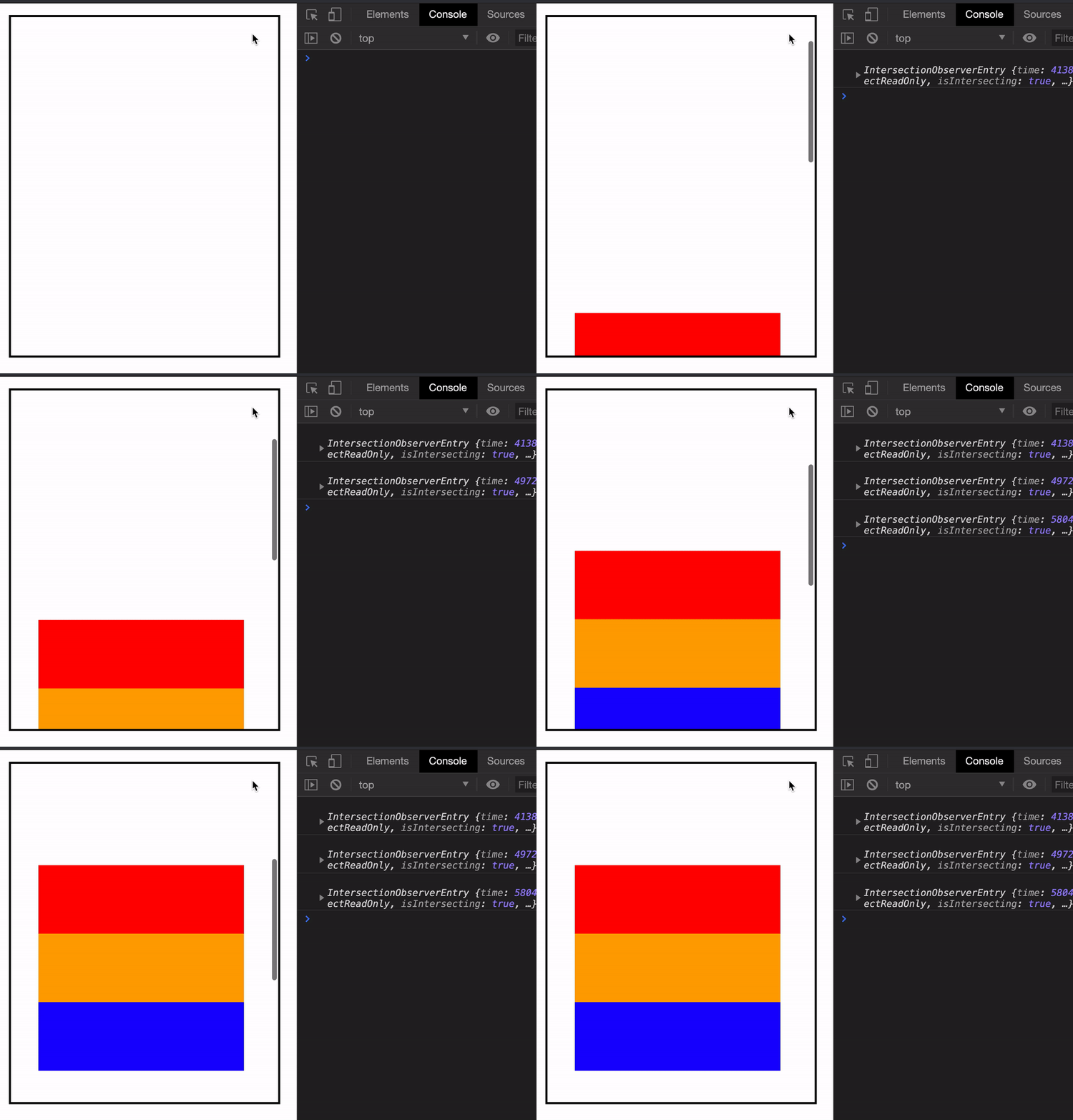
You might not need to change root
Here’s the interesting thing. If you create an Intersection Observer on the browser’s window, you can still observe elements inside a scrollable element.
Entries will be created when they appear.
const observer = new IntersectionObserver(callback)
const boxes = document.querySelectorAll('.box')boxes.forEach(box => observer.observe(box))
So when will you change root?
You will only change root if you need to do something when these two things happen together:
- You want to observe from a scrollable element.
- You want to fine-tune when to log an entry with
rootMargin
This brings us to rootMargin.
rootMargin
rootMargin lets you specify an offset amount from the edges of the root. By default, this amount is set to 0px. You can set it to a px or % value.
- Positive values: Expand the root outwards
- Negative values: Contract the root inwards
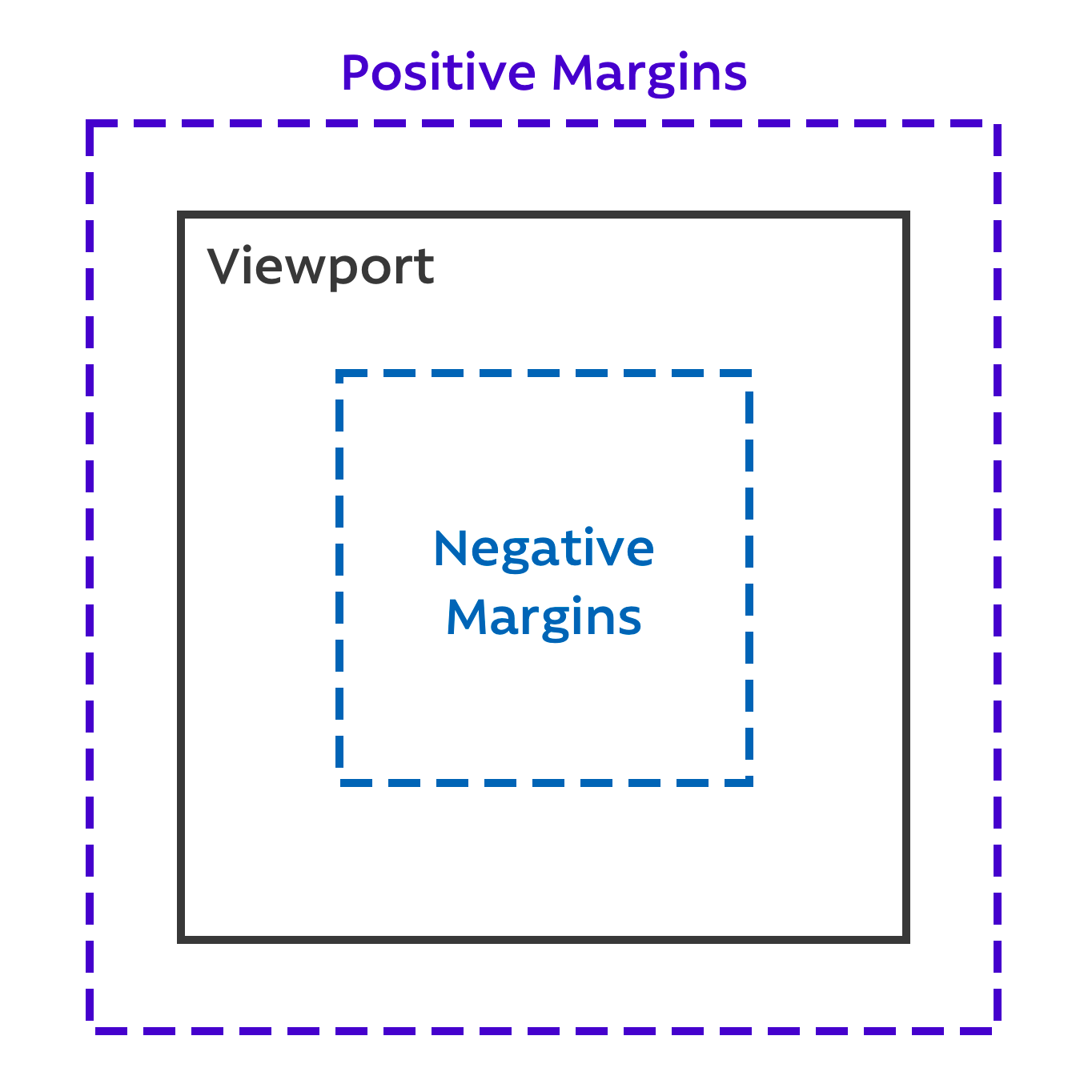
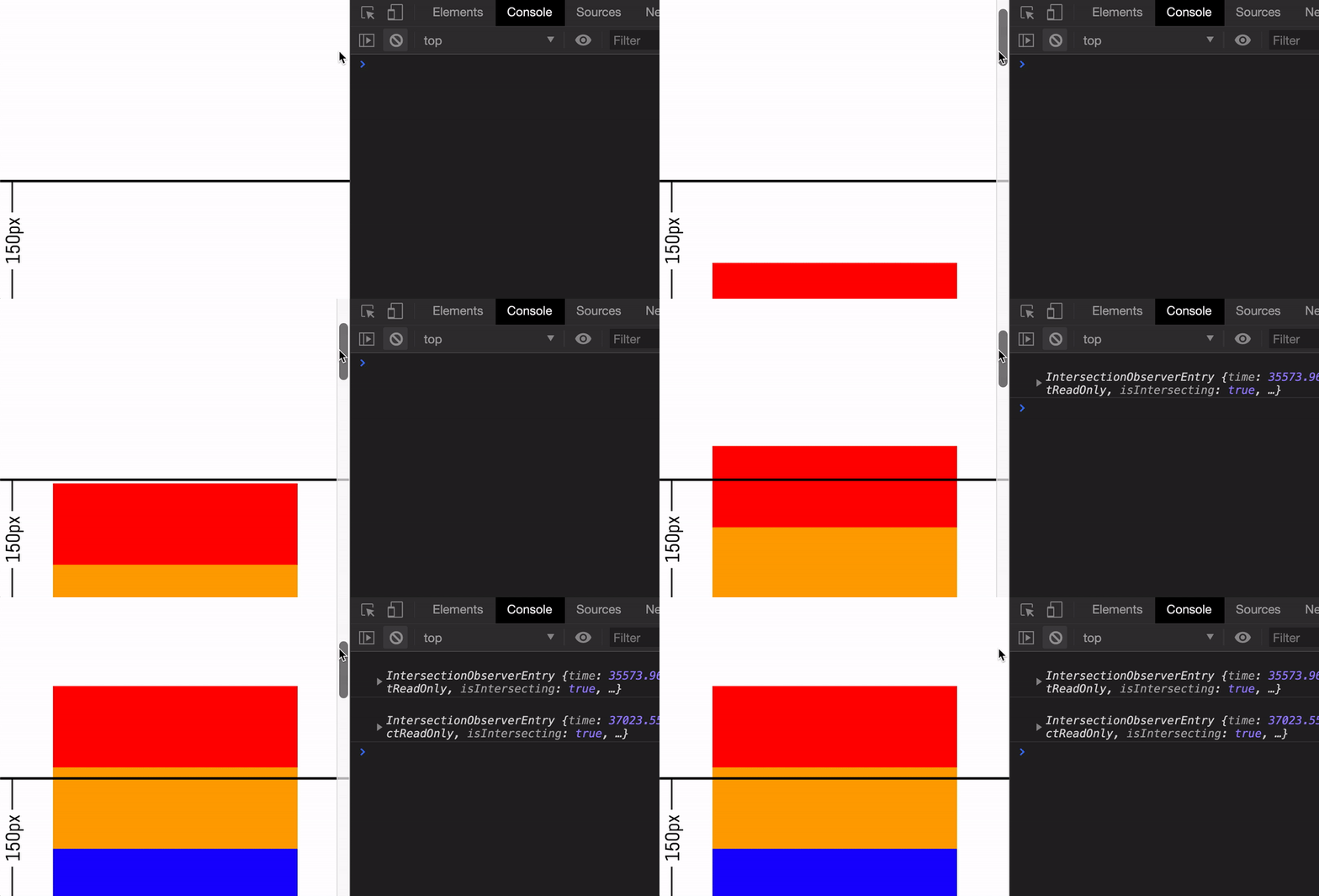
For example, let’s say you want to create entries only if an element has scrolled 150px into the viewport. You can set rootMargin to -150px.
<ul style="margin-top: 101vh"> <li class="red box"></li> <li class="orange box"></li> <li class="blue box"></li></ul>function callback(entries) { entries.forEach(entry => { console.log(entry) })}
const observer = new IntersectionObserver(callback, { rootMargin: '-150px',})This is what you’ll see:
Precise control over each direction
You can specify rootMargin for top, right, bottom, and left directions. You do this with CSS’s margin shorthand.
// Sets all four sides to -150px{  rootMargin: '-150px'}
// Sets top & bottom to -150px, left and right to -75px{  rootMargin: '-150px -75px'}
// Sets top to -150px left and right to -75px, bottom to -50px{  rootMargin: '-150px -75px -50px'}
// Sets top to -150px; right to -75px, bottom to -50px, left to -25px{  rootMargin: '-150px -75px -50px -25px'}
Threshold
Threshold logs an entry when a specific % of the element is visible. It’s a number that ranges from 0 to 1.
0: Creates anentrywhen0%mark of the observed element intersects the root. This is the default value.1: Creates anentrywhen100%of the observed element intersects the root.
Pay attention to the difference between threshold: 0 and threshold: 1.
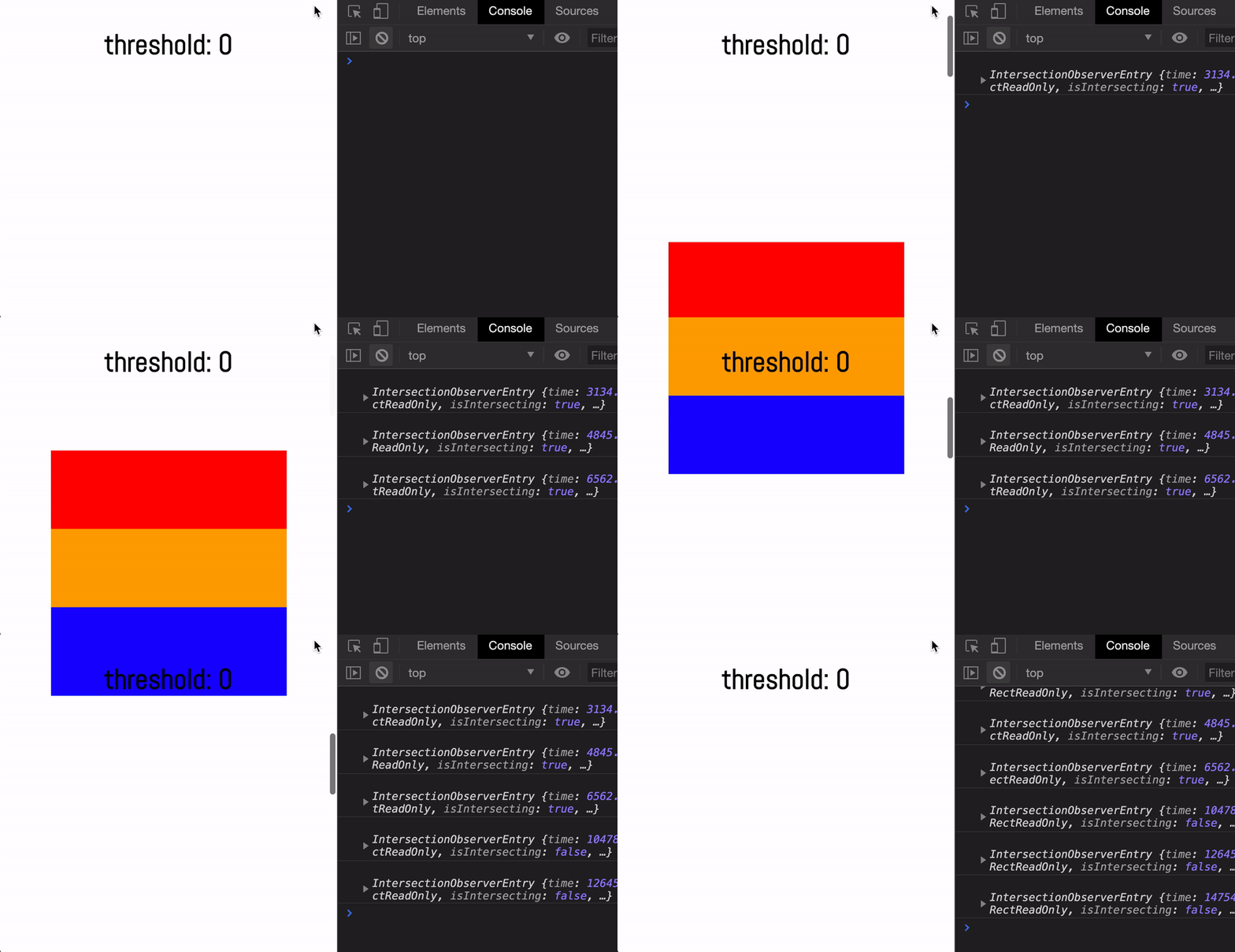
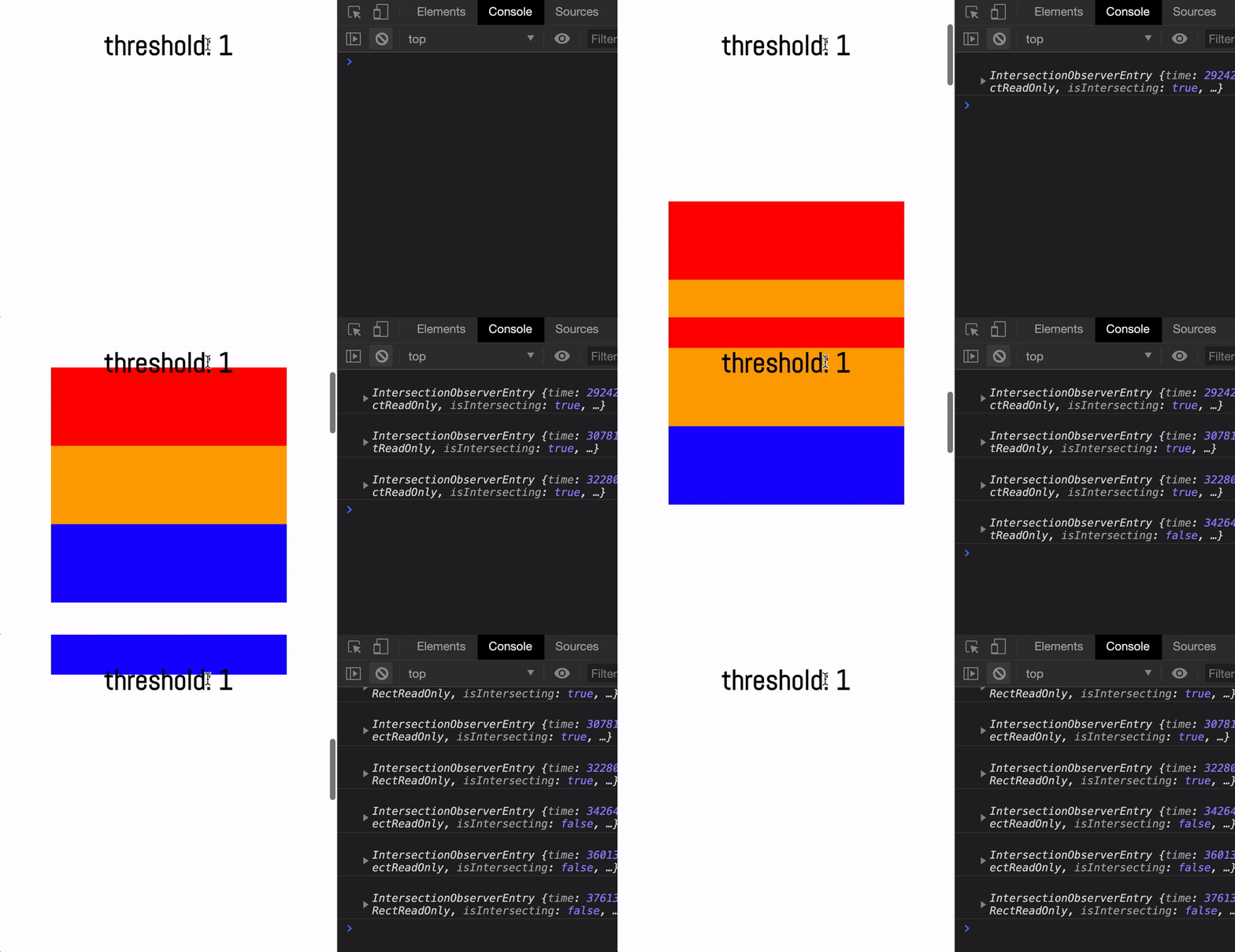
threshold:0:- Entry created when top of element reaches bottom of root
- Entry created when bottom of element reaches top of root
threshold: 1:- Entry created when bottom of element crosses bottom of root
- Entry created when top of element crosses top of root
You can set threshold to an array. This creates an entry when the observed element crosses each threshold.
const observer = new IntersectionObserver(callback, { threshold: [0, 1],})threshold [0, 1]:- Entry created when top of element reaches bottom of root
- Entry created when bottom of element reaches top of root
- Entry created when bottom of element crosses bottom of root
- Entry created when top of element crosses top of root
Entry properties
The remaining 2 entry properties would make sense now:
rootBounds: The root element’sboundingClientRect(which is determined byrootandrootMargin.intersectionRectArea where theboundingClientRectandrootBoundsoverlap.
Exercise
- For
rootMargin:- Set
rootMarginto the following values. Observe when entries trigger.0px150px-150px
- Set
- For
threshold- Set
thresholdto the following values. Observe when entries trigger.00.51[0, 1][0, 0.5, 1]
- Set
Welcome! Unfortunately, you don’t have access to this lesson. To get access, please purchase the course or enroll in Magical Dev School.
Unlock this lesson