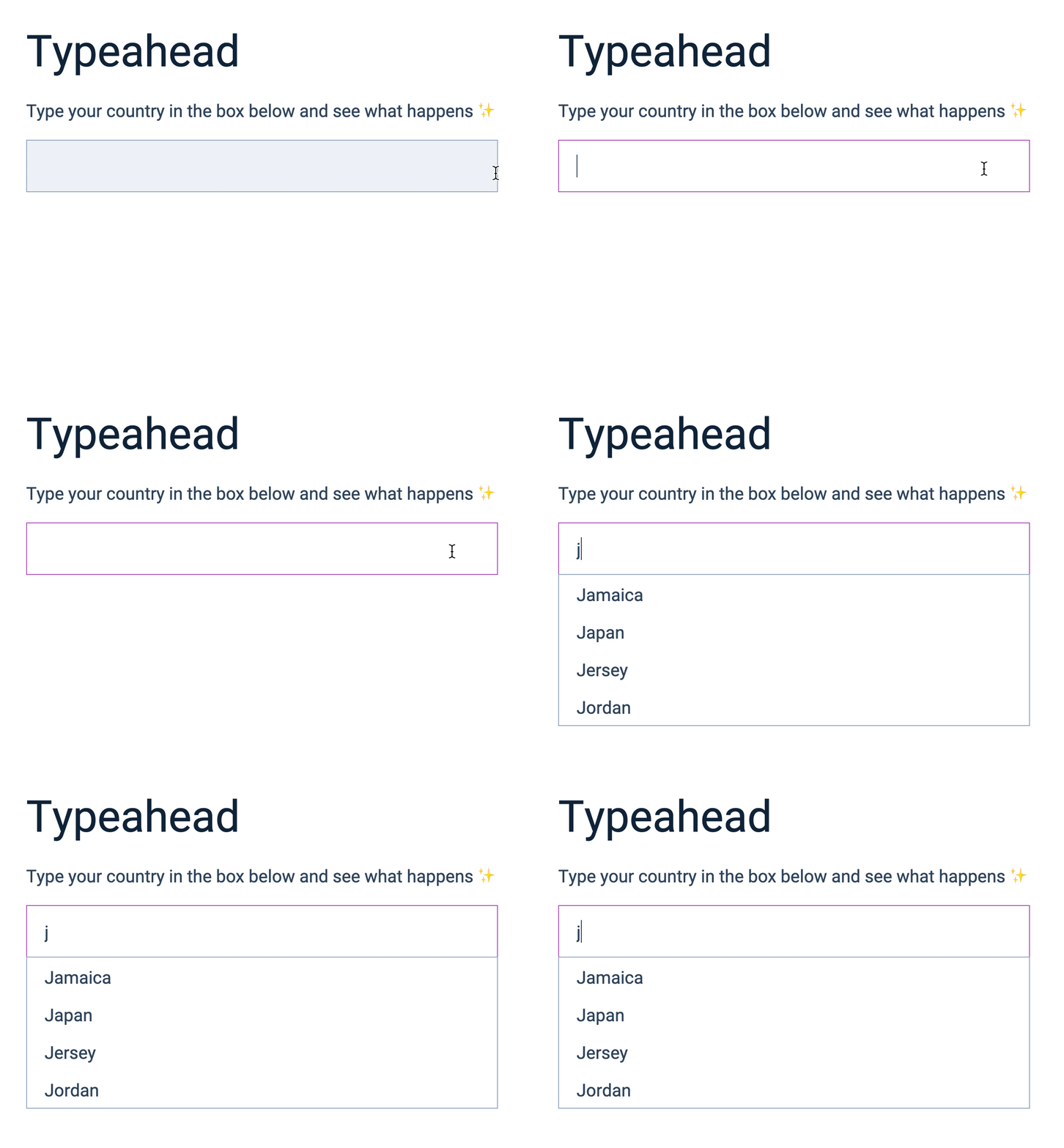
For this Typeahead, we want to help users search for a country. If they enter J into the Typeahead, we show countries that begin with J.
A list of countries
To predict what users are typing, you need a list of possible choices. Since we’re helping users type a country, we need to have a list of countries in the world.
And we have this list already. You can find it in your JavaScript file.
const countries = [ // ... { name: 'Japan' }, { name: 'Jersey' }, // ...]Showing a list of predictions
To show a list of predictions, we need to:
- Find out what the user typed
- Filter countries according to what they typed
- Make HTML elements for each prediction
- Show the list
Finding out what the user typed
We need to get what the user typed immediately after they type into the input field. Here, we can use the input event.
const typeahead = document.querySelector('.typeahead')const input = typeahead.querySelector('input')
input.addEventListener('input', event => {  // Get what the user typed})
We’ll use the value property to get what the user typed. We’ll also use trim to remove any whitespace that’s present.
input.addEventListener('input', event => { // Get what the user typed const input = event.target const inputValue = input.value.trim() console.log(inputValue)})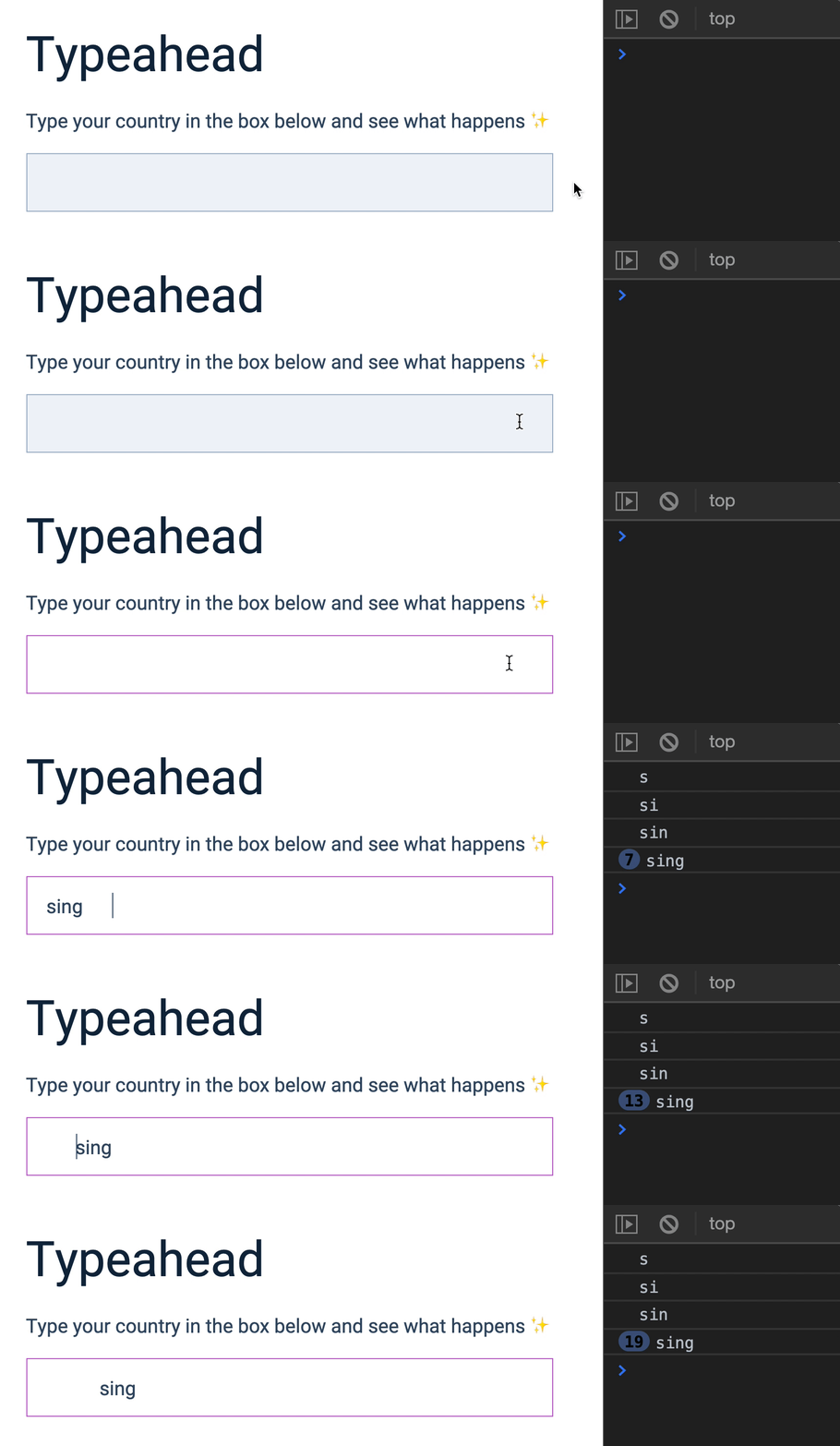
Filtering the list of countries
If the user typed J into the Typeahead. We want to show a list of countries that begin with J. Here, we have Jamaica, Japan, Jersey, and Jordan.
We can use startsWith to check if a country starts with J. startsWith lets you check whether a string starts with the string you specified.
'My name'.startsWith('M') // true'My name'.startsWith('My') // true'My name'.startsWith('Z') // falseWe’ll use filter to filter the countries array.
input.addEventListener('input', event => {  // ...
  const matches = countries.filter(country => {    const name = country.name    return name.startsWith(inputValue)  })
  console.log(matches)})
If you typed J into the Typehead, you’ll see the four countries I mentioned.
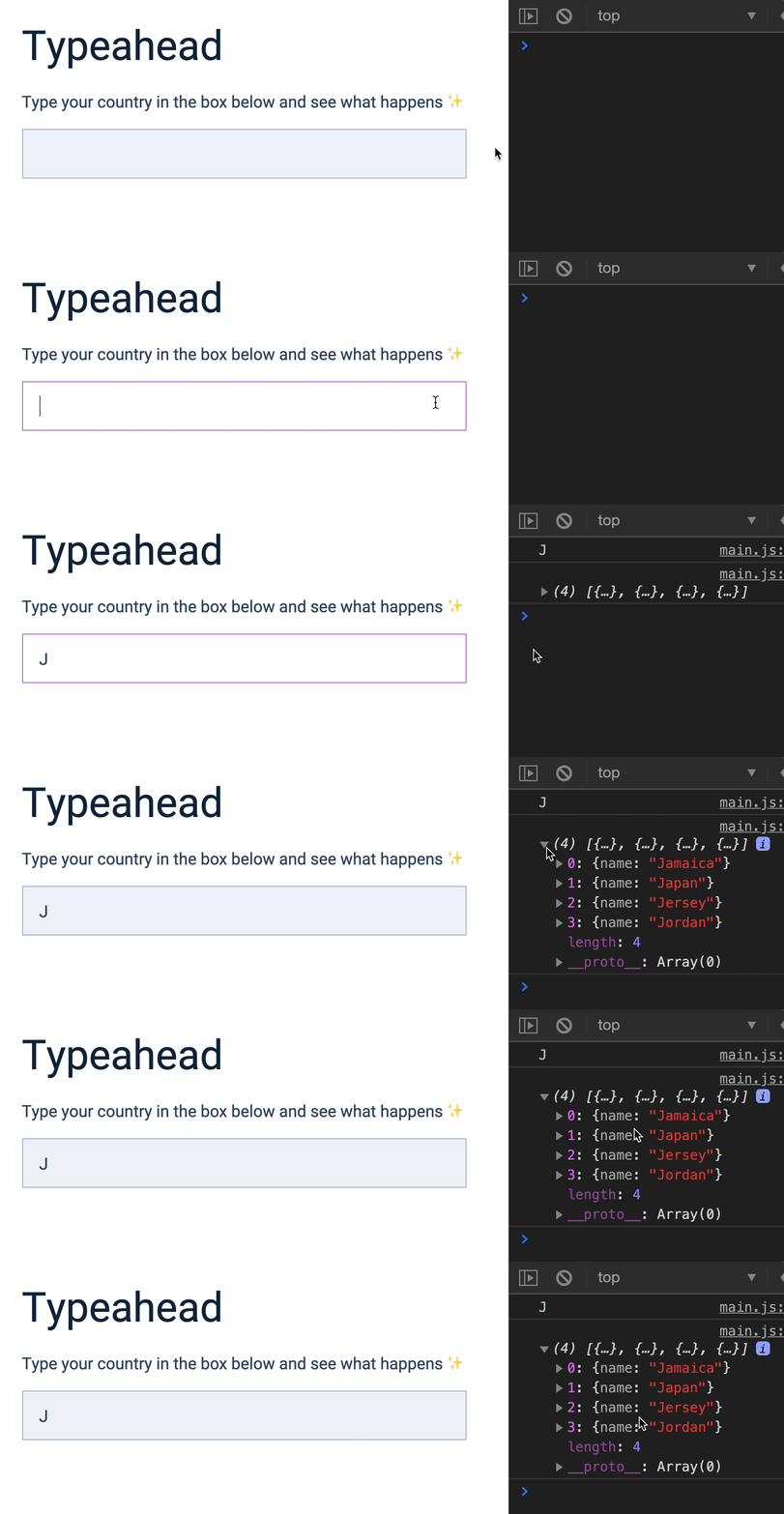
But if you typed j (lower case) into the Typeahead, you’ll see nothing.
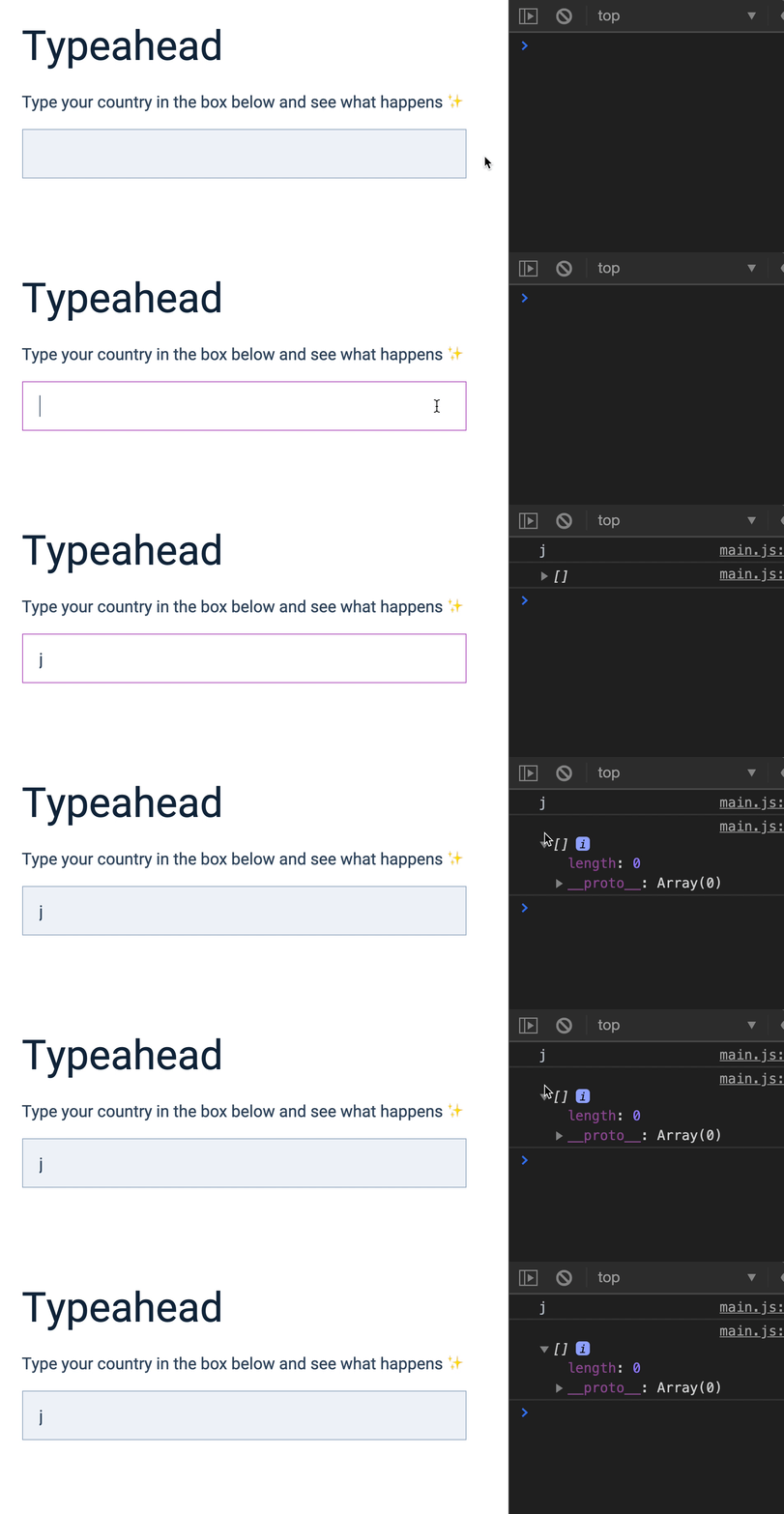
This is because startsWith is case sensitive. You need to make sure the cases match.
'My name'.startsWith('M') // true'My name'.startsWith('m') // falseTo make sure cases match, we can convert both inputValue and country.name to lower case.
input.addEventListener('input', event => {  // ...  const inputValue = input.value.trim().toLowerCase()
  const matches = countries.filter(country => {    const name = country.name.toLowerCase()    return name.startsWith(inputValue)  })})
Both J and j should match Jamaica, Japan, Jersey, and Jordan now.
Making HTML Elements
We want to create a list of elements to show in the DOM. Each country element we create should be a <li> because we will put them inside an <ul>.
Here’s the HTML we need:
<ul> <li>Jamaica</li> <li>Japan</li> <li>Jersy</li> <li>Jordan</li></ul>There are two methods to create this list.
First method:
- Create a
<li>withdocument.createElementfor each country inmatches - Add
country.nameas the<li>’s textContent - Add each
<li>to<ul>withappendChild
The second method:
- Create an array of
<li>elements withmap - Convert the array into a string with
join - Assign the HTML string to
.typeahead’s list innerHTML
You already know how to do the first method. We’ll practice the second method for the Typeahead.
Here, you need to create an array that contains the necessary innerHTML.
// This is what we wantconst listItems = [ '<li>Jamaica</li>', '<li>Japan</li>', '<li>Jersey</li>', '<li>Jordan</li>',]You already have an array of objects that contain the name of each country.
console.log(matches)// [// { name: 'Jamaica' },// { name: 'Japan' },// { name: 'Jersey' },// { name: 'Jordan' },// ]You can get the array by running matches through a map function. In the map function, we’ll extract the country’s name from each country object. And we will wrap them inside <li> element.
input.addEventListener('input', event => {  // ...  const listItems = matches.map(country => {    return `<li>${country.name}</li>`  })
  console.log(listItems)})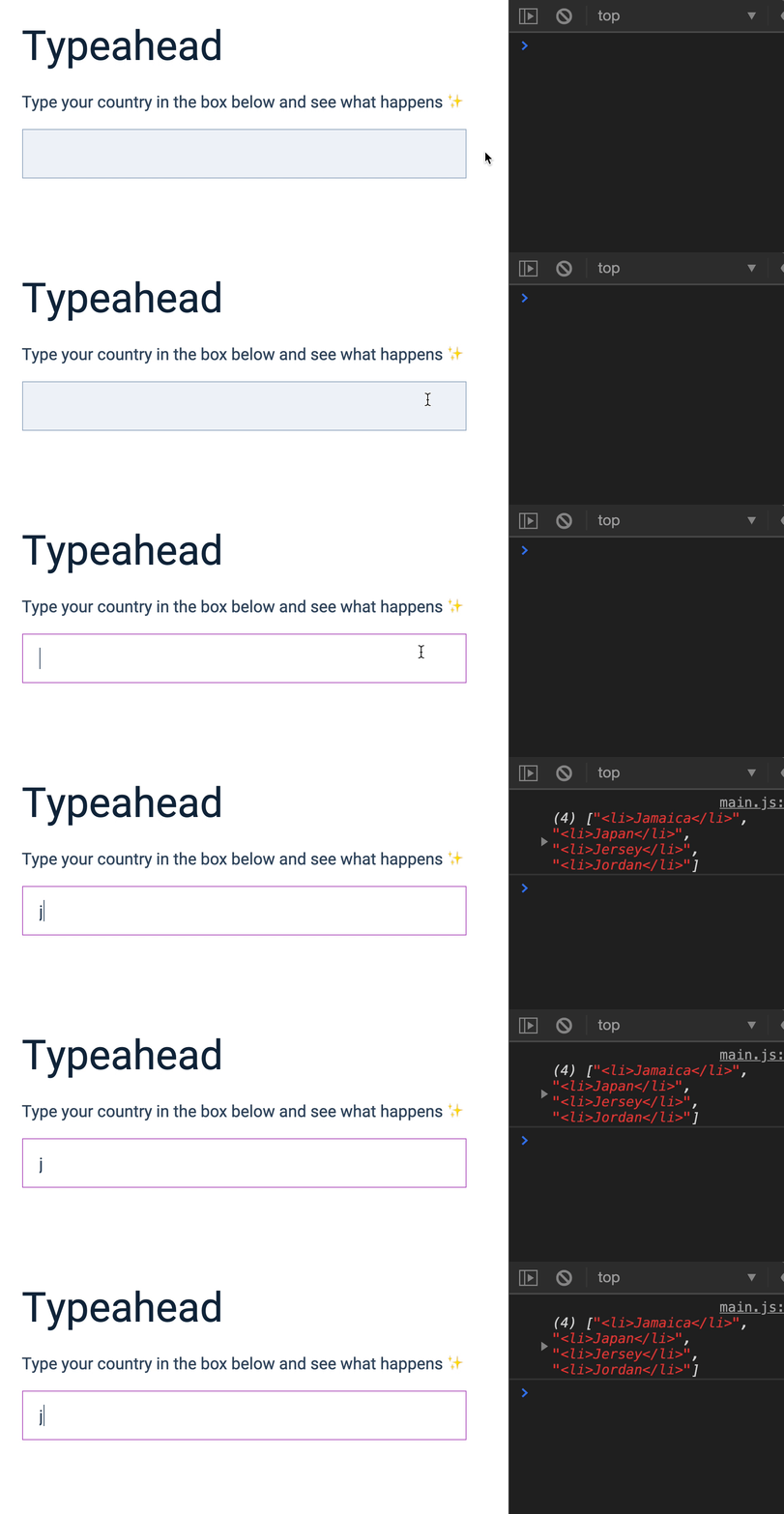
Then, we use join to create the innerHTML for <ul>.
input.addEventListener('input', event => { // ... const listItems = matches .map(country => { return `<li>${country.name}</li>` }) .join('')})Showing the list
To show the list, we set the <ul>’s innerHTML to listItems.
const ul = typeahead.querySelector('ul')input.addEventListener('input', event => { // ... ul.innerHTML = listItems})Then, we display the list by removing the hidden attribute.
const ul = typeahead.querySelector('ul')input.addEventListener('input', event => { // ... ul.innerHTML = listItems ul.removeAttribute('hidden')})Some UX improvements
Right now, the Typeahead shows all possible predictions if a user types a space into the input field.
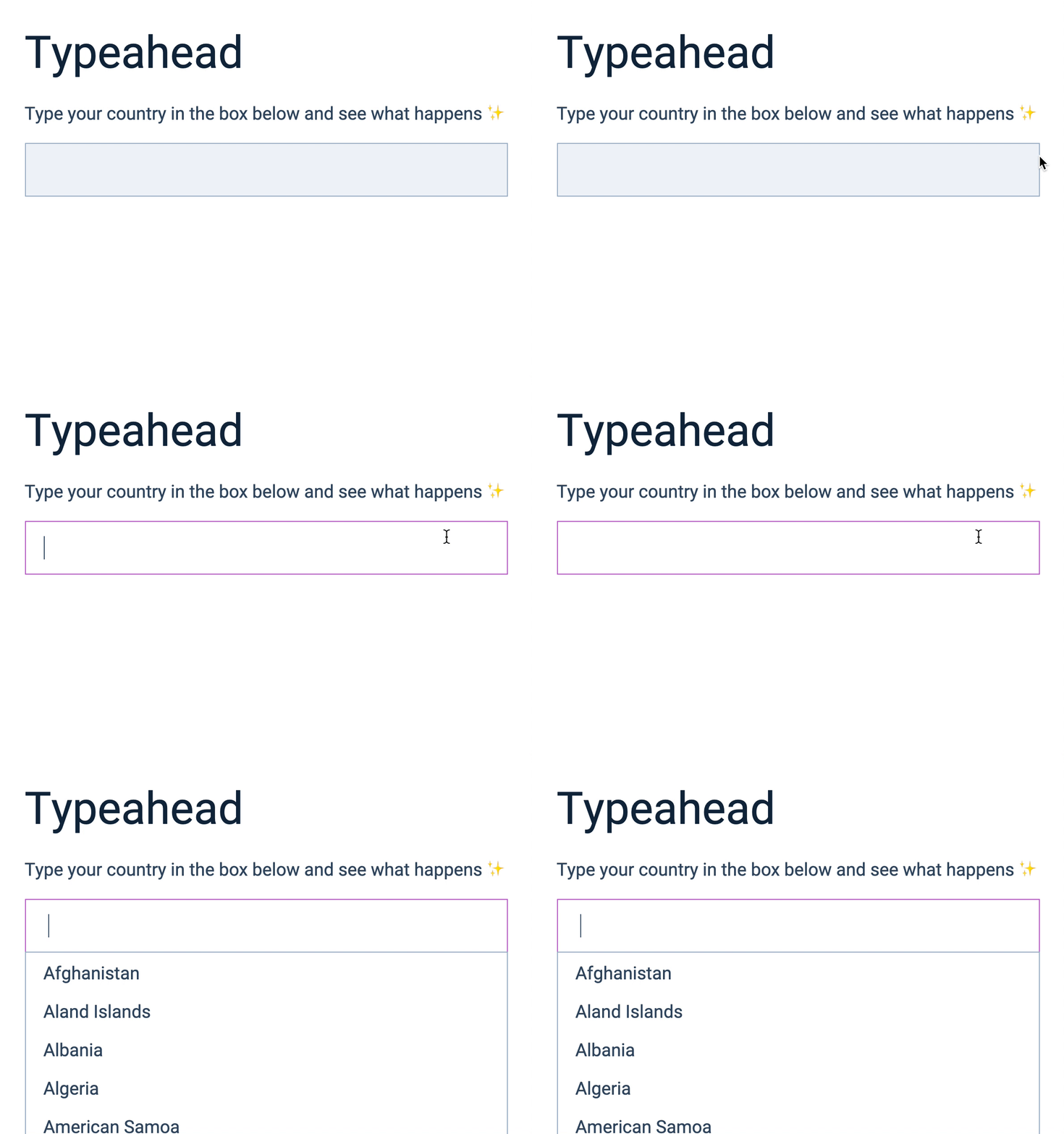
This shouldn’t happen.
If the input field is empty, we want to hide the list. In this case, we don’t even need to find matches, so we’ll do an early return.
input.addEventListener('input', event => {  const input = event.target  const inputValue = input.value.trim().toLowerCase()
  // Hides list if user typed nothing  // (or empties input field)  if (!inputValue) return ul.setAttribute('hidden', true)})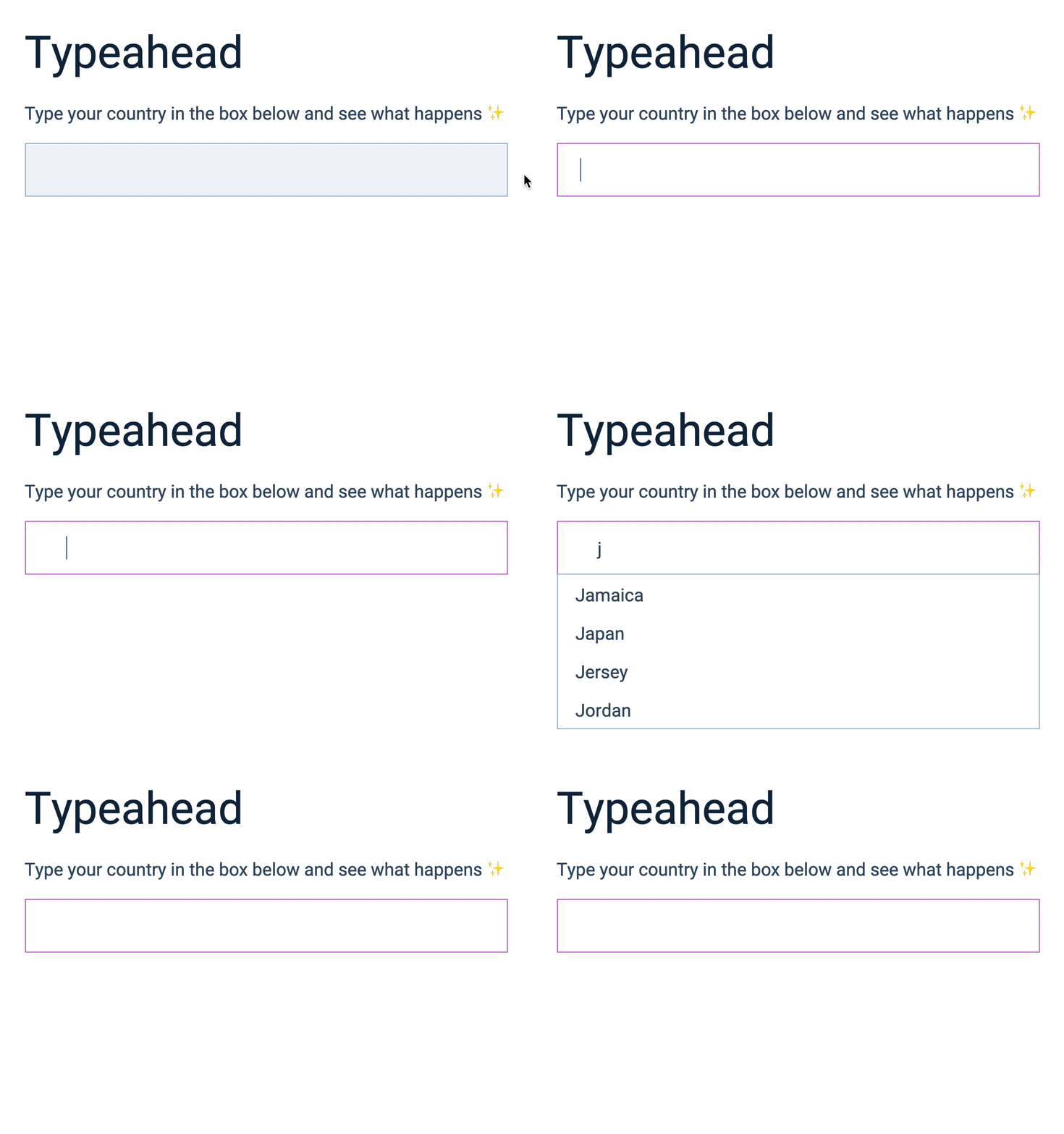
Hiding the list of predictions
If the user clicks outside the Typeahead, we want to close the list of predictions.
Here’s the code. (You’ve done this many times already. I’m going to let you figure out why it works 😉).
document.addEventListener('click', event => { if (!event.target.closest('.typeahead')) { ul.setAttribute('hidden', true) }})That’s it!
Note: You can remove the countries items from the <ul> in the index.html at this point. We don’t need it anymore.
Welcome! Unfortunately, you don’t have access to this lesson. To get access, please purchase the course or enroll in Magical Dev School.
Unlock this lesson