We fetched the Google Maps API by writing a <script> element in the HTML. But that’s not very nice. It’ll be better to keep the Ajax call inside JavaScript.
This means we need to create a <script> element and add it to the DOM.
const apiKey = 'YOUR_API_KEY'const script = document.createElement('script')script.src = `https://maps.googleapis.com/maps/api/js?key=${apiKey}&callback=initGoogleMap`
document.body.appendChild(script)
Converting the script into a function
We can create a function called fetchGoogleMapsApi to send the JSONP request. This makes the code easier to read and understand.
function fetchGoogleMapsApi() {  const apiKey = 'YOUR_API_KEY'  const script = document.createElement('script')  script.src = `https://maps.googleapis.com/maps/api/js?key=${apiKey}&callback=initGoogleMap`
  document.body.appendChild(script)}
The browser will send a JSONP request once the <script> element gets loaded into the DOM. We don’t need the <script> element anymore after this, so let’s remove it.
function fetchGoogleMapsApi() {  const apiKey = 'YOUR_API_KEY'  const script = document.createElement('script')  script.src = `https://maps.googleapis.com/maps/api/js?key=${apiKey}&callback=initGoogleMap`
  document.body.appendChild(script)  document.body.removeChild(script)}
Using it:
fetchGoogleMapsApi()Handling errors
Let’s say you inserted a wrong API key. Google Maps will tell you that something went wrong.
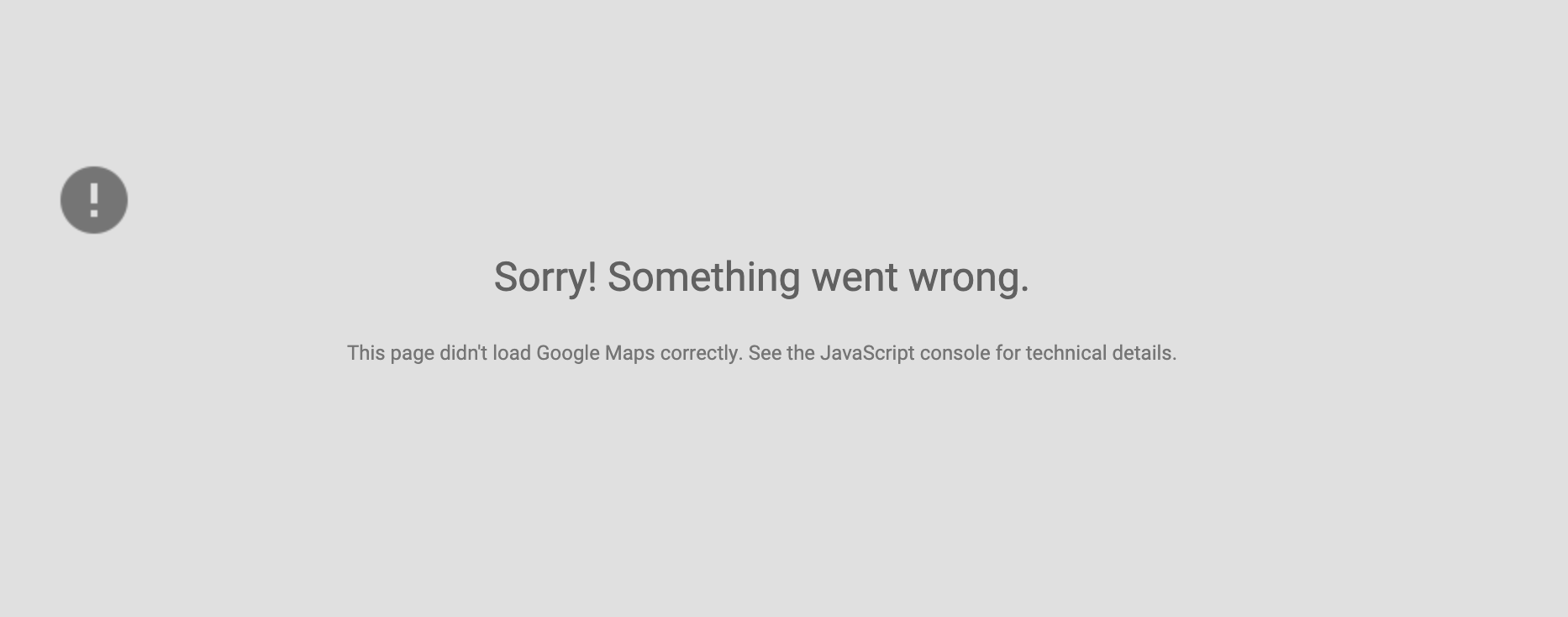
This isn’t a very nice error message, but there’s nothing we can do about it. If we want to let users see the actual error message, we have to log it into the console.
We can do this with an error event.
function fetchGoogleMapsApi() {  // ...  script.addEventListener('error', console.error)
  // ...}
Welcome! Unfortunately, you don’t have access to this lesson. To get access, please purchase the course or enroll in Magical Dev School.
Unlock this lesson