Let’s create a drop preview so users know where they’ll drop the element to.
How to do this
Instead of dragging the clone around, we will:
- Make a shallow clone
- Style the clone as a preview element
- Drag the original element around
When the user releases their mouse, we will replace the preview element with the actual element.
Creating a shallow clone
We can create a shallow clone by using cloneNode. This time, we don’t pass true into cloneNode.
draggable.addEventListener('pointerdown', event => { // ... const preview = target.cloneNode() // ...})We’ll style the preview by adding a preview class.
.preview { background-color: #eee; border: 4px dotted #aaa;}draggable.addEventListener('pointerdown', event => { // ... const preview = target.cloneNode() preview.classList.add('preview') // ...})We’ll add the preview to the DOM. We can add it before or after the original element. In this case, I chose to add it before.
draggable.addEventListener('pointerdown', event => { // ... // Adds preview before target element target.before(preview) // ...})Remember to add a polyfill since Safari doesn’t support before. The following is an official polyfill from MDN. It uses insertBefore to provide support for before.
// Element.before polyfill// https://developer.mozilla.org/en-US/docs/Web/API/ChildNode/before;(function (arr) {  arr.forEach(function (item) {    if (item.hasOwnProperty('before')) return    Object.defineProperty(item, 'before', {      configurable: true,      enumerable: true,      writable: true,      value: function before() {        var argArr = Array.prototype.slice.call(arguments)        var docFrag = document.createDocumentFragment()
        argArr.forEach(function (argItem) {          var isNode = argItem instanceof Node          docFrag.appendChild(            isNode ? argItem : document.createTextNode(String(argItem)),          )        })
        this.parentNode.insertBefore(docFrag, this)      },    })  })})([Element.prototype, CharacterData.prototype, DocumentType.prototype])
We can remove the target element from the DOM since we created a preview element.
Note: Make sure you only remove the target element after you added the preview element to the DOM.
draggable.addEventListener('pointerdown', event => {  // Remove these  target.style.opacity = '0'  clone.addEventListener('pointerup', event => {    target.style.opacity = '1'  })
  // Add this  target.remove()})
You should now see the preview element if you drag the clone around.
Dragging the original element
We want to drag the original element instead of the clone. To do this, we replace clone with target for most of the code we wrote.
draggable.addEventListener('pointerdown', event => {  // Remove this  const clone = target.cloneNode(true)
  // Change `clone` to `target` in these  document.body.append(target)  target.style.position = 'absolute'  target.style.transform = 'rotate(-5deg)'  target.style.left = `${box.left}px`  target.style.top = `${box.top}px`
  target.setPointerCapture(event.pointerId)
  target.addEventListener('pointermove', event => {    // ...    const left = parseFloat(target.style.left)    const top = parseFloat(target.style.top)
    target.style.left = `${left + movementX}px`    target.style.top = `${top + movementY}px`  })
  target.addEventListener('pointerup', event => {    target.style.transform = ''    target.releasePointerCapture(event.pointerId)
    // ...
    const left = parseFloat(target.style.left)    const top = parseFloat(target.style.top)    const droppedArea = document.elementFromPoint(left, top)    const dropzone = droppedArea.closest('[data-dropzone]')
    if (dropzone) {      dropzone.append(target)    }
    // Remove this    clone.remove()  })})
You should be able to drag the original target around now. But the target still follows your mouse after you release it.
Replacing the preview element with the original element
When the user releases their mouse, we want to replace the preview element with the original element. We can do this by:
- Adding the original element before the preview element
- Removing the preview element
target.addEventListener('pointerup', event => {  // ...  // Remove these  const left = parseFloat(target.style.left)  const top = parseFloat(target.style.top)  const droppedArea = document.elementFromPoint(left, top)  const dropzone = droppedArea.closest('[data-dropzone]')
  if (dropzone) {    dropzone.append(target)  }
// Add these target.style.position = 'static' preview.before(target) preview.remove()})Moving the preview element into the dropzone
When a user drags the original element over the dropzone, we want to move the preview element into the dropzone.
We can use elementFromPoint to check whether the user dragged the original element over the dropzone.
target.addEventListener('pointermove', event => {  // ...  const hitTest = document.elementFromPoint(left, top)  const dropzone = hitTest.closest('[data-dropzone]')
if (dropzone) { dropzone.append(preview) }})Right now, we append the preview element into the dropzone every time a pointermove event happens (assuming the user is dragging the original element over the dropzone).
But we don’t need to do anything anymore if the preview element is already in the dropzone. We can eliminate this extra work with a few more lines of code.
target.addEventListener('pointermove', event => {  // ...  const hitTest = document.elementFromPoint(left, top)  const dropzone = hitTest.closest('[data-dropzone]')
  if (dropzone) {    // Append preview element only if it doesn't exist in the dropzone    const previewExists = [...dropzone.children].find(element => {      return element === preview    })
    if (!previewExists) {      dropzone.append(preview)    }  }})
We can tidy this up with early returns.
target.addEventListener('pointermove', event => {  // ...  const hitTest = document.elementFromPoint(left, top)  const dropzone = hitTest.closest('[data-dropzone]')  if (!dropzone) return
  const previewExists = [...dropzone.children].find(element => {    return element === preview  })
  if (!previewExists) {    dropzone.append(preview)  }})
Removing event listeners
Try dragging the dropped target one more time. You’ll notice two problems:
- When you mouse over the target, another
.previewelement appears in the dropzone. - When you drag the target, it moves twice as fast.
Both problems happened because we did not remove the pointermove and pointerup event listeners when we dropped the original element.
You can see proof that of these events remaining in the original element with Firefox’s devtools:
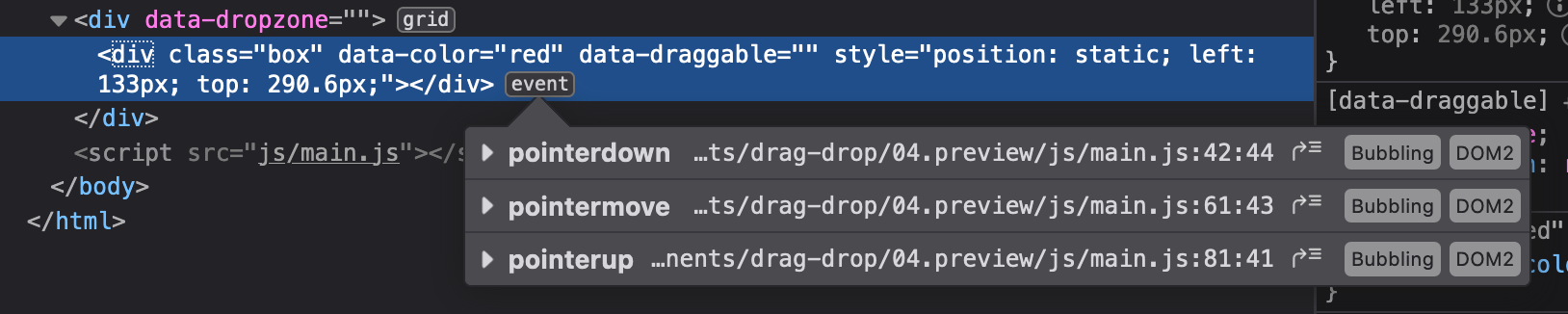
We need to remove the pointermove and pointerup event listeners when we drop the original element.
To do this, we must create a named callback function for both pointermove and pointerup.
draggable.addEventListener('pointerdown', event => {  target.addEventListener('pointermove', move)  target.addEventListener('pointerup', up)
  function move(event) {    // Move the callback in pointermove event here  }
  function up(event) {    // Move the callback in pointerup event here  }})
Then, we remove both event listeners in up.
function up(event) {  target.removeEventListener('pointermove', move)  target.removeEventListener('pointerup', up)
// ...}Fixing Firefox
When you try to drag the element again on Firefox, the entire component turns into an image and you drag that image…
It looks like Firefox selects text as you dragged the element for the first time. (The blue selection background on “Drop Zone” gives us a hint that this is happening).
When you try and drag it the second time, Firefox behaves as if you’re trying to drag this “text” (even though the Text includes other elements).
We can fix this by preventing the default selection behaviour with event.preventDefault. You can only prevent this behaviour during pointerdown.
draggable.addEventListener('pointerdown', event => { event.preventDefault() // ...})Fixing Android Chomium
When you try to drag the boxes on an Android phone you’ll notice it’s glitching out. This is due to Androids Chrome based browsers not adhering to the CSS property touch-action: none;. We can fix this by setting a touch action event listener to our draggables and prevent the default behaviour.
draggables.forEach(draggable => { draggable.addEventListener('touchaction', event => { event.prefentDefault() })})Welcome! Unfortunately, you don’t have access to this lesson. To get access, please purchase the course or enroll in Magical Dev School.
Unlock this lesson