We can create a few keyboard shortcuts for the Todolist. Here’s what we’re going to do:
- Allow users to select a task with
↑and↓keys - Press
Super+Enterto check a task - Press
Super+Backspaceto delete a task - Press
Deleteto delete a task - Press
nto focus on the new task field
Selecting a task with ↑ and ↓ keys
Let’s assume the Todolist is the only app on the webpage. If this is the case, we can create two global keyboard shortcuts:
- User press
↓: Selects first task (if no tasks were selected) - User press
↑: Selects last task (if no tasks were selected)
We need to use the focus method to select a task. Here, we need to add the tabindex attribute to each task.
function makeTaskElement ({ id, name, done, state = 'loaded' }) { // ... const taskElement = document.createElement('li') taskElement.classList.add('task') // Adds tabindex attribute taskElement.setAttribute('tabindex', -1) // ...})Since we’re creating global keyboard shortcuts, we should listen to the document.
document.addEventListener('keydown', event => { // ...})We only want to act if the user press on Up or Down arrow keys.
document.addEventListener('keydown', event => { const { key } = event if (key === 'ArrowUp' || key === 'ArrowDown') { // ... }})If a user does not have focus on a task, and they press down, we want to select the first task.
document.addEventListener('keydown', event => {  // ...  if (key === 'ArrowUp' || key === 'ArrowDown') {    const tasks = [...taskList.children]    const firstTask = tasks[0]
    if (!event.target.closest('.task')) {      if (key === 'ArrowDown') {        firstTask.focus()      }    }  }})
We can bail from the callback once we focus on the first task. Here, we can use an early return to prevent code from executing further.
document.addEventListener('keydown', event => { // ... if (key === 'ArrowUp' || key === 'ArrowDown') { // ... if (!event.target.closest('.task')) { if (key === 'ArrowDown') return firstTask.focus() } }})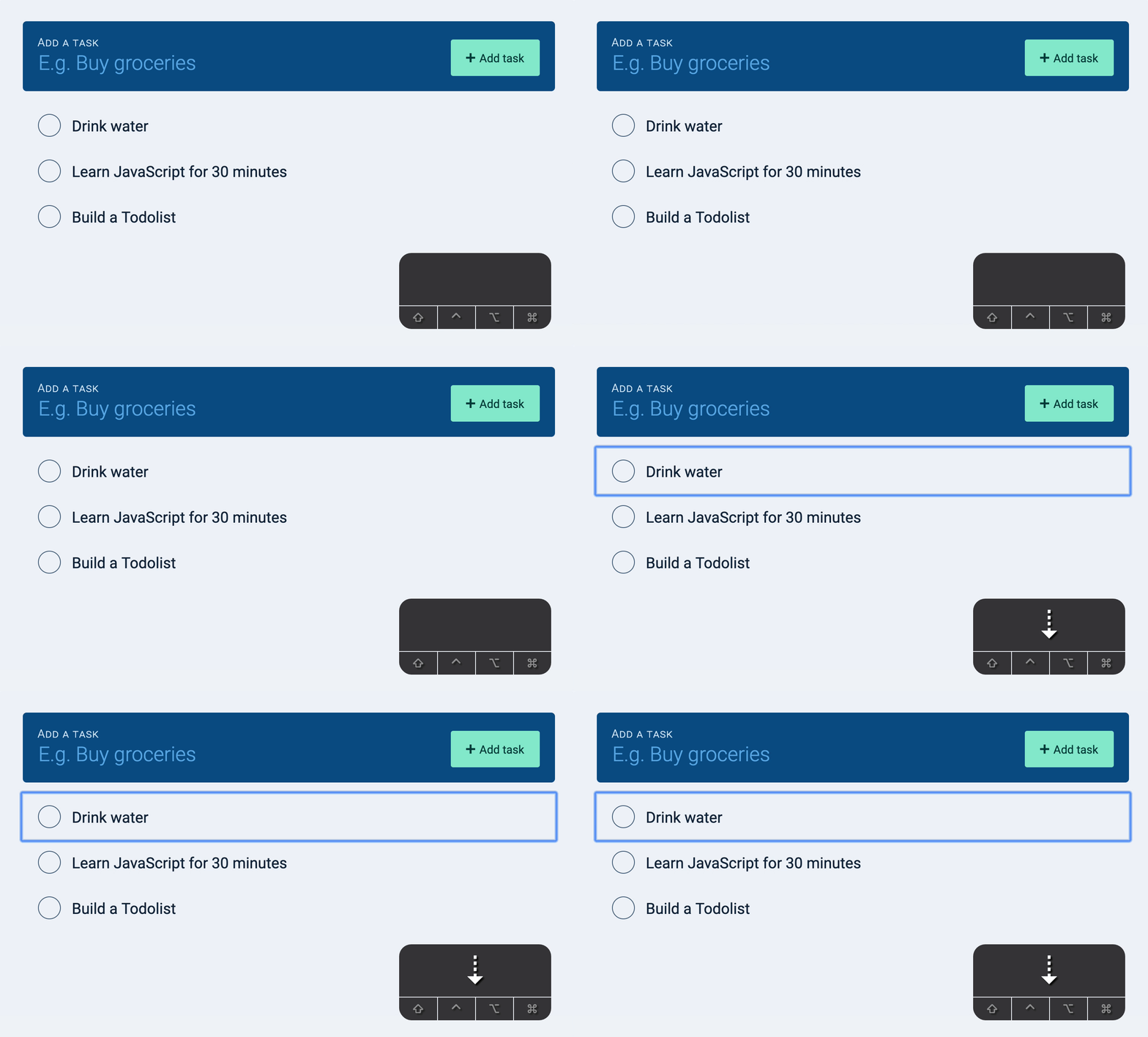
Likewise, if the user does not have focus on a task, and they press up, we want to select the last task.
document.addEventListener('keydown', event => { // ... if (key === 'ArrowUp' || key === 'ArrowDown') { // ... const lastTask = tasks[tasks.length - 1] if (!event.target.closest('.task')) { // ... if (key === 'ArrowUp') return lastTask.focus() } }})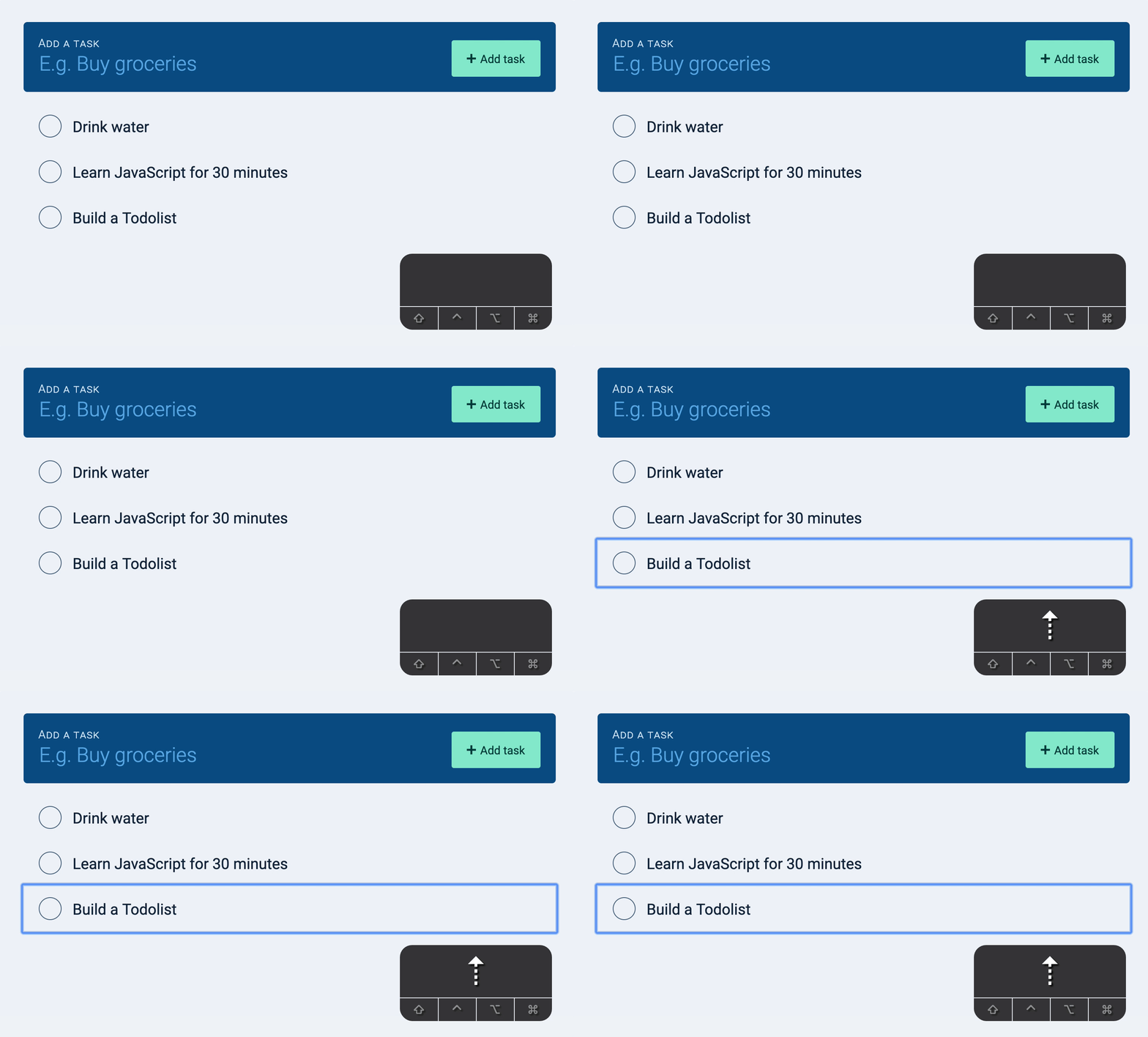
Selecting the previous/next task
If the user has their focus on a task, we want to let them select the previous or next task with up and down arrow keys.
Here’s what we want to do:
- User press Up: Selects previous task
- User press Down: Selects next task
- User press Up on first task: Selects last task
- User press Down on last task: Selects first task
First, we need to find the selected task.
document.addEventListener('keydown', event => { // ... if (key === 'ArrowUp' && key === 'ArrowDown') { // ... if (event.target.closest('.task')) { const currentTaskElement = event.target.closest('.task') } }})If they pressed Up, we want to select the previous task. We can find the previous task with previousElementSibling.
If they pressed Down, we want to select the next task. We can find the next task with nextElementSibling.
document.addEventListener('keydown', event => { // ... if (key === 'ArrowUp' && key === 'ArrowDown') { // ... if (event.target.closest('.task')) { // ... if (key === 'ArrowUp') return currentTaskElement.previousElementSibling.focus() if (key === 'ArrowDown') return currentTaskElement.nextElementSibling.focus() } }})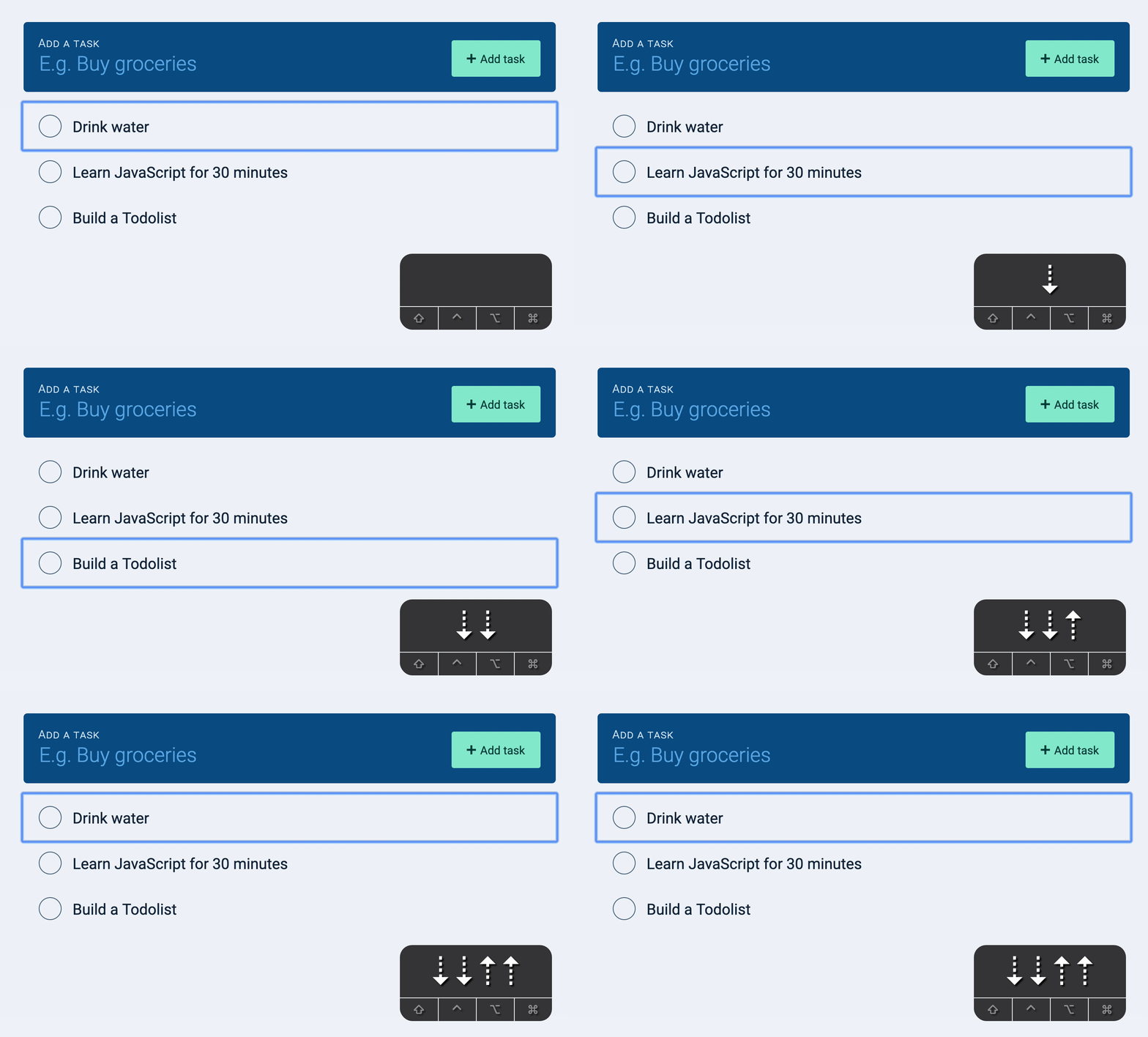
If the user presses Up on the first task, we want to select the last task. Here, we can check if the currentTaskElement is the first task.
You might add the condition like this:
document.addEventListener('keydown', event => {  // ...  if (key === 'ArrowUp' && key === 'ArrowDown') {    // ...    if (event.target.closest('.task')) {      // ...      if (key === 'ArrowUp')        return currentTaskElement.previousElementSibling.focus()      if (key === 'ArrowDown')        return currentTaskElement.nextElementSibling.focus()
      if (currentTaskElement === firstTask && key === 'ArrowUp')        return lastTask.focus()    }  }})
Our latest condition wouldn’t work. Why? Because the key === 'ArrowUp' would be fulfilled first. For the latest condition to work, we need to put it before key === 'ArrowUp'.
document.addEventListener('keydown', event => { // ... if (key === 'ArrowUp' && key === 'ArrowDown') { // ... if (event.target.closest('.task')) { // ... if (currentTaskElement === firstTask && key === 'ArrowUp') return lastTask.focus() if (key === 'ArrowUp') return currentTaskElement.previousElementSibling.focus() if (key === 'ArrowDown') return currentTaskElement.nextElementSibling.focus() } }})If the user presses Down on the last task, we want to select the first task. Here’s how you do it:
document.addEventListener('keydown', event => { // ... if (key === 'ArrowUp' && key === 'ArrowDown') { // ... if (event.target.closest('.task')) { // ... if (currentTaskElement === firstTask && key === 'ArrowUp') return lastTask.focus() if (currentTaskElement === lastTask && key === 'ArrowDown') return firstTask.focus() // ... } }})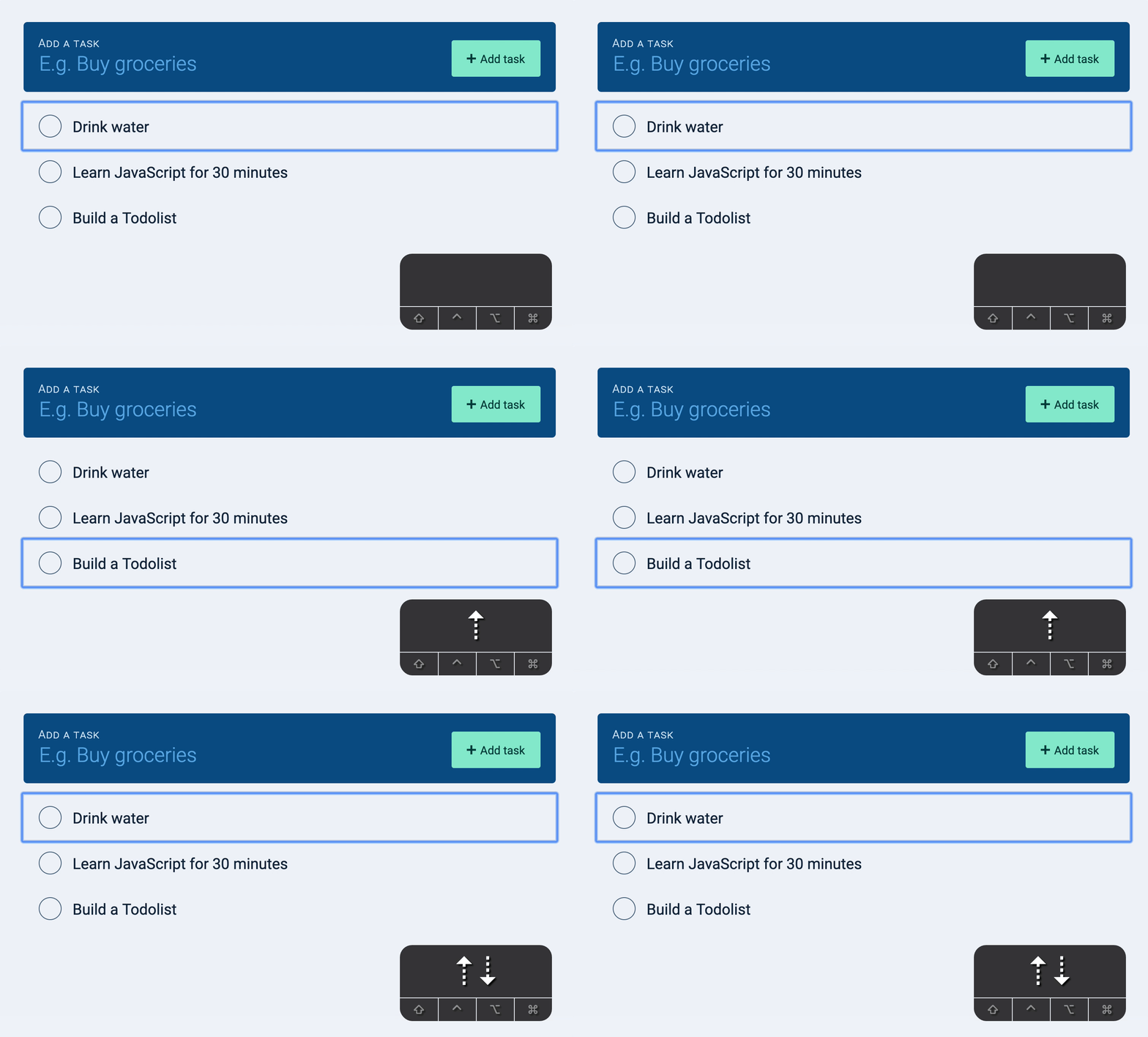
Improving the focus
There’s a white background when we hover on a task. We want to add this white background on focus as well. We can also accentuate the focus by styling it differently from the default.
.task:focus { background-color: #fff; outline: 4px solid lightskyblue;}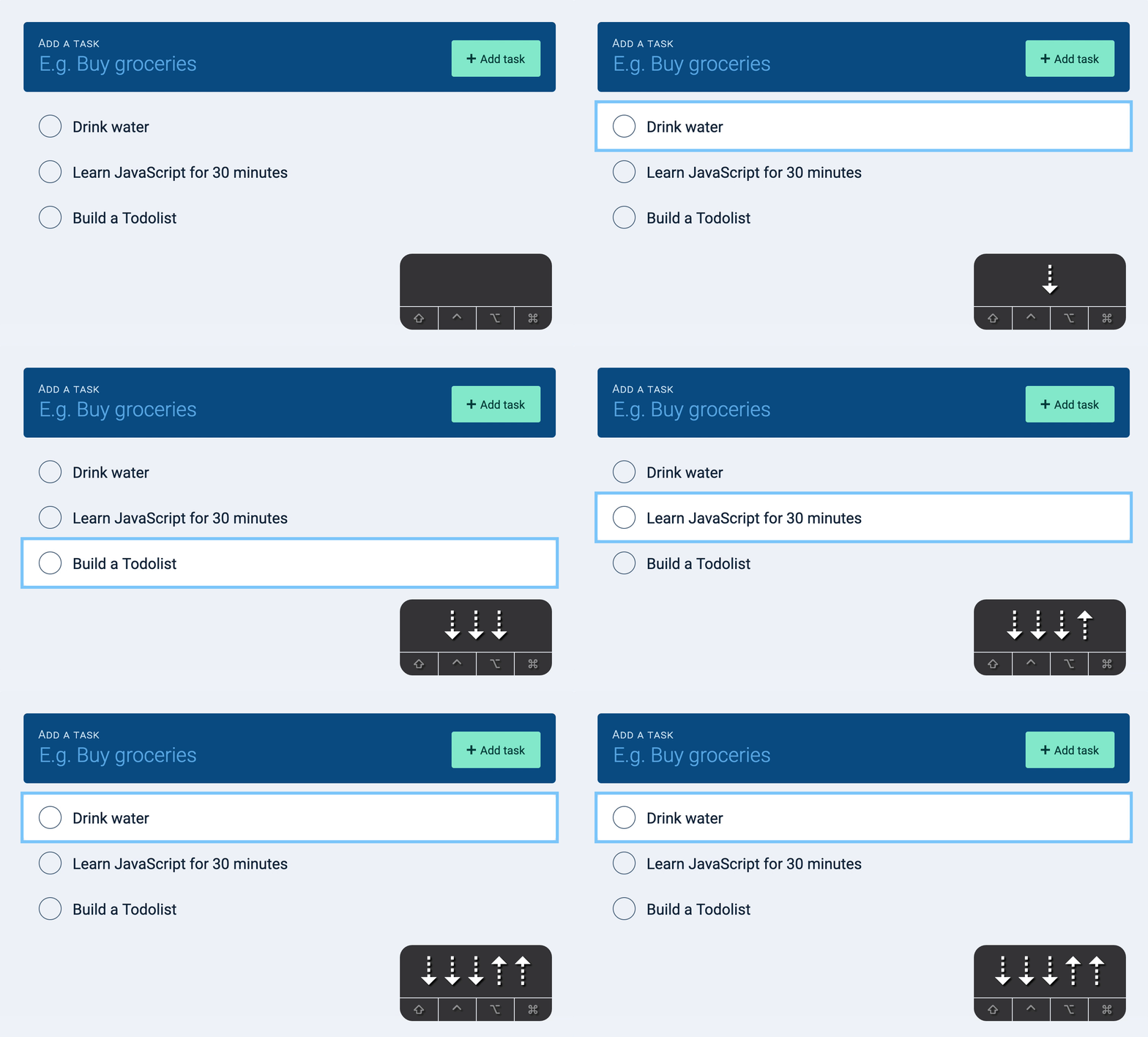
We want to keep the white background if the user focuses on an element inside the task. We can do this with focus-within.
.task:focus-within { background-color: #fff;}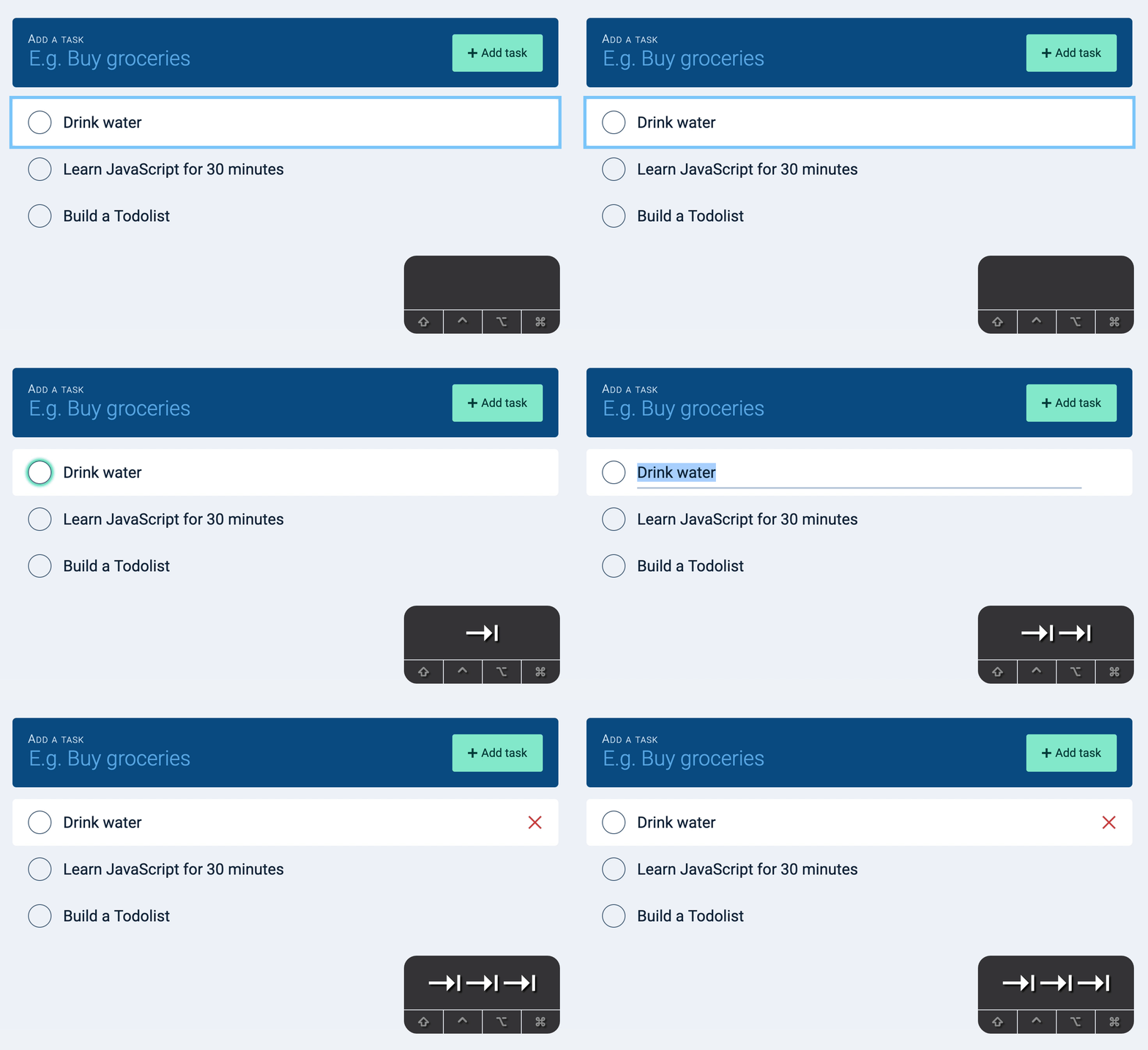
Completing a task
Most (real) Todolist applications let users complete a task with a keyboard shortcut. This shortcut is usually Command + Enter on Mac (or Control + Enter on Windows).
We can allow users to complete tasks with the same keyboard shortcut. To do this, we need to check for the Super key.
function isSuperKey(event) { const os = navigator.userAgent.includes('Mac OS X') !== -1 ? 'mac' : 'windows' if (os === 'mac' && event.metaKey) return true if (os === 'windows' && event.ctrlKey) return true}Since we’re listening to Super + Enter on tasks, we’ll use the event delegation pattern.
taskList.addEventListener('keydown', event => { // ...})We only want to do something if the user presses Super + Enter at the same time.
taskList.addEventListener('keydown', event => { // ... if (event.key === 'Enter' && isSuperKey(event)) { // ... }})If the user presses Super + Enter, we need to complete a task.
To complete a task, we need to find the task first.
We can use closest to find the task because closest covers both of these cases:
- The active element is the task
- The active element is inside the task
taskList.addEventListener('keydown', event => { // ... if (event.key === 'Enter' && isSuperKey(event)) { const task = event.target.closest('.task') }})Once we have the task, we can find the checkbox. And once we have the checkbox, we can “click” the checkbox. The rest will be done by the click event listener.
taskList.addEventListener('keydown', event => { // ... if (event.key === 'Enter' && isSuperKey(event)) { const task = event.target.closest('.task') const checkbox = task.querySelector('input[type="checkbox"]') checkbox.click() }})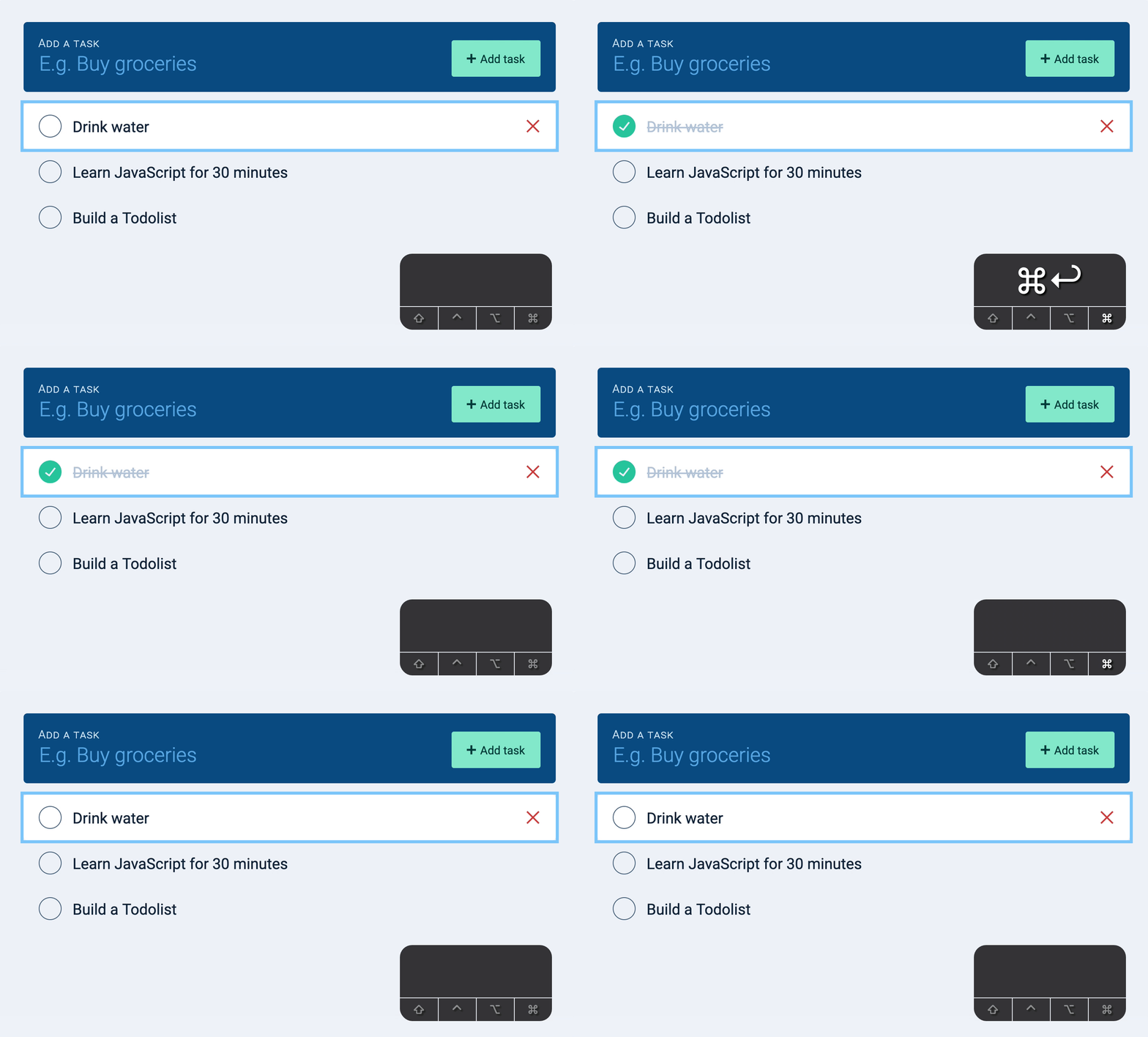
Deleting a task with Super and Backspace
We also can provide a keyboard shortcut for users to delete tasks. To delete tasks, we check for the Backspace key.
taskList.addEventListener('keydown', event => { if (event.key === 'Backspace') { // ... }})Users might press the Backspace key by accident (especially since Backspace is used to delete a character inside an input). It can be frustrating for users if they delete things accidentally and they can’t undo it.
The simplest way to prevent accidental deletions is to make the keyboard shortcut slightly harder to use. This is why I choose to use Super + Backspace to delete a task.
taskList.addEventListener('keydown', event => { if (event.key === 'Backspace' && isSuperKey(event)) { // ... }})To delete a task, we need to find the task to delete. Here, we’ll use closest (same reason as above when checking a task).
taskList.addEventListener('keydown', event => { if (event.key === 'Backspace' && isSuperKey(event)) { const task = event.target.closest('.task') }})Then we need to find and click the delete button.
taskList.addEventListener('keydown', event => { if (event.key === 'Backspace' && isSuperKey(event)) { // ... const deleteButton = task.querySelector('.task__delete-button') deleteButton.click() }})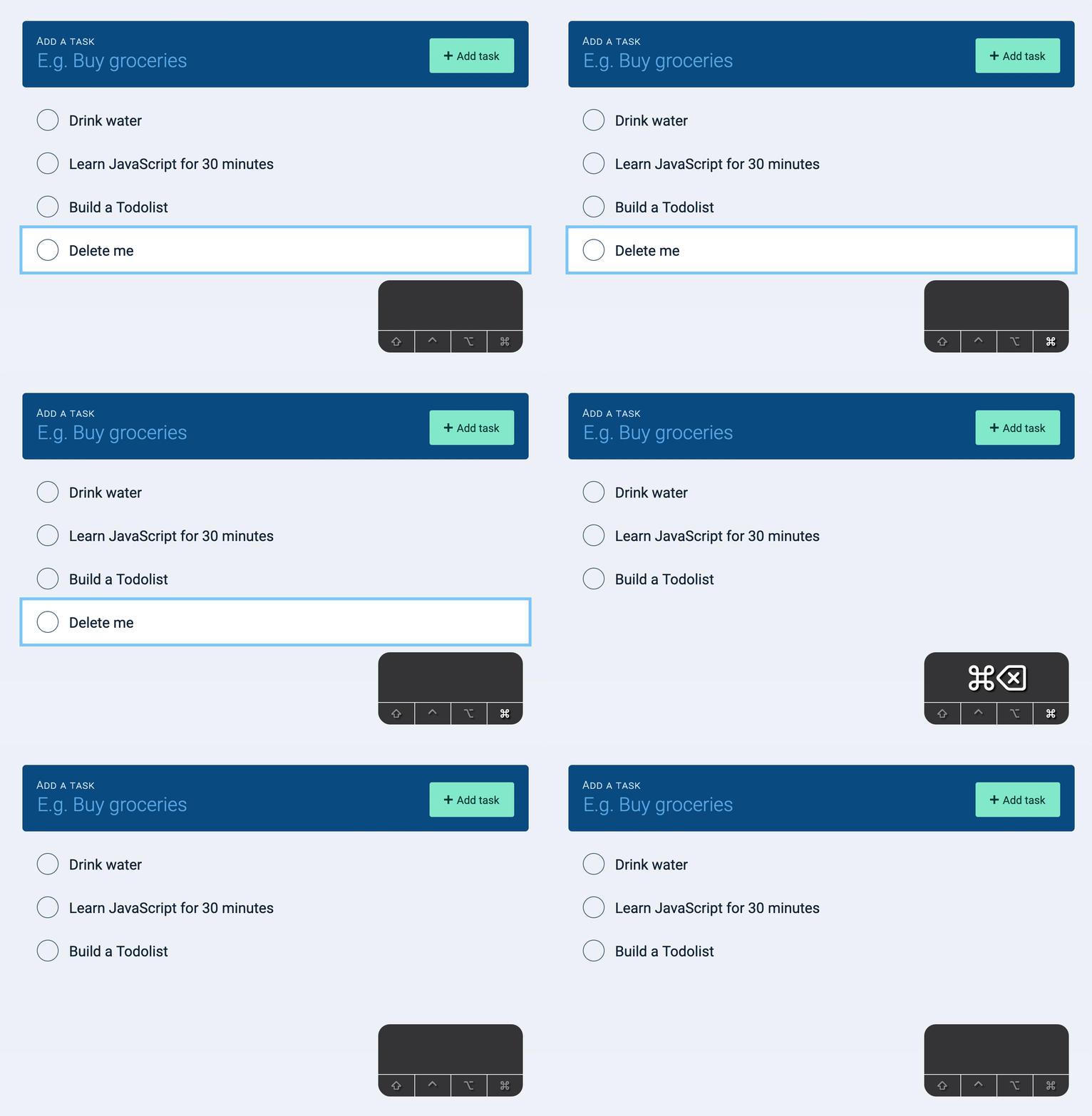
Deleting a task with Delete
Users who use an extended keyboard (with the number pad and stuff) have the Delete key on their keyboard. This key is rarely used. If a user presses the Delete key, we can be sure they want to delete something.
We can also allow users to delete a task with the Delete key.
taskList.addEventListener('keydown', event => { if (event.key === 'Delete') { const task = event.target.closest('.task') const deleteButton = task.querySelector('.task__delete-button') deleteButton.click() }})A tiny refactor
We can group these two event listeners into one because they do the same thing.
taskList.addEventListener('keydown', event => { if (event.key === 'Backspace' && isSuperKey(event)) { /* ...*/ } if (event.key === 'Delete') { /* ...*/ }})We’ll create a deleteTask function for finding and clicking the delete button. If we do this, we can use it for both conditions.
taskList.addEventListener('keydown', event => {  function deleteTask(event) {    const task = event.target.closest('.task')    const deleteButton = task.querySelector('.task__delete-button')    deleteButton.click()  }
  if (event.key === 'Backspace' && isSuperKey(event)) return deleteTask(event)  if (event.key === 'Delete') return deleteTask(event)})
Press n to focus on the new task field
One of the most important things for Todolist is speed (because speed leads to productivity). This is why we create keyboard shortcuts for Todolist applications.
The most important thing a user can do in a Todolist is create new tasks. We want to make a keyboard shortcut for users to create tasks easily.
In this, I chose to use the n key to create focus on the new task field, so they can begin writing their task.
It doesn’t matter where the user presses n. We always want n to focus on the new task field, which is why we listen to keydown on the document.
document.addEventListener('keydown', event => { // ...})We’ll not do anything unless they press n.
document.addEventListener('keydown', event => { if (event.key !== 'n') return})There’s a possibility that users have their Capslock turned on. If they press n with their Capslock turned on, we still want to focus on the new task field. (Our keyboard shortcut should be case -insensitive).
document.addEventListener('keydown', event => { const key = event.key.toLowerCase() if (key !== 'n') return})To focus, on the new task field, we need to find the new task field. Then, we focus on it.
// Press n to focus on taskdocument.addEventListener('keydown', event => { // ... const newTaskField = todolist.querySelector('input') newTaskField.focus()})The focus works. But unfortunately, it enters n into the new task field as well.
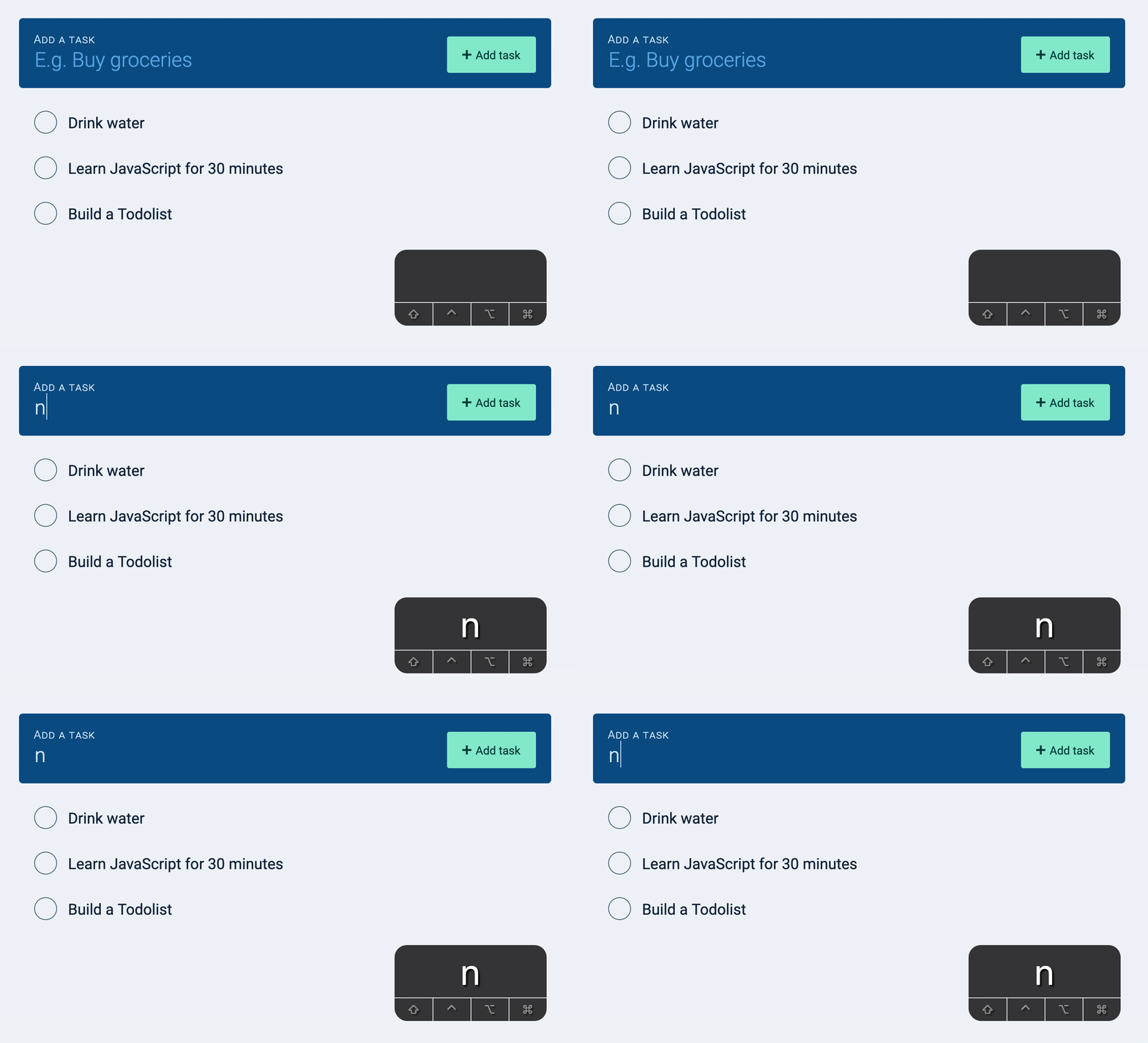
This happens because the keydown event is followed by the input event.
// Press n to focus on taskdocument.addEventListener('keydown', event => {  // ...  newTaskField.focus()  console.log(event.type)})
document.addEventListener('input', event => {  console.log(event.type)})
To prevent n from showing up, we can prevent the keydown event from creating an input event
// Press n to focus on taskdocument.addEventListener('keydown', event => { // ... event.prevenDefault() const newTaskField = todolist.querySelector('input') newTaskField.focus()})However, since we used preventDefault, we can’t type n in the new task field.
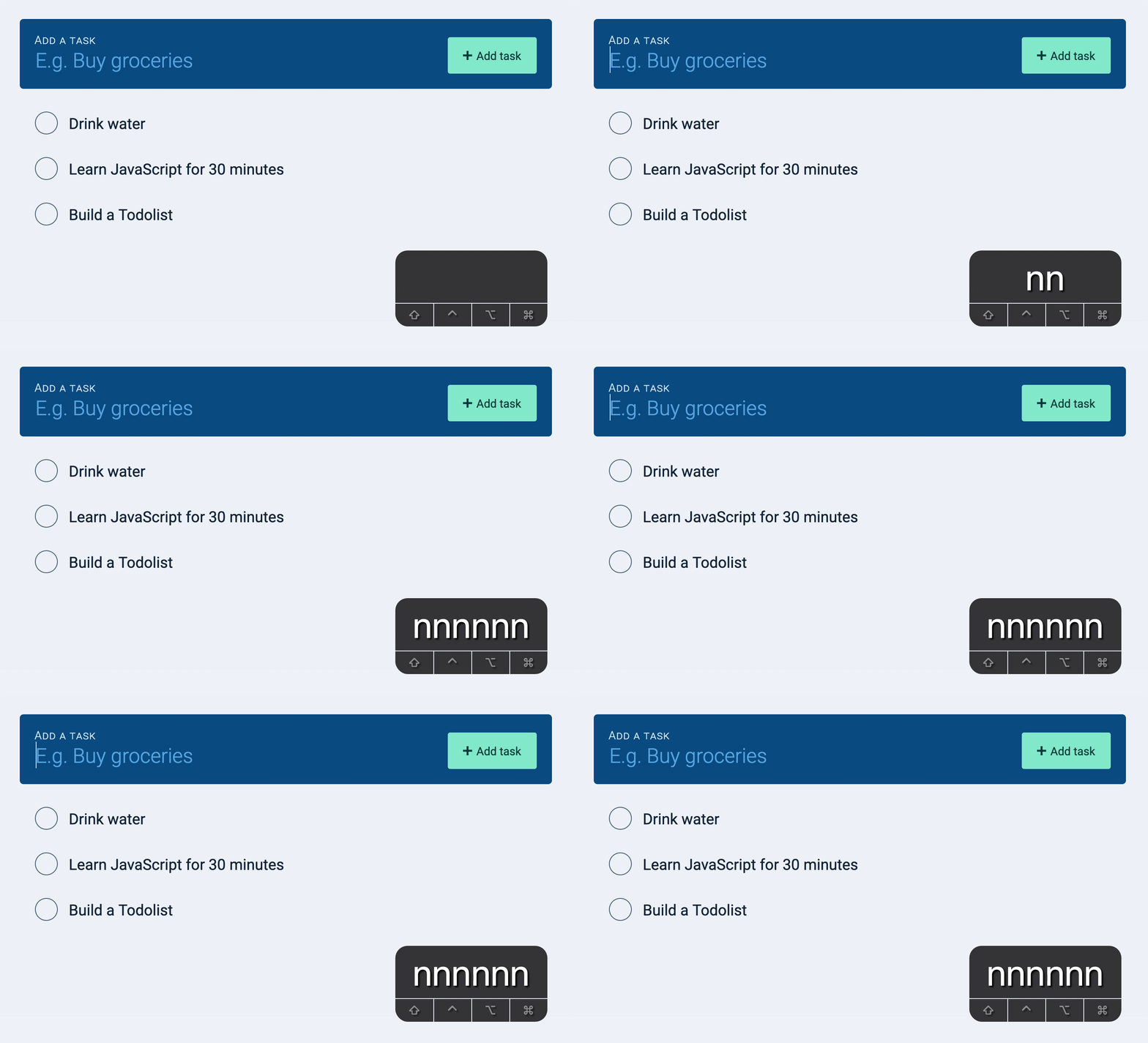
To allow users to type normally in the new task field, we need to bail if the event originates there.
document.addEventListener('keydown', event => { if (event.key !== 'n') return if (event.target.matches('#new-task')) return // ...})But we also want to let users type normally if they’re editing a task. So, instead of checking if they’re focusing on #new-task, we check if they focus on a text input field.
document.addEventListener('keydown', event => { if (event.key !== 'n') return if (event.target.matches('input[type="text"]')) return // ...})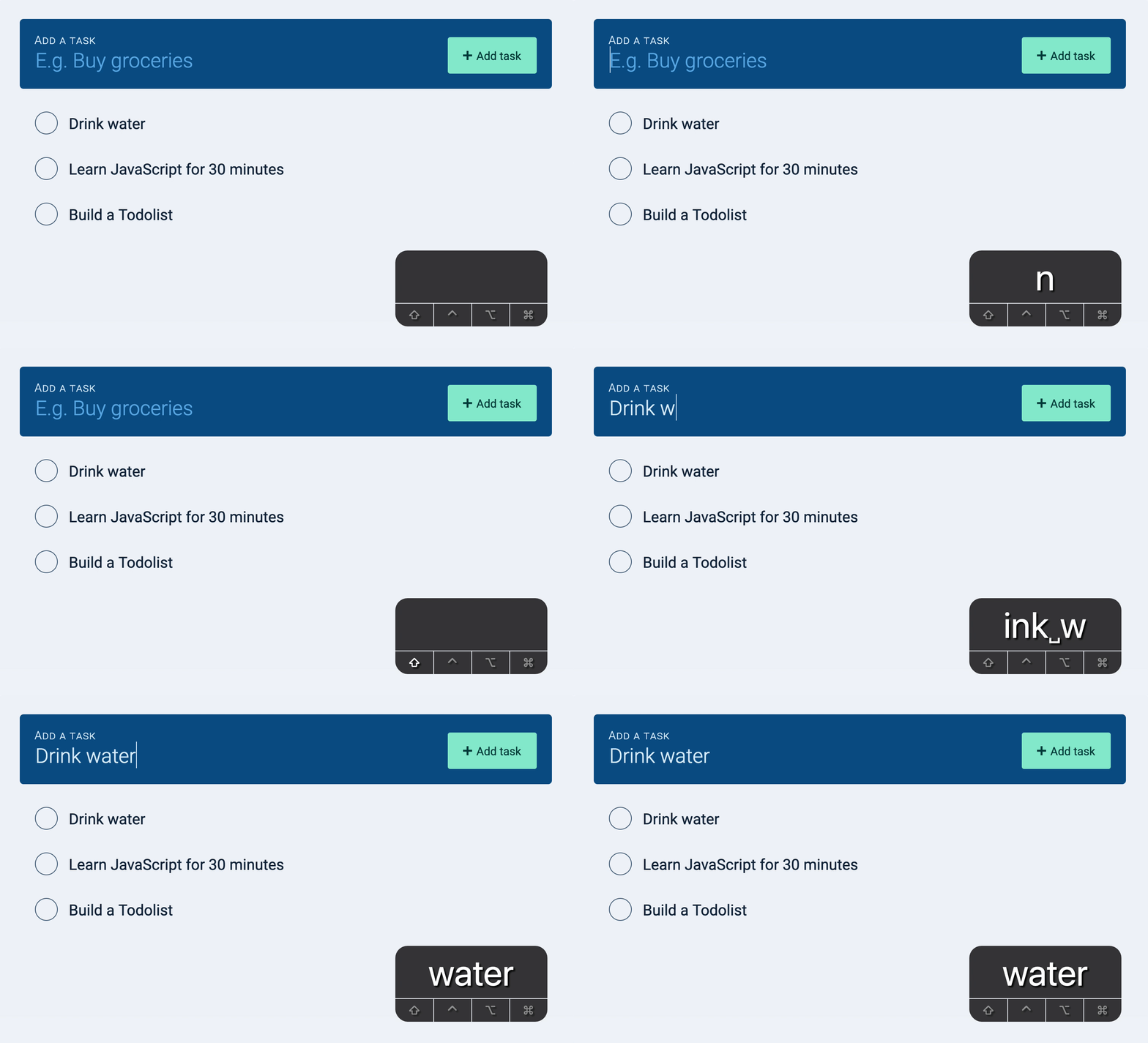
That’s it!
Welcome! Unfortunately, you don’t have access to this lesson. To get access, please purchase the course or enroll in Magical Dev School.
Unlock this lesson