Single-key shortcuts are easy to implement. What you’ll do is:
- Listen for a
keydownevent - Check if the
event.keymatches the key you want - Activate the shortcut
Let’s say you want to listen to the escape key to quit a feature. Here’s what you do:
document.addEventListener('keydown', event => { if (event.key === 'Escape') { console.log('Quit feature!') }})Handling multiple single-key shortcuts
You don’t have to create a new event listener to listen to every shortcut. You only need one event listener.
Let’s say you want to listen to the h key to open a help menu. You also want to use the Escape key to quit a feature. Here’s what you do:
document.addEventListener('keydown', event => {  const { key } = event  if (key === 'h') {    console.log('Open help menu')  }
  if (key === 'Escape') {    console.log('Quit feature!')  }})
That said, it might be better to use multiple event listeners if code gets complicated.
Ignoring cases
Does it matter if users type in a lowercase letter or an uppercase letter? It shouldn’t matter most of the time. If it doesn’t matter, you want to ignore cases.
To ignore cases, you can convert the key to lowercase before checking.
document.addEventListener('keydown', event => { const key = event.key.toLowercase() if (key === 'h') { console.log('Open help menu') }})This also makes checking for keys like Escape easier, because you don’t have to remember to capitalize the E.
document.addEventListener('keydown', event => { const key = event.key.toLowercase() if (key === 'escape') { console.log('Quit feature!') }})You can do a lot of things with single-key shortcuts, so let’s build some stuff before you learn to implement other types of shortcuts.
Single key with modifiers
Remember modifier keys? You can detect single-key shortcuts if they use modifiers.
- Shift (
⇧) withevent.shiftKey - Control (
⌃) withevent.ctrlKey - Option:
⌥(or Alt on PC) - Command:
⌘(or Windows⊞on PC)
You can detect if shift is pressed with event.shiftKey.
document.addEventListener('keydown', event => { console.log(event.shiftKey)})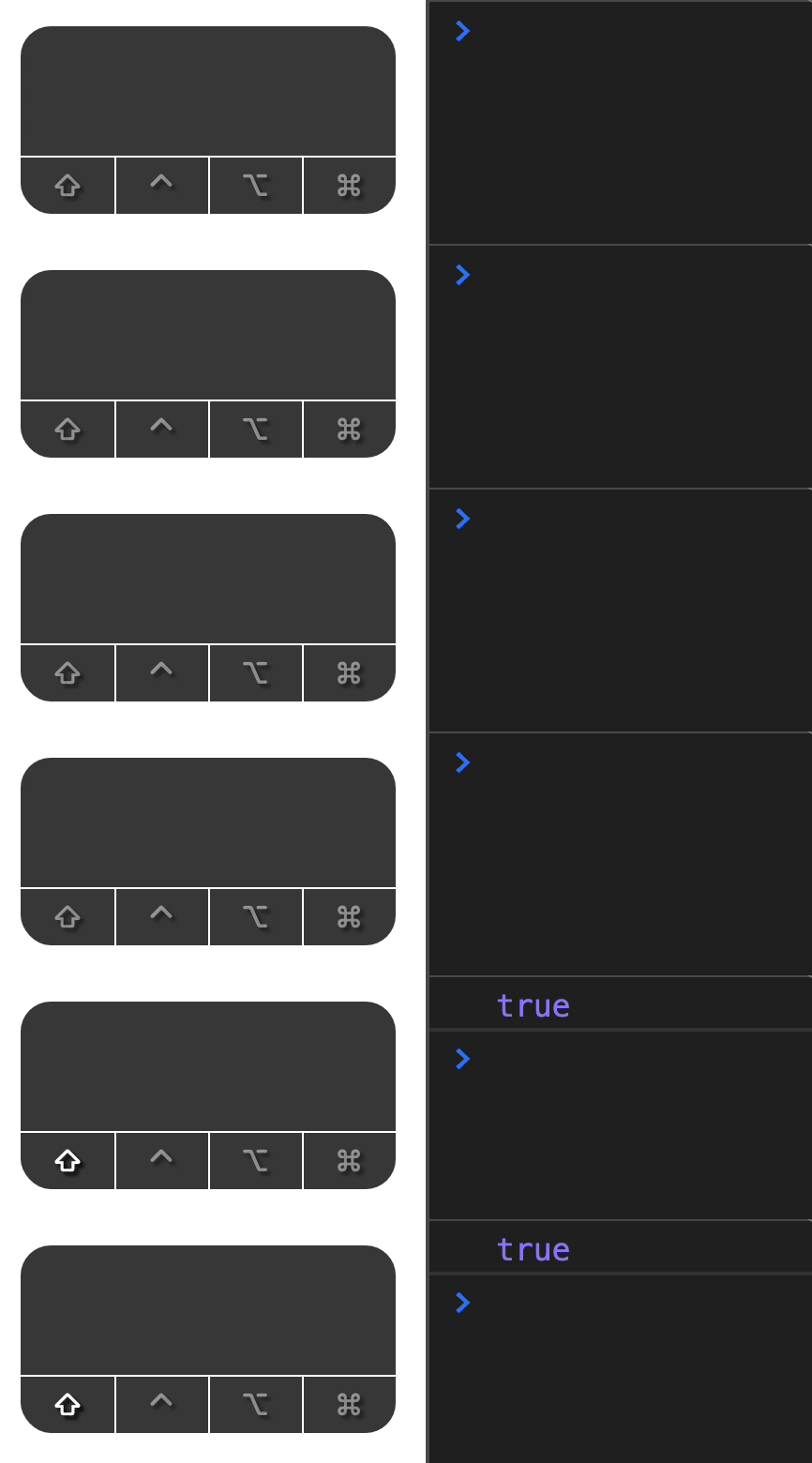
You can detect if control is pressed with event.ctrlKey.
document.addEventListener('keydown', event => { console.log(event.ctrlKey)})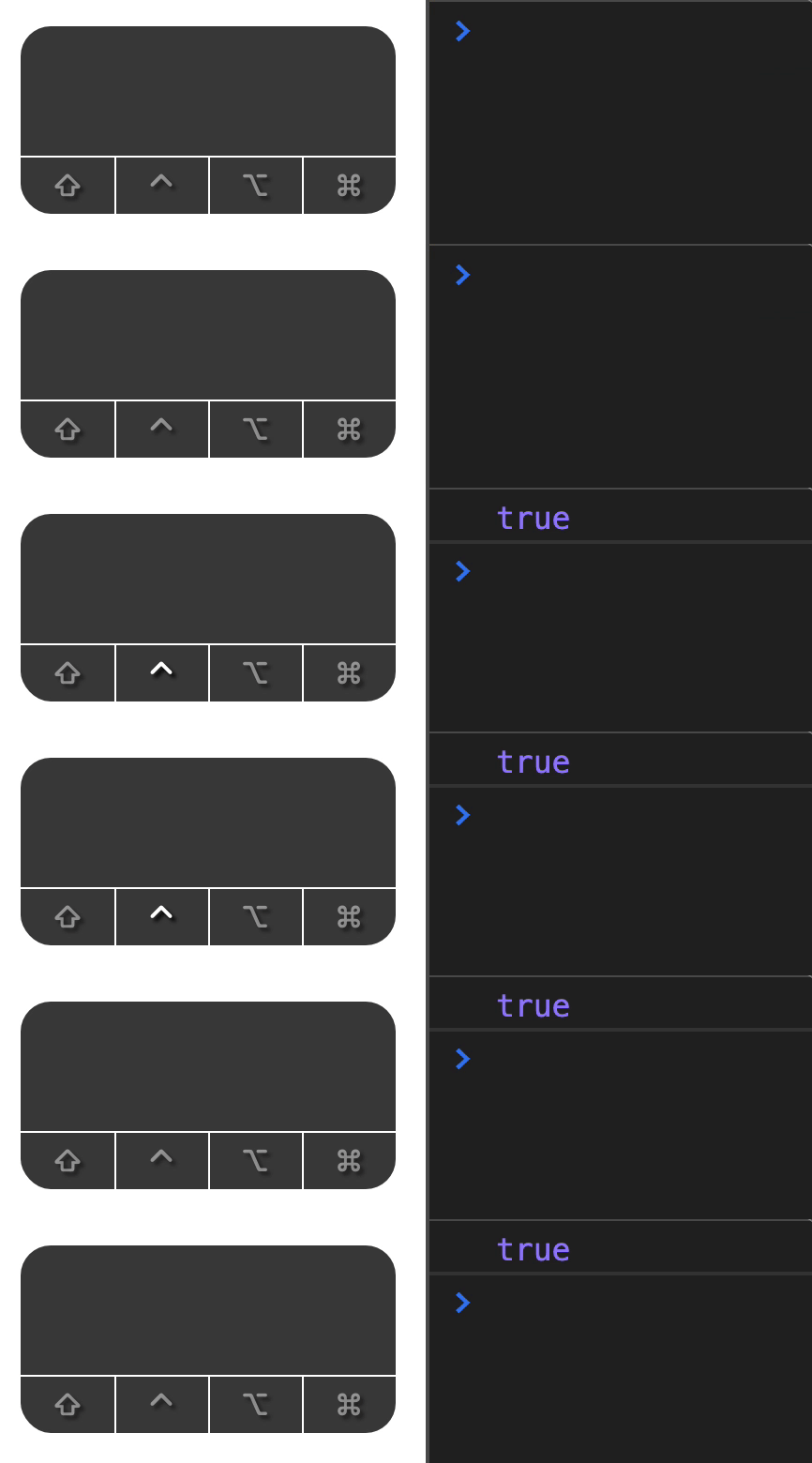
You can detect if option (or alt) is pressed with event.altKey.
document.addEventListener('keydown', event => { console.log(event.altKey)})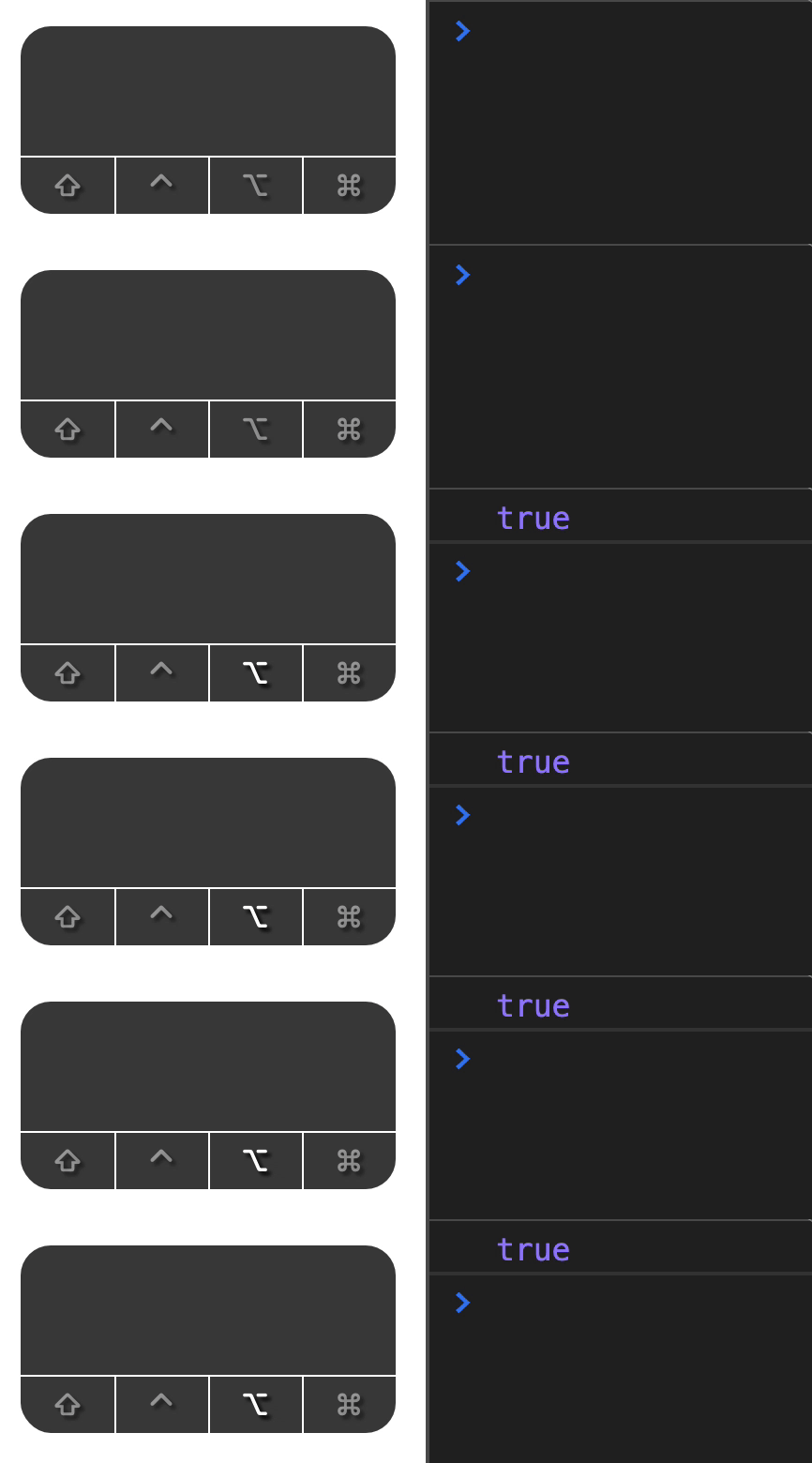
You can detect if a command (or Windows) is pressed with event.metaKey.
document.addEventListener('keydown', event => { console.log(event.metaKey)})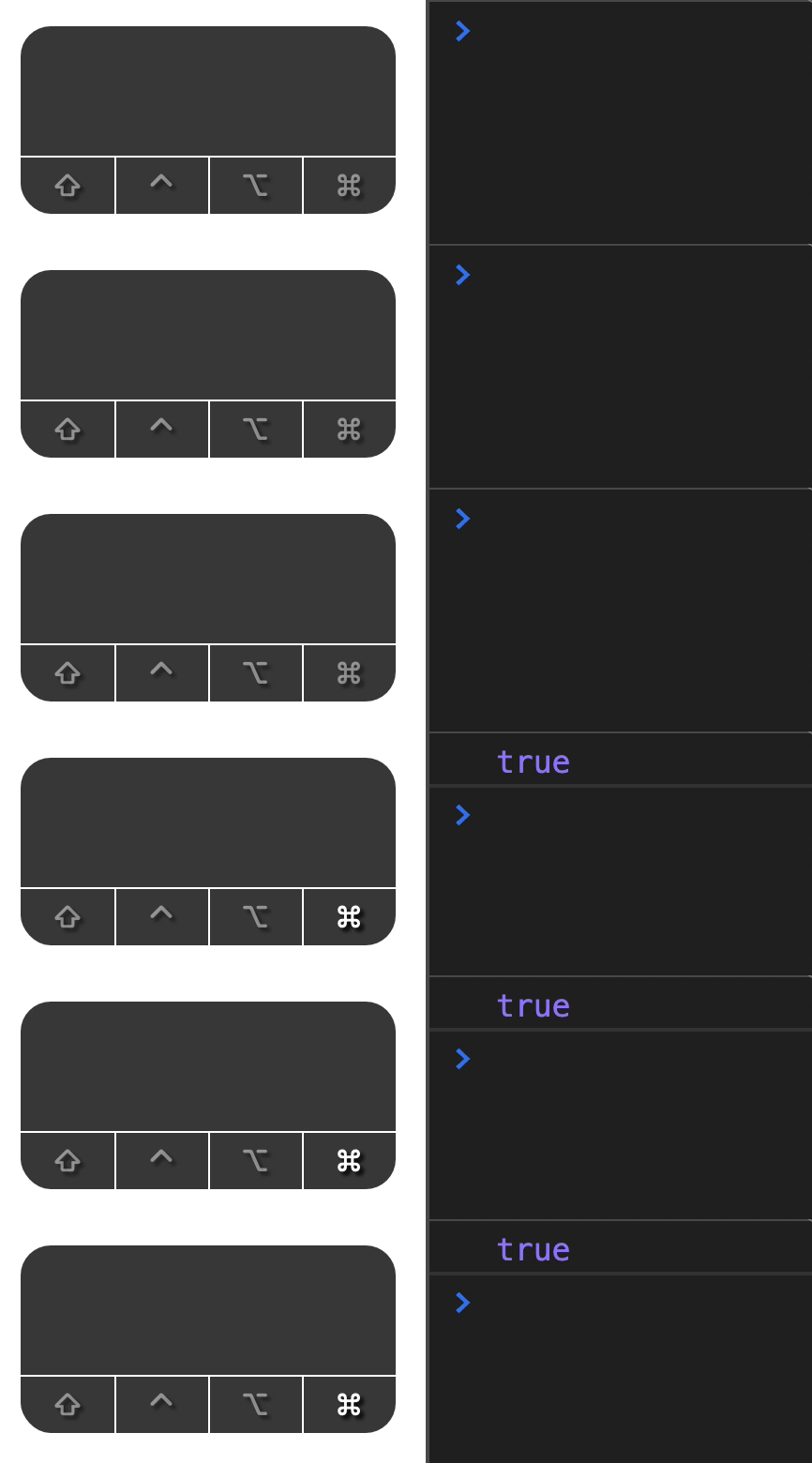
Welcome! Unfortunately, you don’t have access to this lesson. To get access, please purchase the course or enroll in Magical Dev School.
Unlock this lesson