There are three keyboard events:
- keydown
- keypress
- keyup
keydown and keyup fires when a user presses a key on the keyboard that’s NOT a character key. keydown goes first, followed by keyup. Non-character keys are:
- Escape
- F1 to F12
- Delete (Backspace on PC)
- Tab
- Caps lock
- Modifier keys like Shift, Control, Option (Alt on PC), Command (Windows on PC)
- Arrow keys
(You can check for the type of event fired with event.type).
function logEventType(event) {  console.log(event.type)}
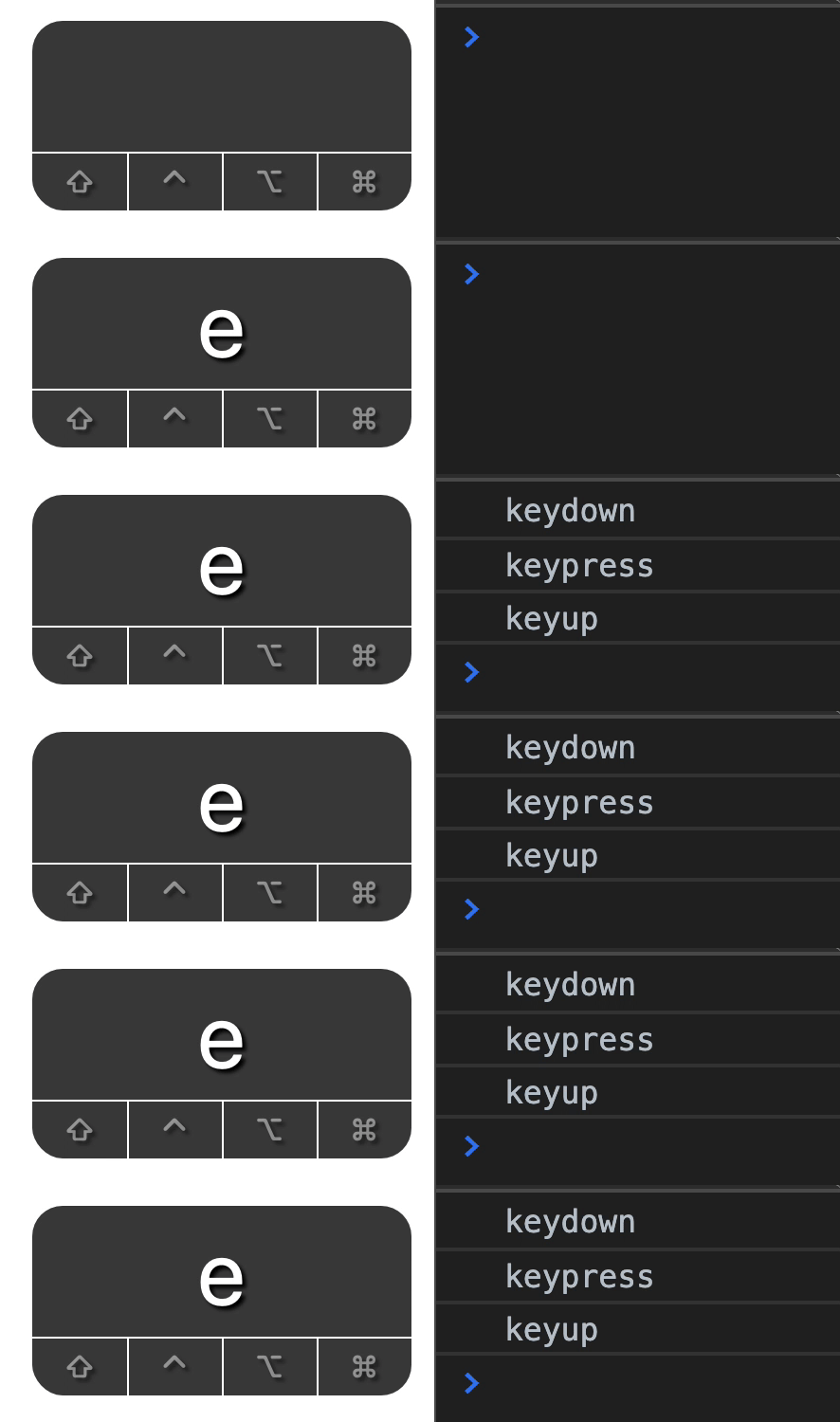
document.addEventListener('keydown', logEventType)document.addEventListener('keypress', logEventType)document.addEventListener('keyup', logEventType)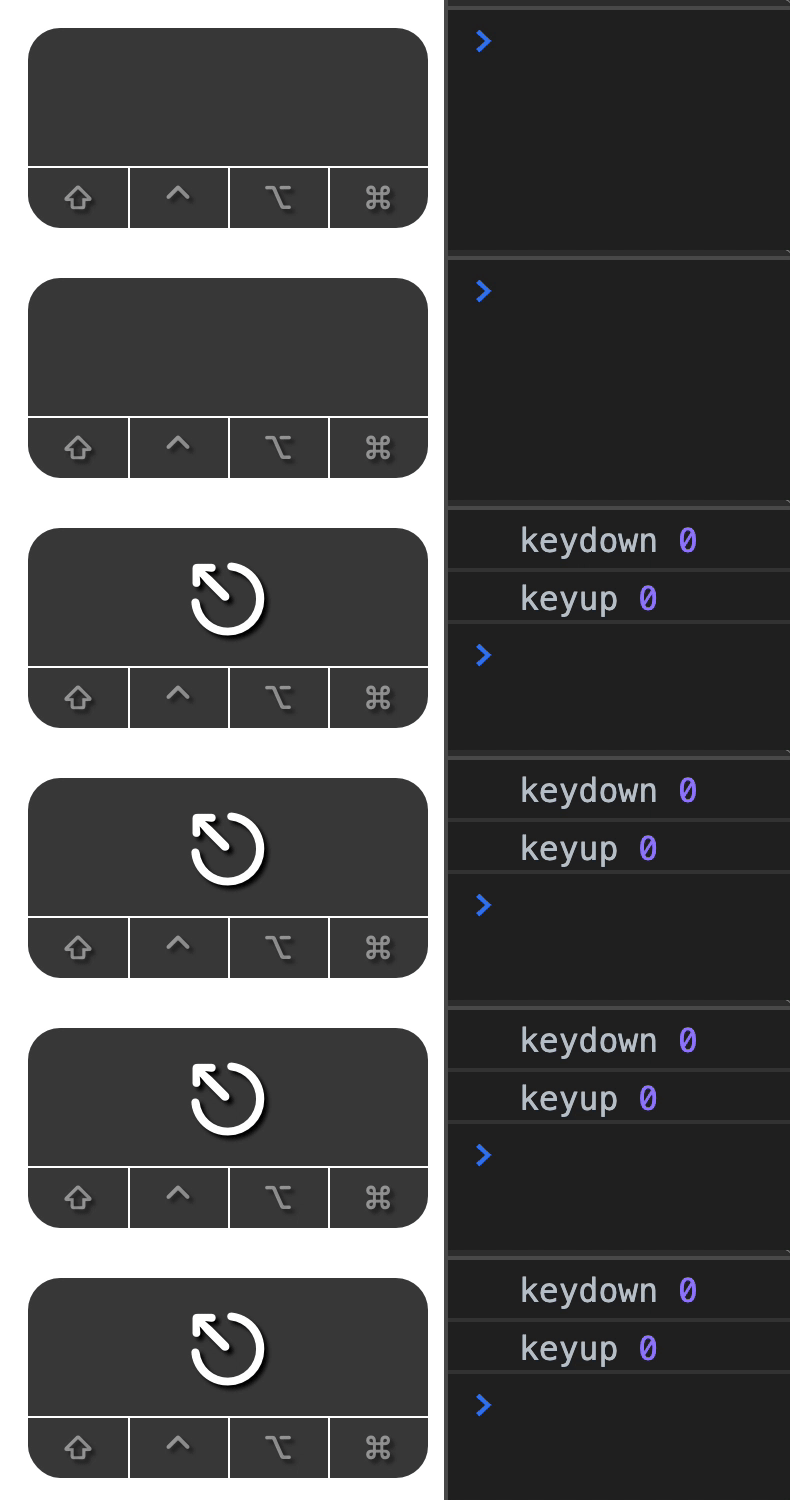
All three events fire when a user presses a character key. keydown goes first, then keypress, then keyup. Character keys are:
- All alphabet characters (A to Z)
- All number characters (1, 2, 3, etc.)
- All punctuation (
,,.,;, etc.)
Repeating keys
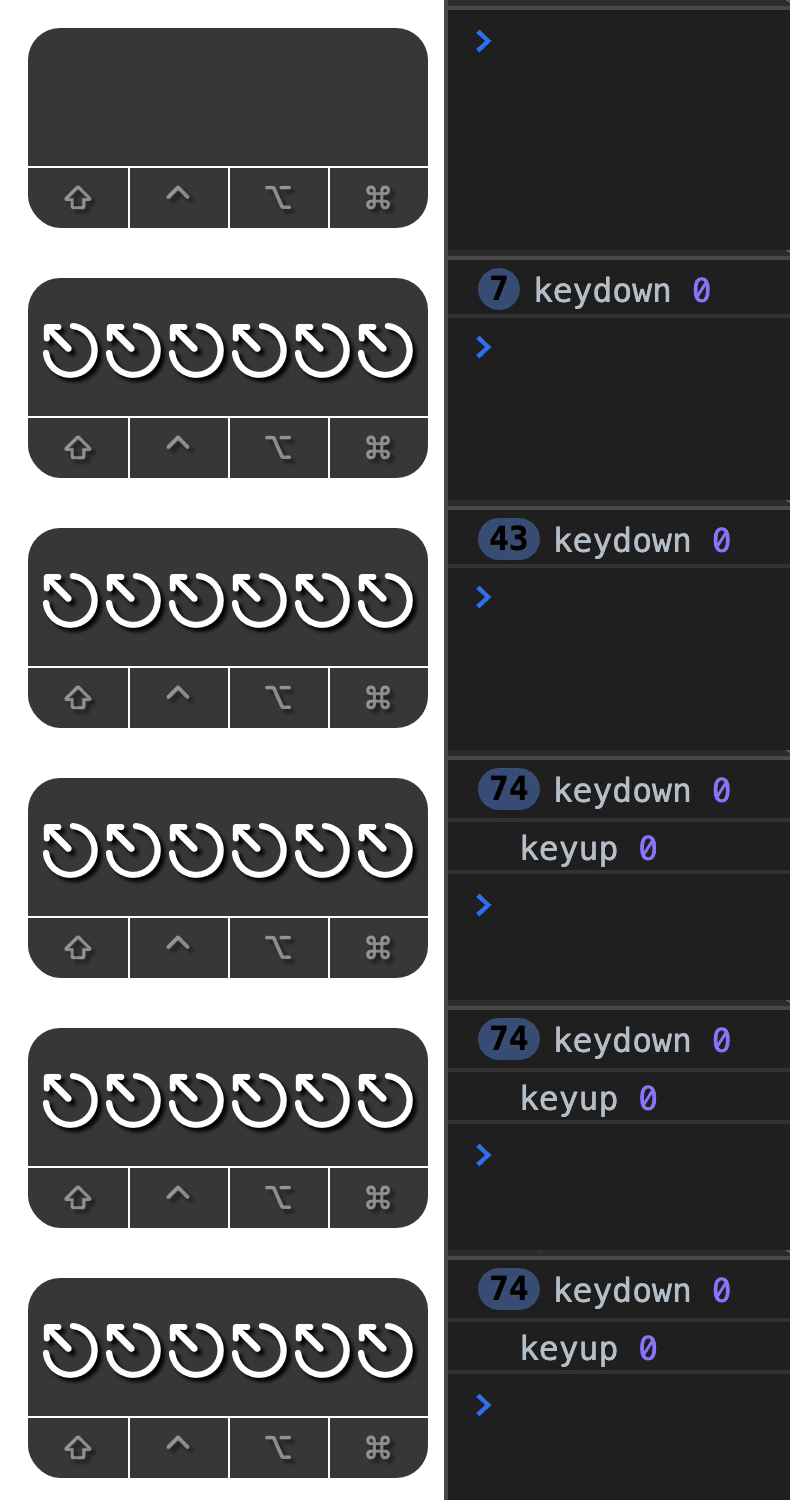
When you hold down a non-character key, the keydown event will fire repeatedly. When you release the non-character key, the keyup event fires.
When you hold down a character key, the keydown and keypress events fire repeatedly. When you release the character key, the keyup event fires.
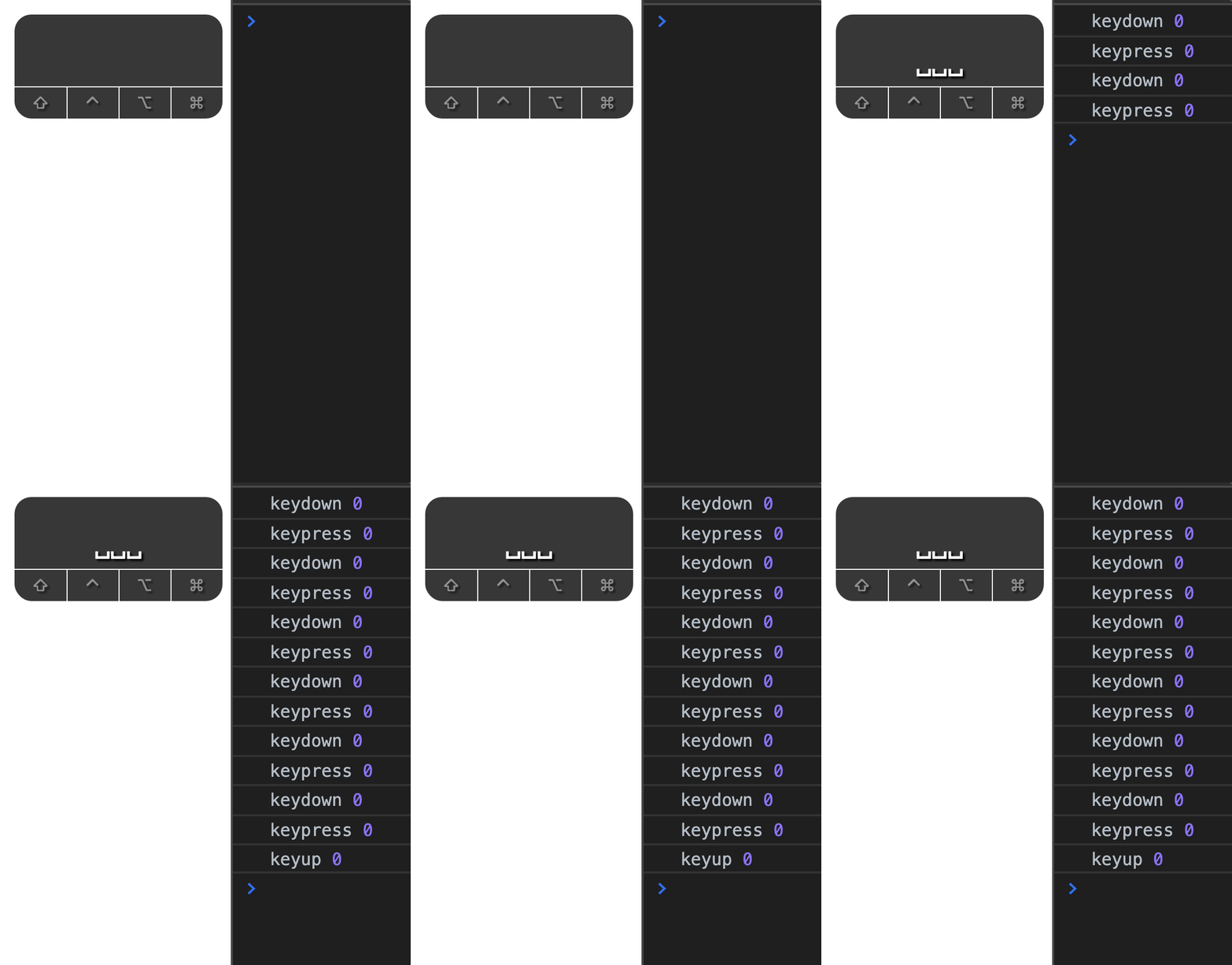
Note: On some platforms (like Ubuntu 9.4, which is very old), all three events fire when you hold down a character key.
The repeat property in the keyboard event tells you whether a key is repeated.
document.addEventListener('keydown', event => { console.log(event.repeat)})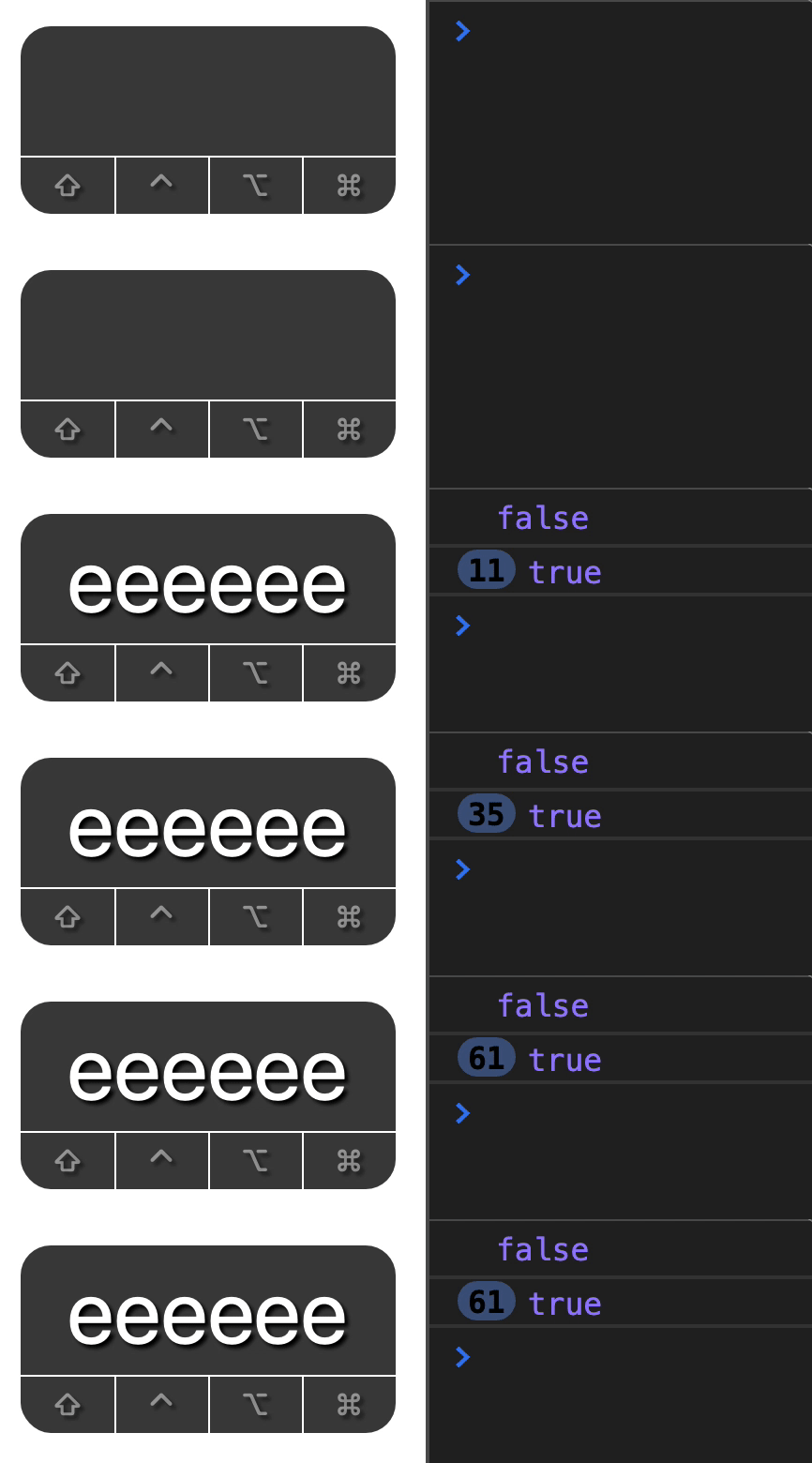
Keydown or keyup?
- Use keydown to do something when a user presses down on a key.
- Use keyup to do something when the user lifts their finger off from a key.
Here are some real examples with default keys:
- Arrow keys scrolls down the page on
keydown. - Tab focuses the next focusable element on
keydown. - Space and Enter trigger
clickevent on a<button>element onkeyup.
You can use either event. It’s not a big deal most of the time. Users won’t notice the difference unless they pay special attention.
Keyboard events on focused elements
An element can listen to a keyboard event when it receives focus. (Note: I will only log the keydown event from this point onwards).
button.addEventListener('keydown', event => { console.log(event.type)})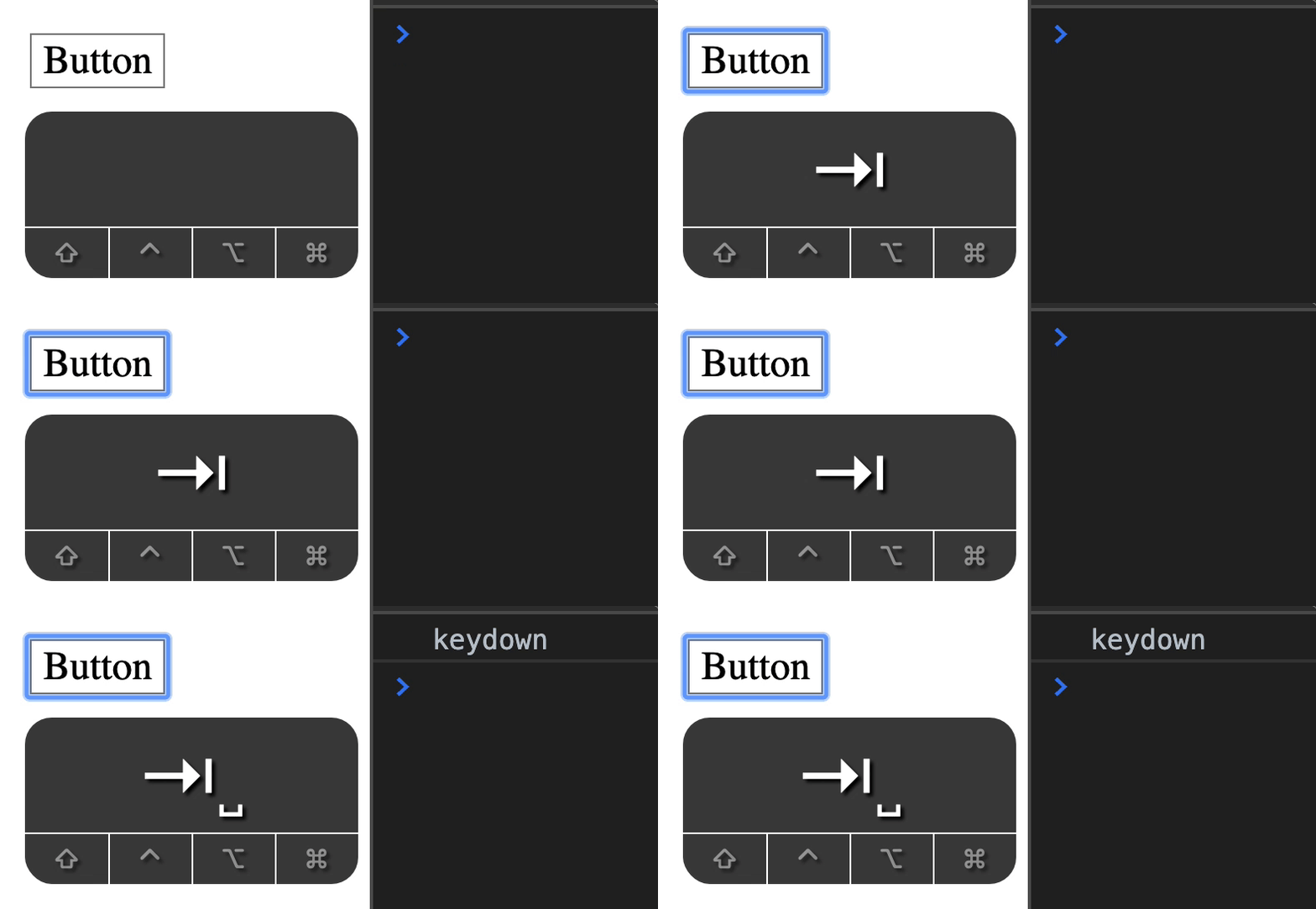
Keyboard events bubble up to the document.
button.addEventListener('keydown', event => {  console.log(`From button: ${event.type}`)})
document.addEventListener('keydown', event => {  console.log(`From document: ${event.type}`)})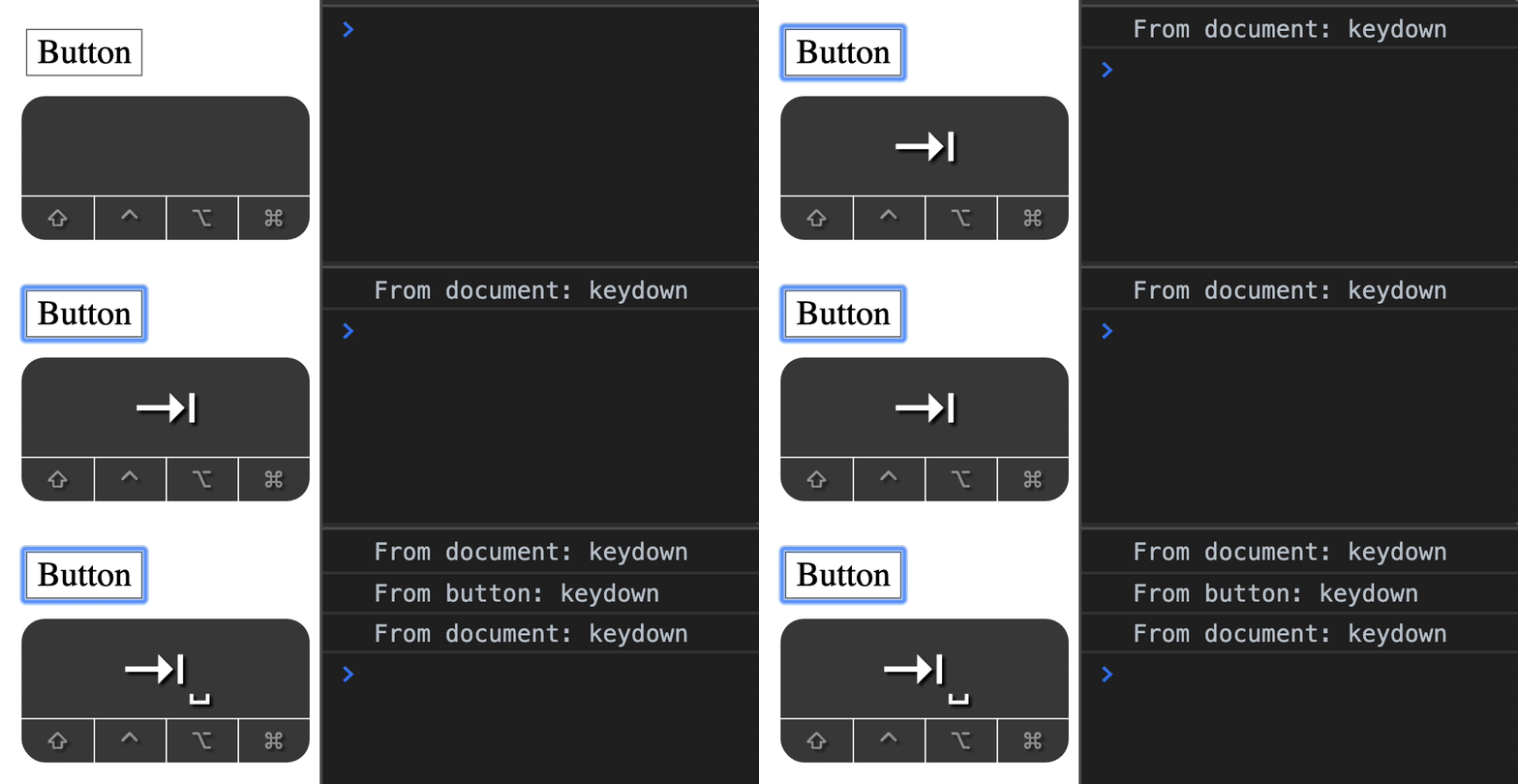
In the gif above:
- The first
From documentis caused by the tab key. It fires in the document. - The
From buttonis fired by a space key on the button. - The last
From documentis caused by bubbling of the event to the document.
Avoid event delegation
You’ll want to avoid event delegation when dealing keyboard events. This is because an event might not fire if the user clicked inside the component (but not on an focusable element).
Example: Let’s say you have this HTML.
<form> <label for="input"> <input id="input" type="text" /></form>Scenario:
- User focuses on
<input> - Then, user clicks on
<form>, but not on<input>or<label>
If the user hits a key after (1), the event will bubble through <input>, <form>, and <document>.
If the user hits a key after (2), the focused element will be <body>. (I’ll explain how to check for the focused element in a later lesson). Since the focused element is <body>, <form> will not receive the keyboard event.
Getting the key that is pressed
You can get the value of a key with two properties:
keycode
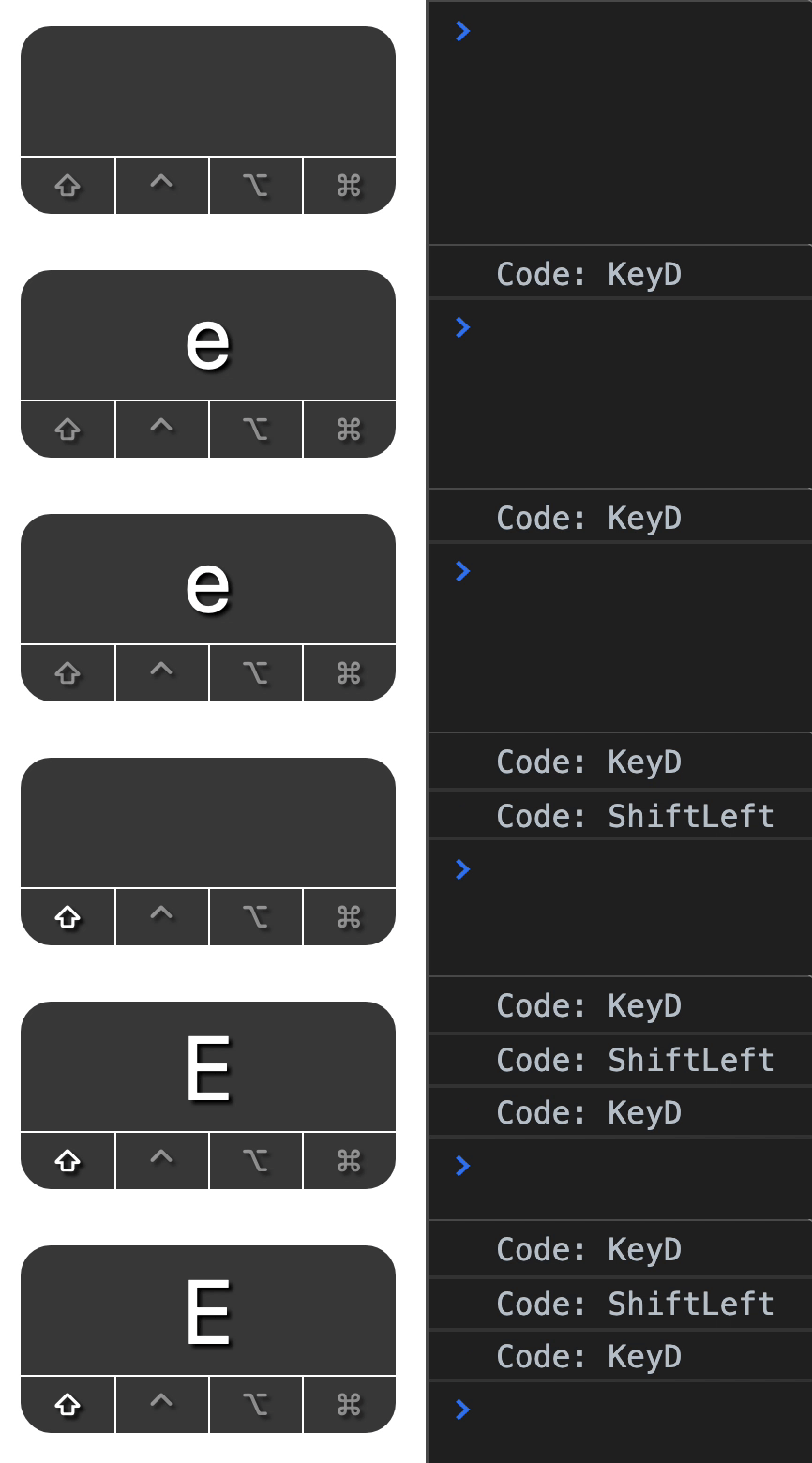
key gets the value of the key that is pressed. It is case sensitive. If you press the e, you’ll get e. If you press shift + e, you’ll get E.
document.addEventListener('keydown', event => { console.log(event.key)})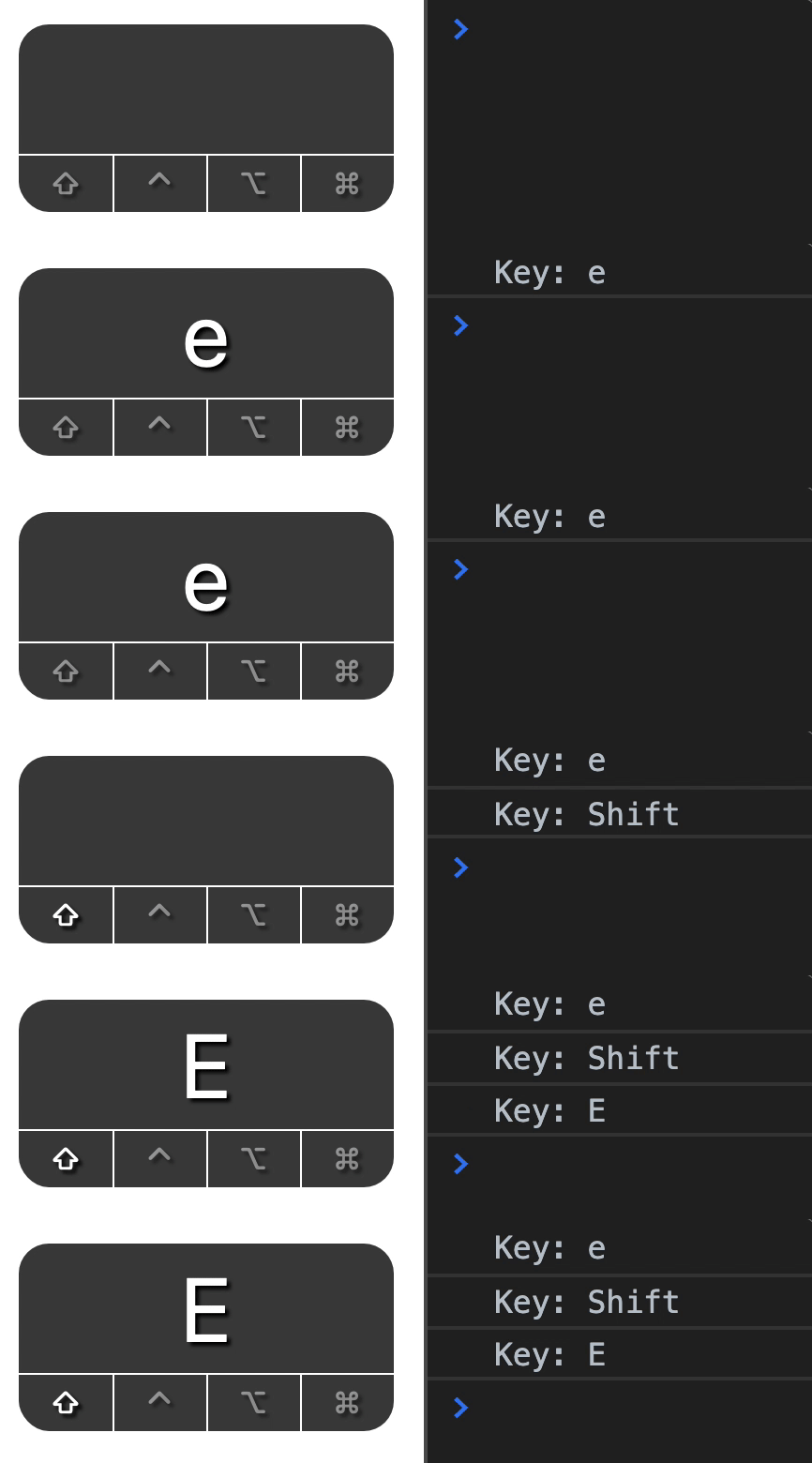
code gets the value of the key on the physical keyboard. This needs some explanation, and I have a good example to show you here.
The keyboard I use is a Qwerty keyboard. It’s the normal keyboard everyone is used to. However, I’ve mapped my keys to the Dvorak keyboard.
document.addEventListener('keydown', event => { console.log(event.code)})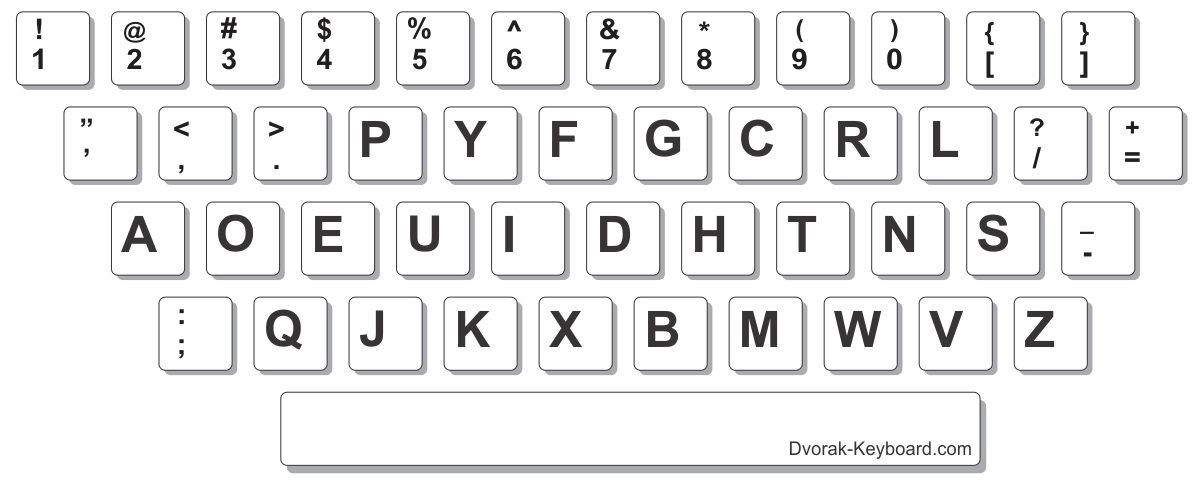
The Dvorak e key in the Qwerty is the d key. When I hit e, code shows keyD.
To sum up:
- Use
keyin most situations - Use
codeif you need to get the physical key on the keyboard
Modifier keys
Modifier keys are keys like:
- Shift:
⇧ - Control:
⌃ - Option:
⌥(or Alt on PC) - Command:
⌘(or Windows⊞on PC)
You can detect if shift is pressed with event.shiftKey.
document.addEventListener('keydown', event => { console.log(event.shiftKey)})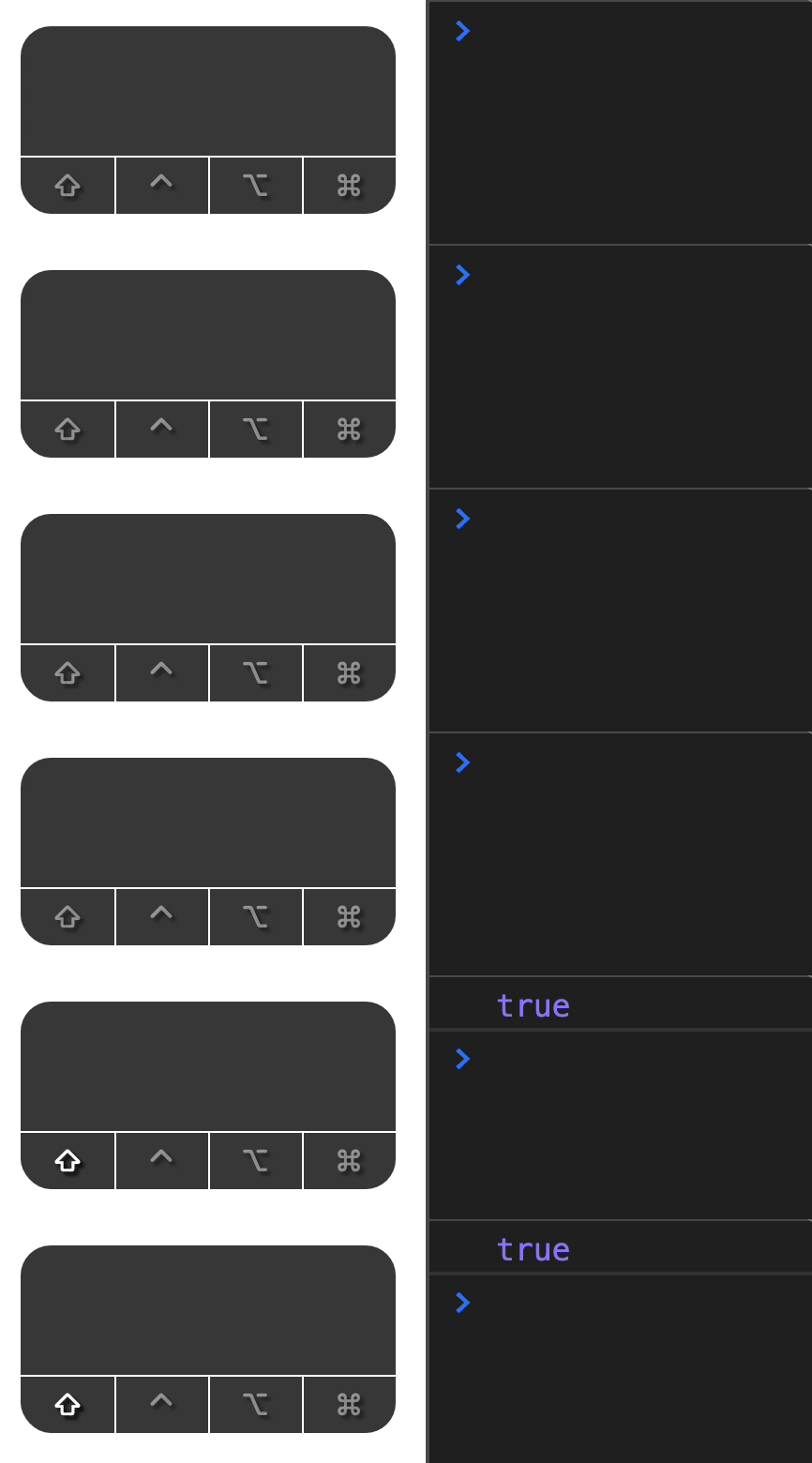
You can detect if control is pressed with event.ctrlKey.
document.addEventListener('keydown', event => { console.log(event.ctrlKey)})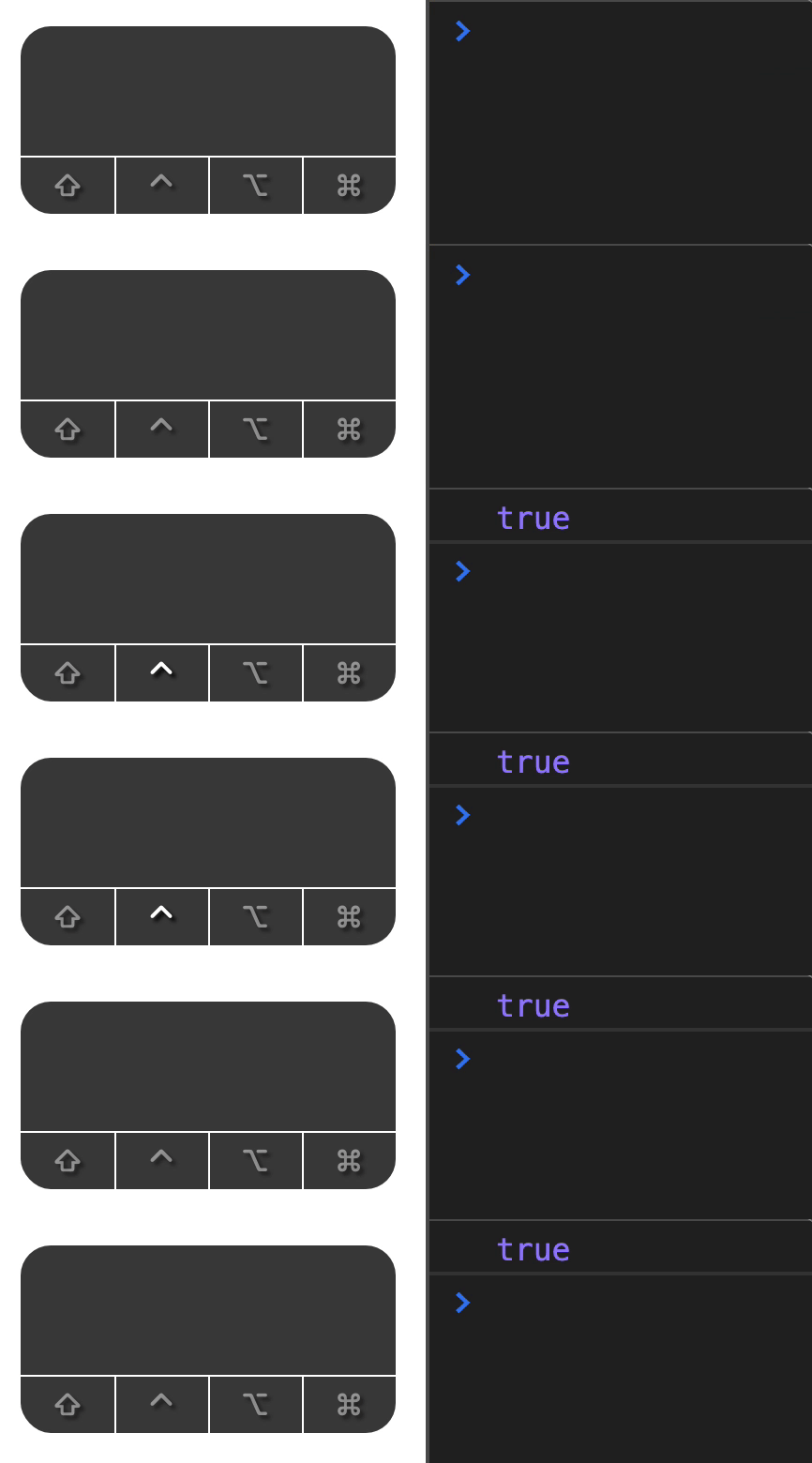
You can detect if option (or alt) is pressed with event.altKey.
document.addEventListener('keydown', event => { console.log(event.altKey)})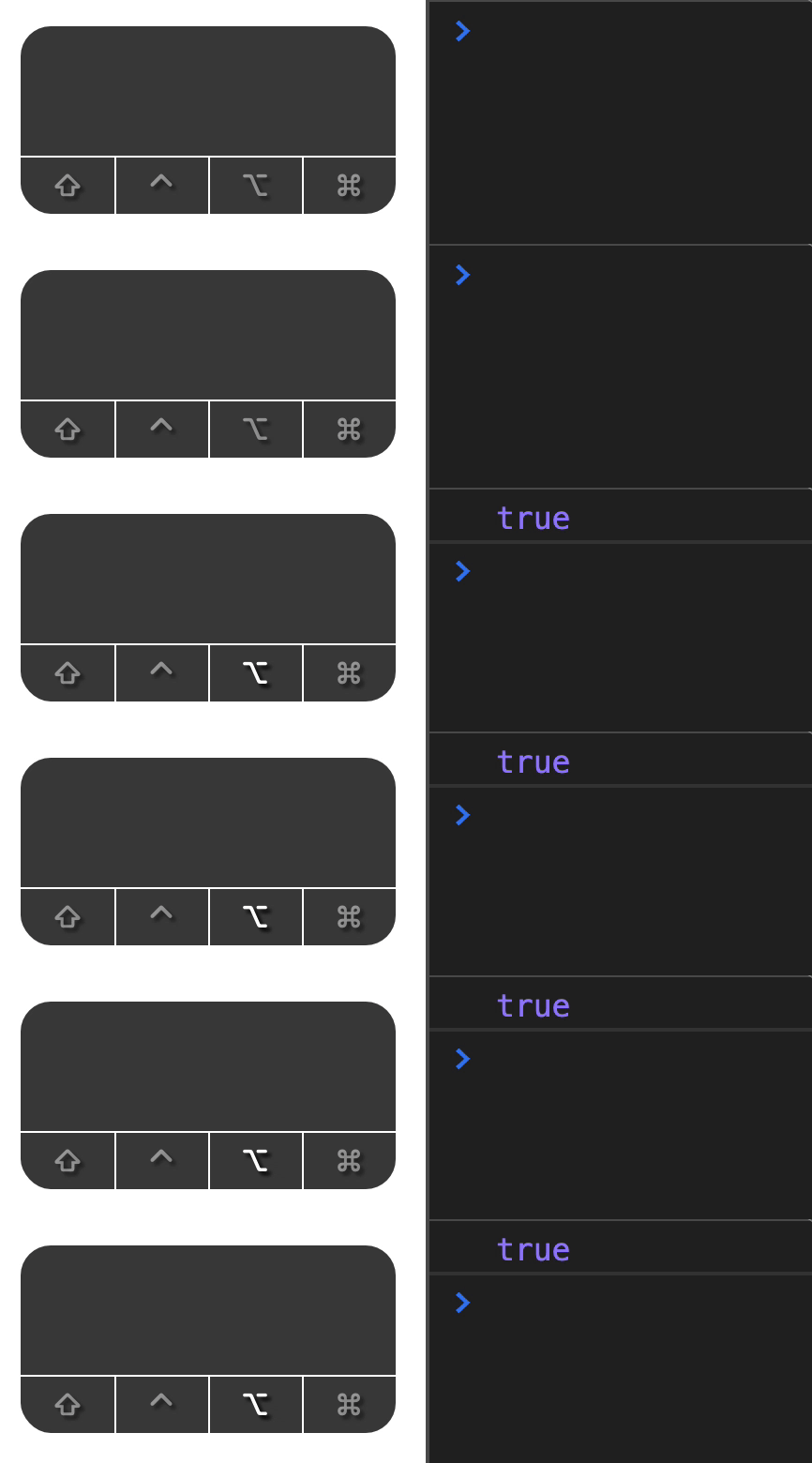
You can detect if a command (or Windows) is pressed with event.metaKey.
document.addEventListener('keydown', event => { console.log(event.metaKey)})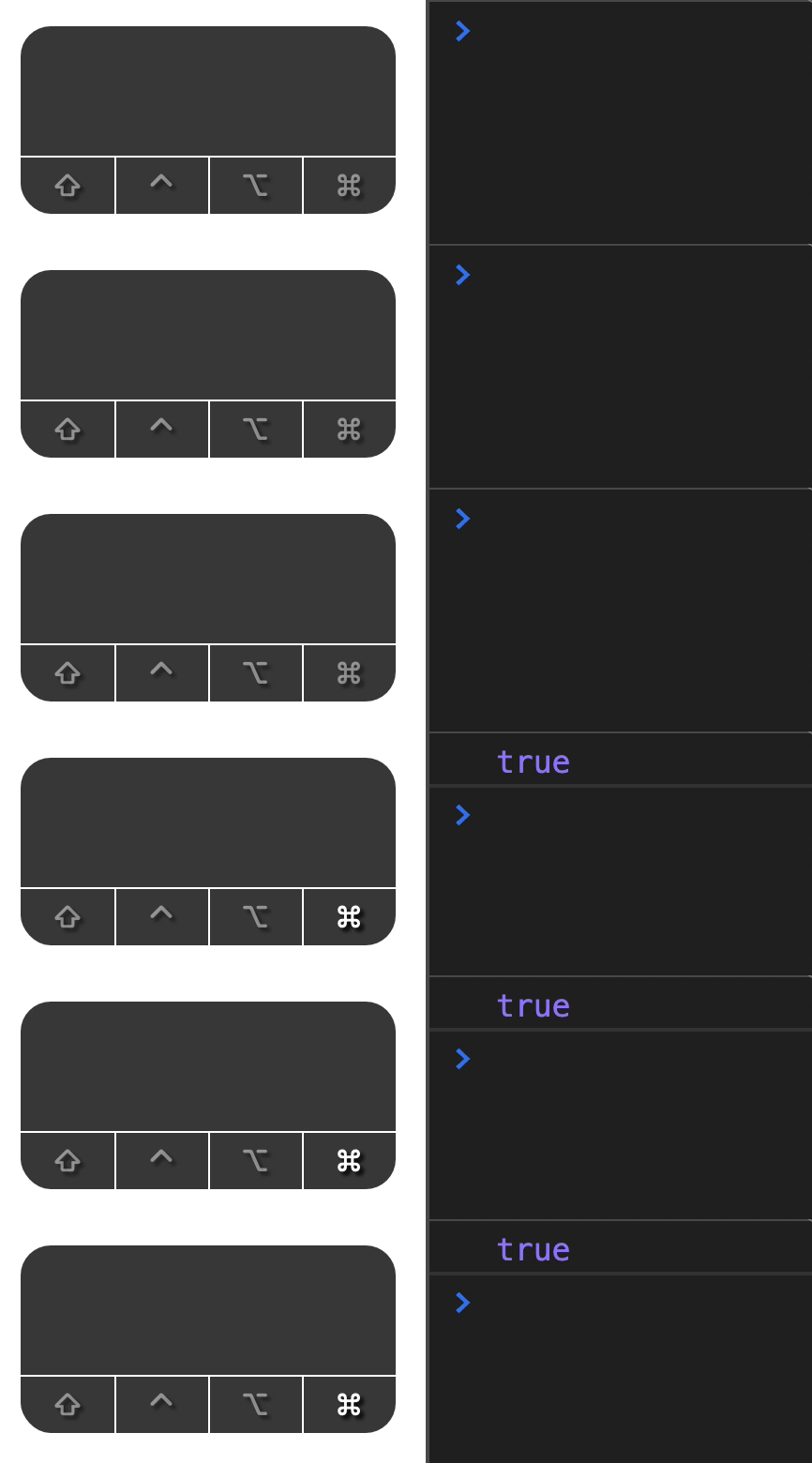
getModifierState
You can also use the getModifierState method to get the state of modifiers. You can use it to tell whether Shift, Control, Option, or Command are pressed.
getModifierState takes in an argument. It is a string that represents a modifier key. You can find a list of valid keys here.
In practice, getModifierState is only useful to tell whether the Caps Lock key is turned on.
document.addEventListener('keydown', event => { const capsOn = getModifierState('CapsLock')})Left or right modifier keys
Modifier keys on the left side of the keyboard have a location property set to 1.
Modifier keys on the right side of the keyboard have a location property set to 2.
document.addEventListener('keydown', event => { console.log(event.code, event.location)})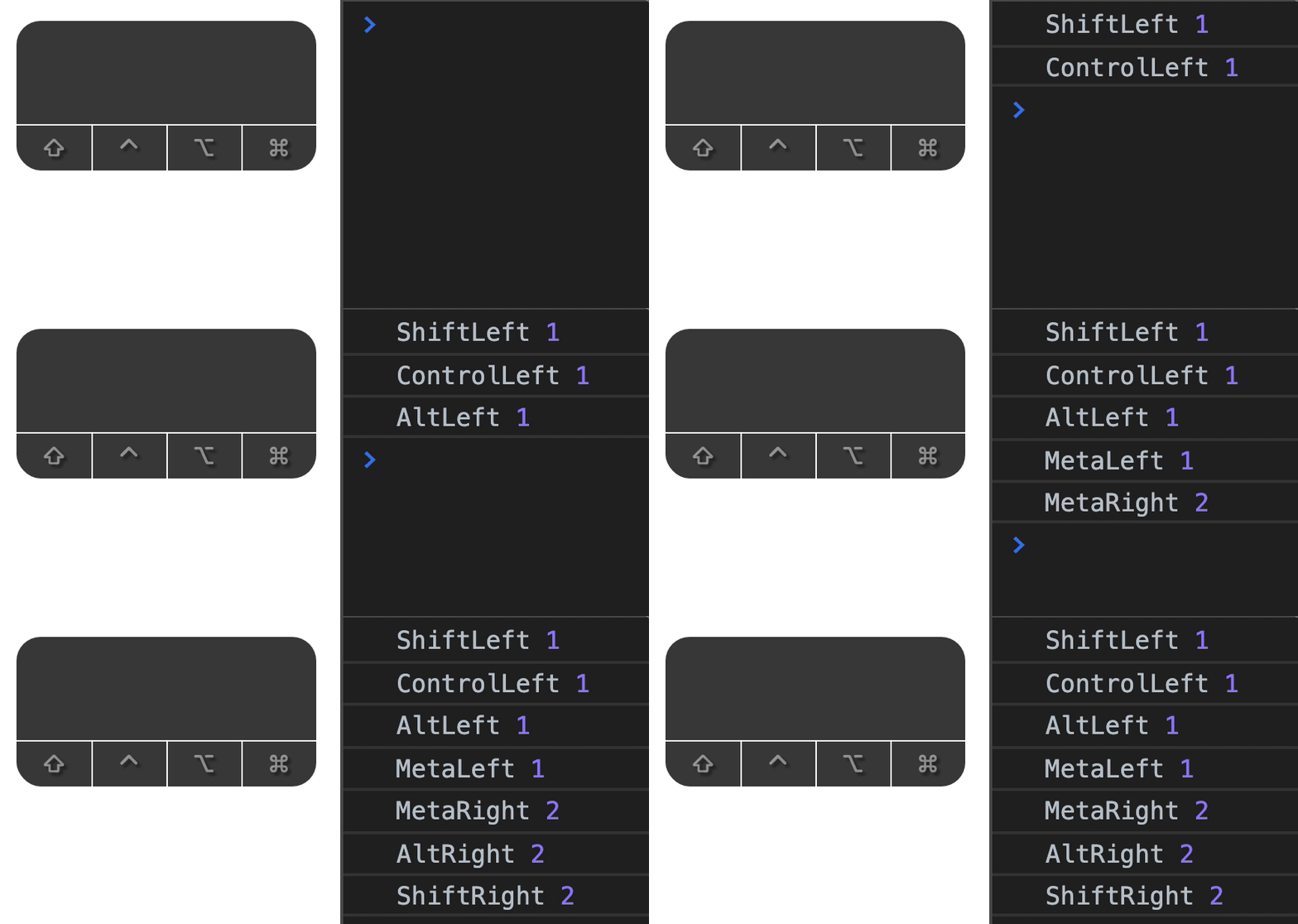
Triggering a click on other elements
You can trigger a click event from JavaScript. This is helpful when you create components. I’ll share more about this when you add keyboard interaction to Tabby.
HTMLElement.click()Welcome! Unfortunately, you don’t have access to this lesson. To get access, please purchase the course or enroll in Magical Dev School.
Unlock this lesson