The calculator is keyboard-accessible. But it’s not keyboard friendly. Try adding 1 + 1 with the keyboard and you’ll know why.
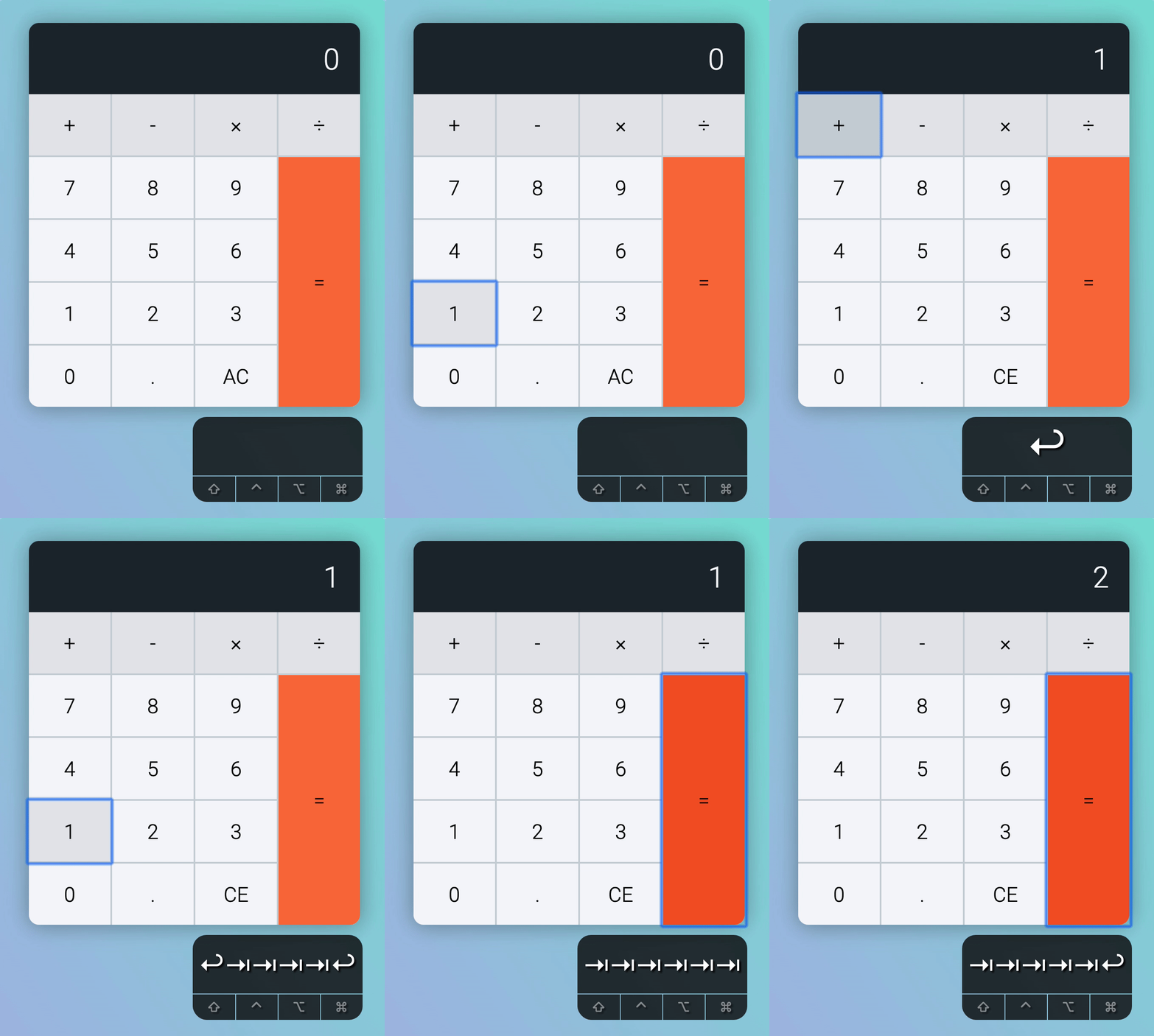
Here are the problems:
- Tab order doesn’t go in a reading order. It jumps to 1 suddenly.
- It takes way too many tabs to type 1 + 1.
Here’s a potential solution: We let people use their keyboards to activate the calculator. To do 1 + 1, they simply have to type 1 + 1 enter.
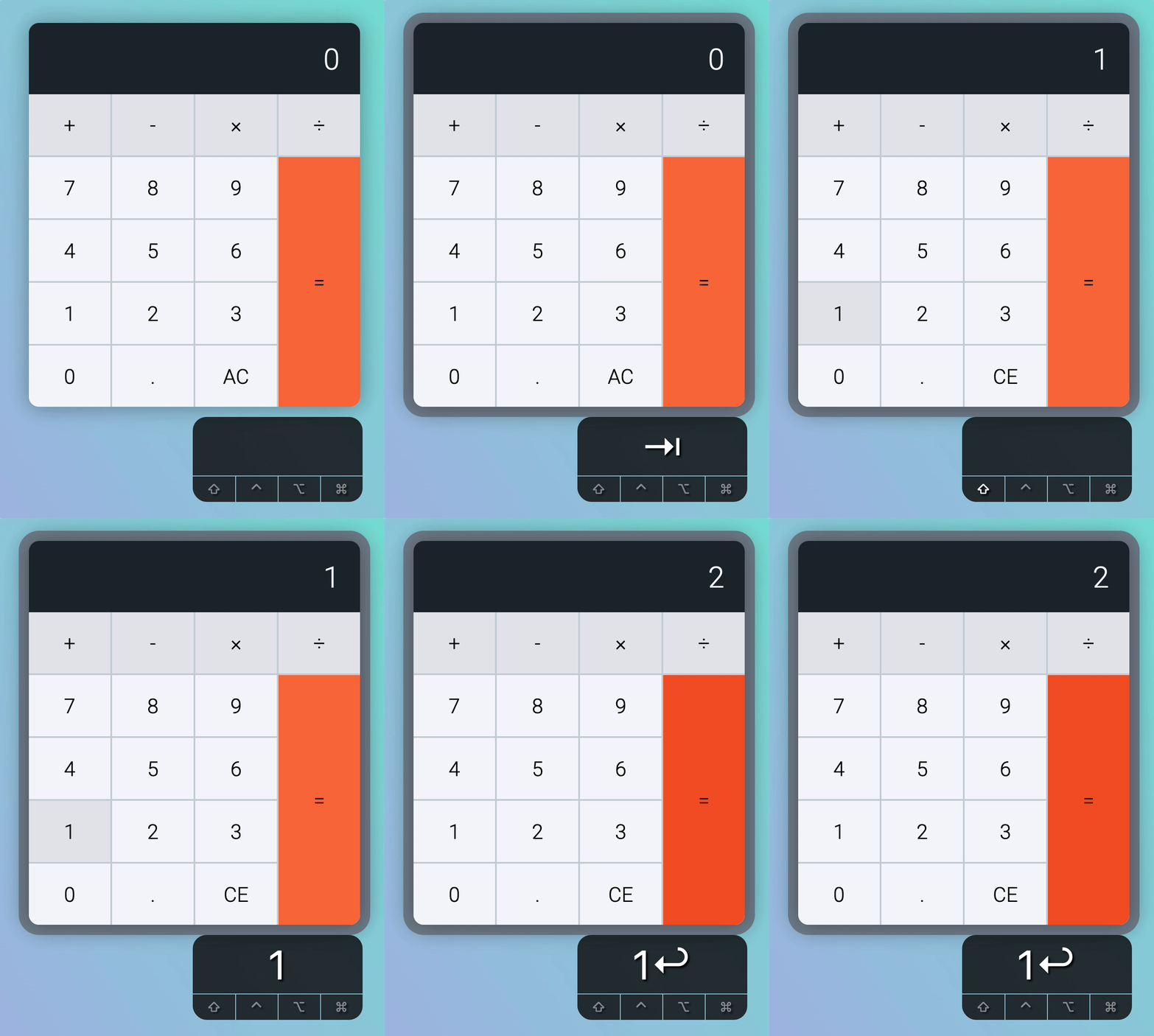
Listening to the keyboard
First, we need to listen to the keys on the keyboard. We only want to listen to a key when we know the user is focused on the calculator.
Since the focus event bubbles, we can listen for a keyboard events on .calculator__keys.
calculatorButtonsDiv.addEventListener('keydown', event => { // ...})We know what key the user pressed by checking event.key.
calculatorButtonsDiv.addEventListener('keydown', event => { console.log(event.key)})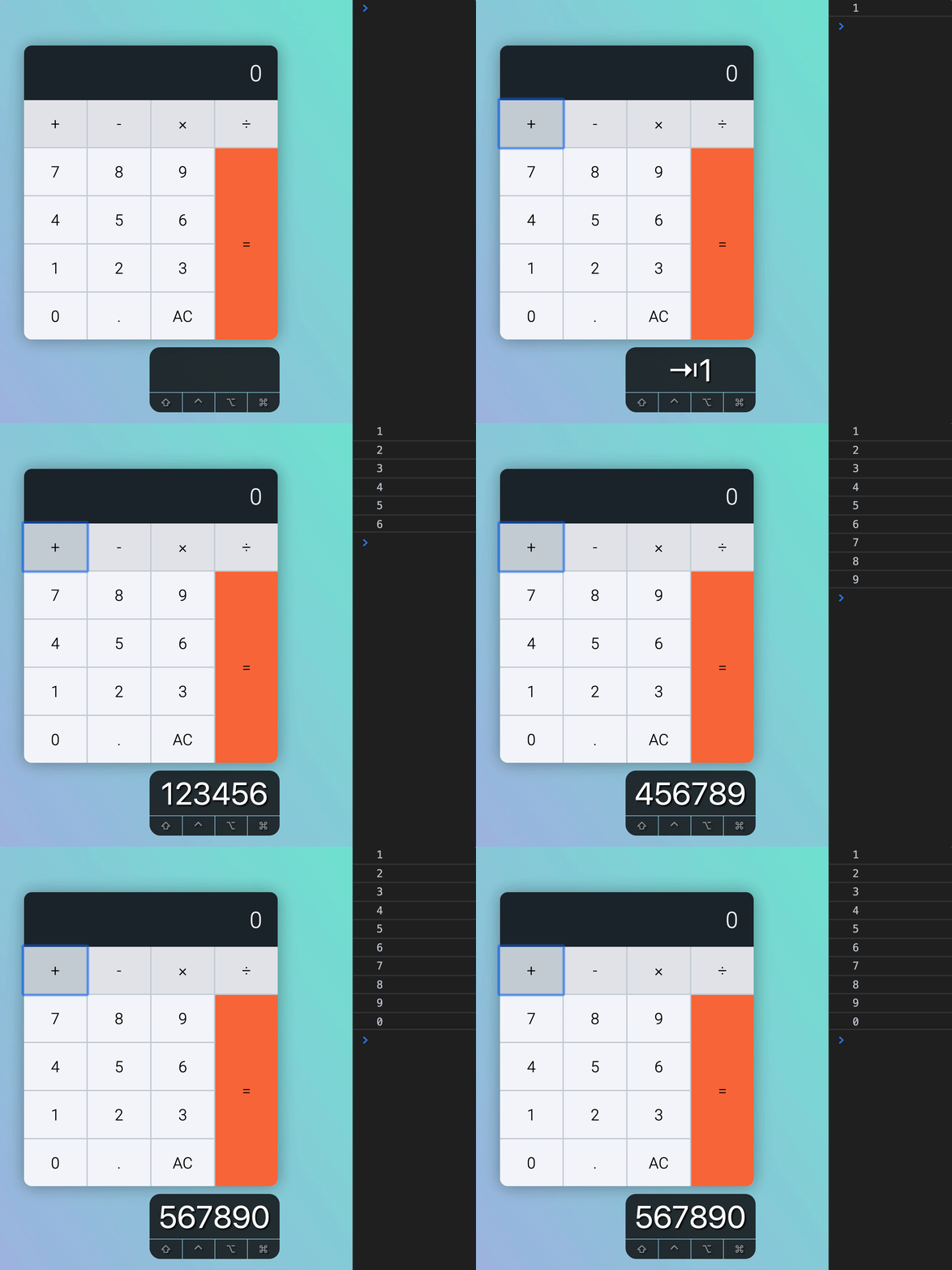
Once the user presses a key, we can find the element that has a data-key that matches the event.key. If we can find an element, we click the element.
calculatorButtonsDiv.addEventListener('keydown', event => { const key = event.key const button = calculator.querySelector(`[data-key="${key}"]`) button.click()})This works with number keys.
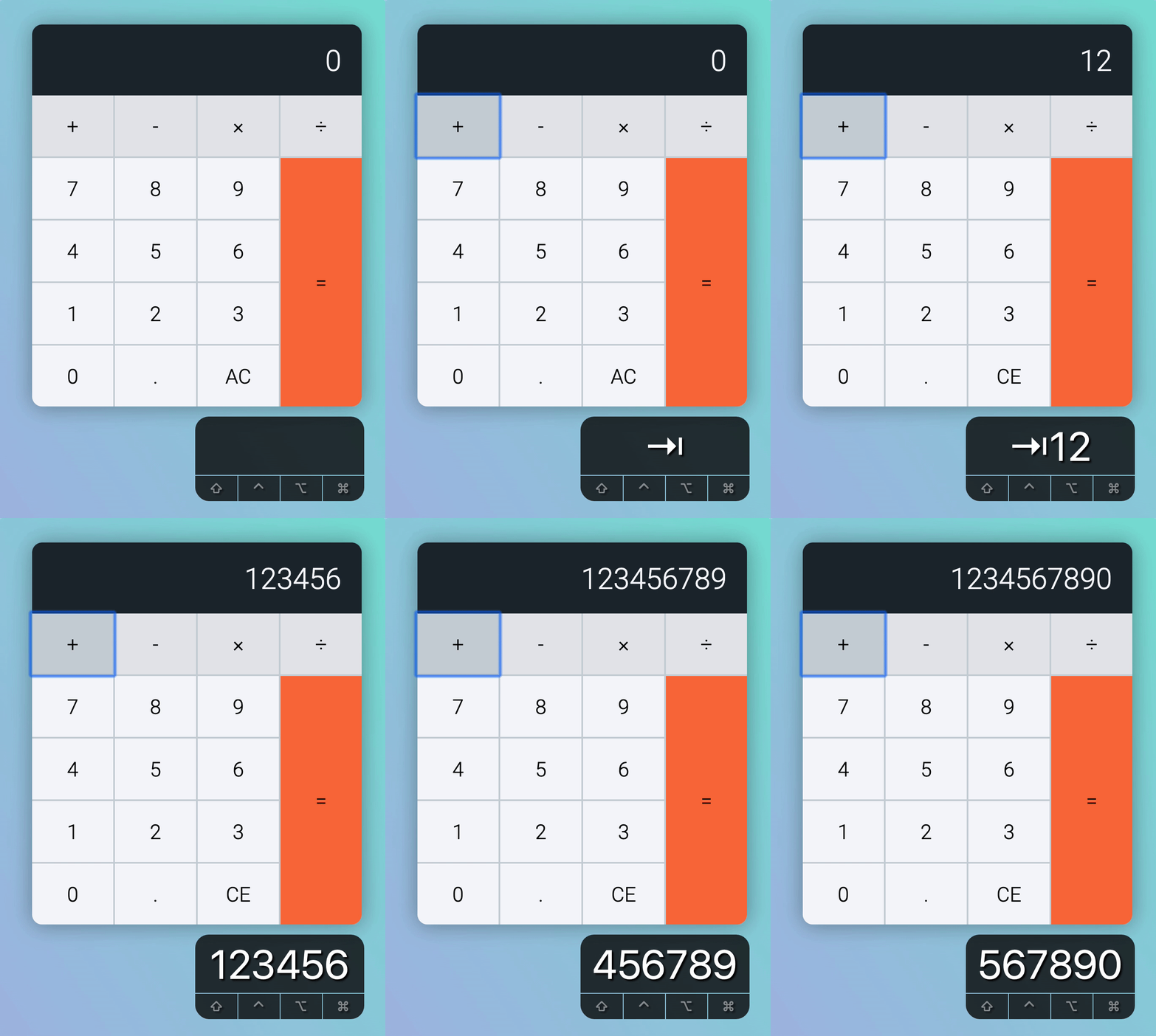
But not with symbols like plus, minus, times, and divide.
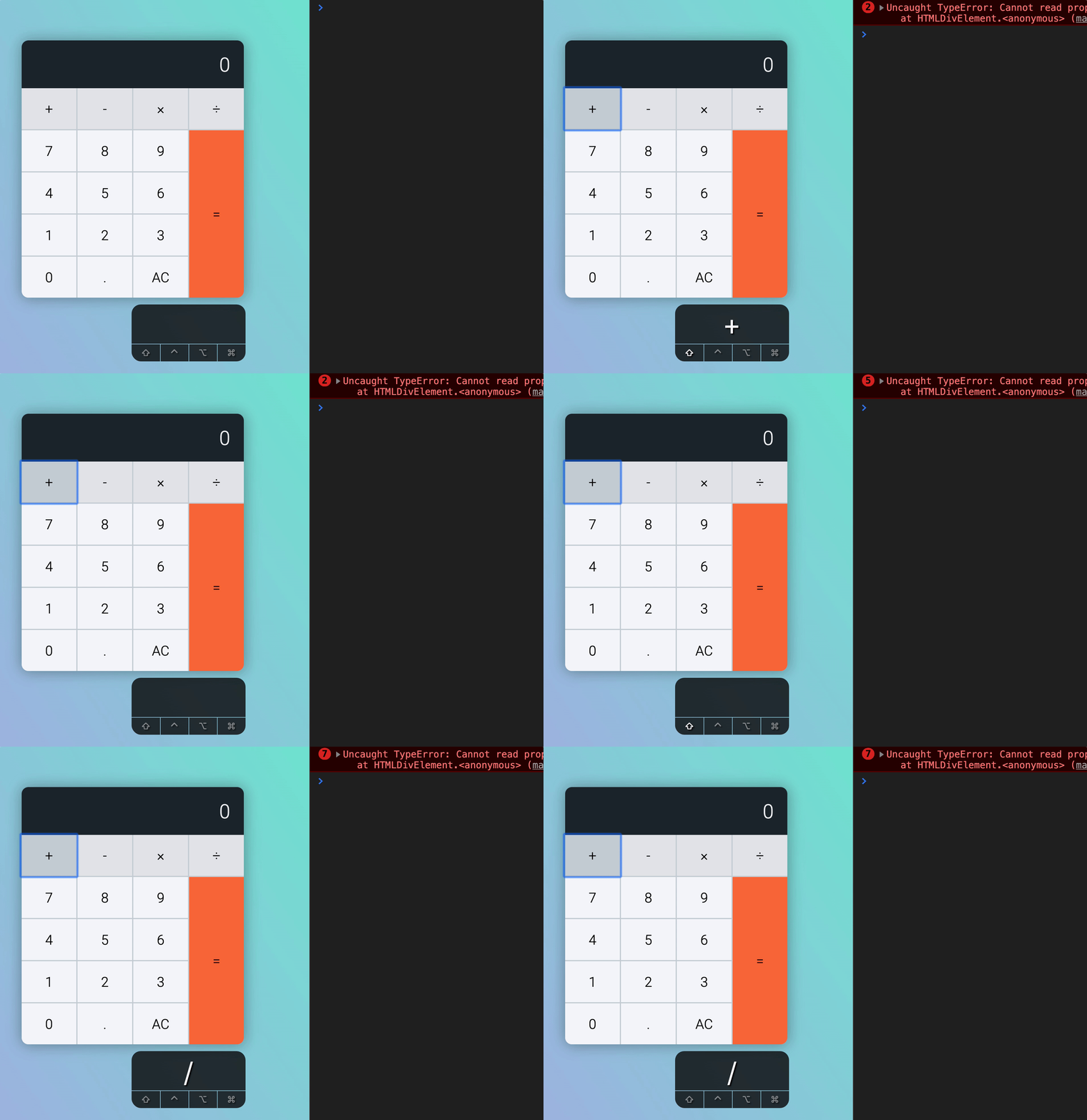
Listening to symbols
The error occurred because querySelector is not able to find a button with the special key. event.key does not provide the same value as what we wrote in data-key.
This means we need to change event.key to match the data-key attribute.
calculator.addEventListener('keydown', event => {  let key = event.key
  // Operator keys  if (key === '+') key = 'plus'  if (key === '-') key = 'minus'  if (key === '*') key = 'times'  if (key === '/') key = 'divide'
  const button = calculator.querySelector(`[data-key="${key}"]`)  button.click()})
If you’re on a keyboard without a number pad, you have to press shift + 8 to get *. And you’ll produce an error in the process (because no button matches data-key="shift").
We don’t want to do anything if a button is not found, so we use an early return statement to end the function.
calculator.addEventListener('keydown', event => {  let key = event.key
  if (key === '+') key = 'plus'  if (key === '-') key = 'minus'  if (key === '*') key = 'times'  if (key === '/') key = 'divide'
  const button = calculator.querySelector(`[data-key="${key}"]`)  if (!button) return  button.click()})
You can press +, -, *, and / keys now.
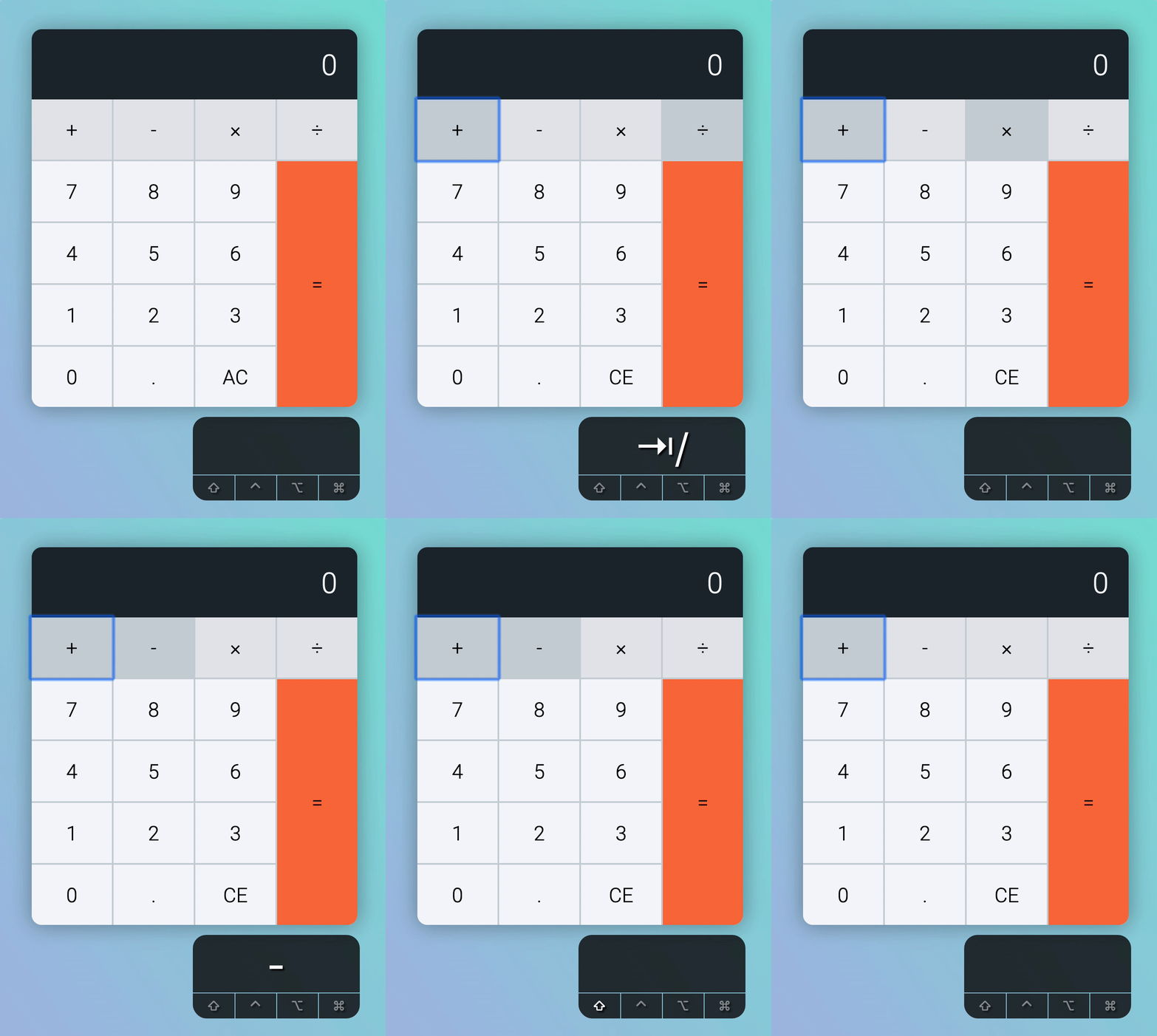
Special keys
We still need to allow users to press these keys with their keyboard:
- The decimal key
- The clear key
- The equal key
It makes sense to use these keys:
.: For decimal keyBackspace: For clear keyEscape: For clear keyEnter: For equal key=: For equal key
calculator.addEventListener('keydown', event => {  let key = event.key
  // Operator keys  if (key === '+') key = 'plus'  if (key === '-') key = 'minus'  if (key === '*') key = 'times'  if (key === '/') key = 'divide'
  // Special keys  if (key === '.') key = 'decimal'  if (key === 'Backspace') key = 'clear'  if (key === 'Escape') key = 'clear'  if (key === 'Enter') key = 'equal'  if (key === '=') key = 'equal'
  const button = calculator.querySelector(`[data-key="${key}"]`)  if (!button) return  button.click()})
Note: Enter triggers a button click. We need to disable this default behaviour. If you don’t, enter will make two calculations, and your results will be incorrect.
calculator.addEventListener('keydown', event => {  let key = event.key
  // Operator keys  if (key === '+') key = 'plus'  if (key === '-') key = 'minus'  if (key === '*') key = 'times'  if (key === '/') key = 'divide'
  // Special keys  if (key === '.') key = 'decimal'  if (key === 'Backspace') key = 'clear'  if (key === 'Escape') key = 'clear'  if (key === 'Enter') key = 'equal'  if (key === '=') key = 'equal'
  const button = calculator.querySelector(`[data-key="${key}"]`)  if (!button) return  event.preventDefault()  button.click()})
You can now perform any calculation you want. It’ll work.
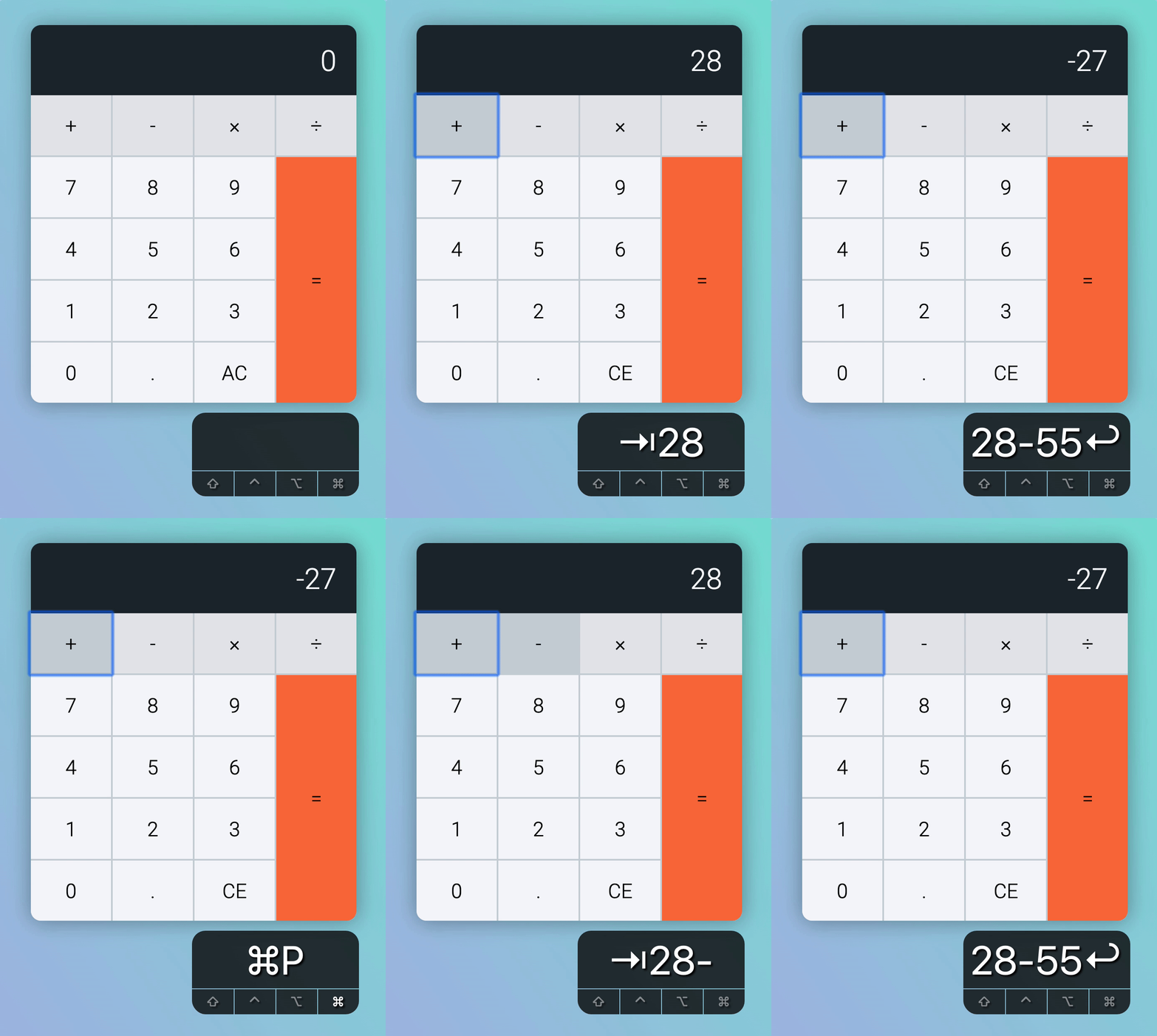
But it’s confusing to see focus remaining on the plus key all the time. It makes the user believe they pressed the plus key, even though that’s not the case!
Managing focus
We want to let highlight the key the user pressed. This should have already happened. It doesn’t because of the way browsers apply focus when users click buttons.
We can correct the focus with this code. Make sure you put this at the top of your JavaScript file.
document.addEventListener('click', event => { if (event.target.matches('button')) { event.target.focus() }})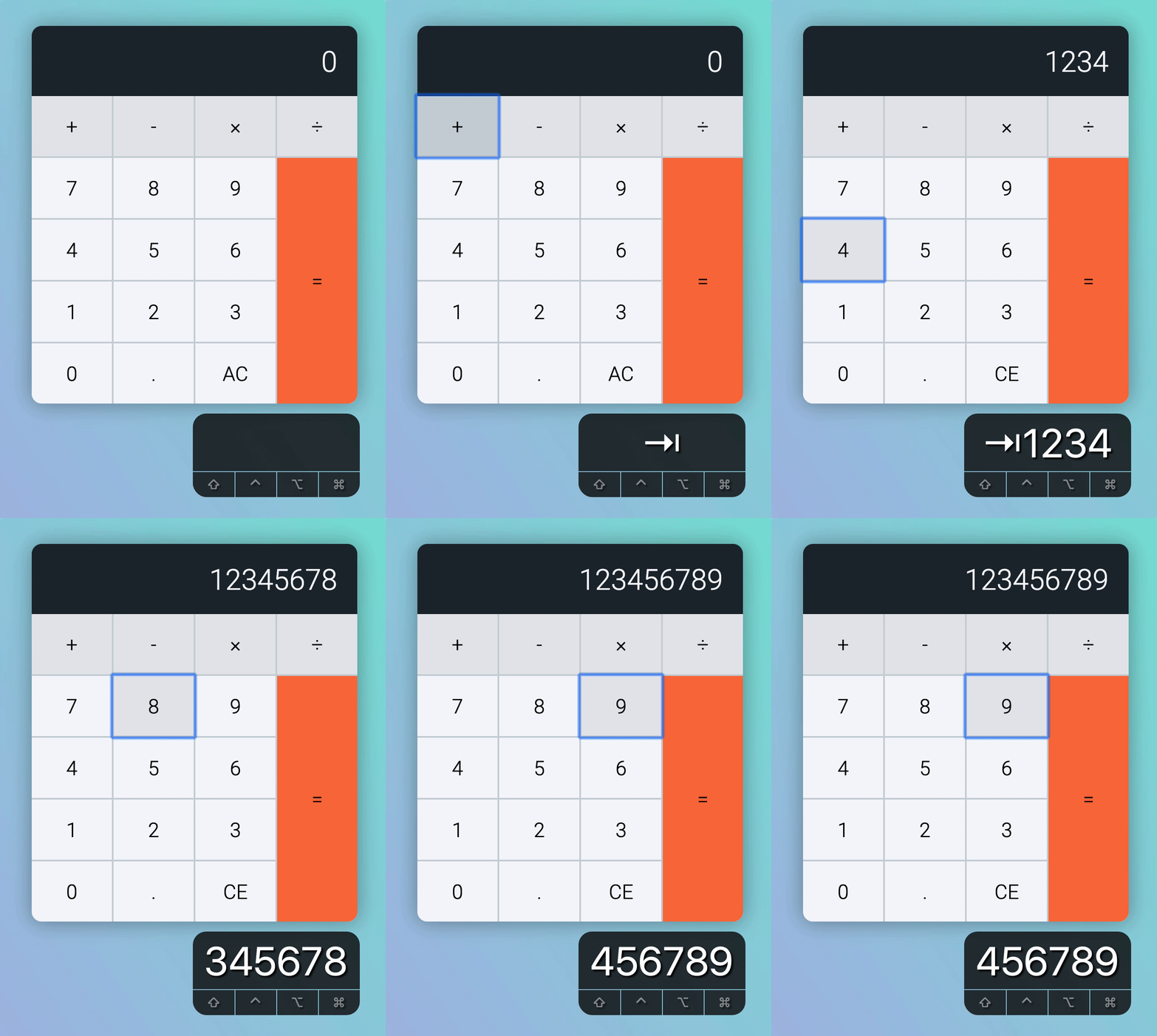
Activating the calculator
If you’re using the calculator, would you think about using number keys when the plus button gets highlighted?
Probably not.
We can show users they’ve activated the calculator by highlighting the entire calculation. To do this, we need to set the calculator’s tabindex to 0.
<div class="calculator" tabindex="0">...</div>We also need to create some styles:
/* Get these styles from the starter file */.calculator:focus,.calculator:focus-within { /* ... */}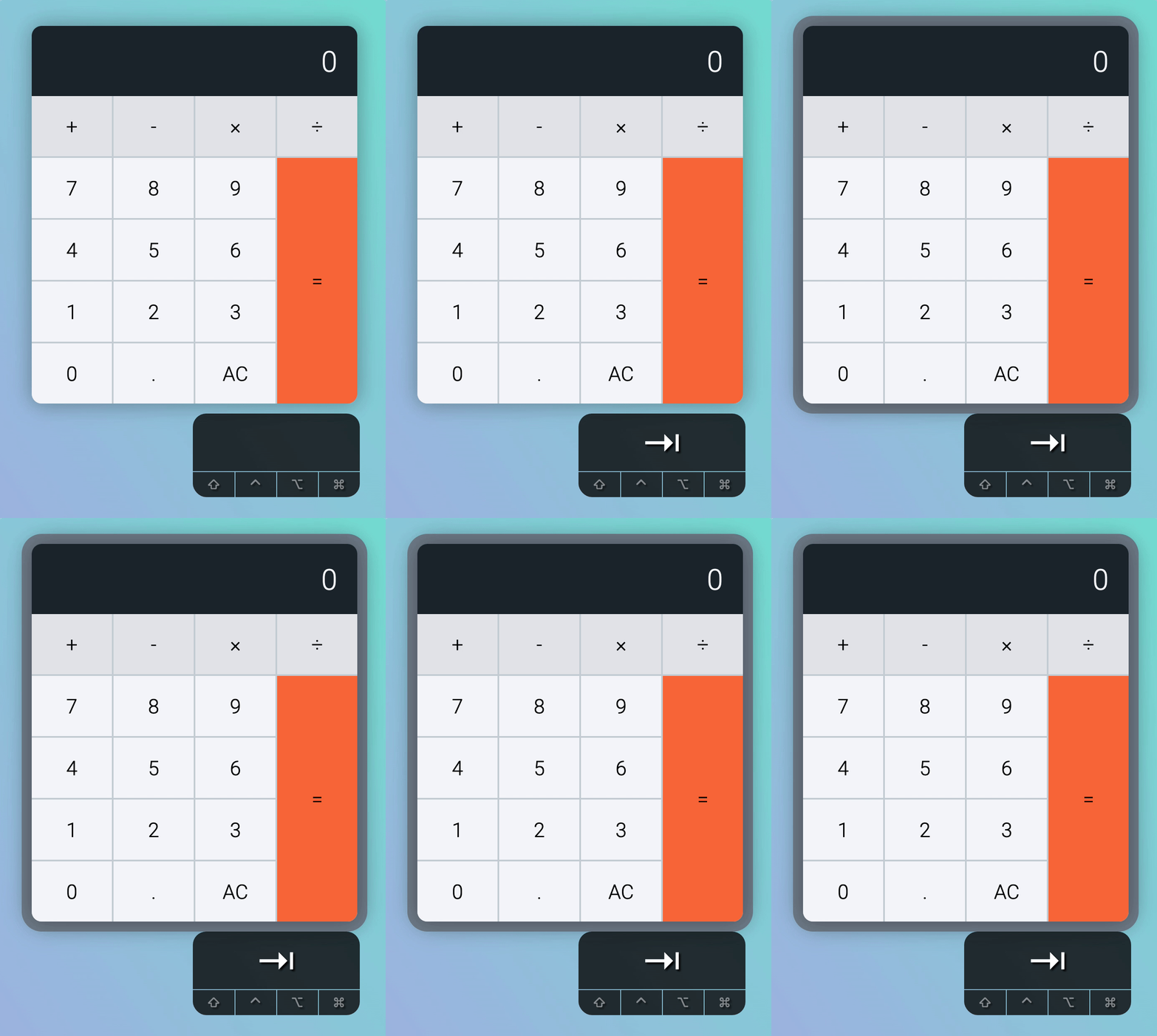
Even if the calculator gets activated, users may still not know they can use the calculator with their keyboard. We should provide them with some clues.
You already learned how to do this with the carousel, so I’m not going to do this. I’ll leave you to figure it out :)
Allow users to tab through the calculator
One final thing. It takes MANY tabs to go through the calculator. We want to allow users to tab through it if the calculator is not their main focus.
We can do this by setting tabindex for all buttons in the calculator to -1.
<div class="calculator__keys"> <button tabindex="-1" ...>+</button> <button tabindex="-1" ...>-</button> <button tabindex="-1" ...>×</button> <button tabindex="-1" ...>÷</button> <button tabindex="-1" ...>1</button> <button tabindex="-1" ...>2</button> <button tabindex="-1" ...>3</button> <button tabindex="-1" ...>4</button> <button tabindex="-1" ...>5</button> <button tabindex="-1" ...>6</button> <button tabindex="-1" ...>7</button> <button tabindex="-1" ...>8</button> <button tabindex="-1" ...>9</button> <button tabindex="-1" ...>0</button> <button tabindex="-1" ...>.</button> <button tabindex="-1" ...>AC</button> <button tabindex="-1" ...>=</button></div>That’s it!
Welcome! Unfortunately, you don’t have access to this lesson. To get access, please purchase the course or enroll in Magical Dev School.
Unlock this lesson