The Datepicker needs to be positioned right below the <input>. This is the only position that makes sense.
But the styles for the Datepicker are weird right now. You can insert another element between the <input> and Datepicker.
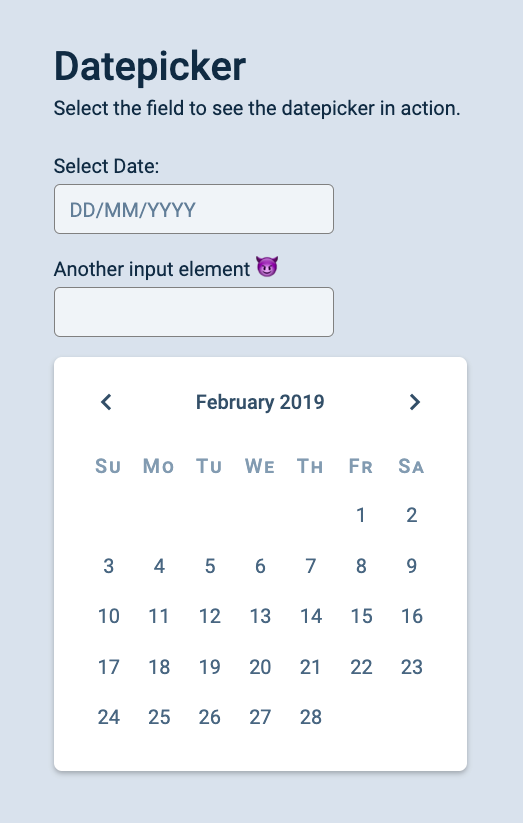
We want to position the Datepicker with JavaScript so this doesn’t happen.
The ideal position
The ideal left position for the Datepicker is flushed to the left of the <input>.
The ideal top position is slightly lower than the bottom of the <input>.
To find the Datepicker’s ideal position, we need to get the <input>’s DOM Rect.
function createDatepicker (input, date) {  // ...  datepicker.innerHTML = /*...*/
  const inputRect = input.getBoundingClientRect()  // ...})
The Datepicker’s left position should be the same as the input’s left position.
function createDatepicker (input, date) { // ... const inputRect = input.getBoundingClientRect() datepicker.style.left = `${inputRect.left}px` // ...})The Datepicker’s top position should be slightly below the input’s bottom position. Let’s say we want to leave a gap of 20px between the input and the Datepicker.
function createDatepicker (input, date) { // ... const inputRect = input.getBoundingClientRect() datepicker.style.left = `${inputRect.left}px` datepicker.style.top = `${inputRect.bottom + 20}px` // ...})Since we’re positioning the Datepicker with top and left properties, we can remove the margin-top property from the CSS.
/* Remove this */.datepicker { margin-top: 1em;}At this point, you can place the Datepicker anywhere on the DOM. It should always be positioned in the same location.
// Changing where we create the datepickerdocument.body.appendChild(createDatepicker(input, date))Vertical Rhythm
If research into design, you may have come across a term called Vertical Rhythm. It’s a way to make your website look clean and professional.
The idea is you create whitespace that are consistent with your typography. And you use this multiple across your site. This uses the rule of repetition to create a sense of harmony and familiarity.
I wrote more about Vertical Rhythm in this article (and I even wrote a course about Typography that covers what you need to know in detail).
In this case, the font-size of this page is 20px. If we want to follow Vertical Rhythm, we can get and use this size from the page.
We’ll do this with getComputedStyle.
const styles = getComputedStyle(document.body)const fontSize = styles['font-size']console.log(fontSize) // 20pxWe can’t use fontSize in the calculation yet. We need to convert 20px (a string) into 20 (a number). We can do this with parseInt.
const fontSize = parseInt(getComputedStyle(document.body)['font-size'])console.log(fontSize) // 20It is possible for font sizes to contain decimals, so it’s better to use parseFloat instead of parseInt.
const fontSize = parseFloat(getComputedStyle(document.body)['font-size'])We can use fontSize in the calculation like this:
function createDatepicker (input, date) { // ... const inputRect = input.getBoundingClientRect() const fontSize = parseFloat(getComputedStyle(document.body)['font-size']) datepicker.style.left = `${inputRect.left}px` datepicker.style.top = `${inputRect.bottom + fontSize}px` // ...})One more thing. One “font-size” is a unit in CSS. It can either be rem or em. rem is the font-size for the document, while em is the font-size for the current element. (More info about rem and em in this article).
Since we get the font size from the document, let’s call the variable oneRem.
function createDatepicker (input, date) { // ... const inputRect = input.getBoundingClientRect() const oneRem = parseFloat(getComputedStyle(document.body)['font-size']) datepicker.style.left = `${inputRect.left}px` datepicker.style.top = `${inputRect.bottom + oneRem}px` // ...})That’s it!
Welcome! Unfortunately, you don’t have access to this lesson. To get access, please purchase the course or enroll in Magical Dev School.
Unlock this lesson