Voiceover is built into MacOS. Setting it up is easy; all you have to do is:
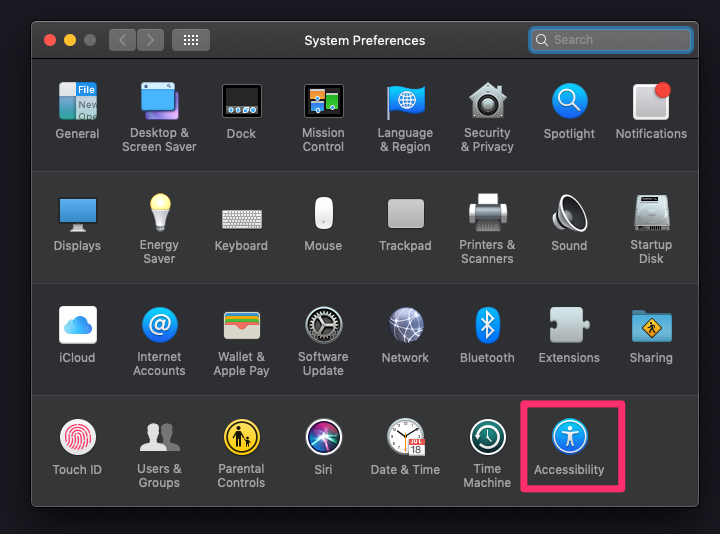
- Open the Accessibility pane in System Preferences
- Check “Turn on Voiceover”
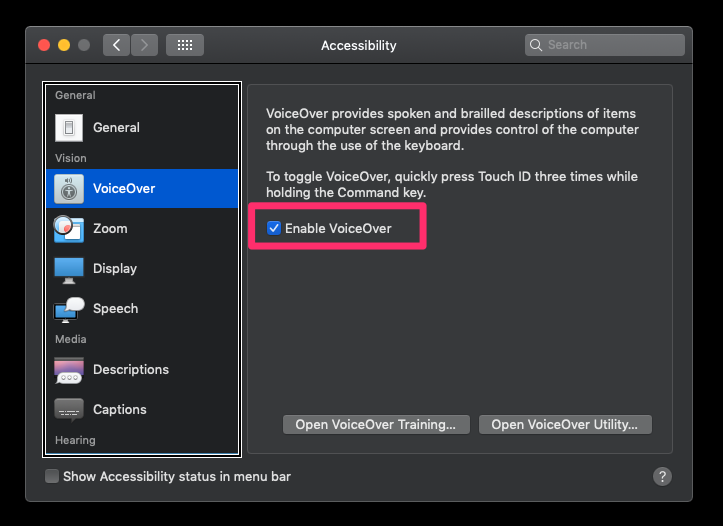
You can also start Voiceover with Command + F5.
The voiceover modifier
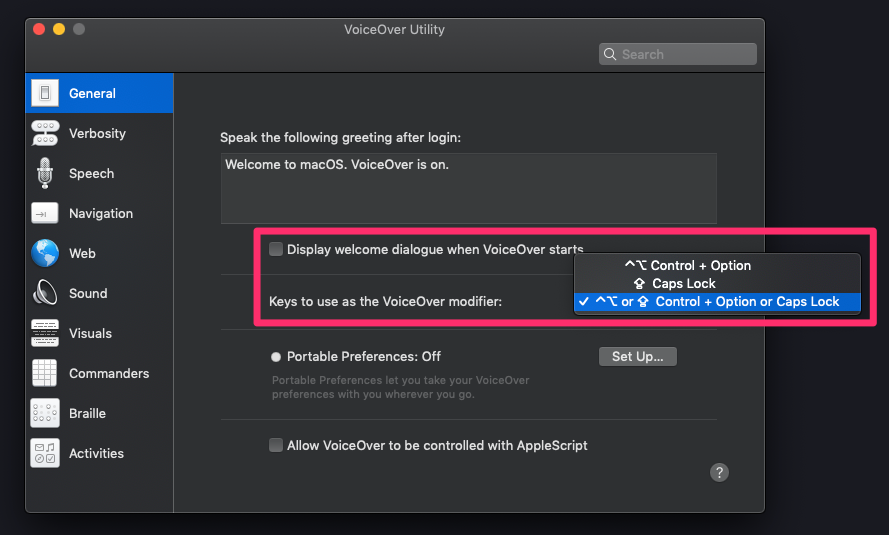
Almost all Voiceover commands begin with the Voiceover modifier. The Voiceover modifier is either: Control + Option or Capslock.
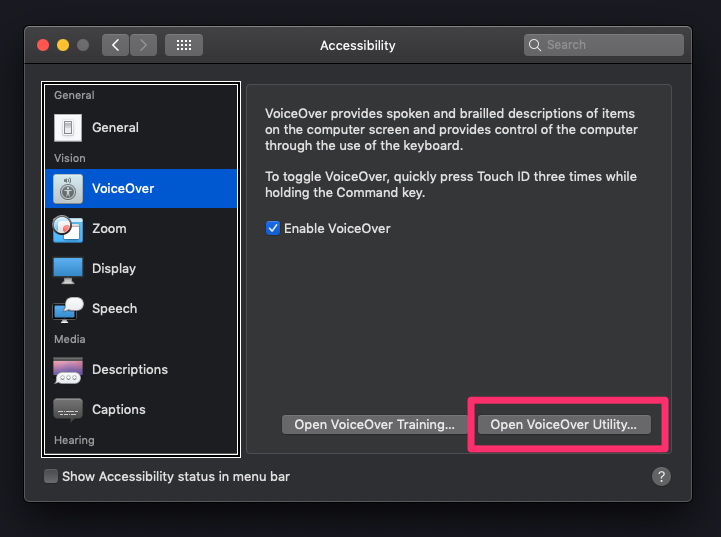
You can choose either (or both) as modifiers if you click on “Open Voiceover utility”. I chose to use Capslock as my Voiceover modifier key.
I’m going to say VO instead of “Voiceover modifier” from this point onwards.
Voiceover Shortcuts
You can find a complete list of Voiceover shortcuts over on Apple’s Voiceover guide.
Here are the shortcuts you need to know. Again, don’t worry about remembering the shortcuts. Keep this table around when you do your testing and you’ll get used to the shortcuts.
| Task | Command |
|---|---|
| Start or Stop Voiceover | Command + F5 |
| Start reading | VO + A |
| Pause reading | Control |
| Continue reading | Control |
| Next item | VO + → |
| Previous item | VO + ← |
| Next focusable item | Tab |
| Previous focusable item | Shift + Tab |
| Next heading | Command + Fn + H |
| Move to start of page | VO + Home (or VO + Fn + ←) |
| Move to end of page | VO + End (or VO + fn + →) |
Welcome! Unfortunately, you don’t have access to this lesson. To get access, please purchase the course or enroll in Magical Dev School.
Unlock this lesson