There are lots of improvements that will make blogs much easier to create. Here’s a list of things:
- Adding
published-dateto the file name - Adding an updated date
- Building an excerpt
- Filtering for published posts
- Sorting posts in descending order
Most of these are necessary for an actual blog — speaking from experience, having 400+ articles with over 10 years of written content!
Let’s go through these one by one.
Improvements
Adding a published date to the file name
This is an important quality-of-life improvement for content creators, because we can now look for files in chronological order! (That’s how I find what I published last week, or this year, easily).
So my file name becomes YYYY-MM-DD-slug.md, like this:
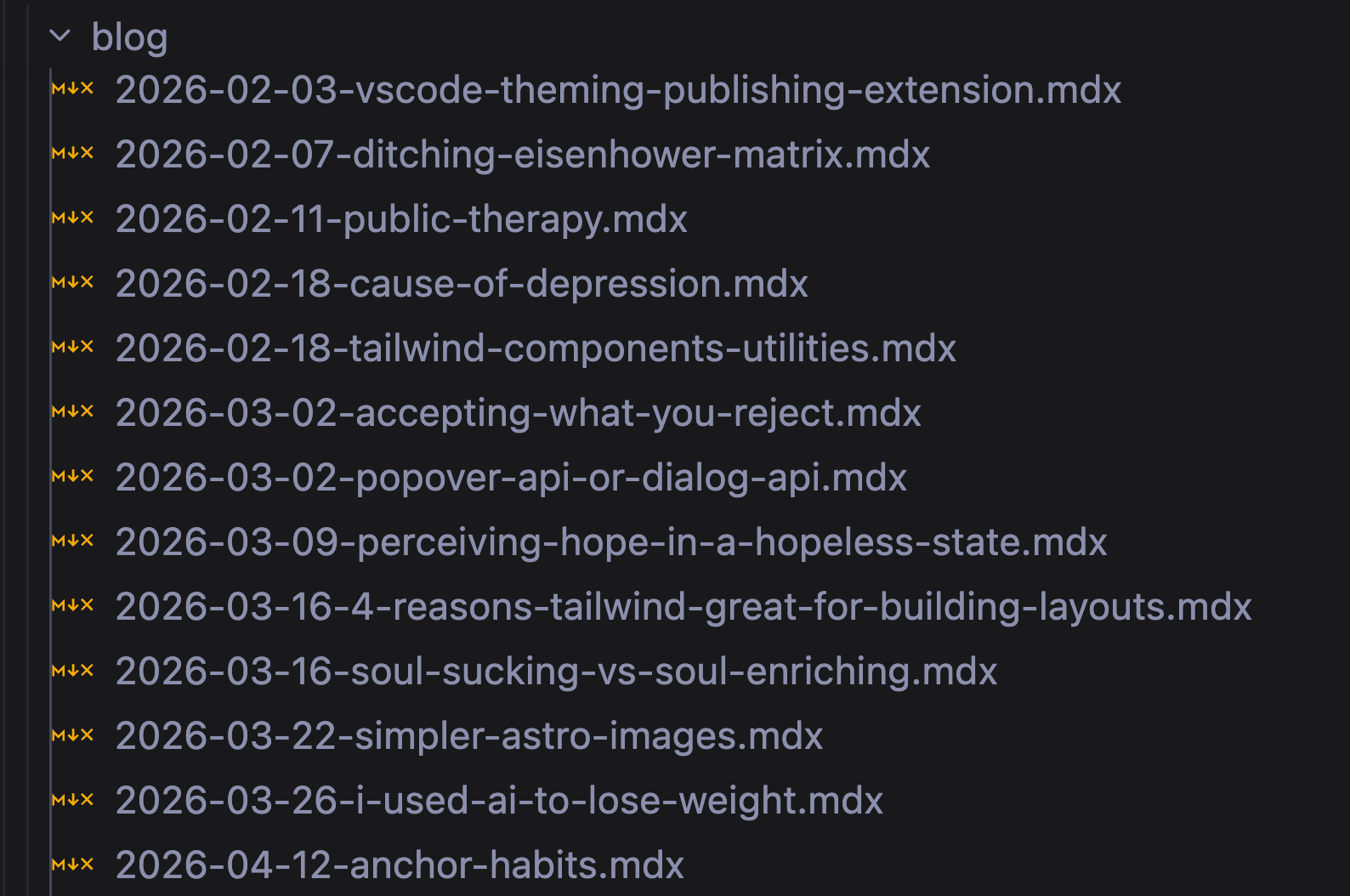
The problem with this, is that id can no longer be used as the slug.
So we need to:
- Strip the date and file name
- Set them to
slugandpubDatefrontmatter
---// ...export async function getStaticPaths() {  const files = await getCollection('blog')  const posts = await files.map(file => {    let basename = file.filePath.split('/').pop()    const datePattern = /^(\d{4})-(\d{2})-(\d{2})(?:-(.+))?$/    const dateMatch = basename.match(datePattern)
    if (dateMatch) {      // Filename starts with valid YYYY-MM-DD format      const [, year, month, day, remainder] = dateMatch      basename = remainder
      // Set Date      file.data['pubDate'] = new Date(`${year}-${month}-${day}`)    }  })
  // ...}---
We also need to point to the correct slug when returning getStaticPaths.
---// ...export async function getStaticPaths() {  const files = await getCollection('blog')  const posts = await files.map(file => { /* Adding published date and slug */ })
  // Using the right slug value  return posts.map(post => {    return {      params: { slug: post.data.slug }      props: post    }  })}---
Code’s getting gnarly here, but that’s not the end of it.
Adding updated dates
Sometimes a blog post needs to be updated. When that happens, it is good to add an updateDate property to the frontmatter.
---# Other frontmatter ...updateDate: 2026-03-30---Once we have this, we can show updateDate when the post is updated.
<If condition={post.data.updateDate}> <div>Updated at: {post.data.updateDate}</div></If>The hard part isn’t adding an updateDate property. It’s sorting the order of the blog post based on both pubDate and updateDate. We’ll handle that later.
Building an excerpt
An excerpt is like the summary of an article. The simplest (but naive) way of creating excerpts is to use the first paragraph or the first X words.
I don’t like that. So I opted for a more flexible method, by adding a <!-- more --> comment in the article. It lets me place the excerpt anywhere! Here’s an example:
---# Frontmatter...---
Stuff that will go into the excerpt goes here.
<!-- more -->
Stuff that doesn't show up in the excerpt goes here.
To make this work, I search for the <!-- more --> comment and store everything before that as the excerpt. I also made it work with MDX’s style of comments — {/* more */}.
---export async function getStaticPaths() {  const files = await getCollection('blog')  const posts = await files    .map(file => { /* adding published date and slug */ })    .map(file => {      const moreRegex = /(?:<!--|{\/\*)\s*more\s*(?:-->|\*\/})/
      // Saves the excerpt      file.data.excerpt = file.body?.split(moreRegex)[0].trim()
      // Removes the more comment      file.body = file.body.replace(moreRegex, '')    })  // ...}---
Since my posts are usually written in Markdown, the excerpt will naturally be in Markdown format. So I use the Markdown component to output the excerpt, like this:
<Markdown>{post.data.excerpt}</Markdown>Filtering for published posts
I know Astro has this convention that posts prefixed with _ will not be added to content collections. But I never really used that; it always felt weird to me.
In my world, there are two ways to detect published posts:
- Blog posts that are dated today or earlier
- Posts with the
statusset topublished
I baked them both into my filtering mechanism.
---export async function getStaticPaths() { const files = await getCollection('blog') const posts = await files .map(file => { /* adding published date and slug */ }) .map(file => { /* adding excerpts */ }) .map(file => { if (file.data?.status === 'draft') return false if (file.data?.status === 'published') return true return file.data?.pubDate <= new Date() }) // ...}---Sorting posts in reverse order
The final thing that is always needed is to sort the posts in reverse chronological order — so the latest posts show up first.
The easiest way to do this is through the Array.sort() function. But we have to clone the array first because Array.sort mutates the array.
Here’s a simple example below where we sort by pubDate.
---export async function getStaticPaths() {  const files = await getCollection('blog')  const posts = await files    .map()    .map(file => { /* adding published date and slug */ })    .map(file => { /* adding excerpts */ })    .map(file => { /* filter for published posts */ })
  const sorted = posts    .slice()    .sort((a, b) => new Date(b.data.pubDate) - new Date(a.data.pubDate))
  // ...}---
We can also sort by the updateDate if it’s present. This is slightly more complex, so I recommend setting the date property for each file, then we compare the two latest dates.
---export async function getStaticPaths() {  const files = await getCollection('blog')  const posts = await files    .map(file => { /* adding published date and slug */ })    .map(file => { /* adding excerpts */ })    .map(file => { /* filter for published posts */ })    .map(file => {      file.data.date = file.data.updateDate ?? file.data.pubDate      return file    })
  const sorted = posts    .slice()    .sort((a, b) => new Date(b.data.date) - new Date(a.data.date))
  // ...}---
We can improve it further by sorting according to title if two posts land on the same day. But, at this point, I don’t think it’s necessary to show you how to do that.
That’s because I’ve built a function that lets you do all of the things I’ve mentioned in this lesson — in a super easy way!
The easy way
That’s a lot of work to include these quality-of-life improvements. I wanted to make it easier so I bundled them all into one function — processFiles.
If you want everything I mentioned above, the only thing you have to do is to use it that function.
---import { processFiles } from '@splendidlabz/astro/content'
export async function getStaticPaths() {  const files = await getCollection('blog')  const posts = await processFiles(files)
  return posts.map((post, index) => {    return {      params: { slug: post.data.slug },      props: { post },    }  })}---
processFiles works very well out of the box. But it can be configured as well. Check the documentation if you want to know what can be configured!
Welcome! Unfortunately, you don’t have access to this lesson. To get access, please purchase the course or enroll in Magical Dev School.
Unlock this lesson