Five things can happen when a person gets hold of a calculator:
- They click a number key
- They click an operator key
- They click the decimal key
- They click the equal key
- They click the clear key
We need to consider what happens when a user presses each key. There are many permutations, and this makes the calculator complicated.
We’ll work through it step by step.
First, let’s use the event delegation pattern to listen to every key.
const calculator = document.querySelector('.calculator')const calculatorButtonsDiv = calculator.querySelector('.calculator__keys')
calculatorButtonsDiv.addEventListener('click', event => { if (!event.target.closest('button')) return})Listening for keys
There are five kinds of keys. We can identify them with the data-button-type custom attribute.
calculatorButtonsDiv.addEventListener('click', event => { const button = event.target const { buttonType } = button.dataset
if (buttonType === 'number') { console.log('Pressed number') }
if (buttonType === 'decimal') { console.log('Pressed decimal') }
if (buttonType === 'operator') { console.log('Pressed operator') }
if (buttonType === 'equal') { console.log('Pressed equal') }
if (buttonType === 'clear') { console.log('Pressed clear') }})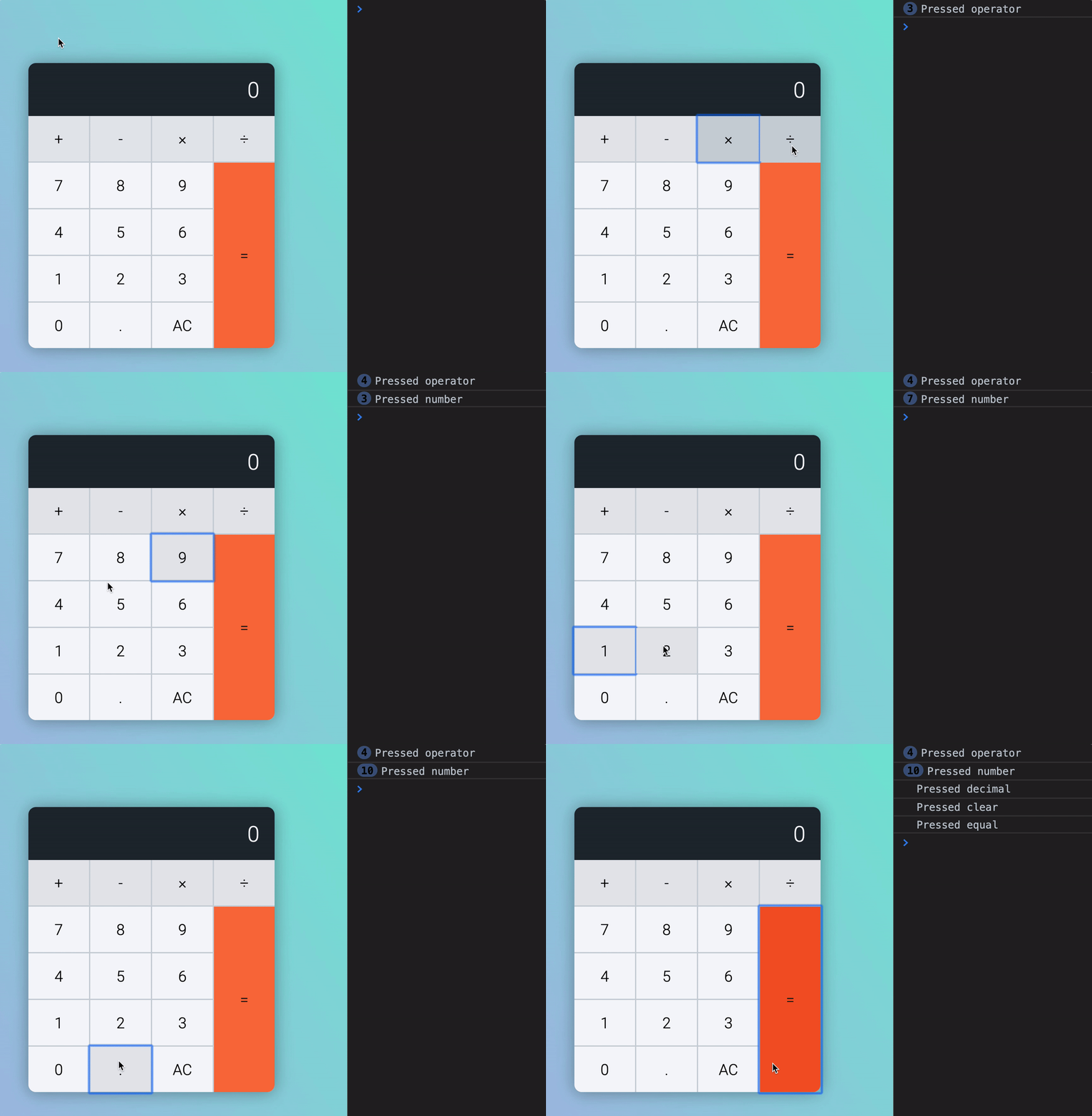
Building the happy path
When a user picks up the calculator, they can click any of these five types of keys:
- A number key
- An operator key
- The decimal key
- The equal key
- The clear key
It can be overwhelming to consider five types of keys at once. Let’s take it step by step and consider what a normal person would do when they pick up a calculator. This “what a normal person would do” is called the happy path.
Let’s call our normal person Mary.
When Mary picks up a calculator, she’s likely to click a number key.
If Mary clicks a number key
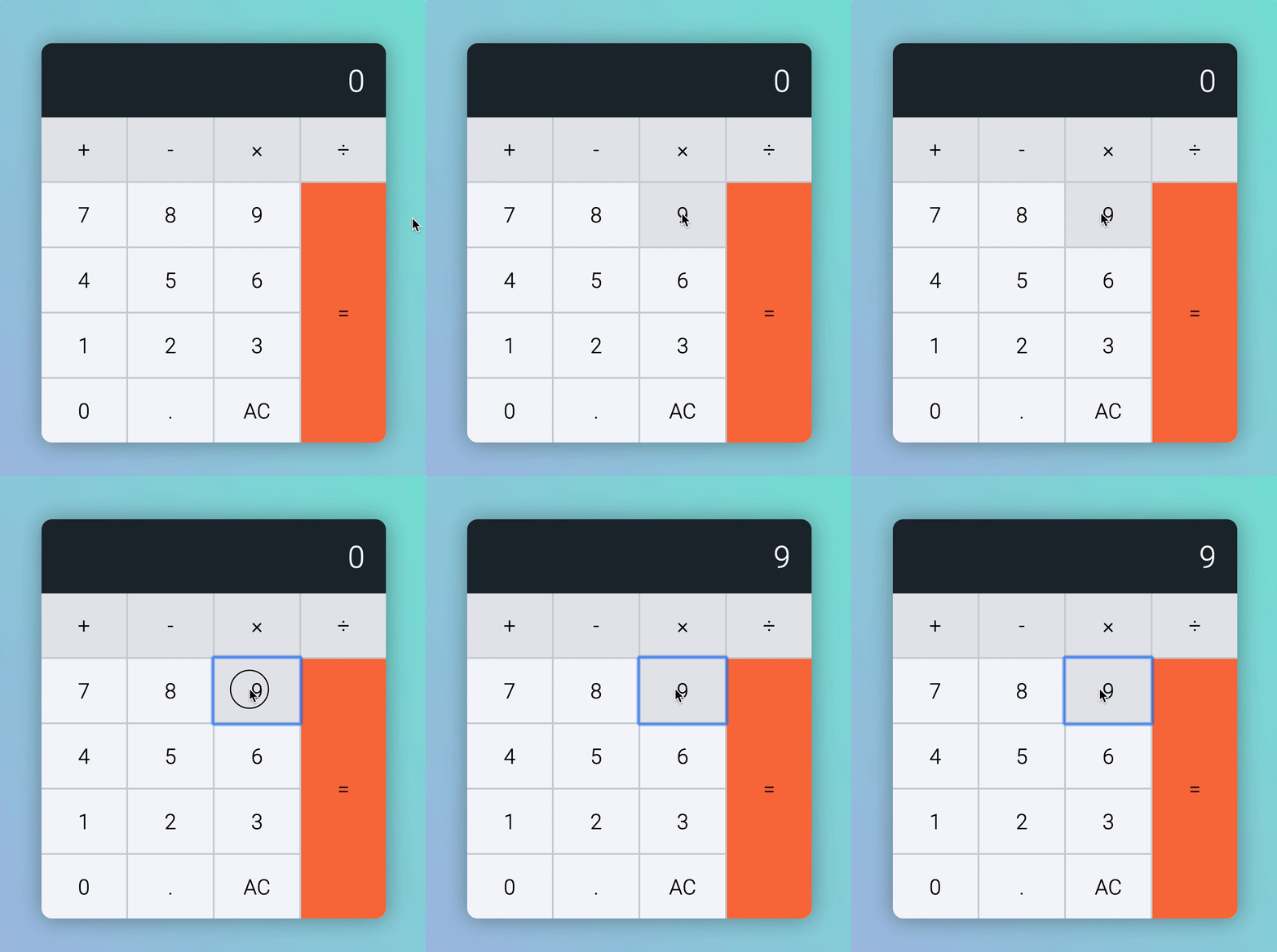
If the calculator shows 0, we should replace it with the number that was clicked.
To do this, we need to find the value of the number that was clicked. This value can be found in the key attribute.
calculatorButtonsDiv.addEventListener('click', event => { const button = event.target const { buttonType, key } = button.dataset // ...})Next, we need to find the current displayed result. We can get the result from .calculator__display.
calculatorButtonsDiv.addEventListener('click', event => { const button = event.target const { buttonType, key } = button.dataset const result = display.textContent // ...})When the result shows 0, we replace it with the number that was clicked.
calculatorButtonsDiv.addEventListener('click', event => { // ...
if (buttonType === 'number') { if (result === '0') { display.textContent = key } }
// ...})
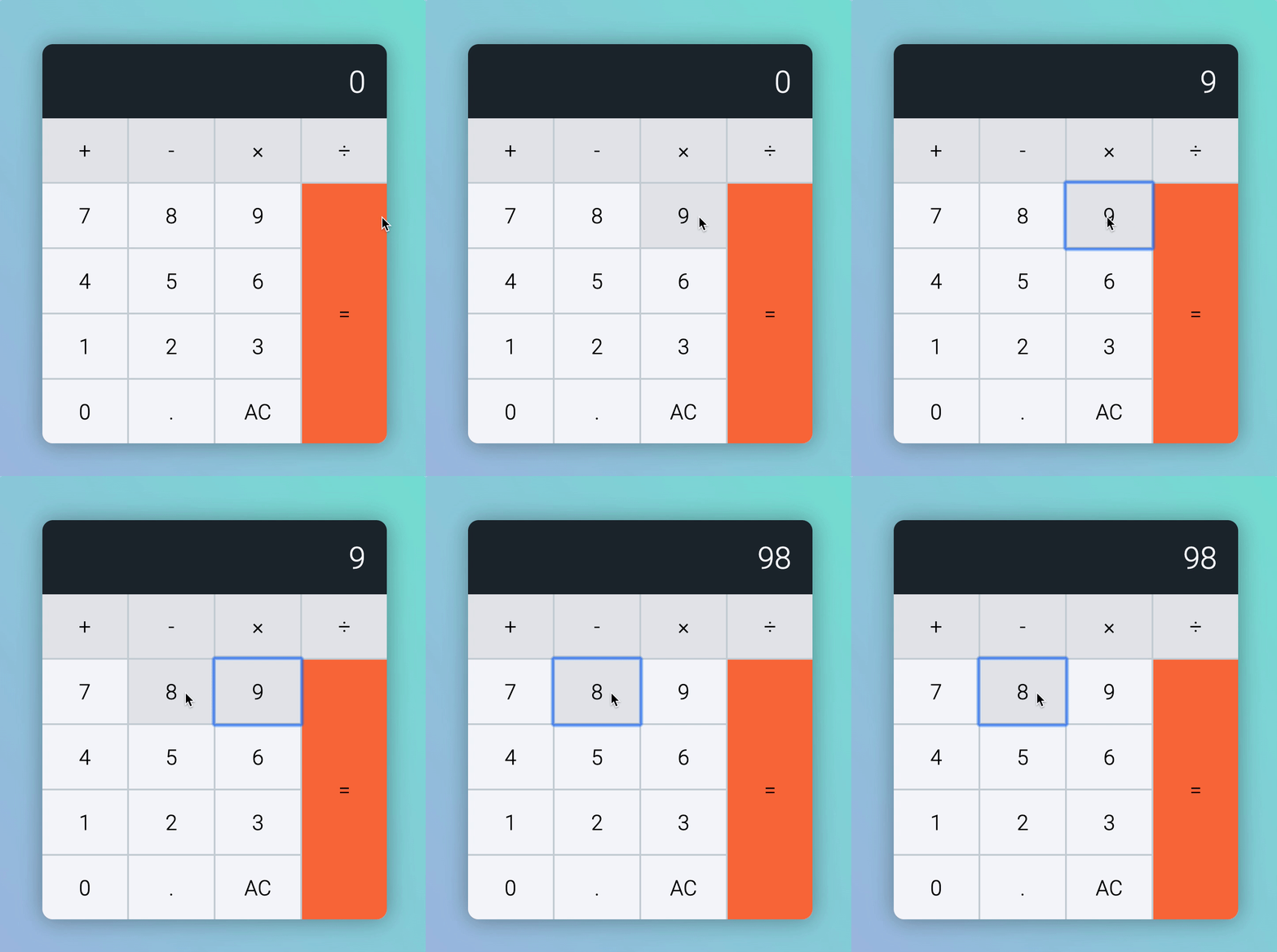
If the calculator shows a non-zero number, we want to append the number to the displayed result.
For example, if the person clicks 9, then 8. We want to show 98.
calculatorButtonsDiv.addEventListener('click', event => { // ...
if (buttonType === 'number') { if (result === '0') { display.textContent = key } else { display.textContent = result + key } }
// ...})
Next, our normal person, Mary can click either:
- A decimal
- An operator key
There’s only one decimal key, and there are four operator keys. We will first consider what happens when Mary clicks the decimal key (because it’s less overwhelming).
If Mary clicks the decimal key
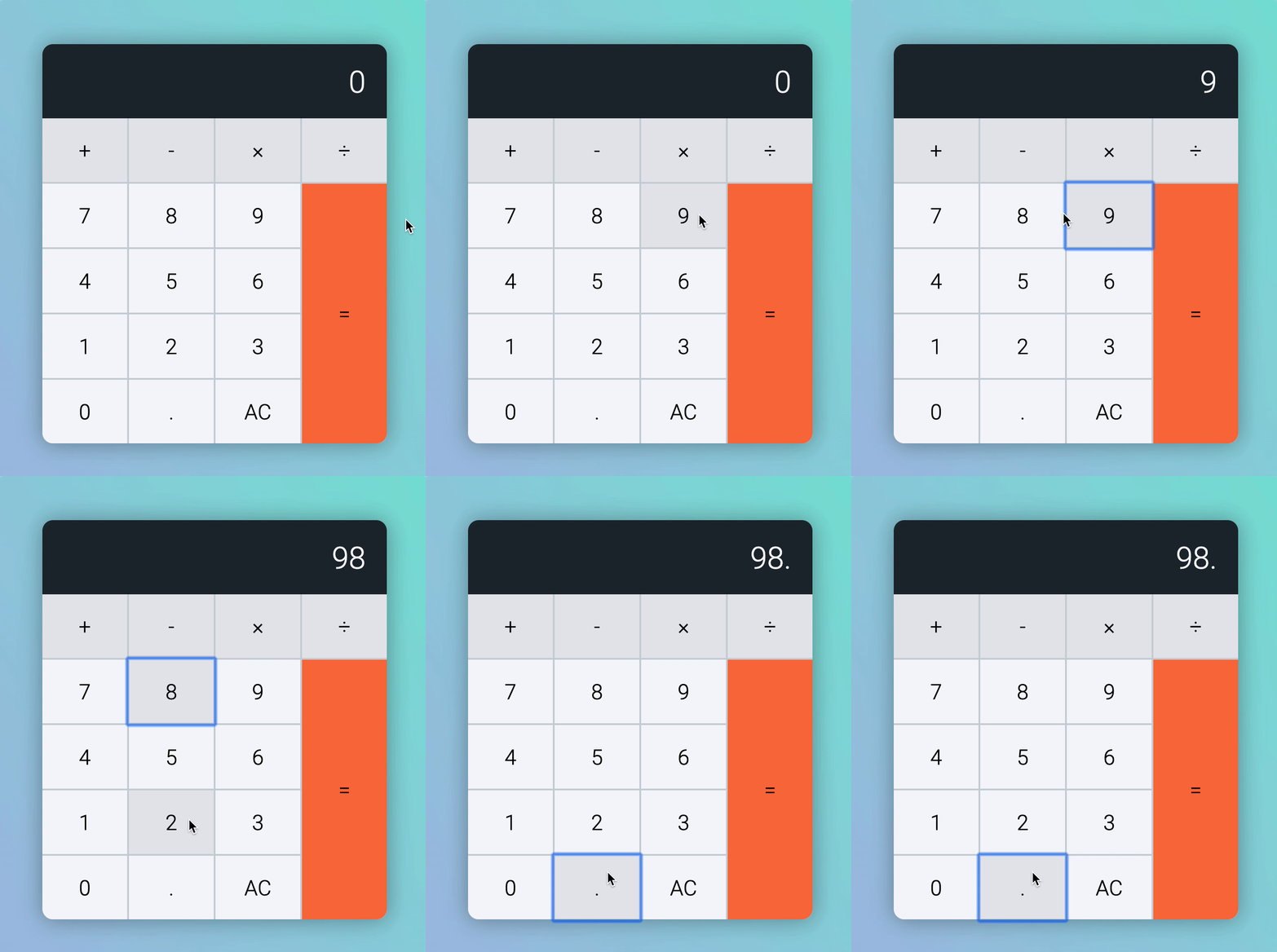
A decimal should appear on the display if Mary clicks the decimal key.
- If result is 0, we show
0. - If result is 9, we show
9.
Creating this is simple, we will add . to the result.
calculatorButtonsDiv.addEventListener('click', event => { // ...
if (buttonType === 'decimal') { display.textContent = result + '.' }
// ...})
At this point, Mary can click either of these keys:
- A number key
- An operator key
We can work on the number key since we’ve already started work on it.
If Mary clicks another number after the decimal key
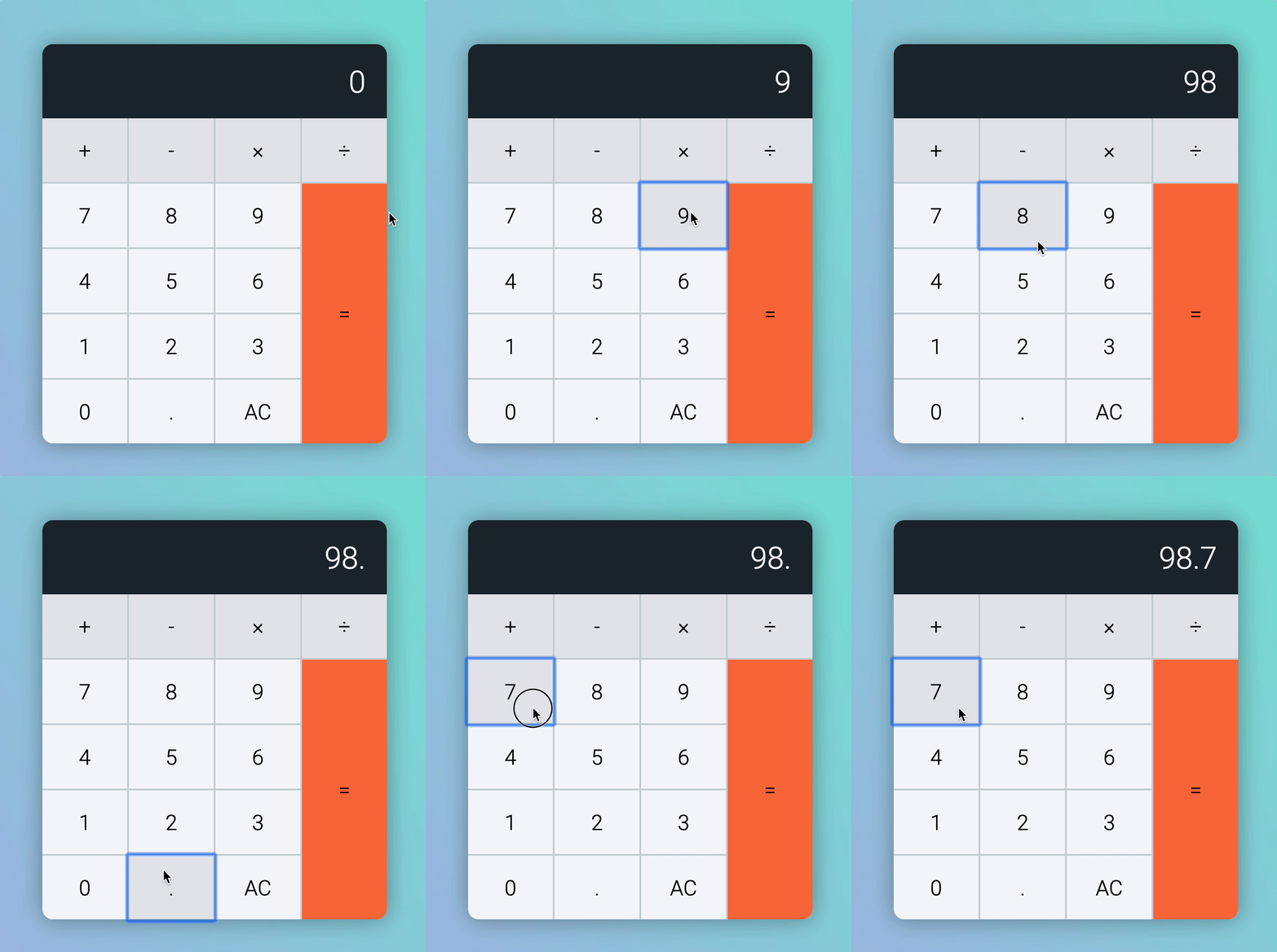
If there’s a decimal in the results, we always append a number to the results. Let’s say Mary clicks 7 this time.
- If result is
98., we show98.7 - If result is
0., we show0.7
We don’t have to write any code for this to happen.
If Mary clicks an operator key
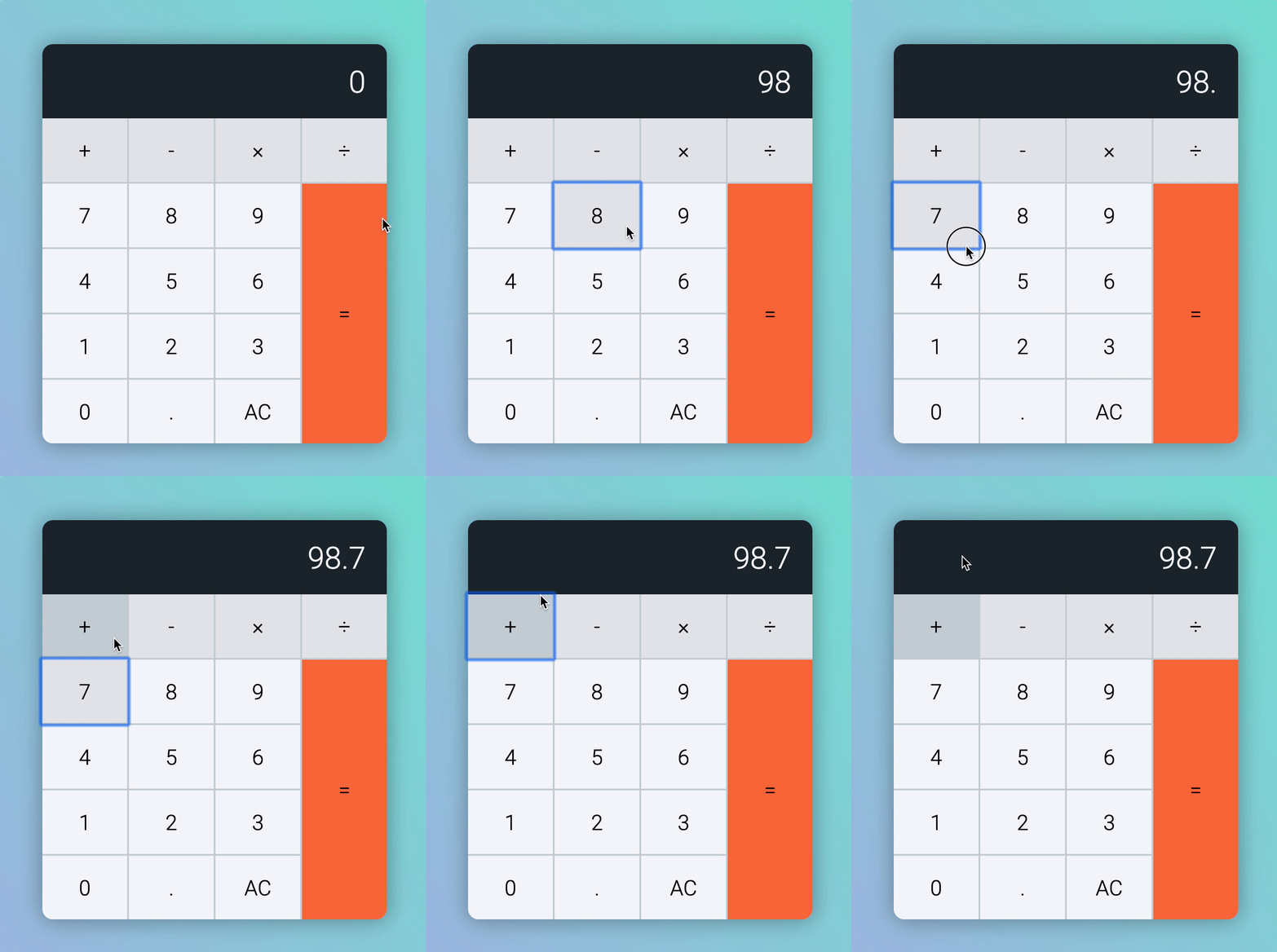
Operator keys are plus, minus, times, and divide keys.
When they’re clicked, we want to highlight the operator key so Mary knows the operator is active. We can do this by adding an is-pressed class to the operator key.
calculatorButtonsDiv.addEventListener('click', event => { // ...
if (buttonType === 'operator') { button.classList.add('is-pressed') }
// ...})
At this point, Mary can click another number key.
If Mary clicks a number key after an operator key
Regardless of what the displayed number is, we need to reset the display to the new number. At the same time, we want to release the operator key from its pressed state.
To release the pressed state, we remove is-pressed from each operator key.
calculatorButtonsDiv.addEventListener('click', event => { // ...
// Release operator pressed state const operatorKeys = [...calculatorButtonsDiv.children].filter( button => button.dataset.buttonType === 'operator', ) operatorKeys.forEach(button => button.classList.remove('is-pressed'))
// All the if statements...})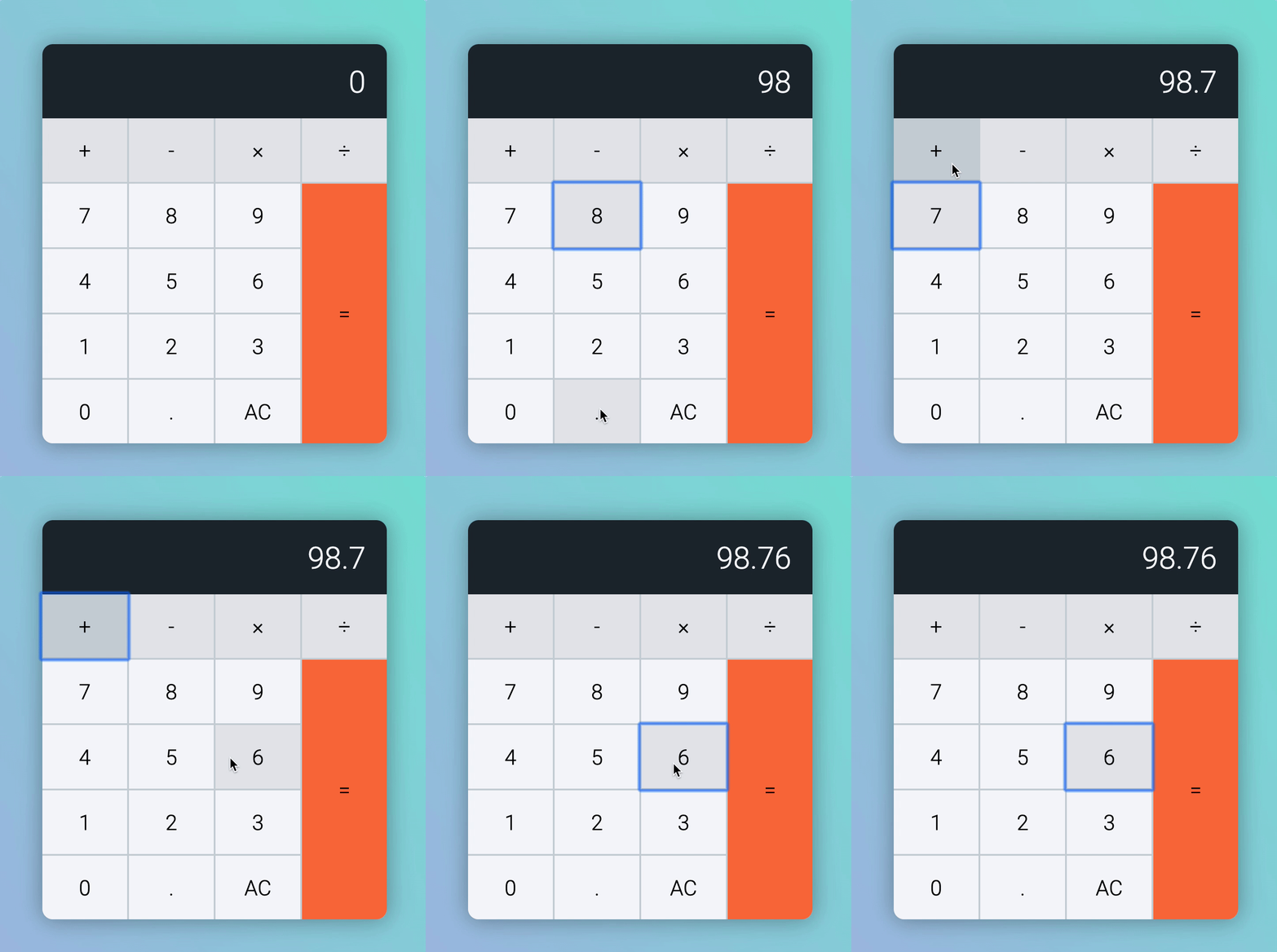
To reset the number back to zero, we need to know the previous button was an operator. One way to do this is through a custom attribute.
Let’s call this custom attribute data-previous-button-type.
calculatorButtonsDiv.addEventListener('click', event => { // ...
calculator.dataset.previousButtonType = buttonType})If the previous action is an operator, we want to show the clicked number.
calculatorButtonsDiv.addEventListener('click', event => { // ... const { previousButtonType } = calculator.dataset
if (buttonType === 'number') { if (result === '0') { display.textContent = key } else { display.textContent = result + key }
if (previousButtonType === 'operator') { display.textContent = key } }
// ...})
We’re almost done with the happy path.
Let’s say Mary is satisfied with her numbers and operators. She wants to calculate what she has clicked. This time, she clicks the equal key.
When Mary clicks the equal key
The calculator should calculate a result that depends on three values:
- The first value (before we clicked the operator)
- The operator
- The second value (the one that’s currently displayed)
To get the first value, we need to save results before we replace it with the second number. We can do this with a custom attribute called data-first-value.
calculatorButtonsDiv.addEventListener('click', event => { // ... if (buttonType === 'operator') { button.classList.add('is-pressed') calculator.dataset.firstValue = result }
// ...})We also need to save the operator key at the same time.
calculatorButtonsDiv.addEventListener('click', event => { // ... if (buttonType === 'operator') { button.classList.add('is-pressed') calculator.dataset.firstValue = result calculator.dataset.operator = button.dataset.key }
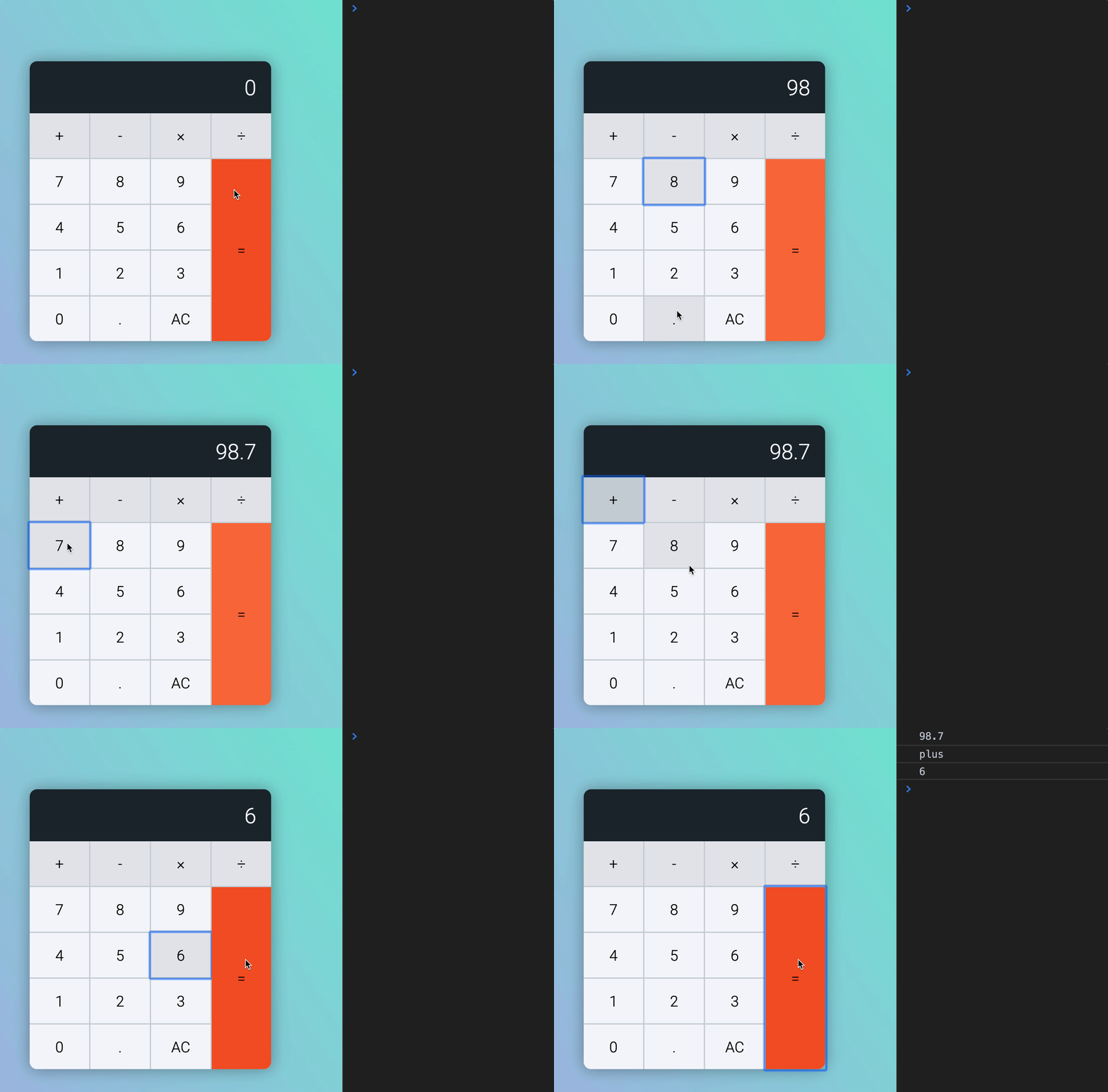
// ...})We have all three values we need. Let’s log them into the console to confirm.
calculatorButtonsDiv.addEventListener('click', event => { // ... if (buttonType === 'equal') { const firstValue = calculator.dataset.firstValue const operator = calculator.dataset.operator const secondValue = result
console.log(firstValue) console.log(operator) console.log(secondValue) }
// ...})
Now, we can perform a calculation. After calculating, we will show the new result on the display.
calculatorButtonsDiv.addEventListener('click', event => { // ... if (buttonType === 'equal') { const firstValue = calculator.dataset.firstValue const operator = calculator.dataset.operator const secondValue = result
let newResult if (operator === 'plus') newResult = firstValue + secondValue if (operator === 'minus') newResult = firstValue - secondValue if (operator === 'times') newResult = firstValue * secondValue if (operator === 'divide') newResult = firstValue / secondValue
display.textContent = newResult }
// ...})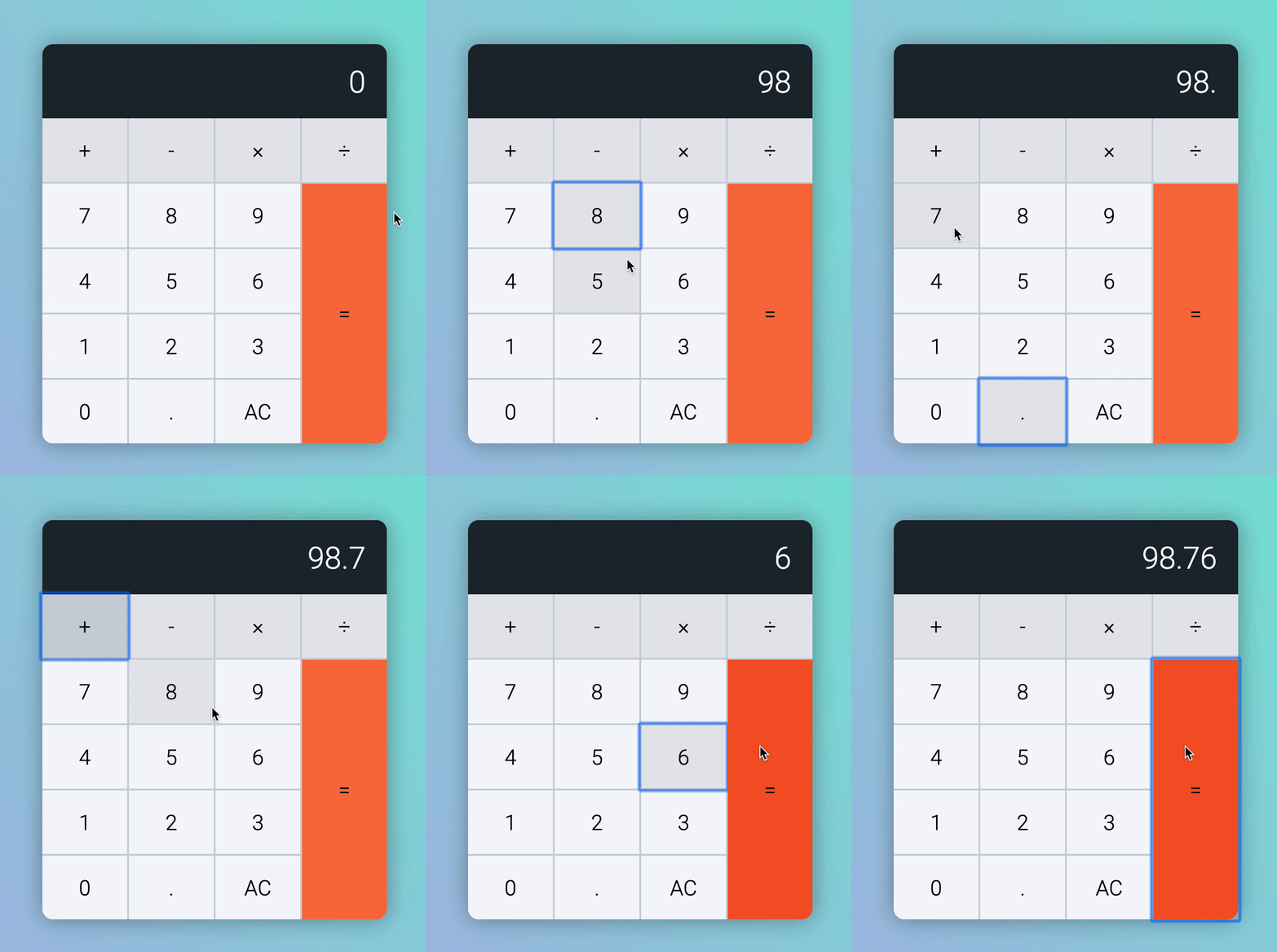
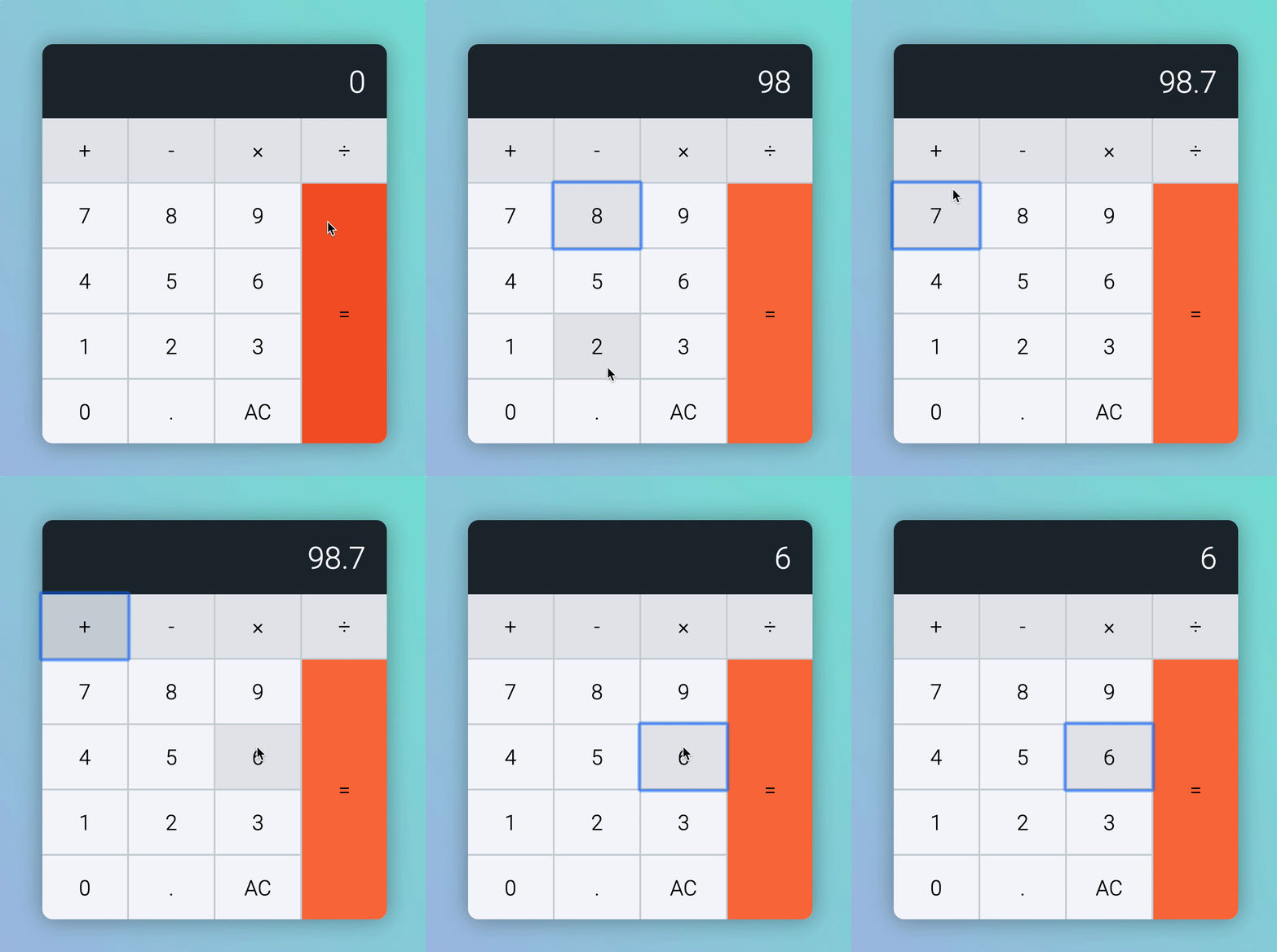
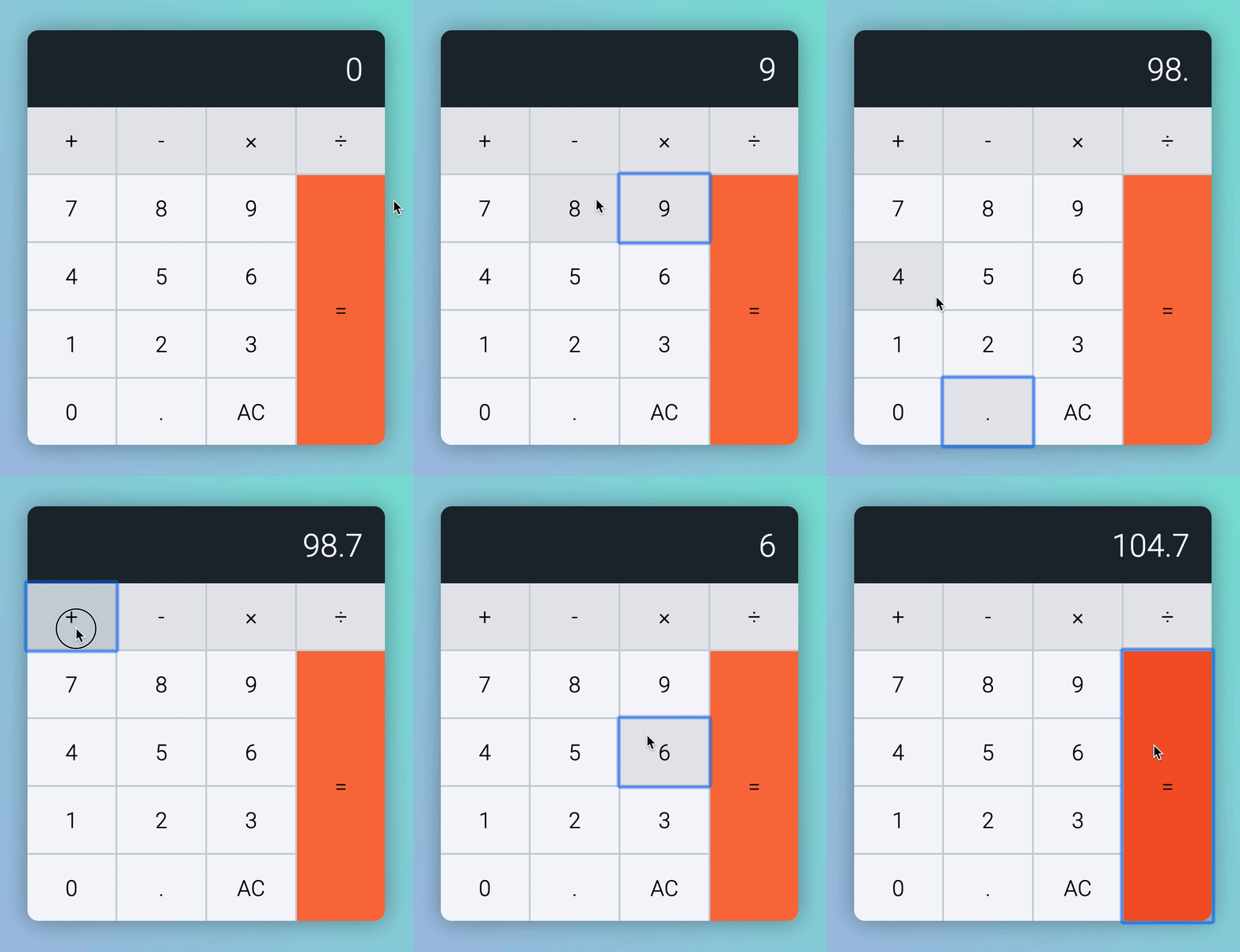
But we have a problem. 98.7 + 6 should not be equal to 98.76. It should be 104.7.
This happened because values stored in custom attributes are stings. The value from .calculator__display’s textContent is also a string. When you add two strings together, you concatenate the strings. Which is why you get 98.76.
To fix this, we need to change firstValue and secondValue to numbers. We can do this with parseInt or parseFloat.
parseInt changes a string into an integer. parseFloat changes a string into a number with decimals. We need parseFloat in this case.
calculatorButtonsDiv.addEventListener('click', event => { // ... if (buttonType === 'equal') { const firstValue = parseFloat(calculator.dataset.firstValue) const operator = calculator.dataset.operator const secondValue = parseFloat(result)
let newResult if (operator === 'plus') newResult = firstValue + secondValue if (operator === 'minus') newResult = firstValue - secondValue if (operator === 'times') newResult = firstValue * secondValue if (operator === 'divide') newResult = firstValue / secondValue
display.textContent = newResult }
// ...})
One final thing before we wrap up.
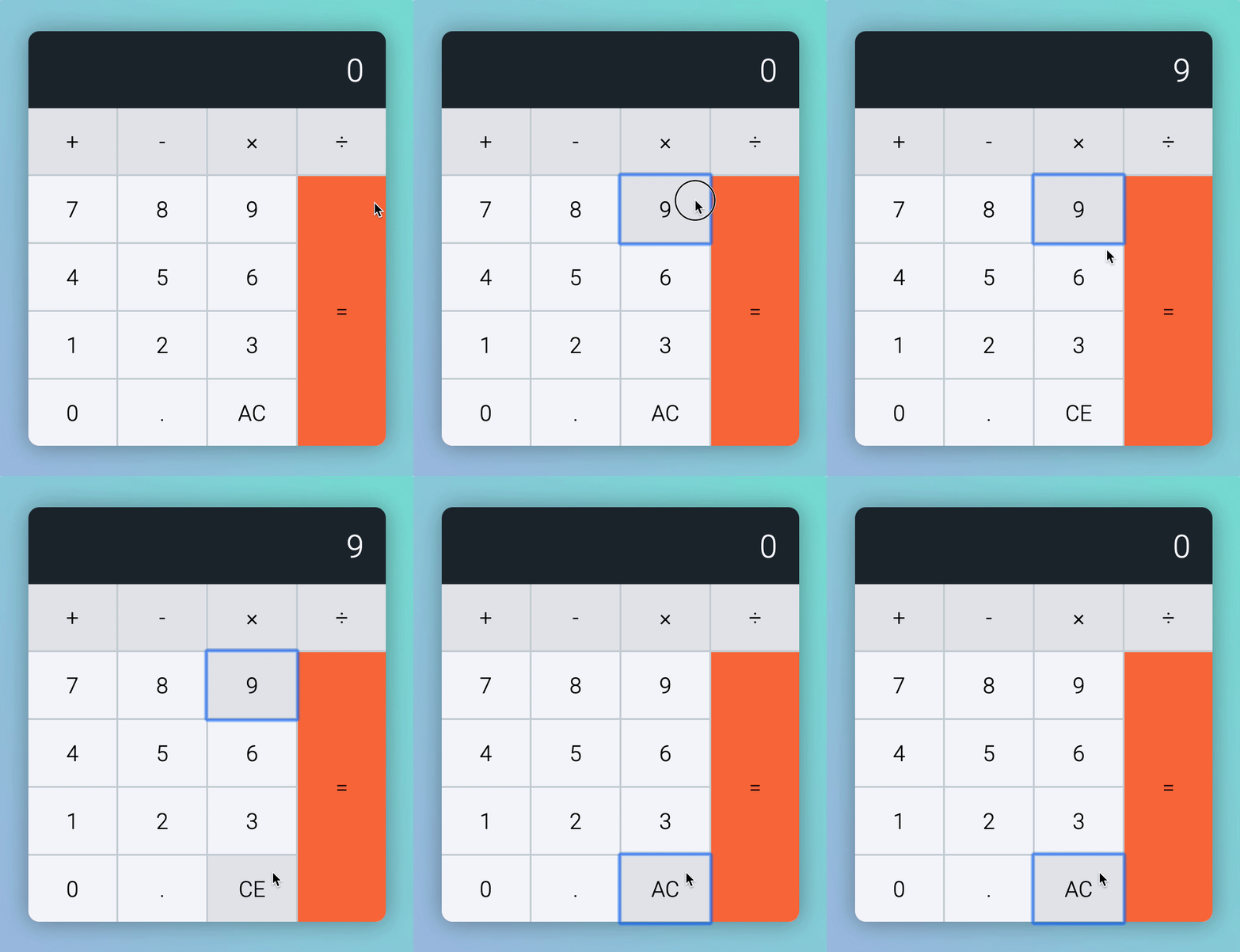
If Mary clicks the clear key
The clear key works like this:
- If you click clear when it says
AC, you clear all data saved by the calculator - If you click clear when it says
CE, you set the current displayed number to zero.
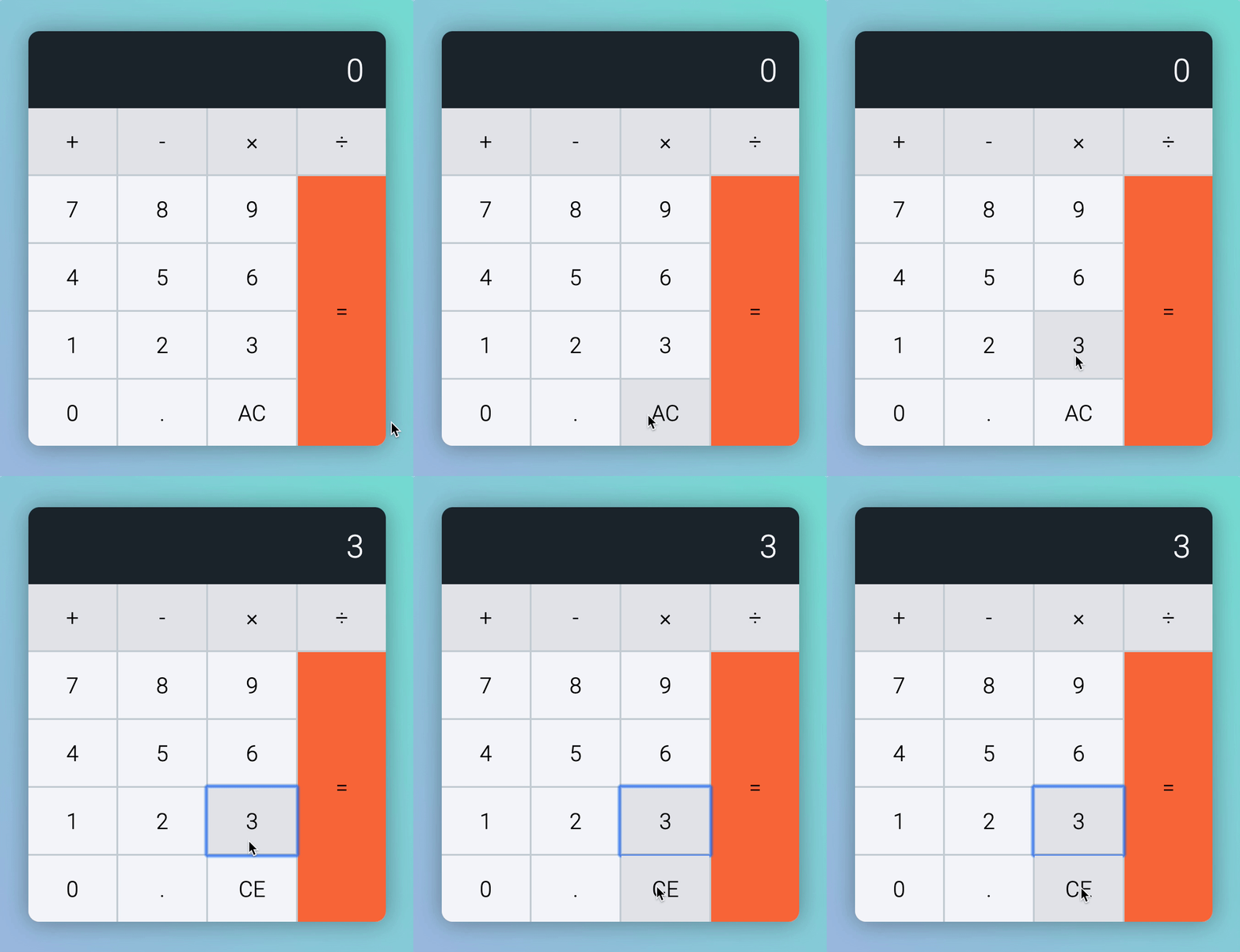
When you click any button (other than clear), AC should change to CE.
calculatorButtonsDiv.addEventListener('click', event => { // ...
if (buttonType !== 'clear') { const clearButton = calculator.querySelector('[data-button-type=clear]') clearButton.textContent = 'CE' }
// ...})
If Mary presses CE, we want to reset the current displayed number to zero.
calculatorButtonsDiv.addEventListener('click', event => { // ...
if (buttonType === 'clear') { display.textContent = '0' button.textContent = 'AC' }
// ...})
If Mary presses AC, we want to remove any values we saved on the calculator.
calculatorButtonsDiv.addEventListener('click', event => { // ...
if (buttonType === 'clear') { if (button.textContent === 'AC') { delete calculator.dataset.firstValue delete calculator.dataset.operator }
display.textContent = '0' button.textContent = 'AC' }
// ...})That’s it!
Next up, we will veer away from happy paths into reality (where users can press a weird combinations of keys and break your app).
Welcome! Unfortunately, you don’t have access to this lesson. To get access, please purchase the course or enroll in Magical Dev School.
Unlock this lesson