Let’s dive in and fix up those edge cases, shall we? This time, let’s say we have a troublemaker called Tim. Tim can begin with any of these five keys:
- A number key
- An operator key
- The decimal key
- The clear key
- The equal key
Let’s work through each key combinations one by one, starting with number keys.
Number key first
If Tim clicks a number key, we replace the displayed result with the clicked number. This was already covered in the “Happy Path” code.
After clicking a number, Tim can click any of these keys:
- Number
->Number (Handled by happy path) - Number
->Decimal (Handled by happy path) - Number
->Operator (Handled by happy path) - Number
->Clear (Handled by happy path) - Number
->Equal
We have already handled four of these sequences with the happy path code. Now, we need to handle what happens if Tim clicks equal after a number.
Number -> Equal
Let’s start with a test. If Tim clicks 5 =, the calculator should show 5.
const tests = [ // ... { message: 'Number Equal', keys: ['5', 'equal'], result: '5', },]
😰.
It’s alright. The test told us something is wrong. It’s our job to figure out what’s wrong. Let’s see what happens if we press 5 then =.
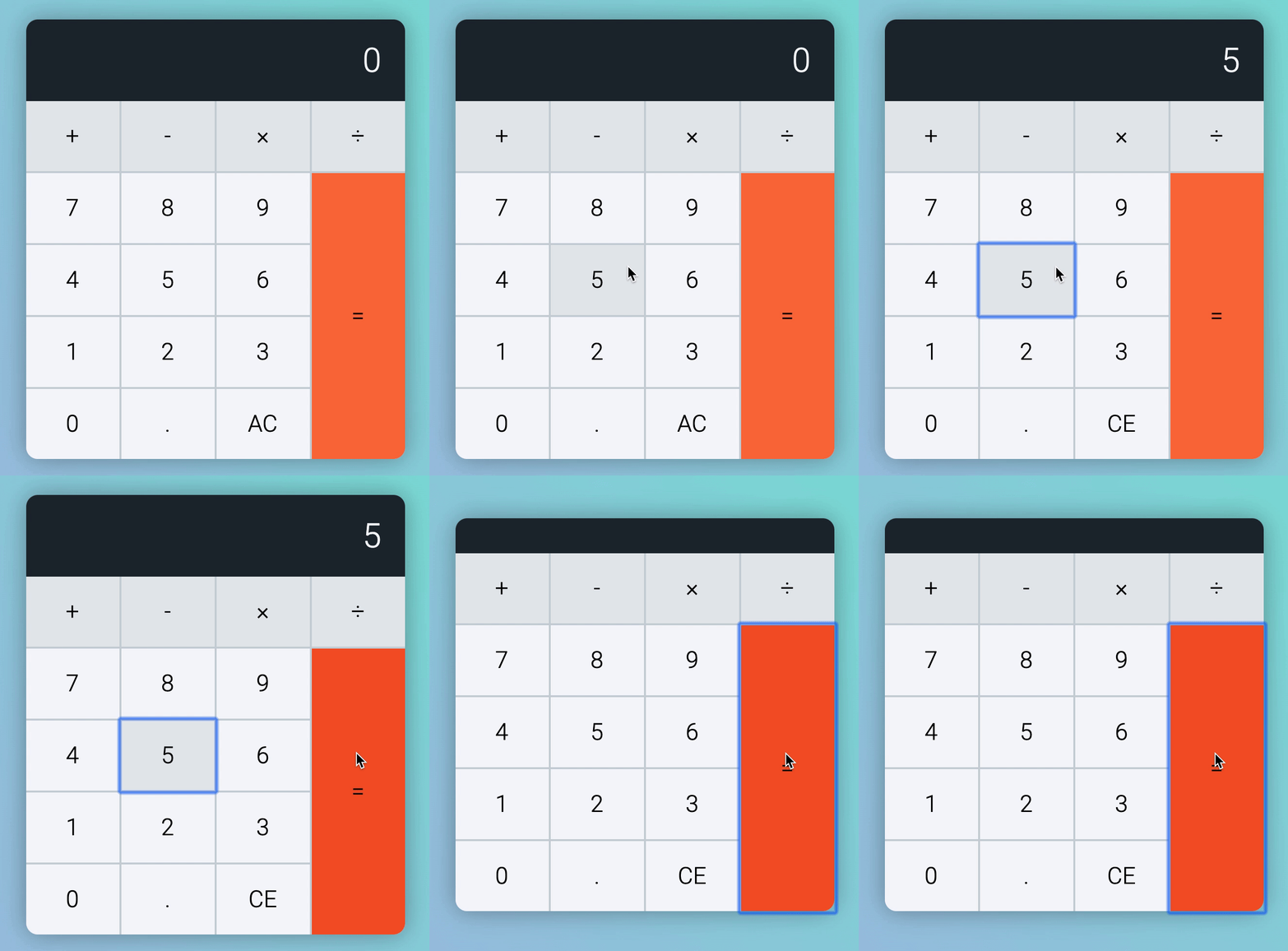
Why does the display become empty? We must have done something. In this case, we tried to make a calculation when we pressed the equal key.
calculatorButtonsDiv.addEventListener('click', event => { // ... if (buttonType === 'equal') { const firstValue = parseFloat(calculator.dataset.firstValue) const operator = calculator.dataset.operator const secondValue = parseFloat(result)
let newResult if (operator === 'plus') newResult = firstValue + secondValue if (operator === 'minus') newResult = firstValue - secondValue if (operator === 'times') newResult = firstValue * secondValue if (operator === 'divide') newResult = firstValue / secondValue
display.textContent = newResult } // ...})But we can’t make any calculation if we don’t have firstValue and operator. newResult will be undefined.
To fix this edge case, we can skip calculation if we don’t have firstValue and operator.
calculatorButtonsDiv.addEventListener('click', event => { // ... if (buttonType === 'equal') { const firstValue = parseFloat(calculator.dataset.firstValue) const operator = calculator.dataset.operator const secondValue = parseFloat(result)
// Skips calculation if there's no `firstValue` and `operator` if (firstValue && operator) { let newResult if (operator === 'plus') newResult = firstValue + secondValue if (operator === 'minus') newResult = firstValue - secondValue if (operator === 'times') newResult = firstValue * secondValue if (operator === 'divide') newResult = firstValue / secondValue
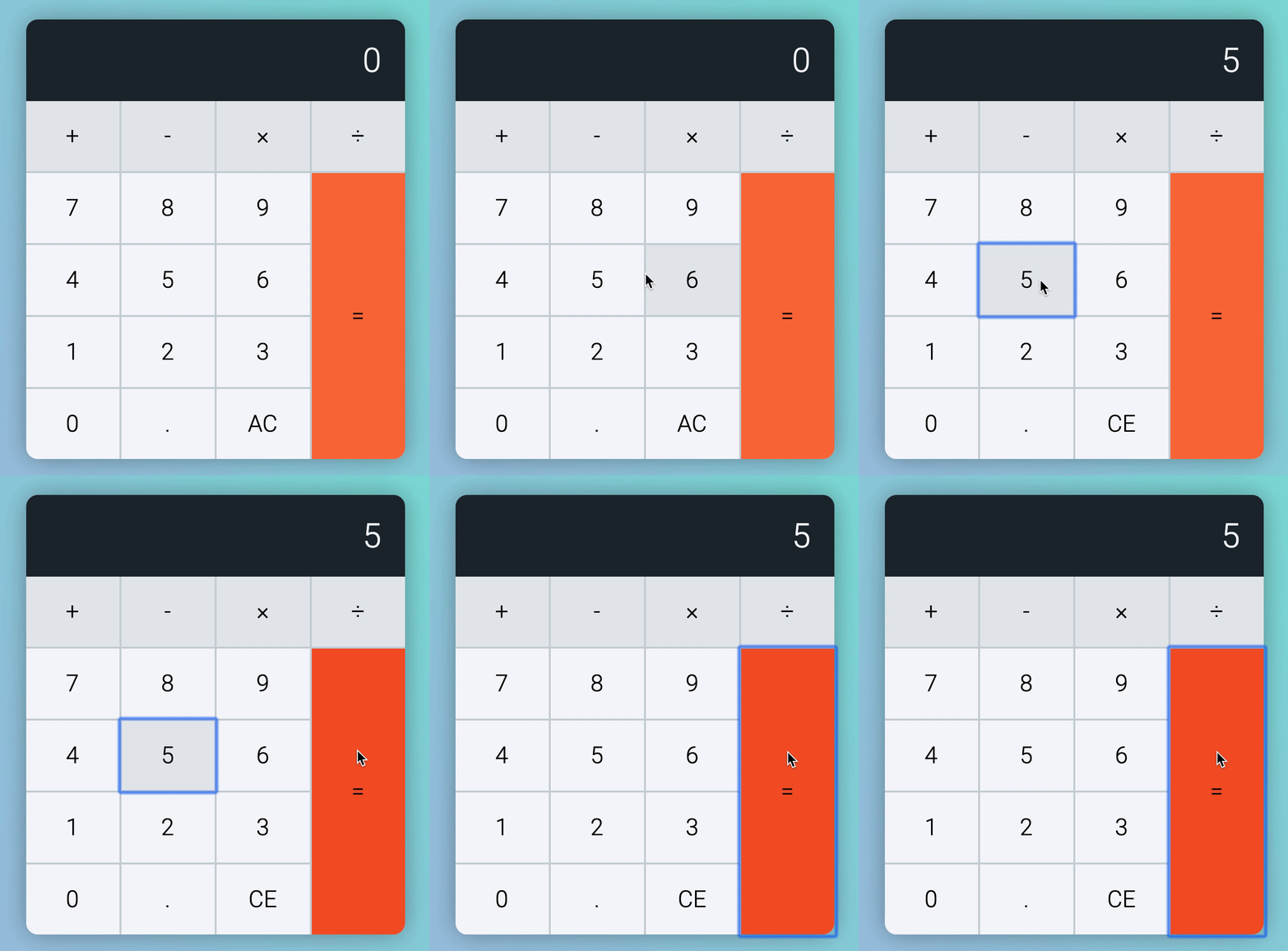
display.textContent = newResult } } // ...})It works great now. Our test passed too! 😃.
Number -> Decimal -> Equal
What if Tim presses 2 . 4 5 =? The calculator should show 2.45. Does ours show 2.45?
We can test this with runTest.
const tests = [ // ... { message: 'Number Decimal Equal', keys: ['2', 'decimal', '4', '5', 'equal'], result: '2.45', },]It works! Since it worked, you shouldn’t see an error message. But we can double confirm things are 👌 by testing it out manually.
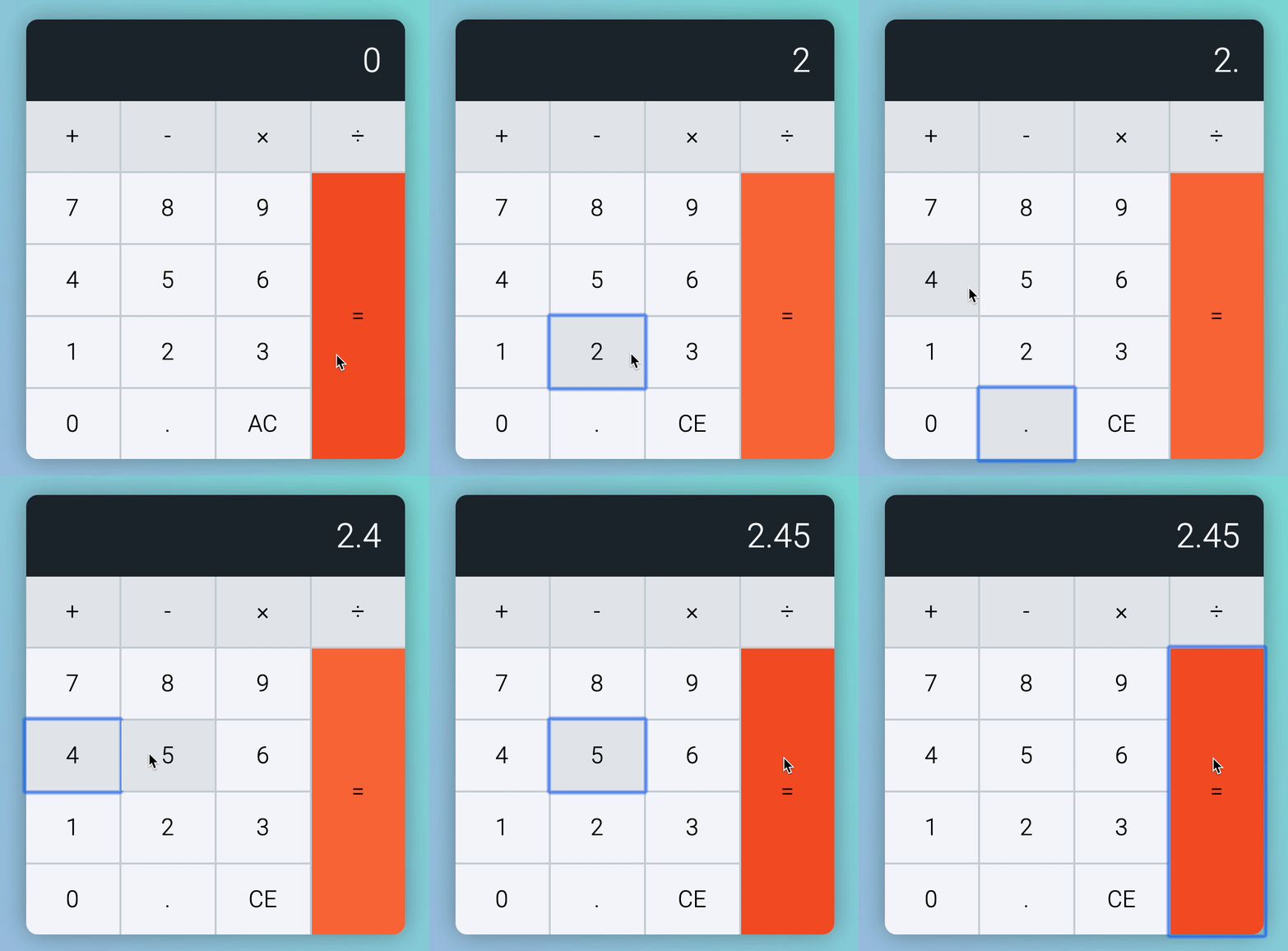
Note: We should confirm each test manually at least once. This gives us confidence that tests work. If a test fails in future, we know we changed something and broke the calculator. We can easily undo the change when this happens.
We have now handled all possible cases starting with number keys. Tim can still start with four other types of keys:
- An operator key
- The decimal key
- The clear key
- The equal key
Let’s work on decimal keys first. (Operator keys are complicated. We’ll get to them in the next lesson).
Decimal key first
If the display shows zero, we should append a decimal. Our code handles this already.
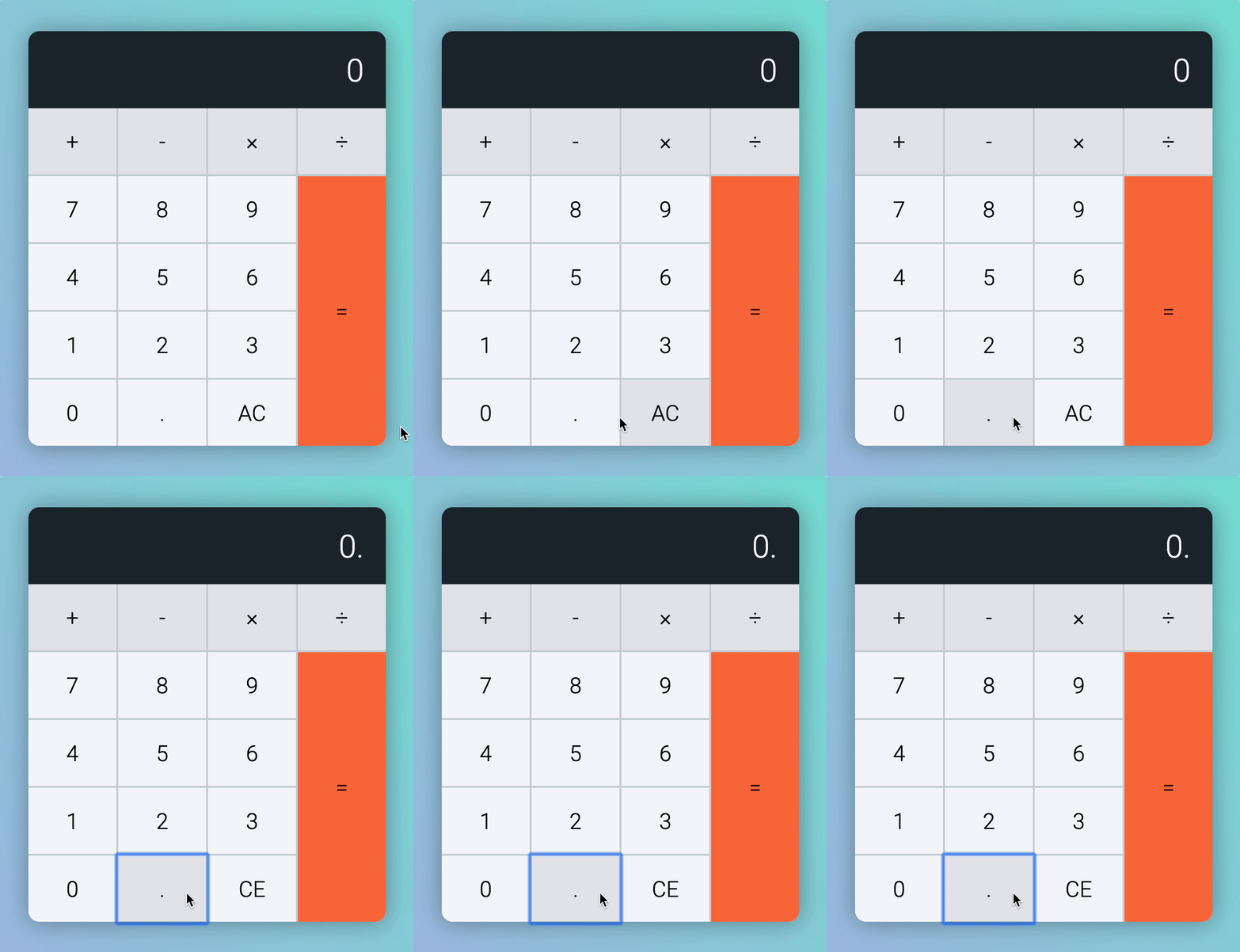
But let’s add a test case to confirm this works (going forward).
const tests = [ // ... { message: 'Decimal key', keys: ['decimal'], result: '0.', },]After clicking a decimal, Tim can click any of these keys:
- Decimal
->Number (Handled by happy path) - Decimal
->Decimal - Decimal
->Operator (Handled by happy path) - Decimal
->Clear (Handled by happy path) - Decimal
->Equal
Decimal -> Decimal
If Tim press 2 . ., the calculator should show 2..
Let’s start by writing a test.
const test = [ // ... { message: 'Decimal Decimal', keys: ['2', 'decimal', 'decimal'], result: '2.', },]
Okay, the assertion failed. Let’s see what happens if we press 2 . . manually.
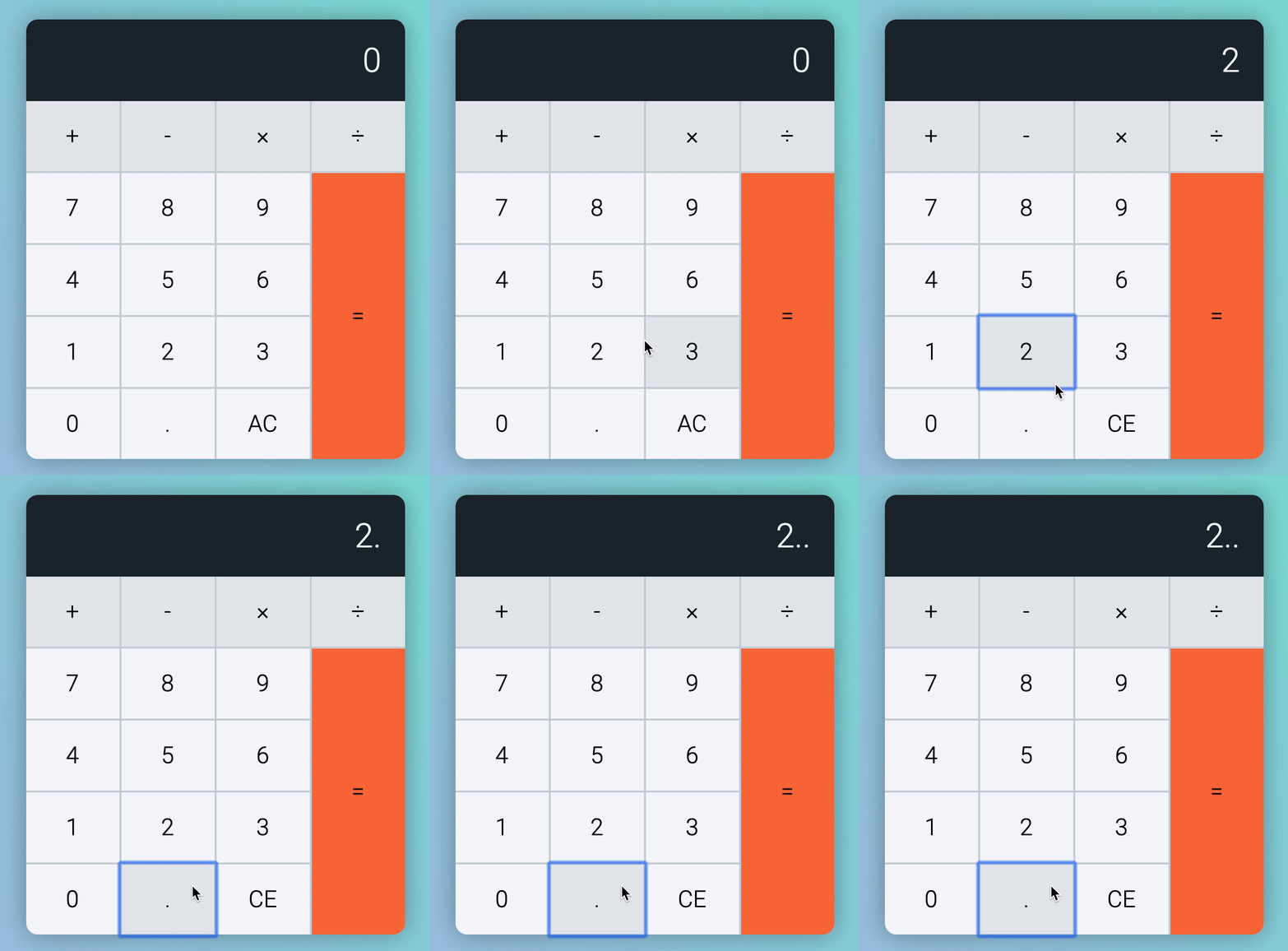
The two . happened because we add . when a user presses a decimal key.
calculatorButtonsDiv.addEventListener('click', event => { // ... if (buttonType === 'decimal') { display.textContent = result + '.' } // ...})We don’t want to have two decimals. We only want one decimal in the calculator. If the display has a decimal, we can ignore the second decimal.
We can ignore the second decimal with includes. includes checks if a string contains another string. If yes, includes returns true. If no, includes returns false.
// Example of how `includes` work.// Note: `includes` is case-sensitive.const string = 'The hamburgers taste pretty good!'const hasExclamation = string.includes('!')
console.log(hasExclamation) // trueIf the displayed content contains a decimal already, we don’t display another decimal. We simply do nothing.
calculatorButtonsDiv.addEventListener('click', event => { // ... if (buttonType === 'decimal') { if (result.includes('.')) { // Do nothing } else { display.textContent = result + '.' } } // ...})An empty if statement looks weird. We can flip the condition over with a NOT (!) operator.
calculatorButtonsDiv.addEventListener('click', event => { // ... if (buttonType === 'decimal') { if (!result.includes('.')) { display.textContent = result + '.' } } // ...})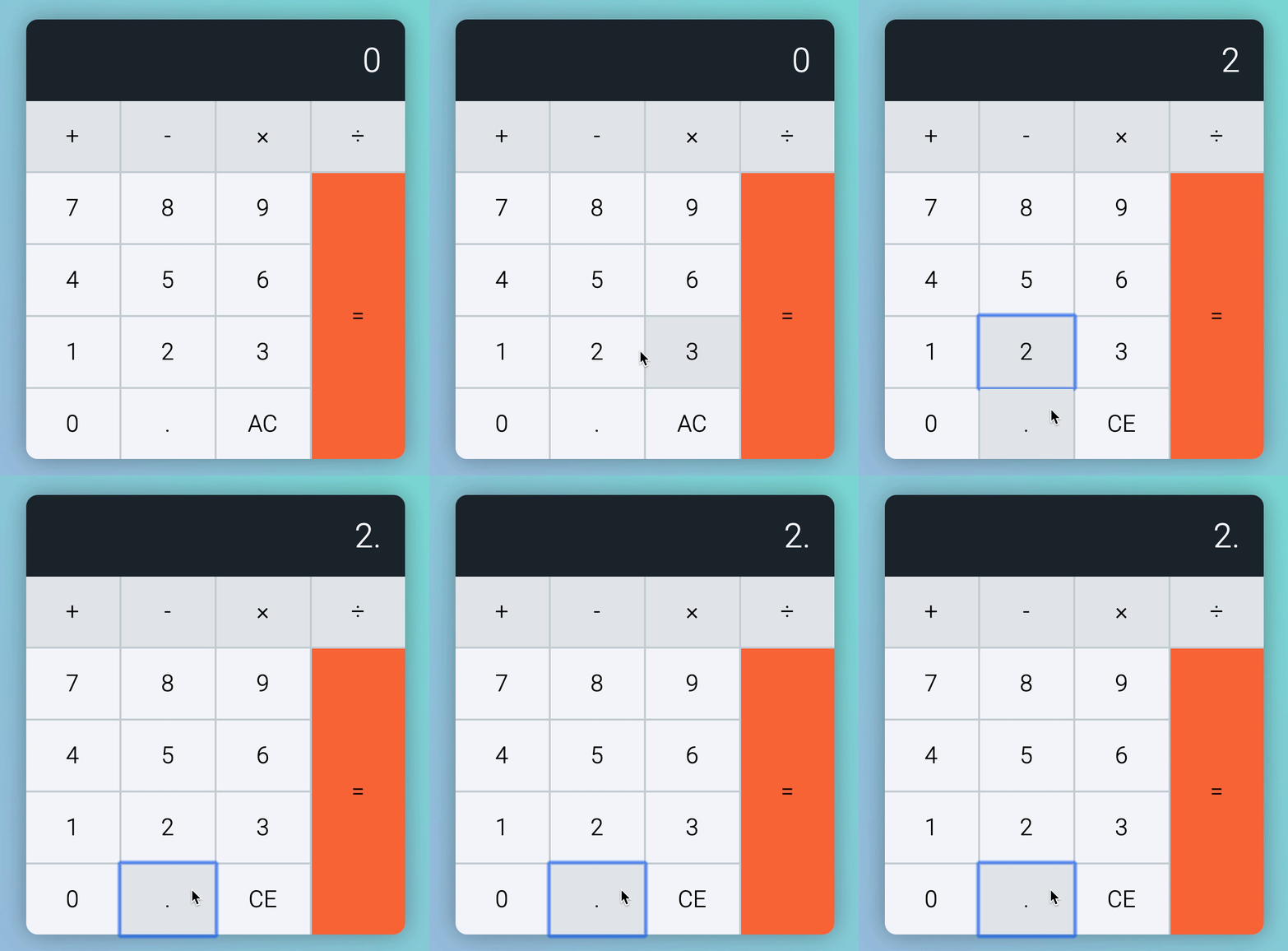
Let’s go a little further. What happens if Tim presses 2 . 5 . 5? Ideally, we should show 2.55. Our calculator does with the above code.
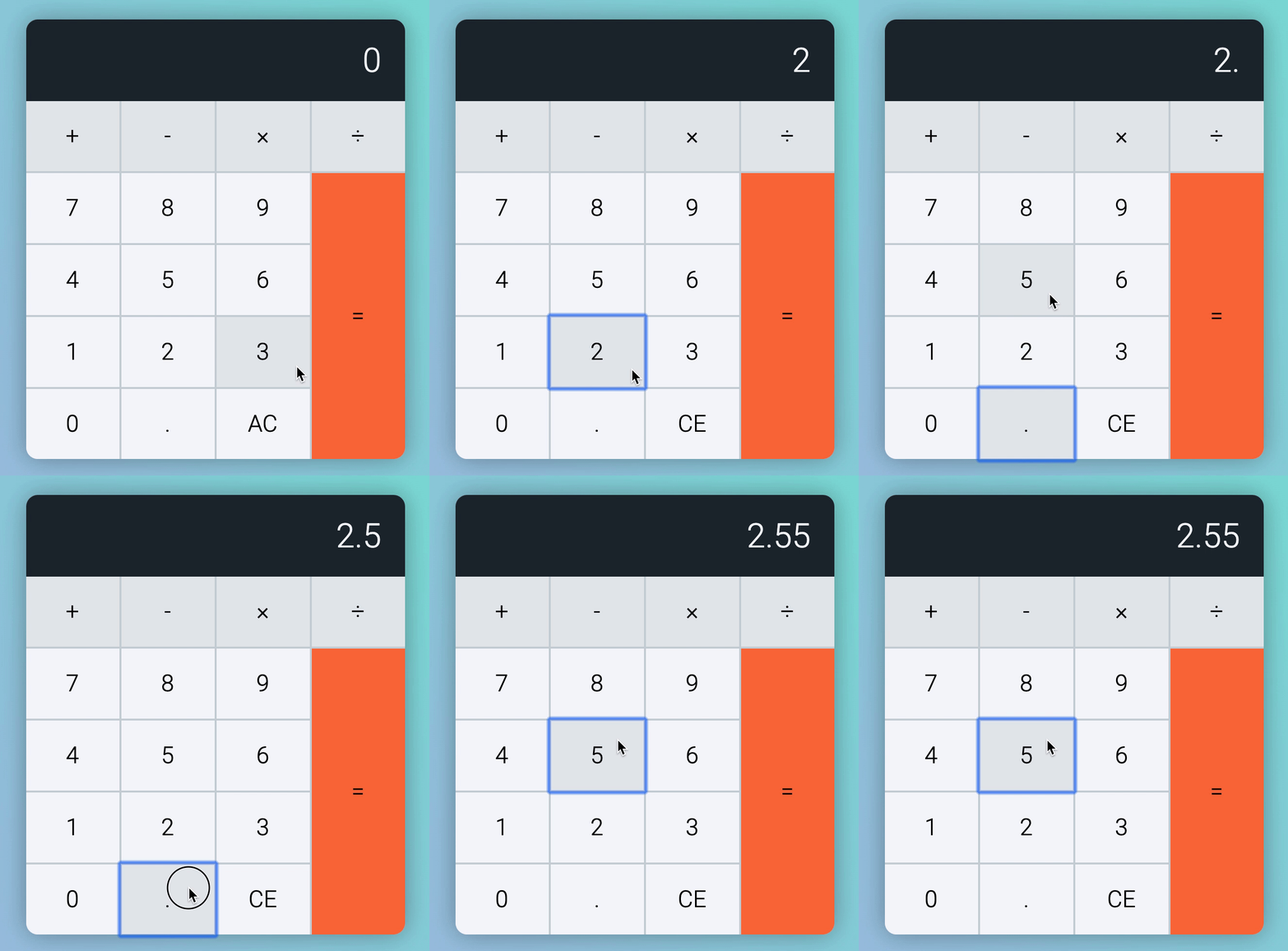
Let’s add a test to lock this case in.
const tests = [ // ... { message: 'Decimal Number Decimal', keys: ['2', 'decimal', '5', 'decimal', '5'], result: '2.55', },]Decimal -> Equal
If Tim presses 2 . =. Calculator should show 2. Sadly our calculator shows 2..
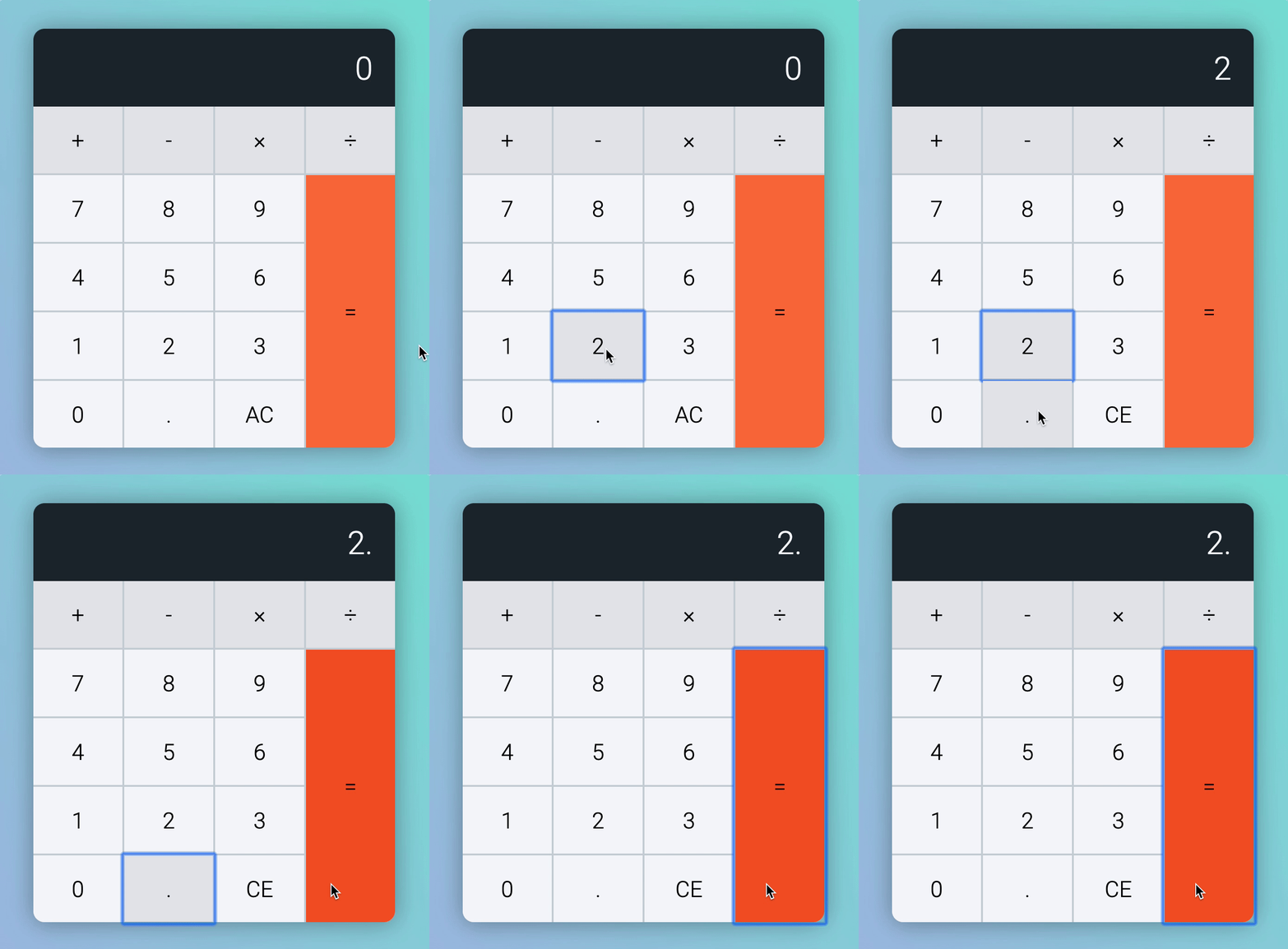
Let’s add a test case before we continue.
const tests = [ // ... { message: 'Decimal Equal', keys: ['2', 'decimal', 'equal'], result: '2', },]
Try testing the calculator with operator keys. You’ll notice JavaScript Math operations (plus, minus, times, and divide) strip unnecessary decimals from the result.
1 . + 5 =. Calculator shows6.1 . - 5 =. Calculator shows-4.1 . * 5 =. Calculator shows5.1 . / 5 =. Calculator shows0.2.
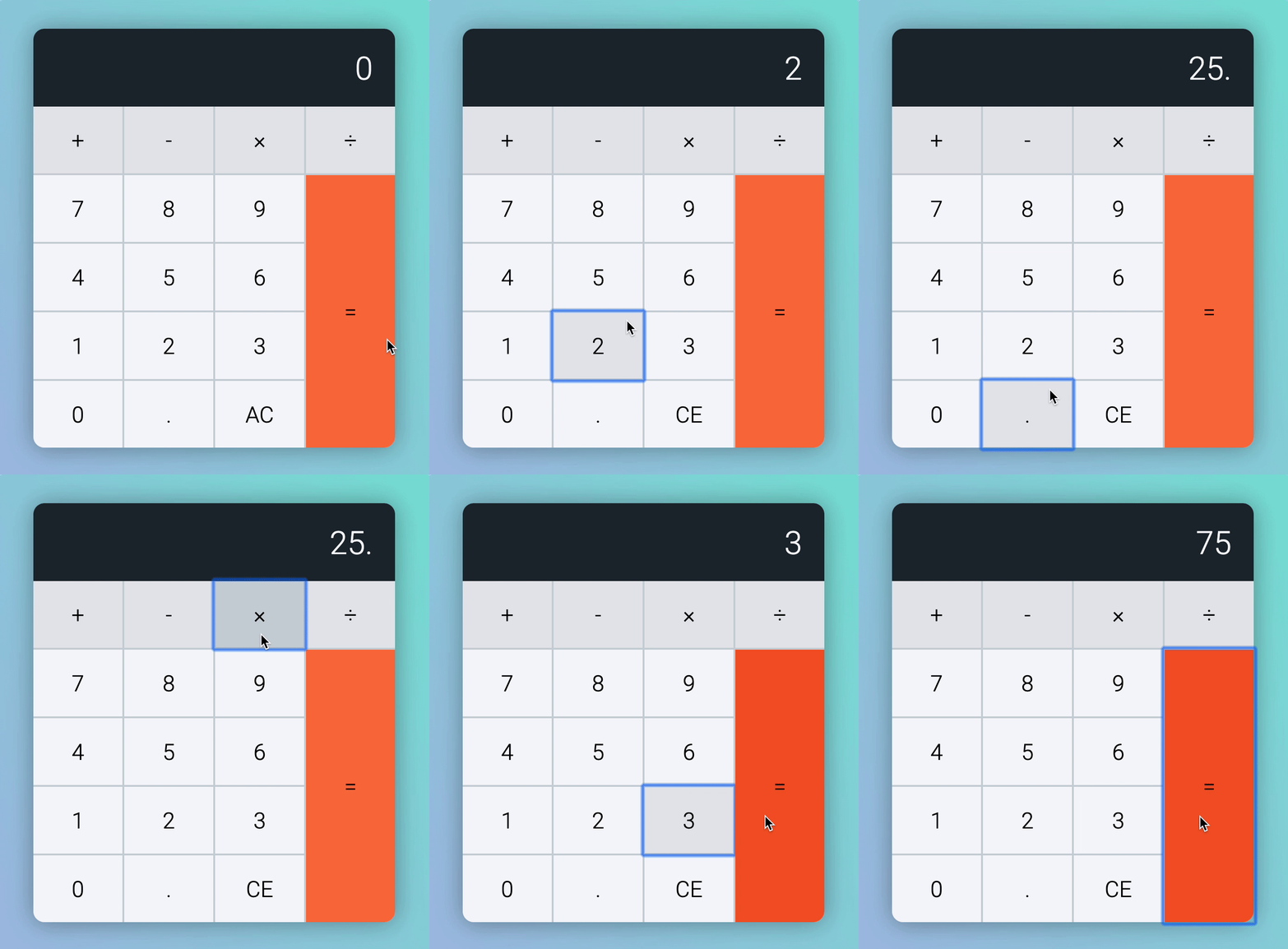
We can make use of this pattern!
We can remove unnecessary decimal points by multiplying the result by 1. (Because anything times 1 gives itself).
calculatorButtonsDiv.addEventListener('click', event => { // ... if (buttonType === 'equal') { const firstValue = parseFloat(calculator.dataset.firstValue) const operator = calculator.dataset.operator const secondValue = parseFloat(result)
if (firstValue && operator) { // ... } else { // Strips unnecessary decimal point display.textContent = parseFloat(result) * 1 } } // ...})The Decimal Equal test should pass now.
Let’s move on to the equal key.
Equal key first
If Tim clicks on equal first, the calculator should remain as 0. No calculations are done. We’ve already handled this with our code above, but let’s put a test case to ensure it happens.
const test = [ // ... { message: 'Equal', keys: ['equal'], result: '0', },]Next, we want to consider possible key combinations with equal.
- Equal
->Number - Equal
->Decimal - Equal
->Operator - Equal
->Equal (Handled by code above) - Equal
->Clear (Handled by happy path)
Equal -> Number
If Tim presses a number key after an equal key, we can assume they want to start a new calculation. This new calculation should not contain any values from the previous calculation.
So these should be true:
- If Tim clicks
= 3. Calculator should show3. - If Tim clicks
5 = 3. Calculator should show3.
Let’s create these test cases first.
const tests = [ // ... { message: 'Equal Number', keys: ['equal', '3'], result: '3', }, { message: 'Number Equal Number', keys: ['5', 'equal', '3'], result: '3', },]The first test case (Equal Number) passed while the second test case (Number Equal Number) failed.

Let’s press 5 = 3 manually and see what happens.
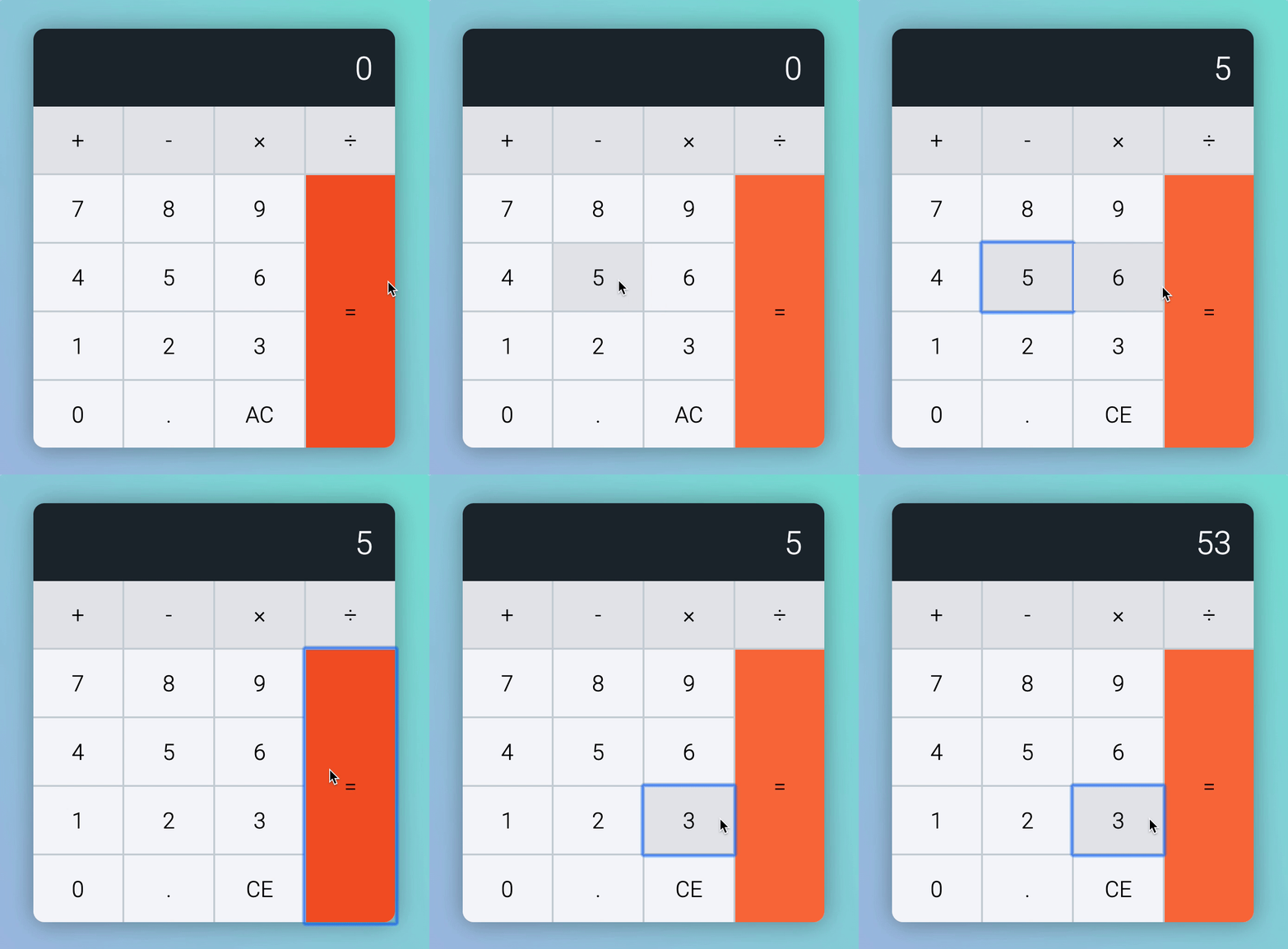
Ah, this happened because we added the key to the result if result !== 0.
calculatorButtonsDiv.addEventListener('click', event => { // ... if (buttonType === 'number') { if (result === '0') { display.textContent = key } else { // This is the problem display.textContent = result + key }
if (previousButtonType === 'operator') { display.textContent = key } } // ...})To fix this, we need to know if the user pressed equal previously. If they did, we’ll replace the result with the number pressed.
calculatorButtonsDiv.addEventListener('click', event => { // ... if (buttonType === 'number') { if (result === '0') { display.textContent = key } else { display.textContent = result + key }
if (previousButtonType === 'operator') { display.textContent = key }
if (previousButtonType === 'equal') { display.textContent = key } } // ...})The test should pass now!
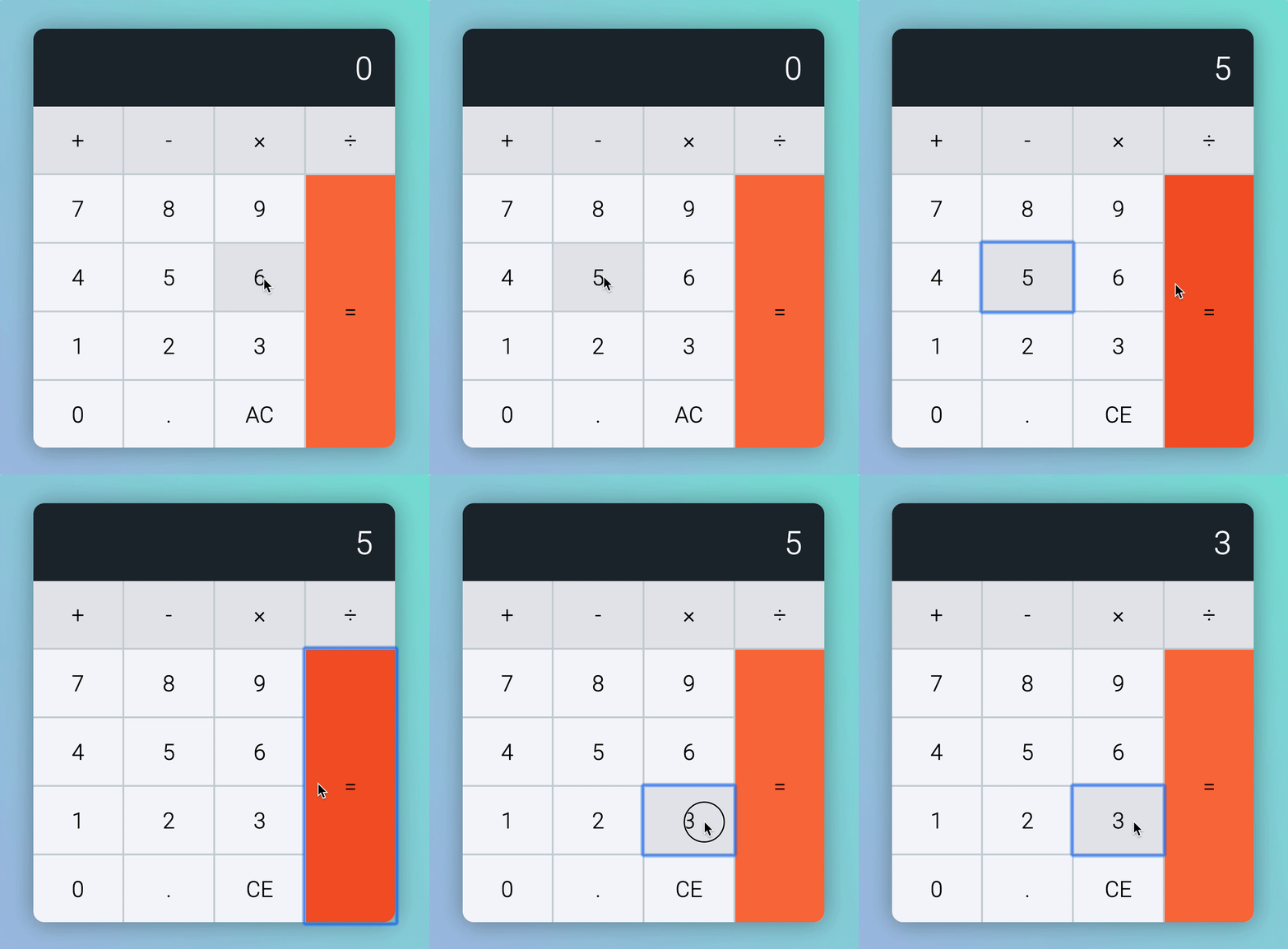
Before we move on, let’s clear the custom attributes we used. We do this because we assume the user wants to make a brand new calculation. We don’t want previous calculations to affect their results.
calculatorButtonsDiv.addEventListener('click', event => { // ... if (buttonType === 'number') { if (result === '0') { display.textContent = key } else { display.textContent = result + key }
if (previousButtonType === 'operator') { display.textContent = key }
if (previousButtonType === 'equal') { display.textContent = key delete calculator.dataset.firstValue delete calculator.dataset.operator } } // ...})Remember a resetCalculator function we wrote for testing? Why not use resetCalculator to help us perform the reset?
calculatorButtonsDiv.addEventListener('click', event => { // ... if (buttonType === 'number') { if (result === '0') { display.textContent = key } else { display.textContent = result + key }
if (previousButtonType === 'operator') { display.textContent = key }
if (previousButtonType === 'equal') { resetCalculator() display.textContent = key } } // ...})Equal -> Decimal
If the user presses a decimal key after an equal key, we can also assume they’re starting a new calculation. This new calculation should not contain any values from the previous calculation.
These should be true:
- If Tim clicks
= .. Calculator should show0.. - If Tim clicks
5 = .. Calculator should show0..
Let’s create test cases! :)
const tests = [ // ... { message: 'Equal Decimal', keys: ['equal', 'decimal'], result: '0.', }, { message: 'Number Equal Decimal', keys: ['5', 'equal', 'decimal'], result: '0.', },]Hmm 🤔. The Equal Decimal test passed, but the Number Equal Decimal test failed.

But why? Let’s press 5 = . manually and see what happened.
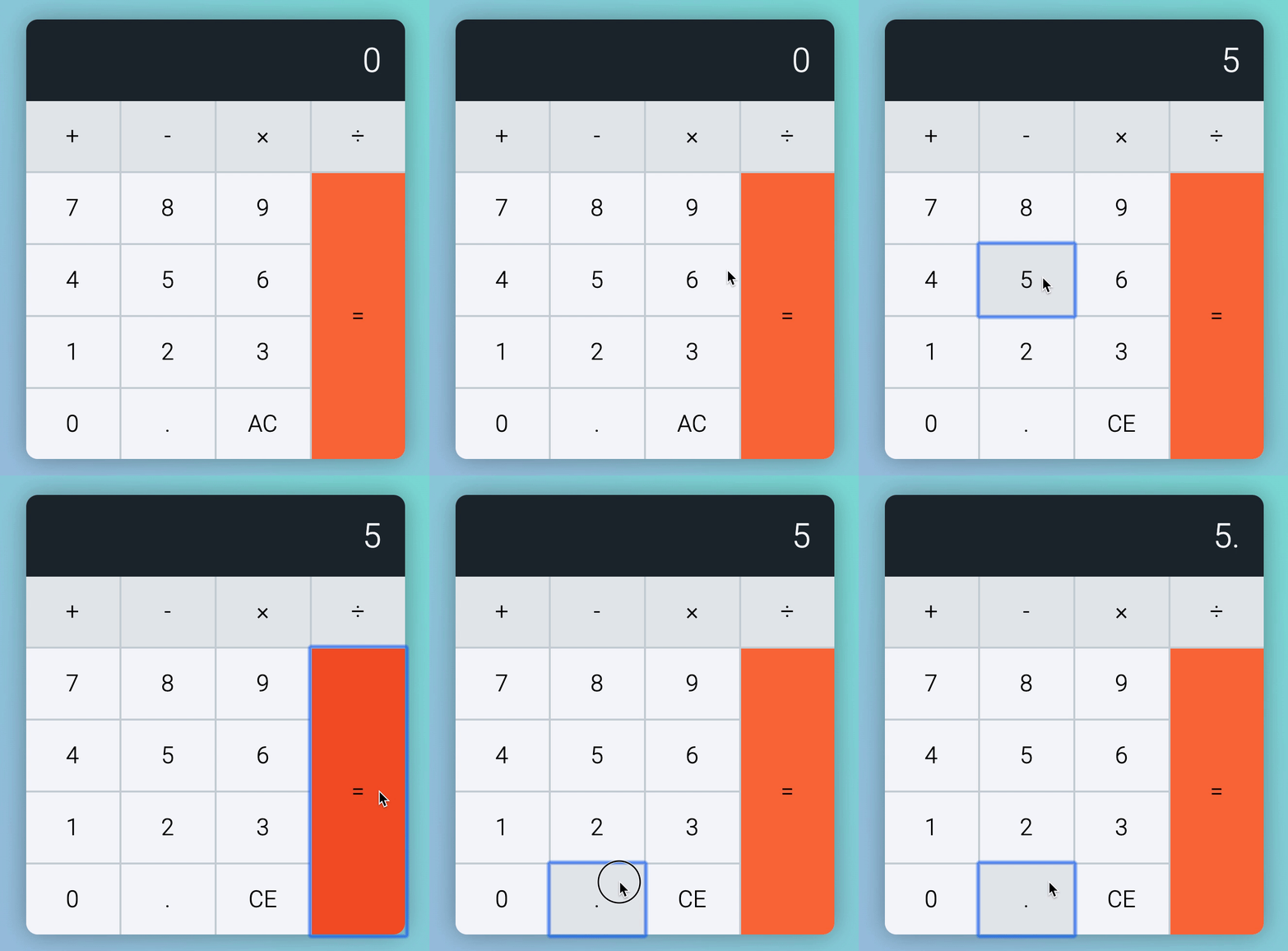
You’ll understand why if you look at the decimal part of the code. We didn’t care if the user pressed equal before a decimal!
calculatorButtonsDiv.addEventListener('click', event => { // ... if (buttonType === 'decimal') { if (!result.includes('.')) { display.textContent = result + '.' } } // ...})Fixing this is easy. If the user clicked equal previously, we set the displayed content to 0..
calculatorButtonsDiv.addEventListener('click', event => { // ... if (buttonType === 'decimal') { if (!result.includes('.')) { display.textContent = result + '.' }
if (previousButtonType === 'equal') { display.textContent = '0.' } } // ...})Since users are creating a brand new calculation, we also need to reset the calculator.
calculatorButtonsDiv.addEventListener('click', event => { // ... if (buttonType === 'decimal') { if (!result.includes('.')) { display.textContent = result + '.' }
if (previousButtonType === 'equal') { resetCalculator() display.textContent = '0.' } } // ...})The test case should pass now 😄.
Equal -> Operator
If Tim clicks an operator key after the equal key, we can assume he wants to continue with the calculation. This time, they want to use the result of the previous calculation as the base of their first number.
So this should be true:
- Tim presses
1 + 1 =. Calculator shows 2. - Tim continues to press
+. Calculator remains at 2. - Tim presses
1. Calculator shows 1. - Tim presses
=. Calculator shows3.
Let’s add a test case:
const test = [ // ... { message: 'Calculation + Operator', keys: ['1', 'plus', '1', 'equal', 'plus', '1', 'equal'], result: '3', },]Our code handles this case already.
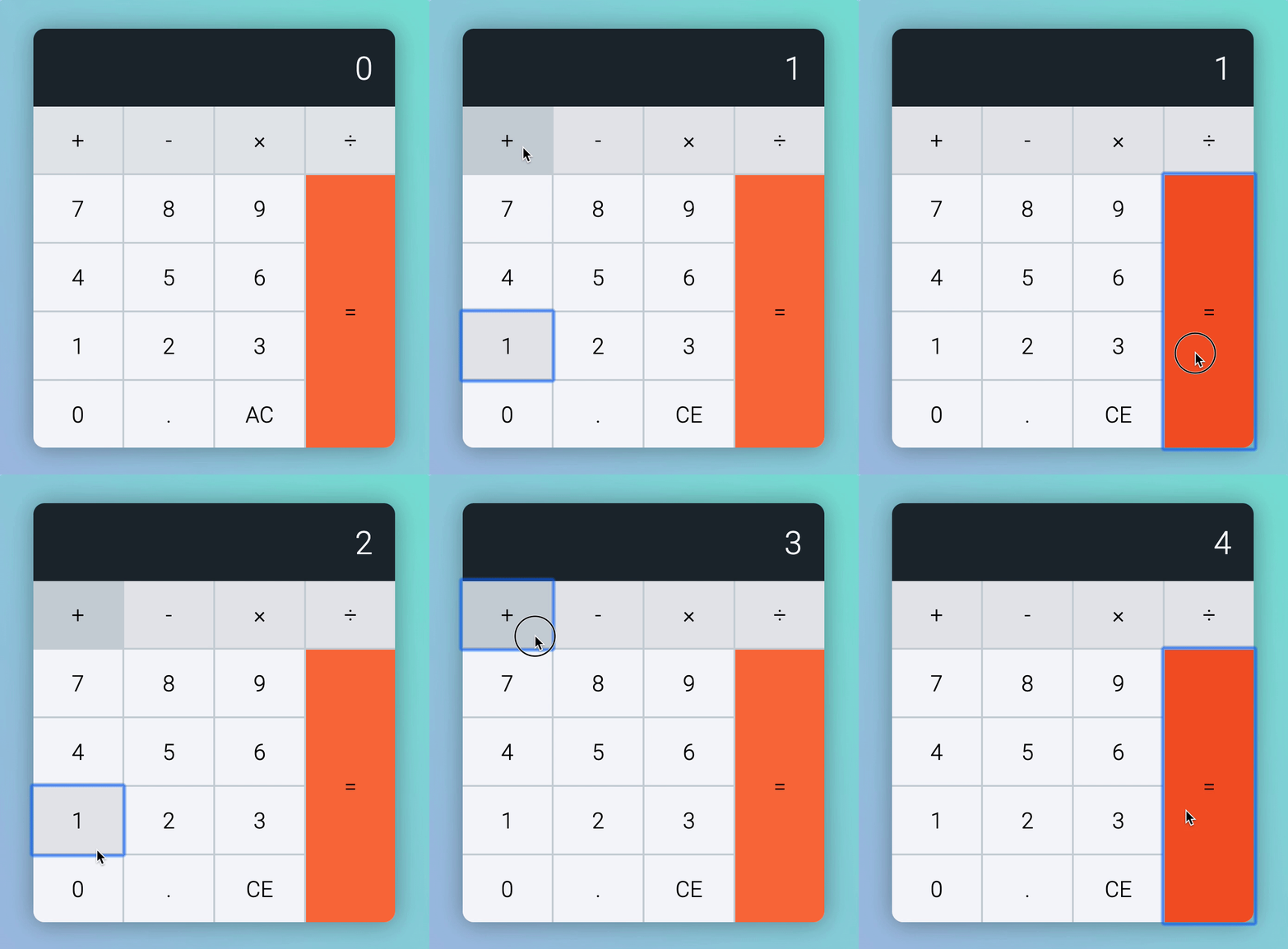
Tim can start with two more keys:
- An operator key
- The clear key
Let’s work on operator keys.
Operator Keys First
We want to do two things when a user presses an operator key:
- Highlight the operator
- Prepare the calculator for calculation.
We’ve done both of these in the happy-path code. If Tim presses operator first, we simply use 0 (which is the displayed value) as firstValue. So there’s nothing to do here.
After pressing an operator key, Tim can press any of these keys:
- Operator
->Number (Handled with happy-path code) - Operator
->Operator (Handled with happy-path code) - Operator
->Decimal - Operator
->Equal - Operator
->Clear (Handled with happy-path code)
Operator -> Decimal
If Tim clicks the decimal key after an operator key, we assume he wants to begin the second number with 0.. At this point, the calculator should show 0..
These should be true:
- Tim clicks
x .. Calculator shows0. - Tim clicks
5 x .. Calculator shows0.
Let’s add test cases first.
const tests = [ // ... { message: 'Operator Decimal', keys: ['times', 'decimal'], result: '0.', }, { message: 'Number Operator Decimal', keys: ['5', 'times', 'decimal'], result: '0.', },]
Hmm, the Number Operator Decimal test failed. But why? Let’s punch in the numbers manually and see what happened.
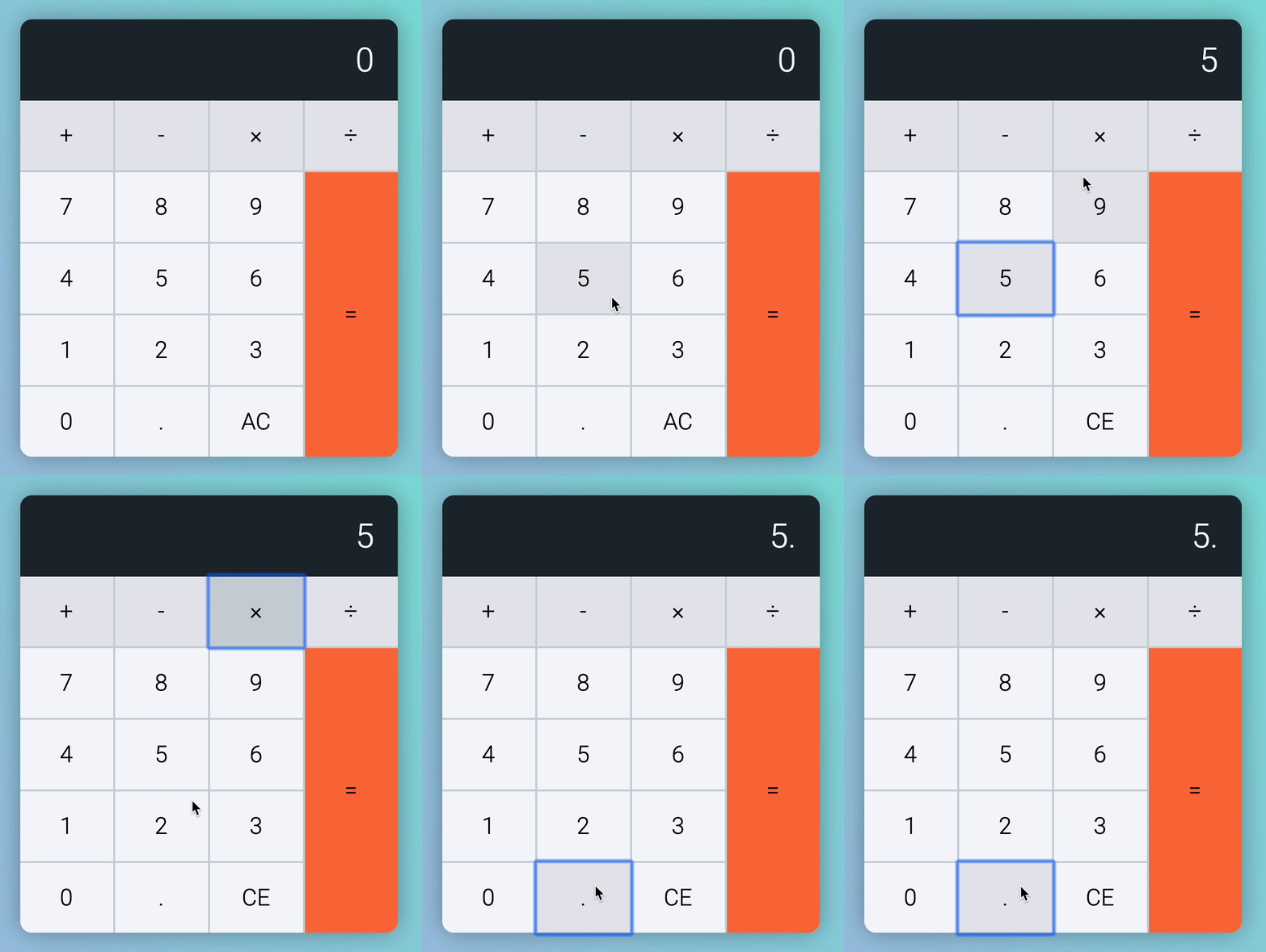
Okay, we added a . to the displayed result instead of changing it to 0.. You can see why if you look at the code we have now:
calculatorButtonsDiv.addEventListener('click', event => { // ... if (buttonType === 'decimal') { if (!result.includes('.')) { display.textContent = result + '.' }
if (previousButtonType === 'equal') { resetCalculator() display.textContent = '0.' } } // ...})If the previous key pressed was an operator, we want to show 0.
calculatorButtonsDiv.addEventListener('click', event => { // ...
if (buttonType === 'decimal') { if (!result.includes('.')) { display.textContent = result + '.' }
if (previousButtonType === 'equal') { resetCalculator() display.textContent = '0.' }
if (previousButtonType === 'operator') { display.textContent = '0.' } }
// ...})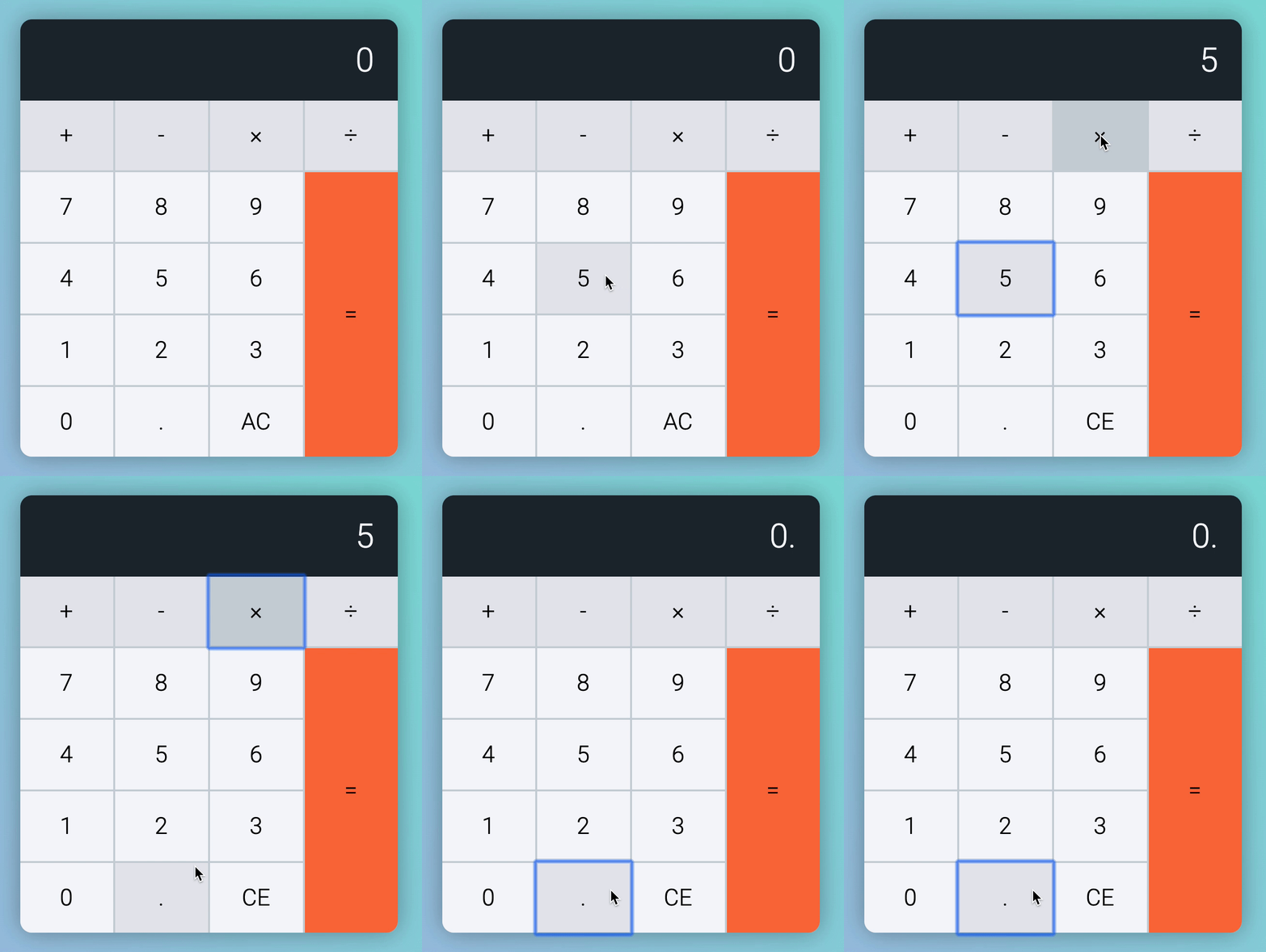
The tests should pass now.
Operator -> Equal
If Tim clicks on equal after operator, we want to perform a calculation. Here, we assume firstValue and secondValue are the same number.
- Tim presses
1 + =. We take it as1 + 1 =. Shows 2. - Tim presses
2 - =. We take it as2 - 2 =. Shows 0. - Tim presses
3 * =. We take it as3 * 3 =. Shows 9. - Tim presses
4 / =. We take it as4 / 4 =. Shows 1.
As usual, let’s add a test case first.
const tests = [ // ... { message: 'Number Operator Equal', keys: ['7', 'divide', 'equal'], result: '1', },]The test passed! But let’s punch in another operator manually to confirm our tests.
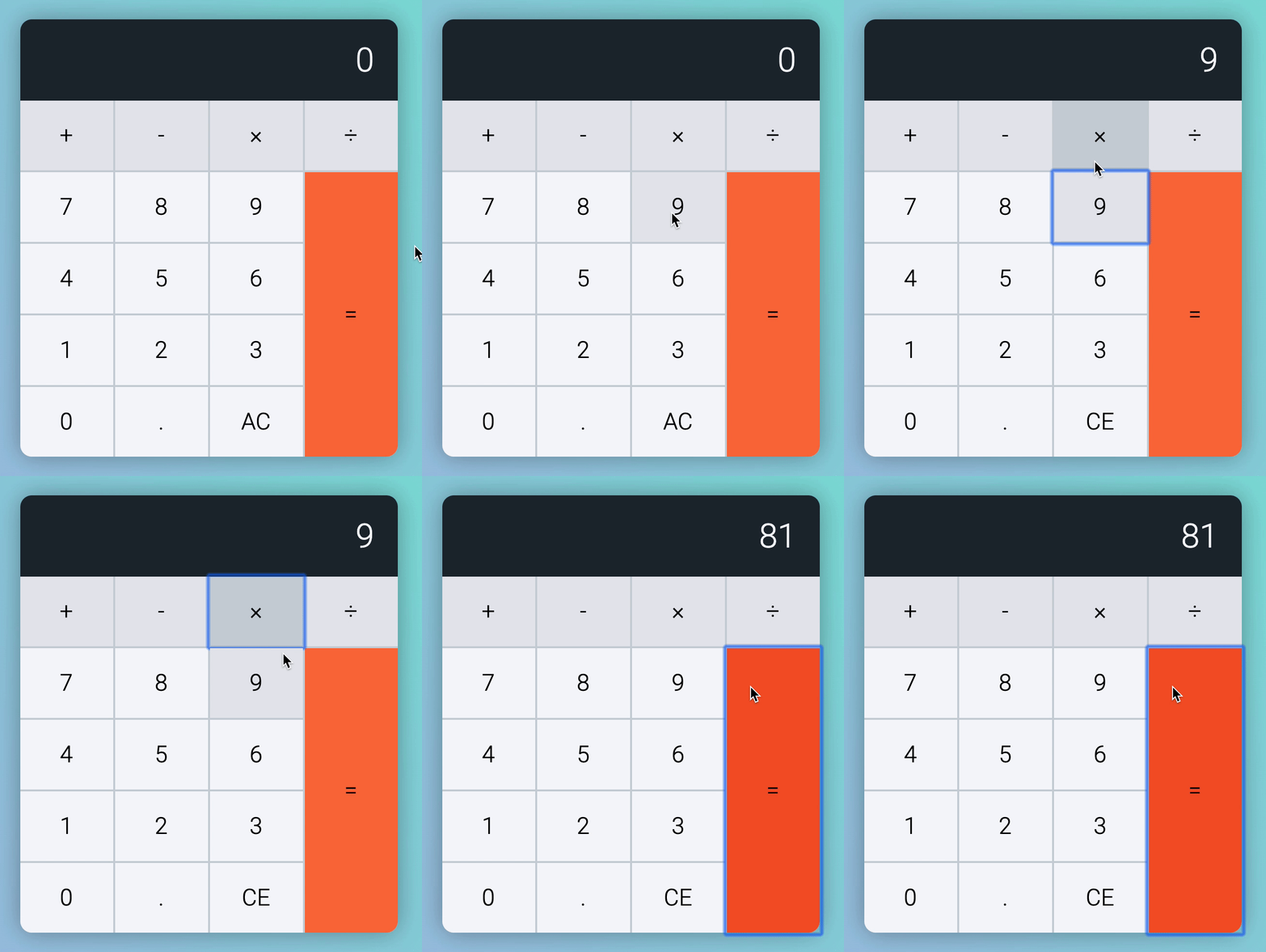
There’s one more key left!
Clear Key First
We did all the work we need for the Clear key, so there’s nothing to do here 😉.
Wrapping up
We’ve covered all the easy edge cases in this lesson. Next up, we’ll going the hard ones. This is where it gets challenging!
Welcome! Unfortunately, you don’t have access to this lesson. To get access, please purchase the course or enroll in Magical Dev School.
Unlock this lesson