The difficult edge cases involve follow-up calculations. Don’t get what I mean? Don’t worry. Let’s dive in and you’ll see.
Calculating with operators
Try whipping out a calculator. Press keys in these sequence: Number -> Operator -> Number -> Operator. What happens? The calculator should have made a calculation.
For example:
- Press
9 - 5 -. Calculator should show4.
But why?
If the user press 9 - 5 -, we can assume they want to press another number to continue their calculation. We want to show them an intermediate result so they can keep track of their results.
Right now, our calculator doesn’t perform a calculation. It seems doesn’t do anything when you press the second operator.
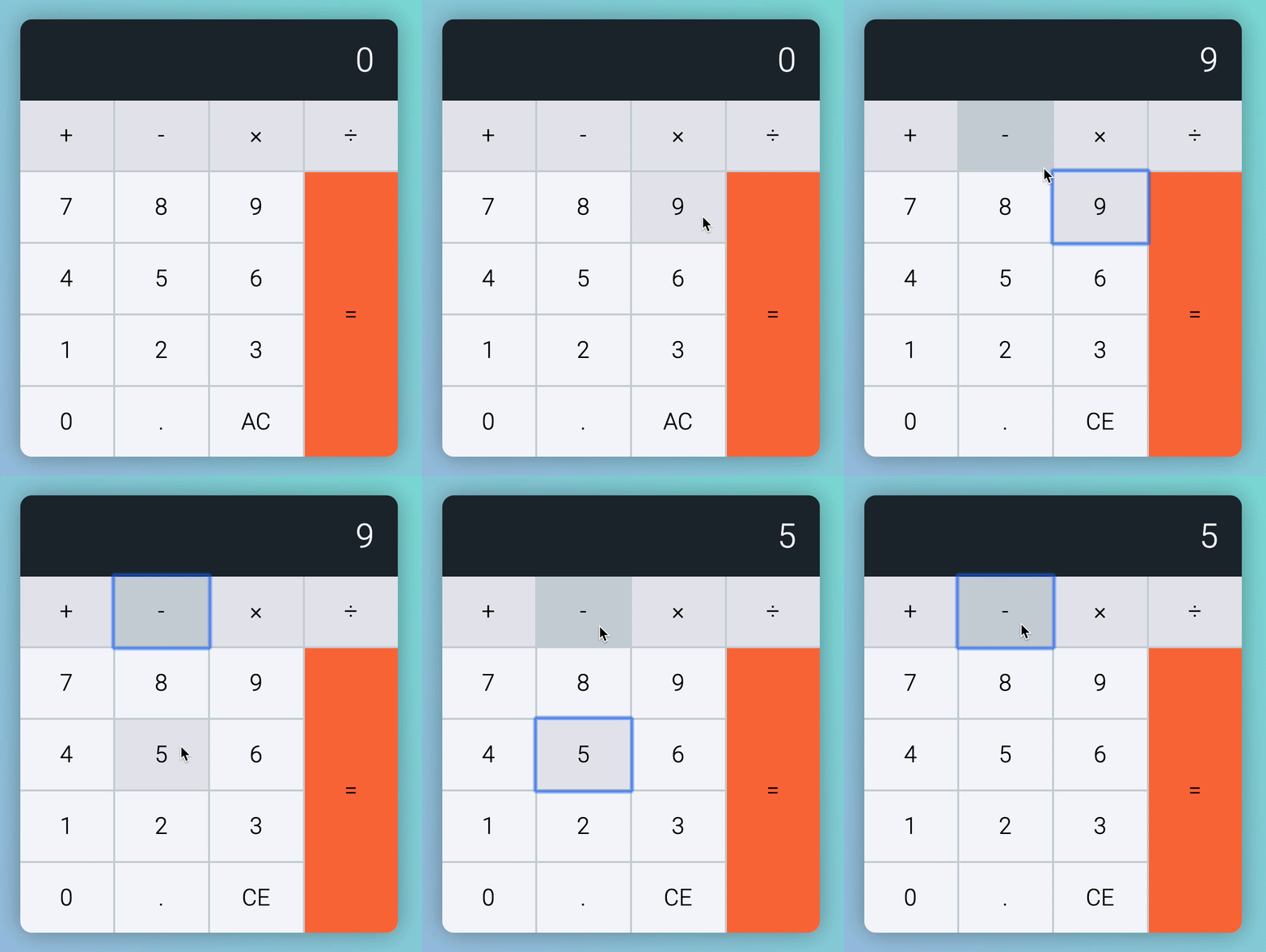
Let’s add a test case before we continue. It should fail.
const tests = [ // ... { message: 'Operator calculation', keys: ['9', 'minus', '5', 'minus'], result: '4', },]
The easiest way to make a calculation is to copy-paste code from the equal section into the operator section.
calculatorButtonsDiv.addEventListener('click', event => { // ... if (buttonType === 'operator') { button.classList.add('is-pressed')
const firstValue = parseFloat(calculator.dataset.firstValue) const operator = calculator.dataset.operator const secondValue = parseFloat(result)
// Makes a calculation if (firstValue && operator) { let newResult if (operator === 'plus') newResult = firstValue + secondValue if (operator === 'minus') newResult = firstValue - secondValue if (operator === 'times') newResult = firstValue * secondValue if (operator === 'divide') newResult = firstValue / secondValue
display.textContent = newResult }
calculator.dataset.firstValue = result calculator.dataset.operator = button.dataset.key } // ...})The test passes!
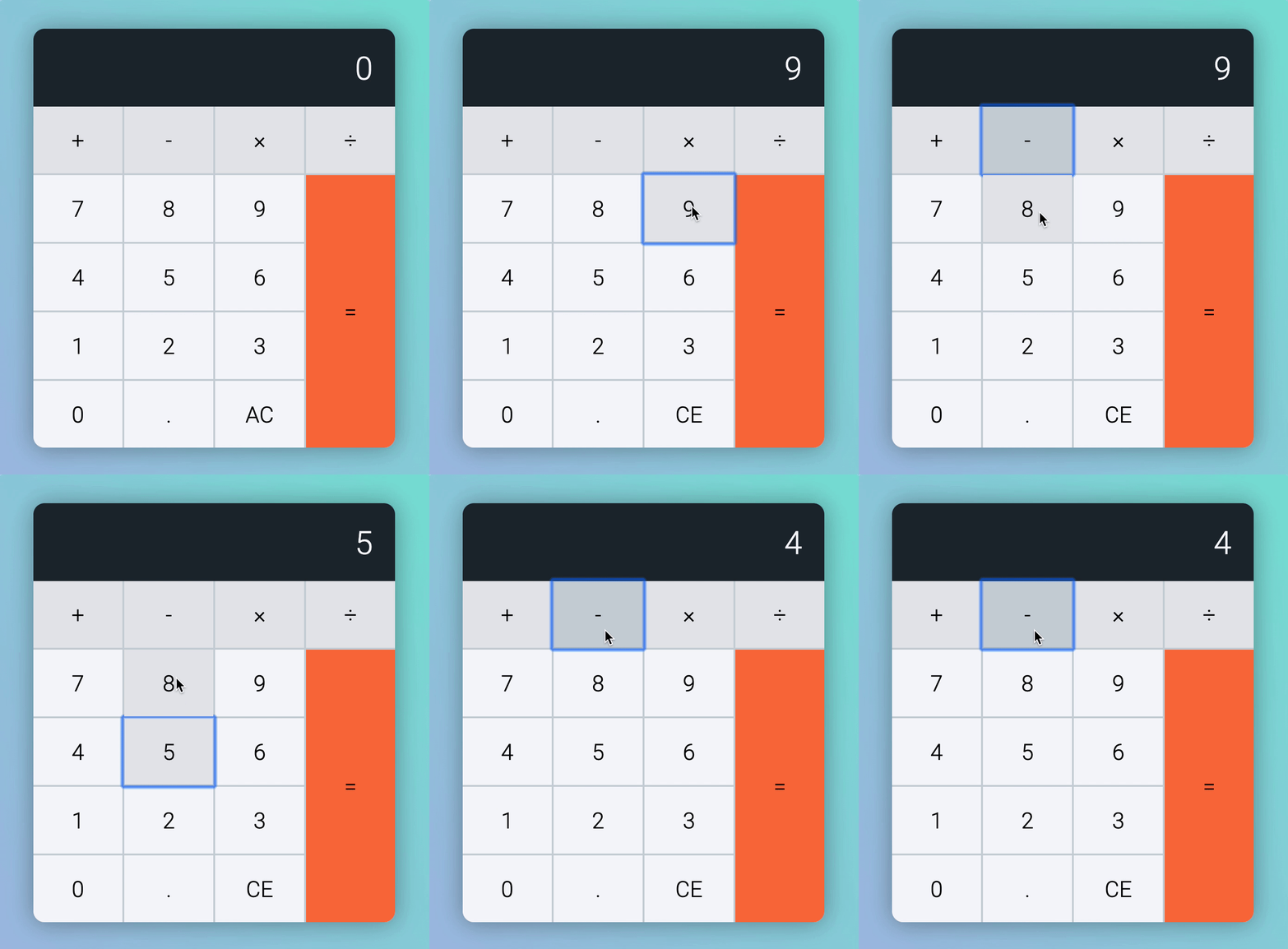
Unfortunately, this new code screws up a Number -> Operator -> Operator combination (which we did not test before).
Number -> Operator -> Operator
If the user presses an operator after another operator, we assume they pressed the wrong operator the first time round. They simply wanted to switch operators, so we should not perform calculations.
Right now, our calculator performs a calculation.
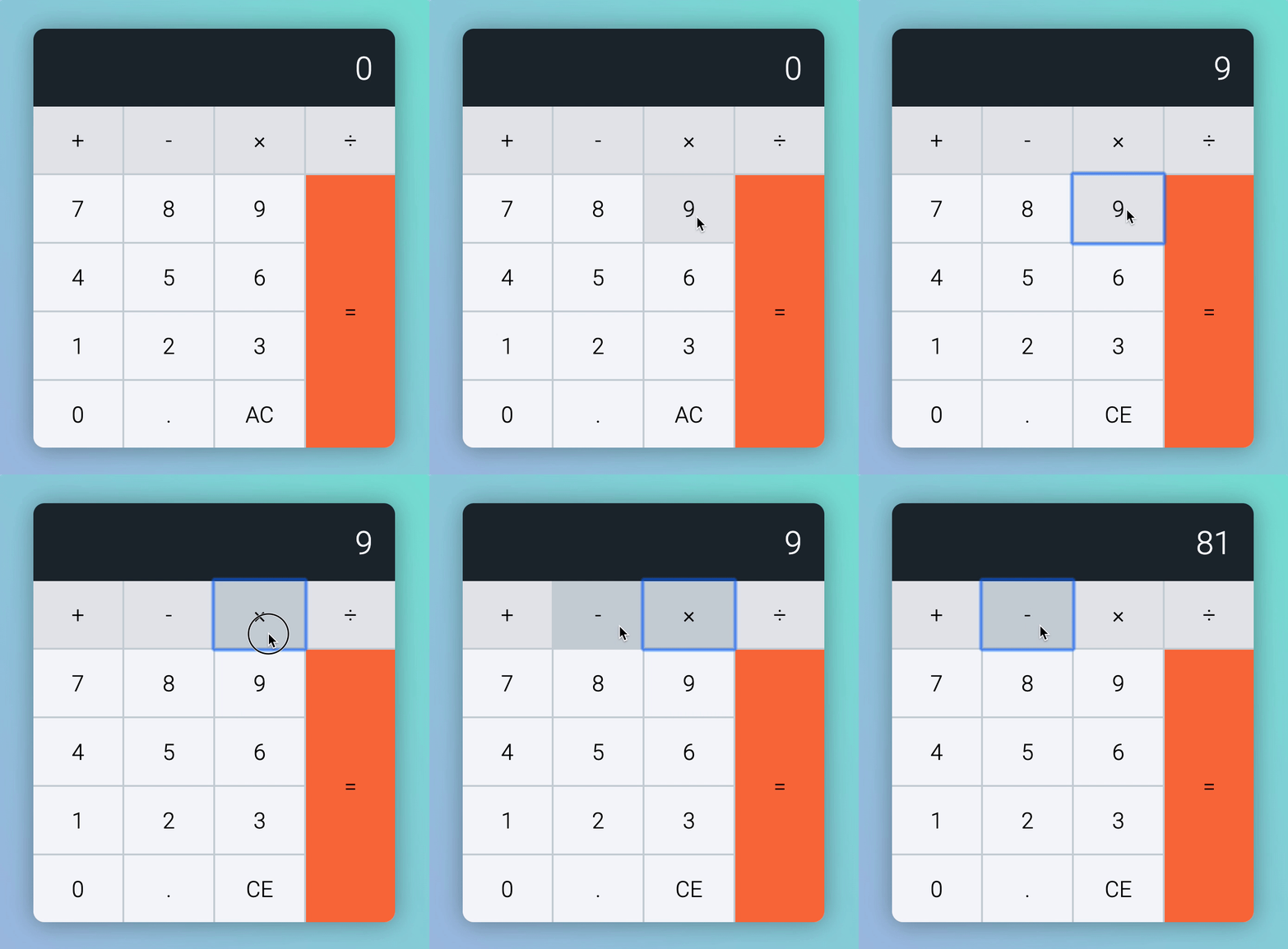
Let’s write a new test case to ensure Number -> Operator -> Operator works.
const tests = [ // ... { message: 'Number Operator Operator', keys: ['9', 'times', 'divide'], result: '9', },]
We know how to fix this. If the previous button is an operator, we want to skip the calculation entirely.
calculatorButtonsDiv.addEventListener('click', event => { // ... if (buttonType === 'operator') { // ...
if (previousButtonType === 'operator') { // Do nothing } else { const firstValue = parseFloat(calculator.dataset.firstValue) const operator = calculator.dataset.operator const secondValue = parseFloat(result)
// Makes a calculation if (firstValue && operator) { let newResult if (operator === 'plus') newResult = firstValue + secondValue if (operator === 'minus') newResult = firstValue - secondValue if (operator === 'times') newResult = firstValue * secondValue if (operator === 'divide') newResult = firstValue / secondValue
display.textContent = newResult } }
// ... } // ...})This works. All our tests passed!
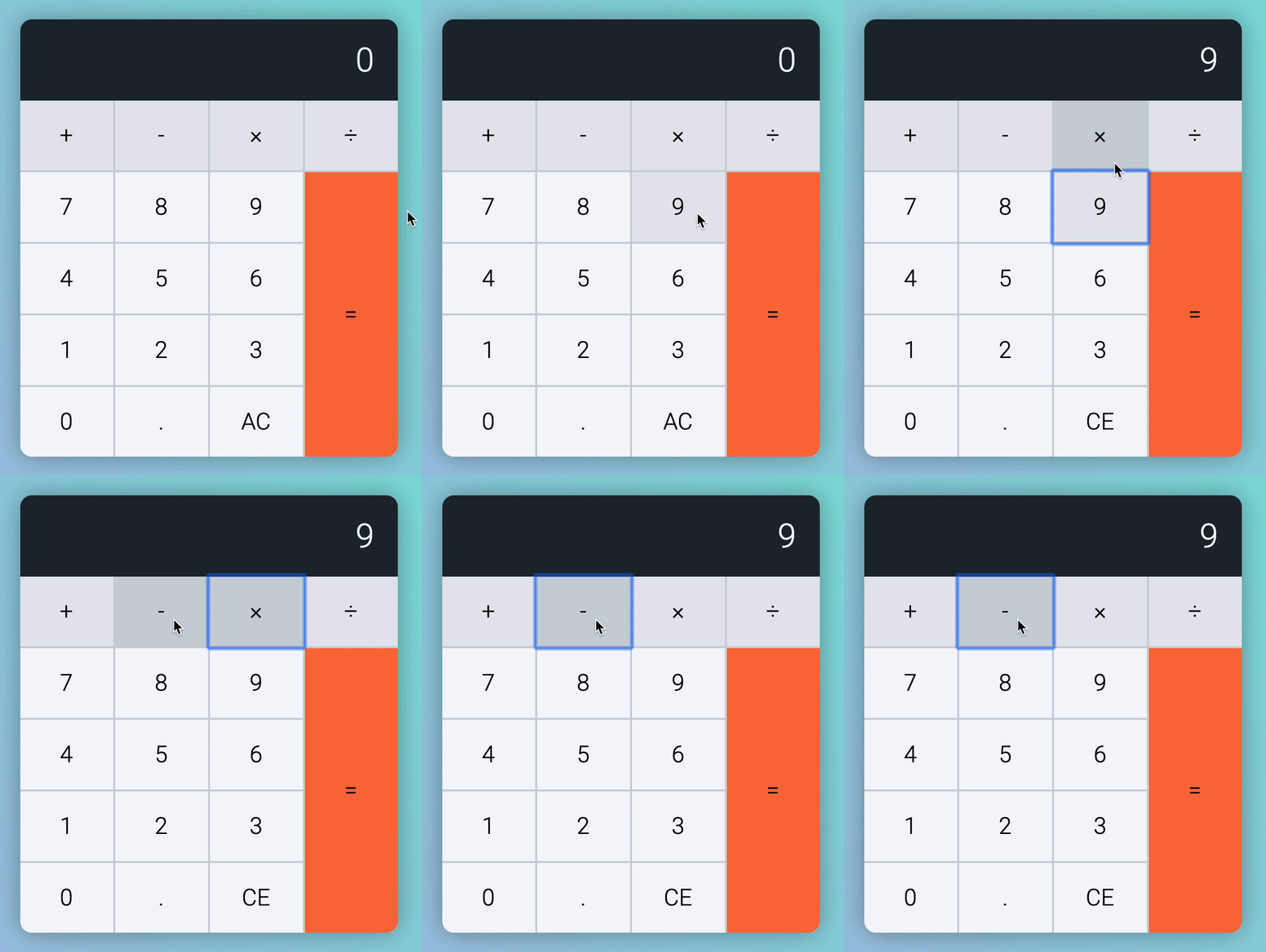
But it’s weird to have a do nothing comment in an if statement. We can reverse the if to make the code cleaner.
calculatorButtonsDiv.addEventListener('click', event => { // ... if (buttonType === 'operator') { // ...
// Reverses the if condition if (previousButtonType !== 'operator') { const firstValue = parseFloat(calculator.dataset.firstValue) const operator = calculator.dataset.operator const secondValue = parseFloat(result)
// Makes a calculation if (firstValue && operator) { let newResult if (operator === 'plus') newResult = firstValue + secondValue if (operator === 'minus') newResult = firstValue - secondValue if (operator === 'times') newResult = firstValue * secondValue if (operator === 'divide') newResult = firstValue / secondValue
display.textContent = newResult } }
// ... } // ...})Since we will only calculate if previousButtonType !== 'operator', and if there’s a firstValue and operator value, we can combine the two if statements into one. This cleans up the code a bit.
calculatorButtonsDiv.addEventListener('click', event => { // ... if (buttonType === 'operator') { // ... const firstValue = parseFloat(calculator.dataset.firstValue) const operator = calculator.dataset.operator const secondValue = parseFloat(result)
// Combines two if statements into one if (previousButtonType !== 'operator' && firstValue && operator) { let newResult if (operator === 'plus') newResult = firstValue + secondValue if (operator === 'minus') newResult = firstValue - secondValue if (operator === 'times') newResult = firstValue * secondValue if (operator === 'divide') newResult = firstValue / secondValue
display.textContent = newResult }
// ... } // ...})Follow up calculations
Once users press an operator key, they can perform follow up calculations with BOTH the operator and equal keys. This gets complicated.
Here are the possible combinations:
- Number
->Operator->Equal->Equal - Number
->Operator->Number->Equal->Equal - Number
->Operator->Number->Operator->Number->Operator->
Follow up calculations with equal
These two follow up calculations uses the equal key:
- Number
->Operator->Equal->Equal - Number
->Operator->Number->Equal->Equal
Example:
- Tim presses
9 - =. We take it as9 - 9. Calculator shows0. Tim presses=again. We do0 - 9, so calculator shows- 9. - Tim presses
8 - 5 =. We show3. Tim presses=again. We do3 - 5, so calculator shows-2.
Let’s add test cases before we continue.
const tests = [ // ... { message: 'Number Operator Equal Equal', keys: ['9', 'minus', 'equal', 'equal'], result: '-9', }, { message: 'Number Operator Number Equal Equal', keys: ['8', 'minus', '5', 'equal', 'equal'], result: '-2', },]Both tests should fail.

We’ll tackle them together. This part is tricky; follow closely!
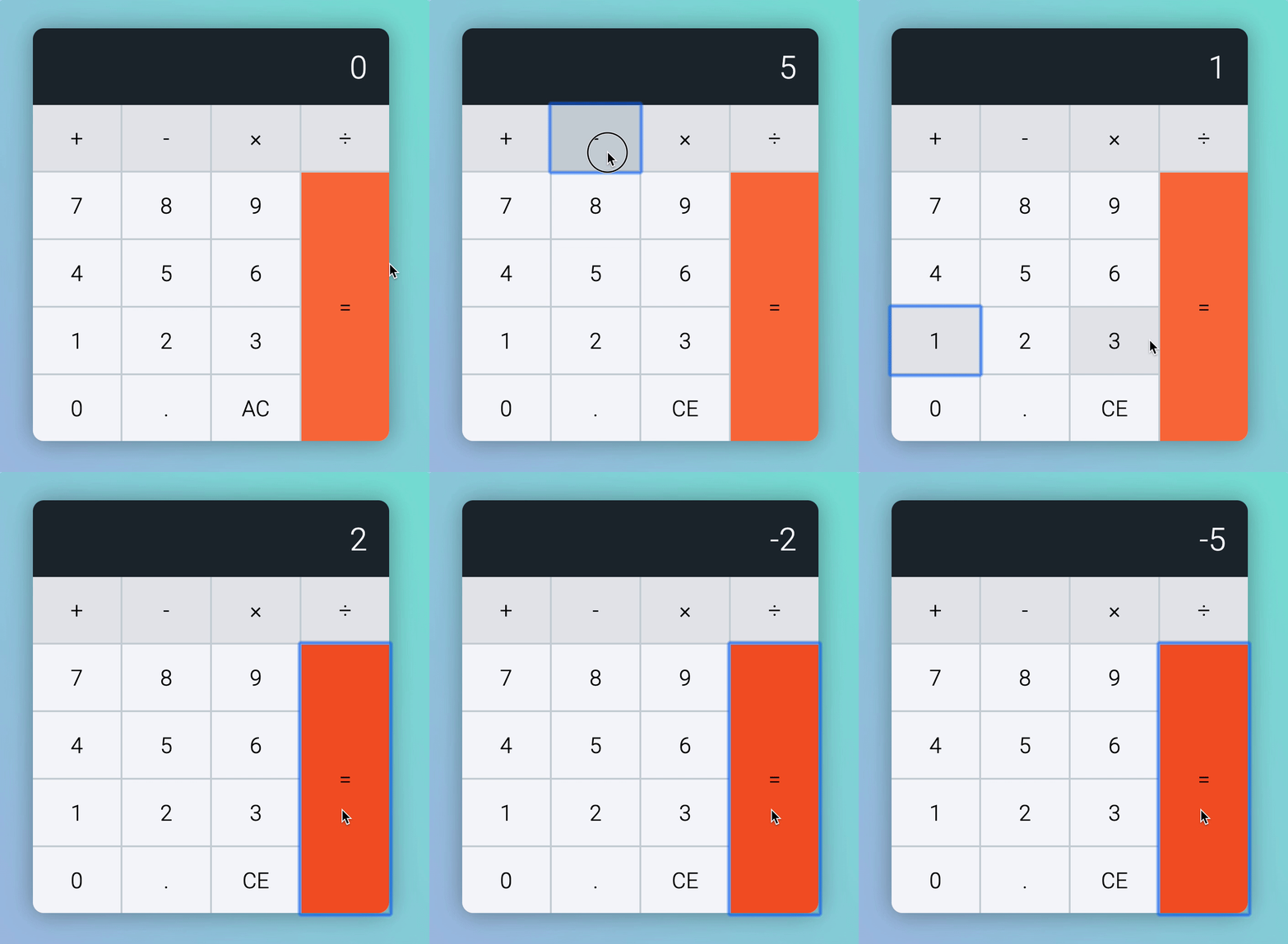
Let’s look at the first case. Here’s what our calculator does when we press 9 - = = .
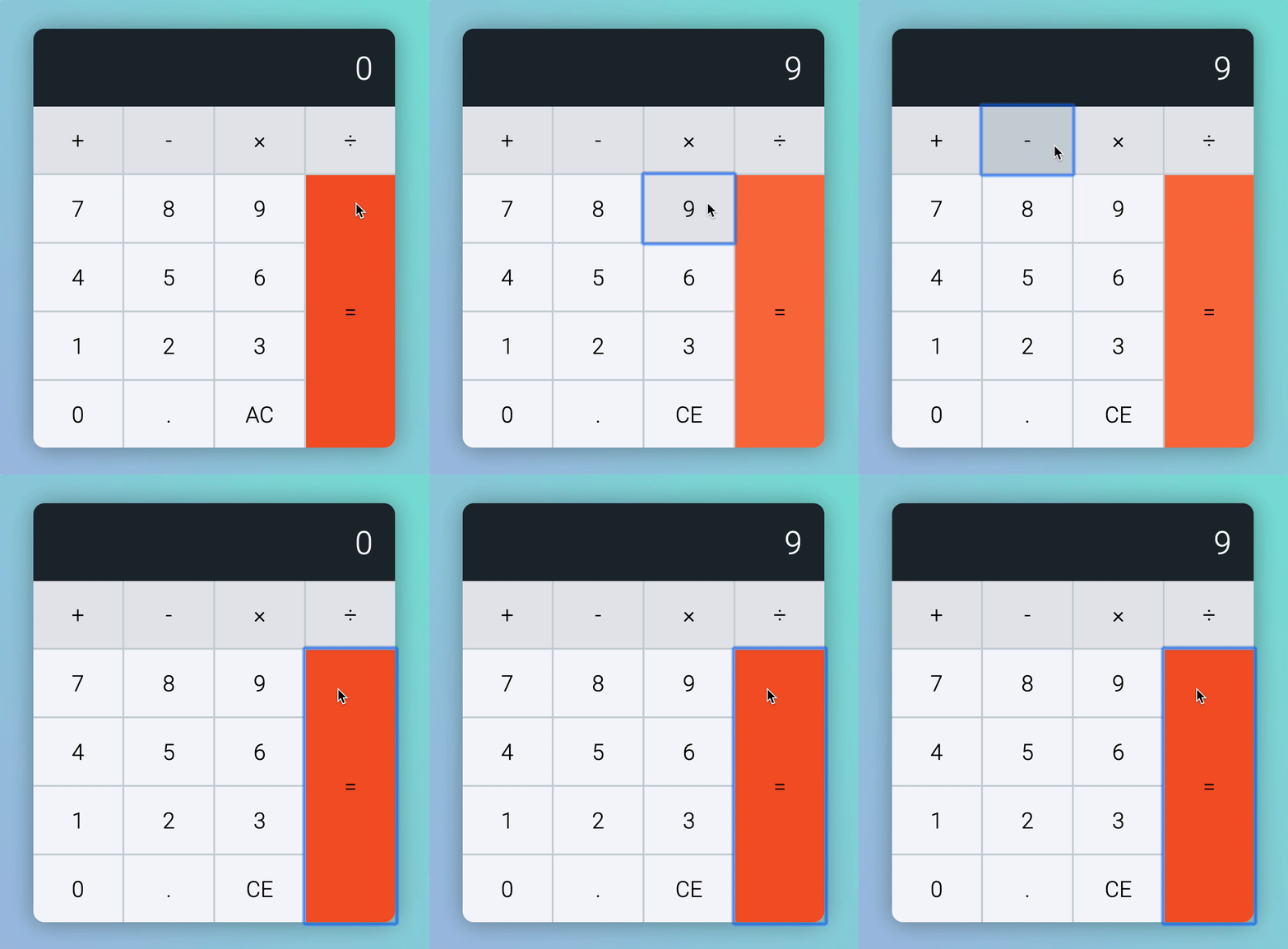
Why does the calculator show 9, 0, then 9? We can log firstValue, operator, secondValue and newResult into the console to figure out why.
calculatorButtonsDiv.addEventListener('click', event => { // ... if (buttonType === 'equal') { // ... if (firstValue && operator) { let newResult if (operator === 'plus') newResult = firstValue + secondValue if (operator === 'minus') newResult = firstValue - secondValue if (operator === 'times') newResult = firstValue * secondValue if (operator === 'divide') newResult = firstValue / secondValue display.textContent = newResult
// console.log values. console.log(firstValue, operator, secondValue, '=', newResult) } else { display.textContent = parseFloat(result) * 1 } } // ...})Note: You will see lots of logs when you refresh the page. These logs were created by our test cases. If they bother you, you can comment out the tests for now.
(Another way is to clear the console before clicking the calculator).
Click the calculator according to the Number -> Operator -> Equal -> Equal test case. Pay attention to the values for firstValue, operator, and secondValue
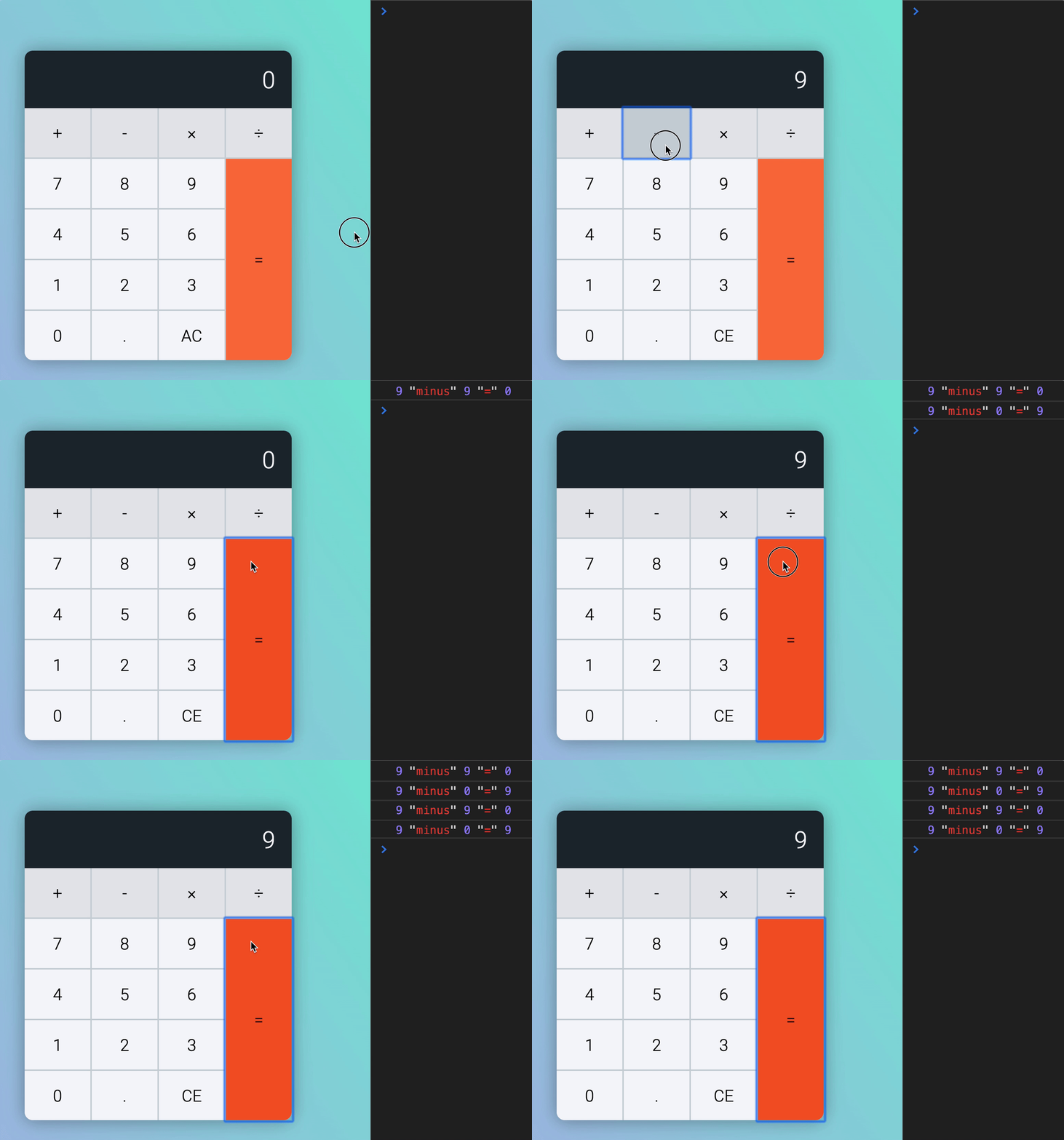
It’s hard to understand what’s happening from logs. Let’s put down these values down on paper so we can search for clues. (I actually wrote them down on paper).

For the first calculation:
firstValueis9(which is correct)secondValueis also9(also correct).
For the second calculation:
firstValueis9(which is wrong).secondValueis0(also wrong)
Why? Here’s the reason.
- We used
data-first-valueasfirstValuefor the second calculation. - We used the displayed value (which is the result) as the
secondValuefor the second calculation.

Here’s the correct version:
- We should assign the result of the calculation to
firstValue. - We should reuse
9assecondValue.

It’s easy to assign the result to firstValue. We can assign it after the calculation.
calculatorButtonsDiv.addEventListener('click', event => { // ... if (buttonType === 'equal') { const firstValue = parseFloat(calculator.dataset.firstValue) const operator = calculator.dataset.operator const secondValue = parseFloat(result)
if (firstValue && operator) { let newResult if (operator === 'plus') newResult = firstValue + secondValue if (operator === 'minus') newResult = firstValue - secondValue if (operator === 'times') newResult = firstValue * secondValue if (operator === 'divide') newResult = firstValue / secondValue display.textContent = newResult
// Assigns results to `firstValue` calculator.dataset.firstValue = newResult } else { display.textContent = parseFloat(result) * 1 } } // ...})Setting 9 to secondValue is tricky because the number 9 disappears from the display. We need to save 9 as a custom attribute. Let’s call this custom attribute data-modifier-value.
calculatorButtonsDiv.addEventListener('click', event => { // ... if (buttonType === 'equal') { const firstValue = parseFloat(calculator.dataset.firstValue) const operator = calculator.dataset.operator const secondValue = parseFloat(result)
if (firstValue && operator) { let newResult if (operator === 'plus') newResult = firstValue + secondValue if (operator === 'minus') newResult = firstValue - secondValue if (operator === 'times') newResult = firstValue * secondValue if (operator === 'divide') newResult = firstValue / secondValue
display.textContent = newResult calculator.dataset.firstValue = newResult
// Stores secondValue as modifier for followup calculations. calculator.dataset.modifierValue = secondValue } else { display.textContent = parseFloat(result) * 1 } } // ...})Before the next calculation, we need to check if modifierValue is present. If it is present, we use modifierValue as secondValue. Otherwise, we use the displayed result as the secondValue.
calculatorButtonsDiv.addEventListener('click', event => { // ... if (buttonType === 'equal') { const firstValue = parseFloat(calculator.dataset.firstValue) const operator = calculator.dataset.operator // Finds modifier value // Use modifier value as secondValue (if possible) const modifierValue = parseFloat(calculator.dataset.modifierValue) const secondValue = modifierValue || parseFloat(result)
if (firstValue && operator) { let newResult if (operator === 'plus') newResult = firstValue + secondValue if (operator === 'minus') newResult = firstValue - secondValue if (operator === 'times') newResult = firstValue * secondValue if (operator === 'divide') newResult = firstValue / secondValue
display.textContent = newResult calculator.dataset.firstValue = newResult calculator.dataset.modifierValue = secondValue } else { display.textContent = parseFloat(result) * 1 } } // ...})When we make this change, we break A TON of tests! 😱 😱 😱!

Don’t panic!
It’s normal to break tests when you add features. In this case, we started using modifierValue in our calculations, but we did not reset modifierValue when we reset the calculator. This is why our tests broke.
Here’s a simple fix:
calculatorButtonsDiv.addEventListener('click', event => { // ... if (buttonType === 'clear') { if (button.textContent === 'AC') { delete calculator.dataset.firstValue delete calculator.dataset.operator // Clearing the modifier value delete calculator.dataset.modifierValue }
display.textContent = '0' button.textContent = 'AC' } // ...})We’ll also updated resetCalculator to ensure modifierValue gets reset.
The previous tests should now pass. You’ll also notice this:
- Test for Number
->Operator->Equal->Equal failed - Test for Number
->Operator->Number->Equal->Equal passed

Why?
Once again, we can log firstValue, operator, secondValue, and newResult to figure out the reason.
calculatorButtonsDiv.addEventListener('click', event => { // ... if (buttonType === 'equal') { // ...
if (firstValue && operator) { // ... // Console.log values. console.log(firstValue, operator, secondValue, '=', newResult) } else { display.textContent = parseFloat(result) * 1 } } // ...})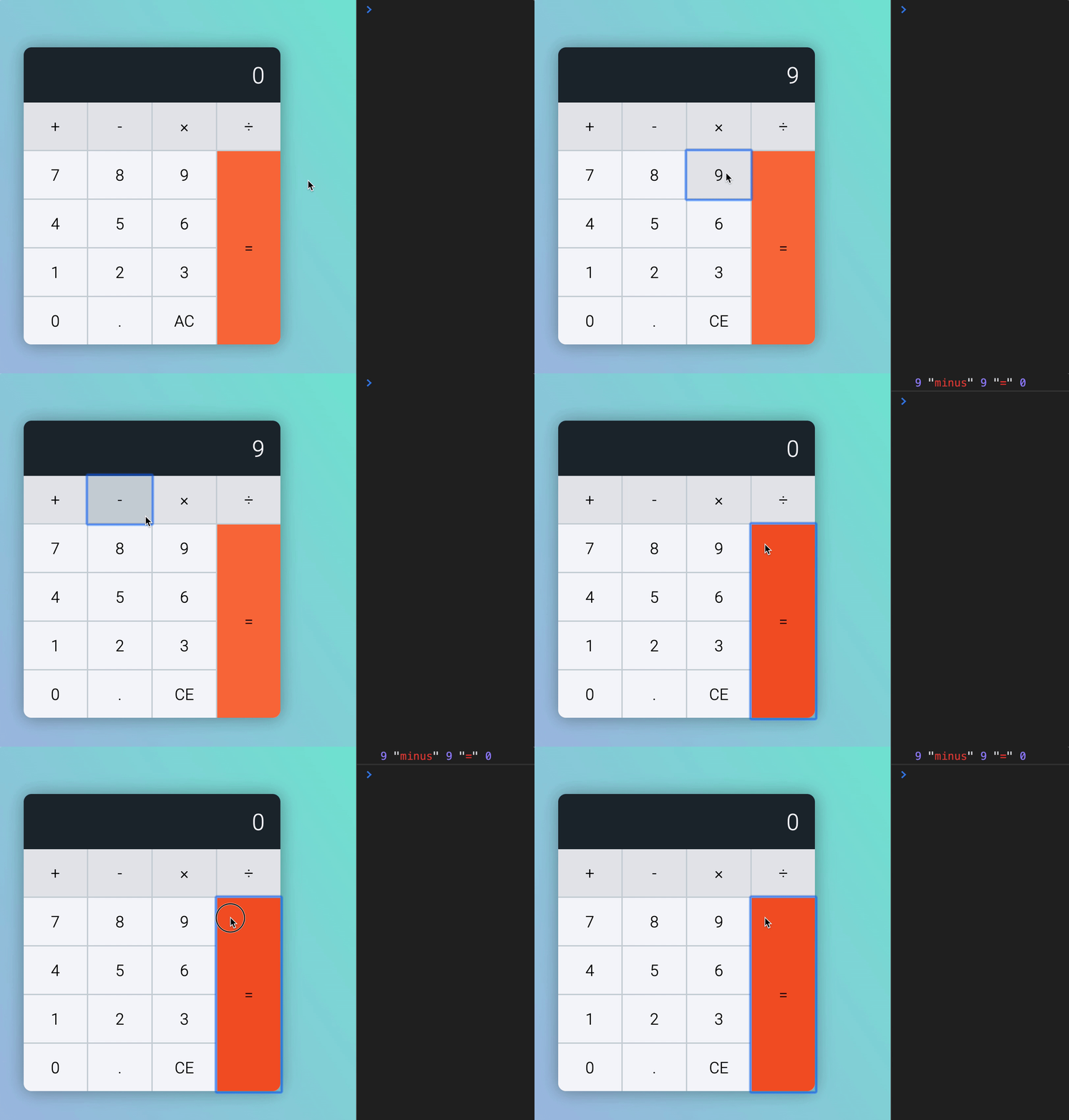
We can see the calculator made the first calculation. But it doesn’t make the second calculation no matter how many times we press equal.
Why?
Because firstValue became 0, which is falsey. So this condition became false 😰.
if (firstValue && operator) { // ...}This is a good lesson for us: don’t use truthiness to check numbers. If we want to check if a number exists, we can use typeof.
// Examples of how typeof worksconsole.log(typeof 42) // numberconsole.log(typeof 42 === 'number') // trueUsage:
calculatorButtonsDiv.addEventListener('click', event => { // ... if (buttonType === 'equal') { // ...
if (typeof firstValue === 'number' && operator) { // Make calculation } else { // ... } } // ...})All tests should pass. The calculator can perform followup calculations with equal now.
- Number
->Operator->Equal->Equal - Number
->Operator->Number->Equal->Equal
Follow up calculations with operators
Users can perform a calculation with operator keys if they use the following sequence:
- Number
->Operator->Number->Operator
We should also let them perform additional calculations if they press more of this sequence:
- Number
->Operator->Number->Operator->Number->Operator->And so on.
For example, let’s say Tim presses keys in this order: 1 + 2 + 3 + 4 + 5 +.
This should happen:
1 + 2 +. Calculator shows 3.3 +. Calculator shows 6.4 +. Calculator shows 10.5 +. Calculator shows 15.
Let’s create a test case before we continue.
const test = [ // ... { message: 'Operator follow-up calculation', keys: ['1', 'plus', '2', 'plus', '3', 'plus', '4', 'plus', '5', 'plus'], result: '15', },]This should fail (as expected).

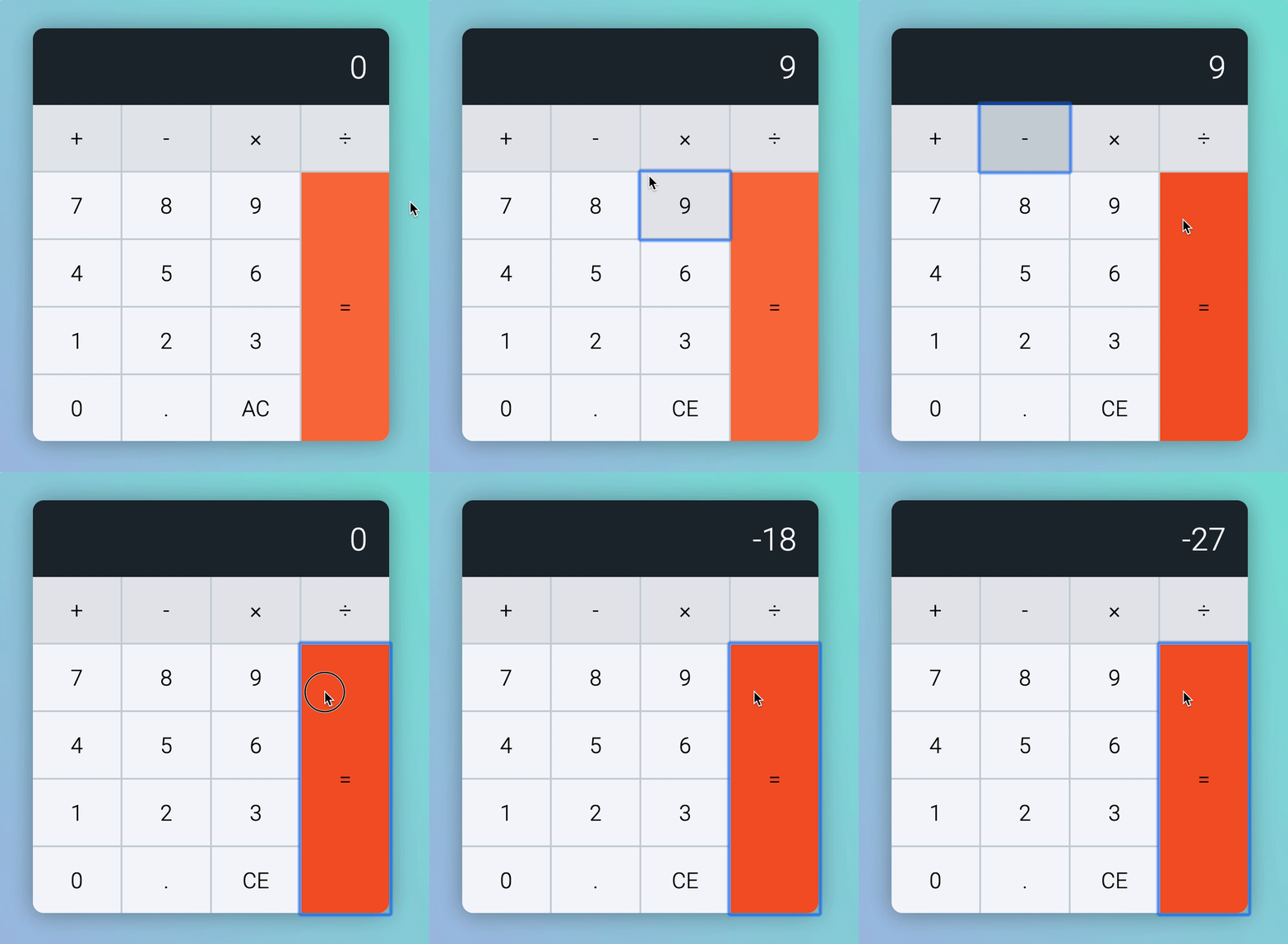
Let’s see what our calculator does when we make followup calculations right now.
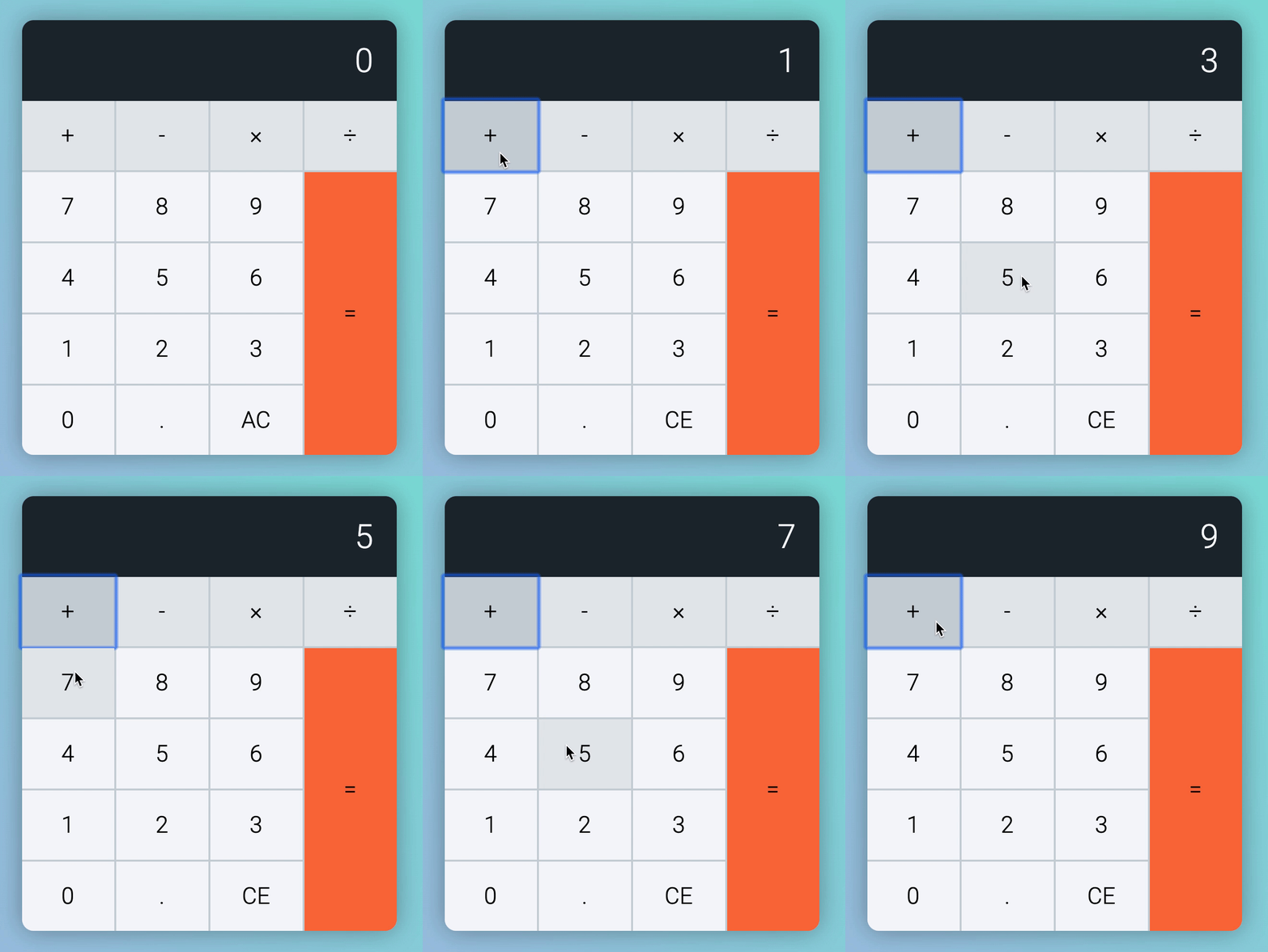
We know the test failed. It’s not a surprise our calculator made the wrong calculations.
We need to follow this format to correct the calculations:

This says:
- We should replace
firstValuewith the calculated result. - We should get
secondValuefrom the display.
We already get secondValue from the display, so there’s nothing to do for point 2. For point 1, here’s how you can replace firstValue with the calculated result.
calculatorButtonsDiv.addEventListener('click', event => { // ... if (buttonType === 'operator') { // ...
if (previousButtonType !== 'operator' && firstValue && operator) { // ...
display.textContent = newResult
// If there's a calculation, we change firstValue calculator.dataset.firstValue = newResult } else { // Otherwise, we set displayed result to firstValue calculator.dataset.firstValue = result }
calculator.dataset.operator = button.dataset.key } // ...})Like the equal section, we need to check whether firstValue is a Number. We should use typeof for this check.
calculatorButtonsDiv.addEventListener('click', event => { // ... if (buttonType === 'operator') { // ... if ( previousButtonType !== 'operator' && typeof firstValue === 'number' && operator ) { // ... } else { // ... }
calculator.dataset.operator = button.dataset.key } // ...})We should be able to perform follow-up calculations with operator keys now.
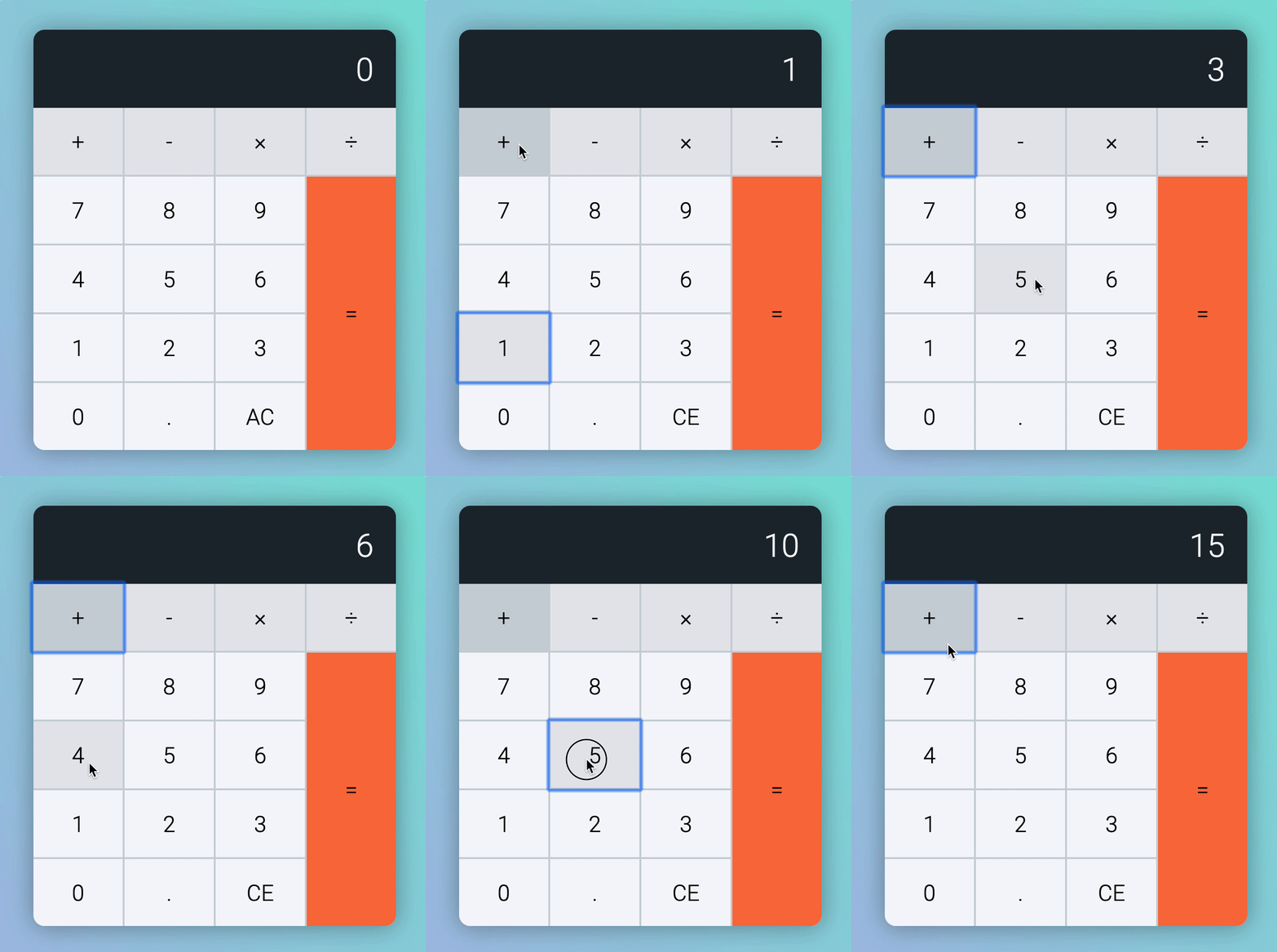
Unfortunately, this new code breaks the Calculation + Operator test.

It’s not fun to see our tests break. But it’s even more un-fun to get an error yourself much later without even knowing what went wrong. Let’s fix this.
Fixing the Calculation + Operator test
So, what’s wrong? Let’s take a quick look at our tests again. Here’s the Calculation + operator test
const test = [ // ... { message: 'Calculation + Operator', keys: ['1', 'plus', '1', 'equal', 'plus', '1', 'equal'], result: '3', },]Let’s punch in this sequence and see what’s up.
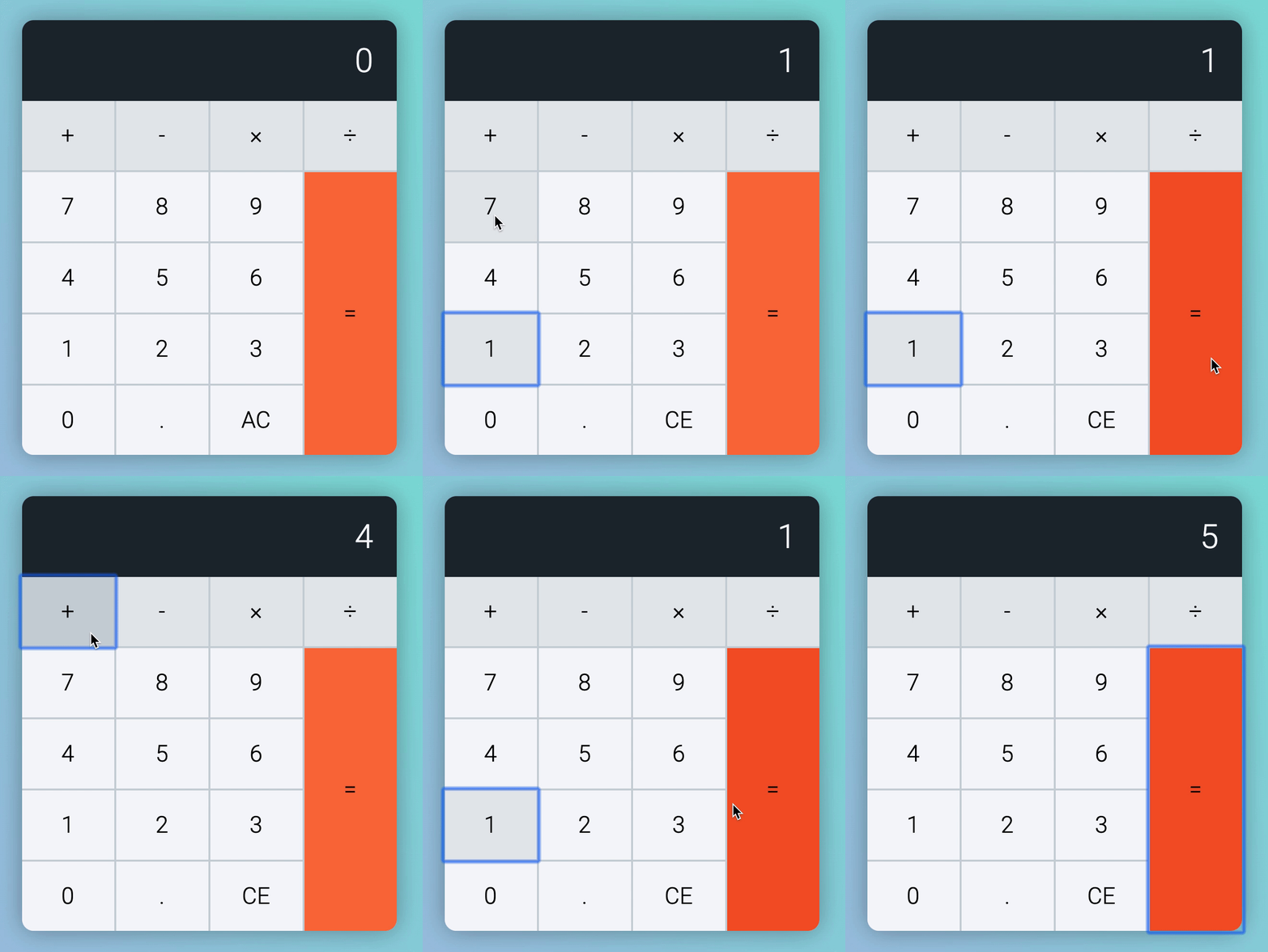
Oh, looks like the calculator made a calculation when you click Equal -> Operator. This should not happen. We can fix this easily by checking if the previous button is equal.
calculatorButtonsDiv.addEventListener('click', event => { // ... if (buttonType === 'operator') { // ...
if ( previousButtonType !== 'operator' && // Checks if previous button is equal key previousButtonType !== 'equal' && typeof firstValue === 'number' && operator ) { // ... } else { // ... } calculator.dataset.operator = button.dataset.key } // ...})BAM! The test should now be fixed 😃.
Wrapping up
That’s it!
Building a calculator is hard! It was never easy. Pat yourself on the back for following this through. You are MUCH better than many developers out there now. Try challenging them to build a calculator and watch them suffer… 😈.
(I know how bad they’ll suffer because I made the calculator without tests TWICE. It was 🤮. But with tests, this is easy-peasy. We just have to fix things one after another. ).
Homework
- Write down all the cases I mentioned on a piece of paper.
- Build the calculator again from scratch
- See if you can find any cases I missed :)
Take your time, clear away your bugs one by one and you’ll get your calculator up eventually. Happy coding!
Welcome! Unfortunately, you don’t have access to this lesson. To get access, please purchase the course or enroll in Magical Dev School.
Unlock this lesson