When a user clicks the right button, the carousel should move to the next slide. When they click the left button, the carousel should move to the previous slide.
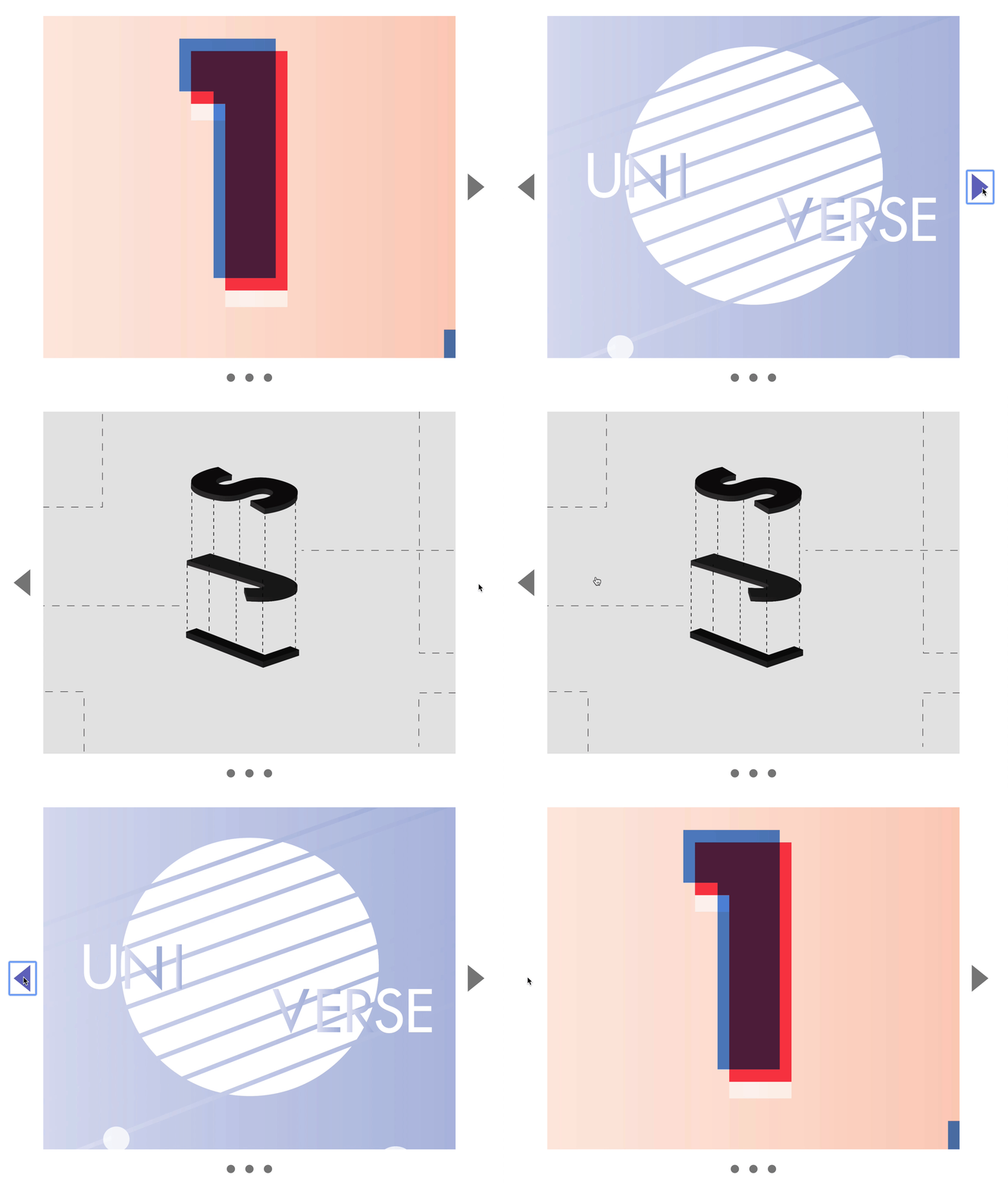
To do this, we need to differentiate between the left and right buttons.
<div class="carousel"> <button class="carousel__button previous-button">...</button> <div class="carousel__contents-container">...</div> <button class="carousel__button next-button">...</button> <div class="carousel__dots">...</div></div>const carousel = document.querySelector('.carousel')const previousButton = carousel.querySelector('.previous-button')const nextButton = carousel.querySelector('.next-button')Clicking the next button
When a user clicks the next button, we want to show the next slide. To show the next slide, we need to know what’s the currently displayed slide.
The easiest way to tell JavaScript about the current slide is through a class. Since the carousel starts by showing the first slide, we add an is-selected class to the first slide.
<ul class="carousel__contents"> <li class="carousel__slide is-selected">...</li> <li class="carousel__slide">...</li> <li class="carousel__slide">...</li></ul>We can get the selected slide using querySelector.
const contents = carousel.querySelector('.carousel__contents')
nextButton.addEventListener('click', event => { const currentSlide = contents.querySelector('.is-selected') console.log(currentSlide)})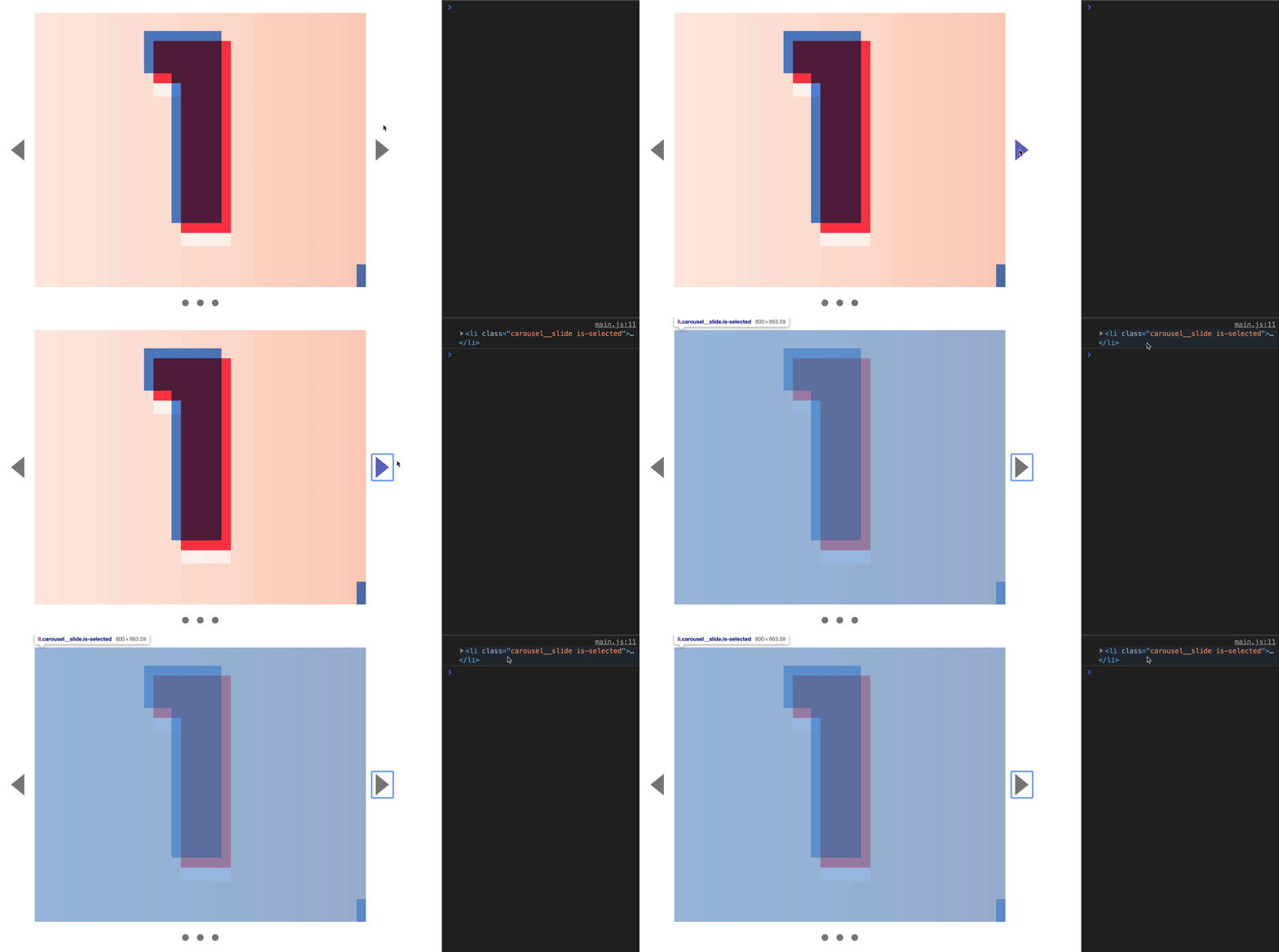
We can get the next slide using nextElementSibling.
nextButton.addEventListener('click', event => { const currentSlide = contents.querySelector('.is-selected') const nextSlide = currentSlide.nextElementSibling console.log(nextSlide)})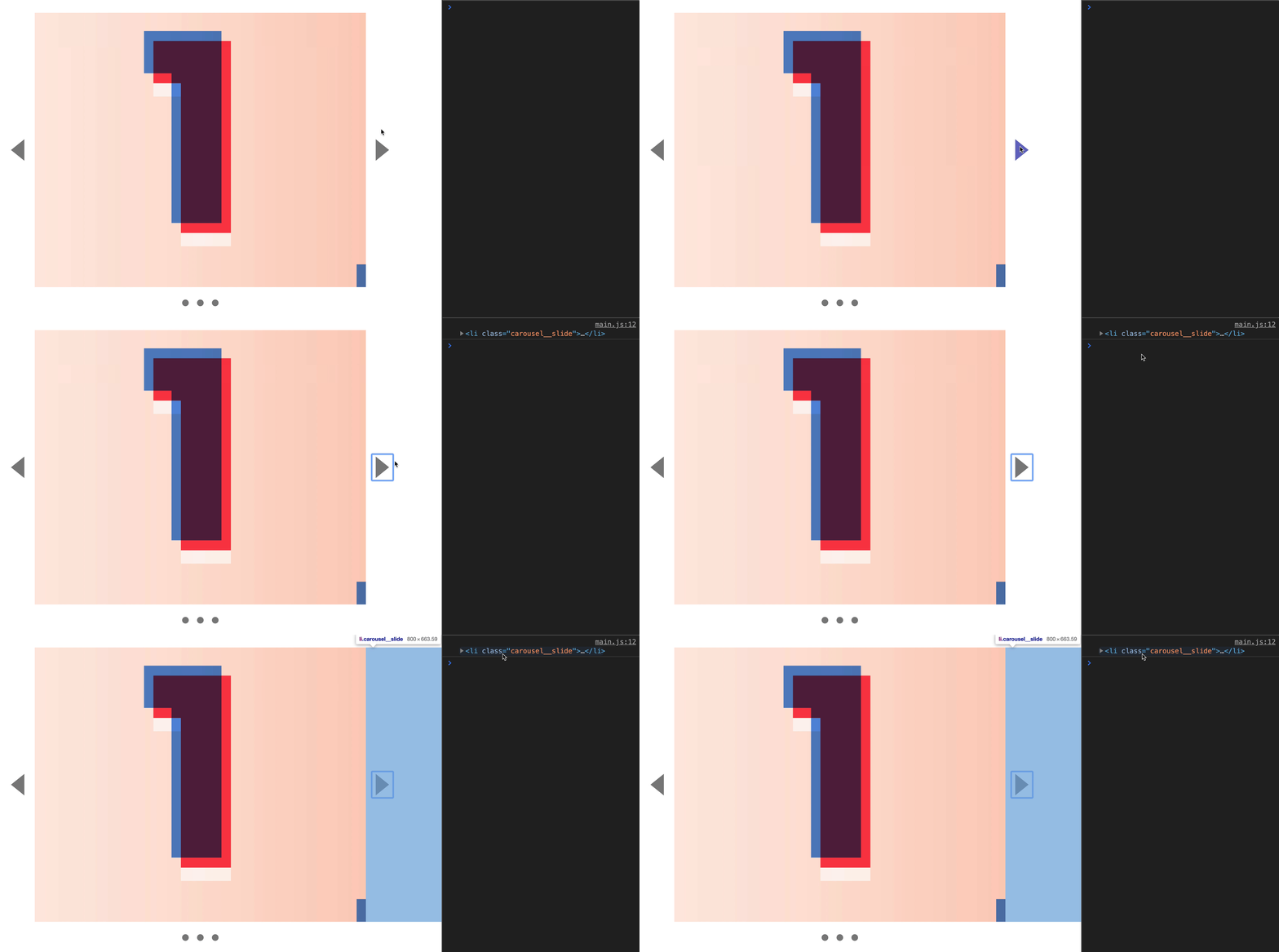
From the previous lesson, we know the following:
- To show the second slide, we set
carousel__content’sleftproperty to-800px. - To show the third slide, we set
carousel__content’sleftproperty to-1600px.
We can get these values from each slide’s left property. Since the left values are written in CSS, we need to use getComputedStyle to retrieve them.
nextButton.addEventListener('click', event => { const currentSlide = contents.querySelector('.is-selected') const nextSlide = currentSlide.nextElementSibling const destination = getComputedStyle(nextSlide).left console.log(destination)})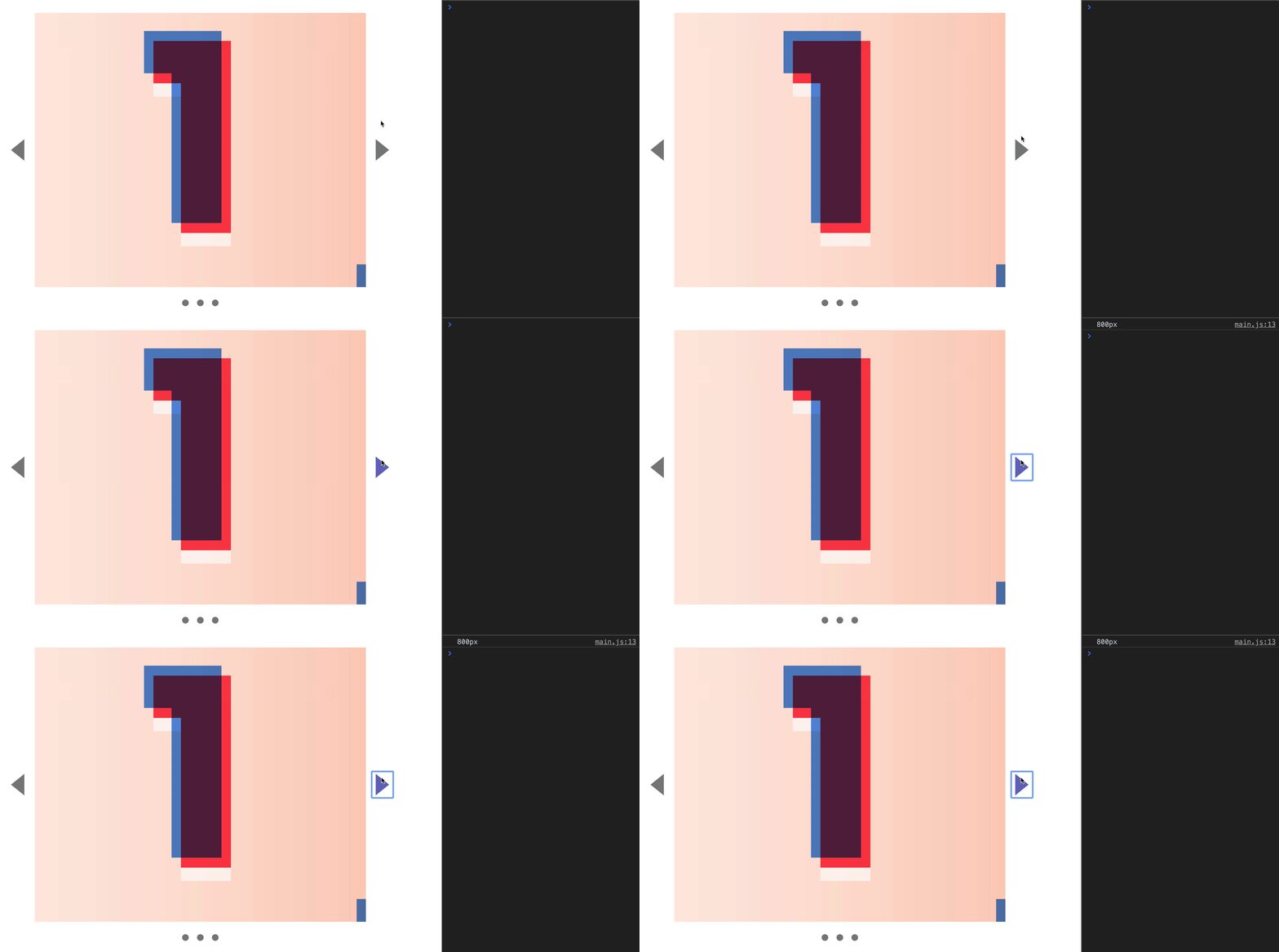
We can use this destination value to set .carousel__content’s left property.
nextButton.addEventListener('click', event => { const currentSlide = contents.querySelector('.is-selected') const nextSlide = currentSlide.nextElementSibling const destination = getComputedStyle(nextSlide).left
contents.style.left = '-' + destination})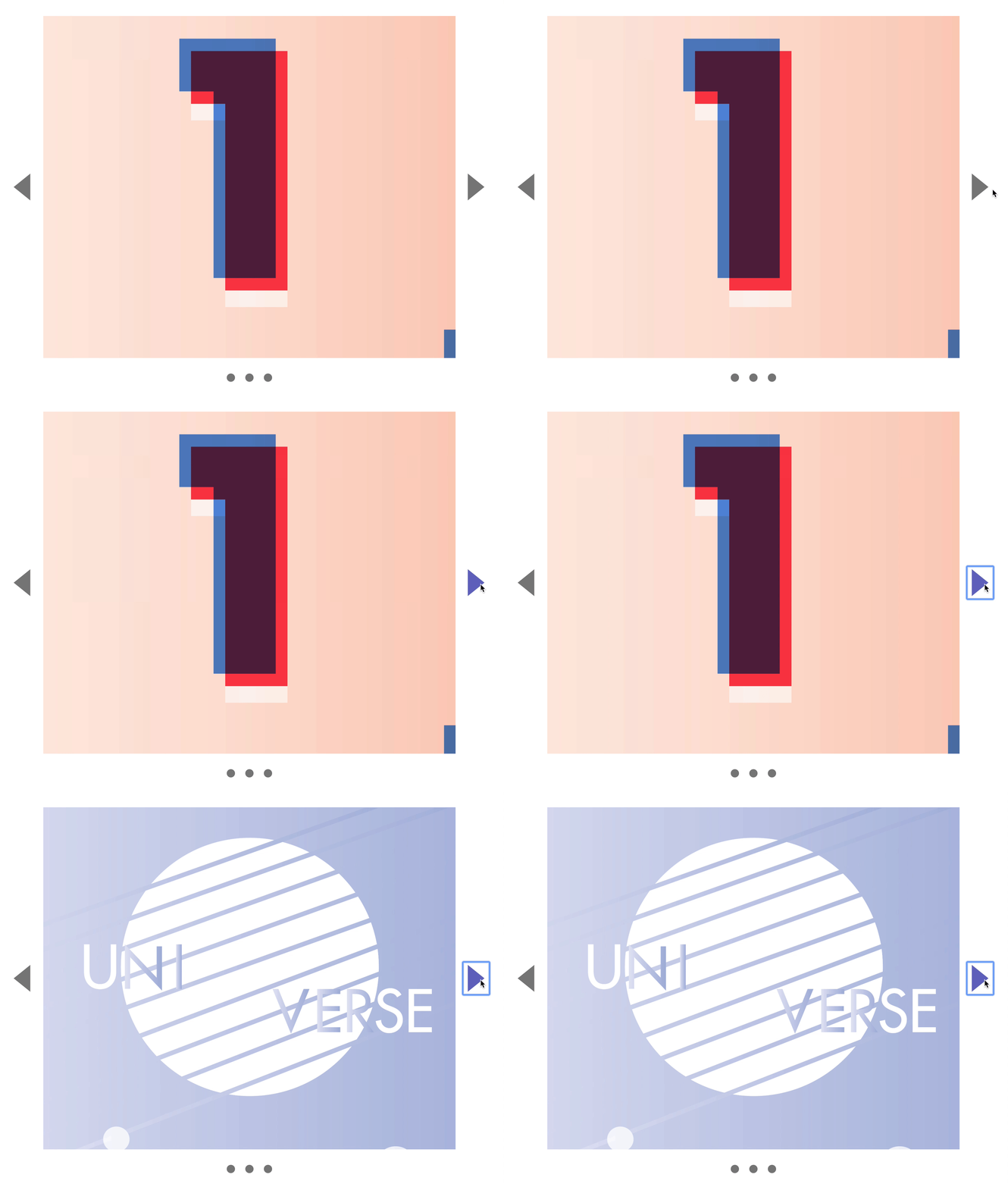
After changing the displayed slide, we need to update the location of the is-selected class. If we don’t update the is-selected class, we won’t be able to move to the third slide.
Here, we remove is-selected from currentSlide and add it to nextSlide. (This is because nextSlide is the displayed slide after we changed the left property).
nextButton.addEventListener('click', event => { const currentSlide = contents.querySelector('.is-selected') const nextSlide = currentSlide.nextElementSibling const destination = getComputedStyle(nextSlide).left
contents.style.left = '-' + destination currentSlide.classList.remove('is-selected') nextSlide.classList.add('is-selected')})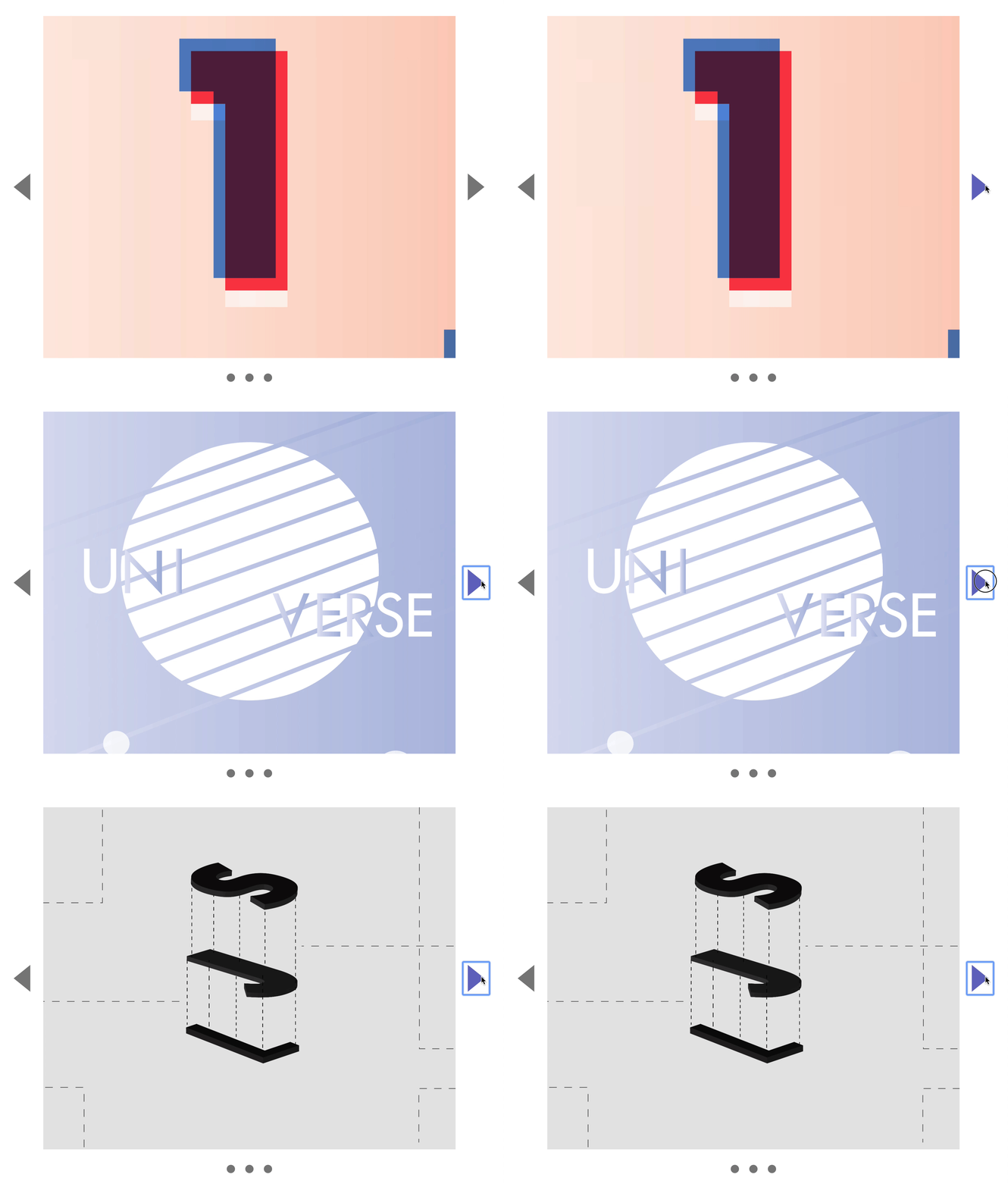
Clicking the previous button
When a user clicks the previous button, we want to show the previous slide. As before, we can get the displayed slide using querySelector.
previousButton.addEventListener('click', event => { const currentSlide = contents.querySelector('.is-selected')})We can get the previous slide with previousElementSibling
previousButton.addEventListener('click', event => { const currentSlide = contents.querySelector('.is-selected') const previousSlide = currentSlide.previousElementSibling console.log(previousSlide)})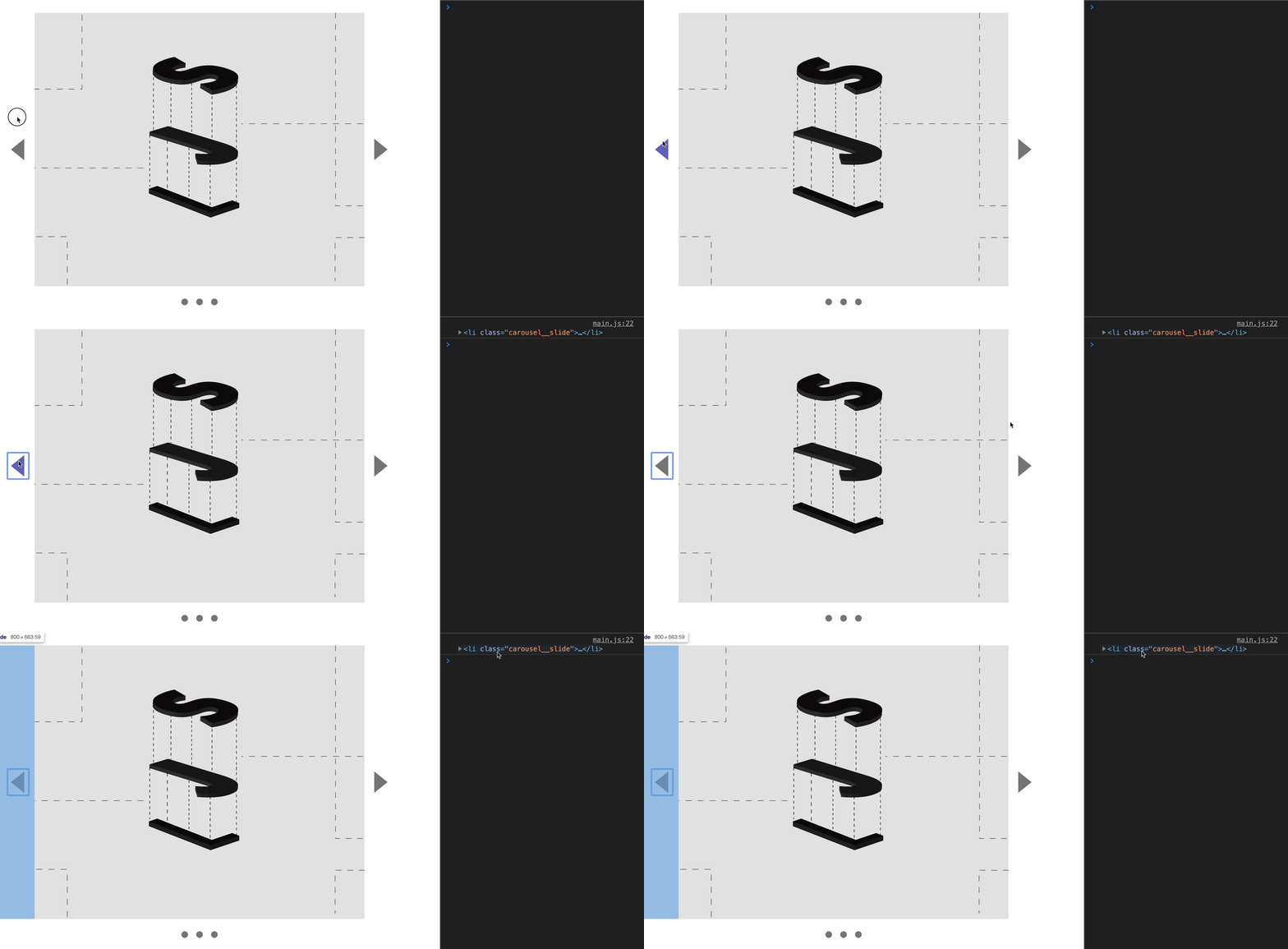
We can get the left property to move to with getComputedStyle.
previousButton.addEventListener('click', event => { const currentSlide = contents.querySelector('.is-selected') const previousSlide = currentSlide.previousElementSibling const destination = getComputedStyle(previousSlide).left})Then we change the displayed slide by styling carousel__content’s left property.
previousButton.addEventListener('click', event => { const currentSlide = contents.querySelector('.is-selected') const previousSlide = currentSlide.previousElementSibling const destination = getComputedStyle(previousSlide).left
contents.style.left = '-' + destination})After changing the displayed slide, we need to update the location of the is-selected class.
previousButton.addEventListener('click', event => { // ... currentSlide.classList.remove('is-selected') previousSlide.classList.add('is-selected')})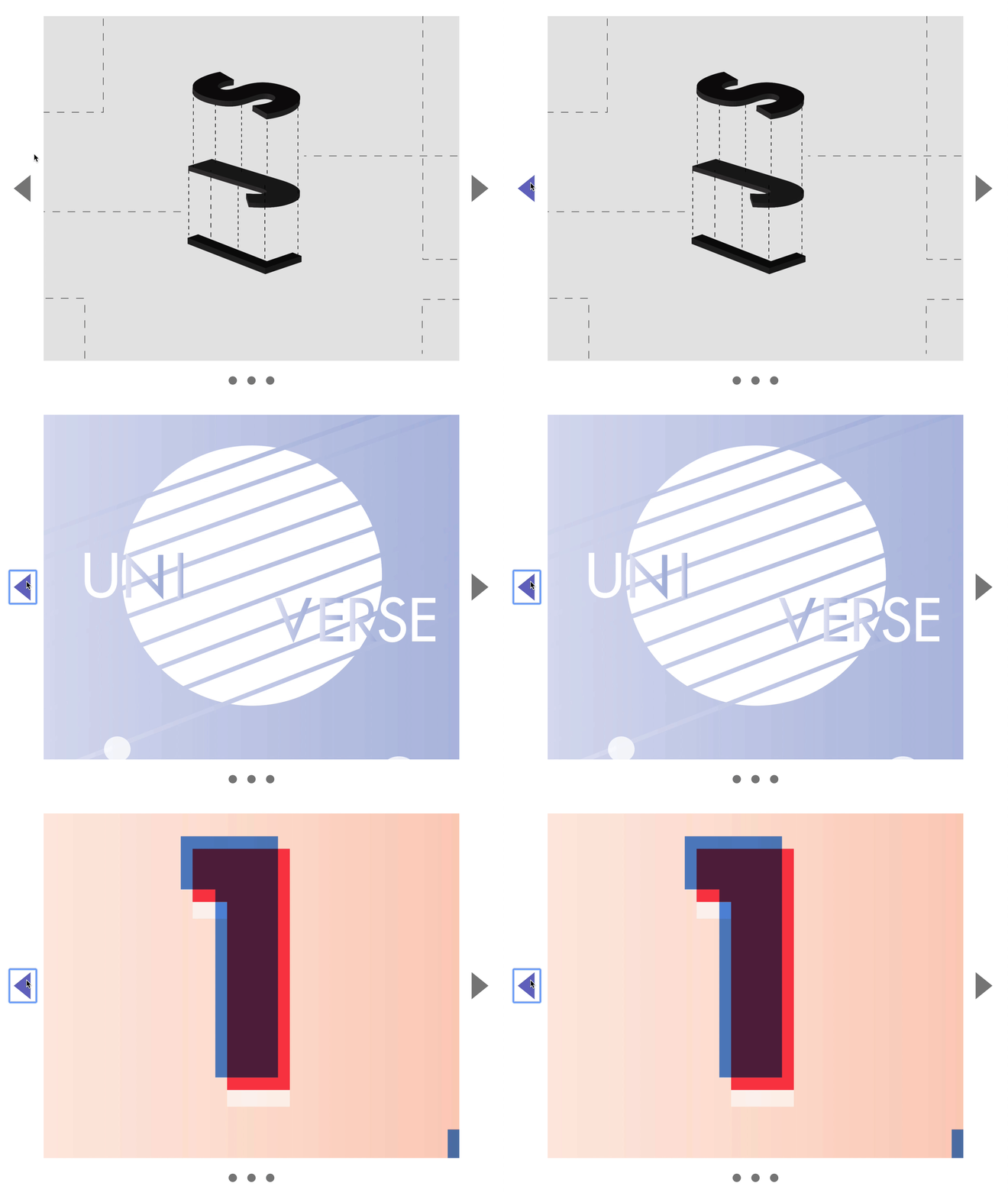
Hiding the previous and next button
When the page loads, we show the first slide of the carousel. Since we’re on the first slide, users should not be able to move to a “previous” slide. (There are no previous slides).
We can hide the button to make better UX. To hide the button, we add a hidden attribute to the HTML.
<button class="carousel__button previous-button" hidden>...</button>
When a user clicks the next button, we show the second slide. When the carousel is at the second slide, users should be able to go back to the first slide. Here, we need to show the previous button again.
To do this, we remove the hidden attribute.
nextButton.addEventListener('click', event => { // ... // Shows previous button previousButton.removeAttribute('hidden')})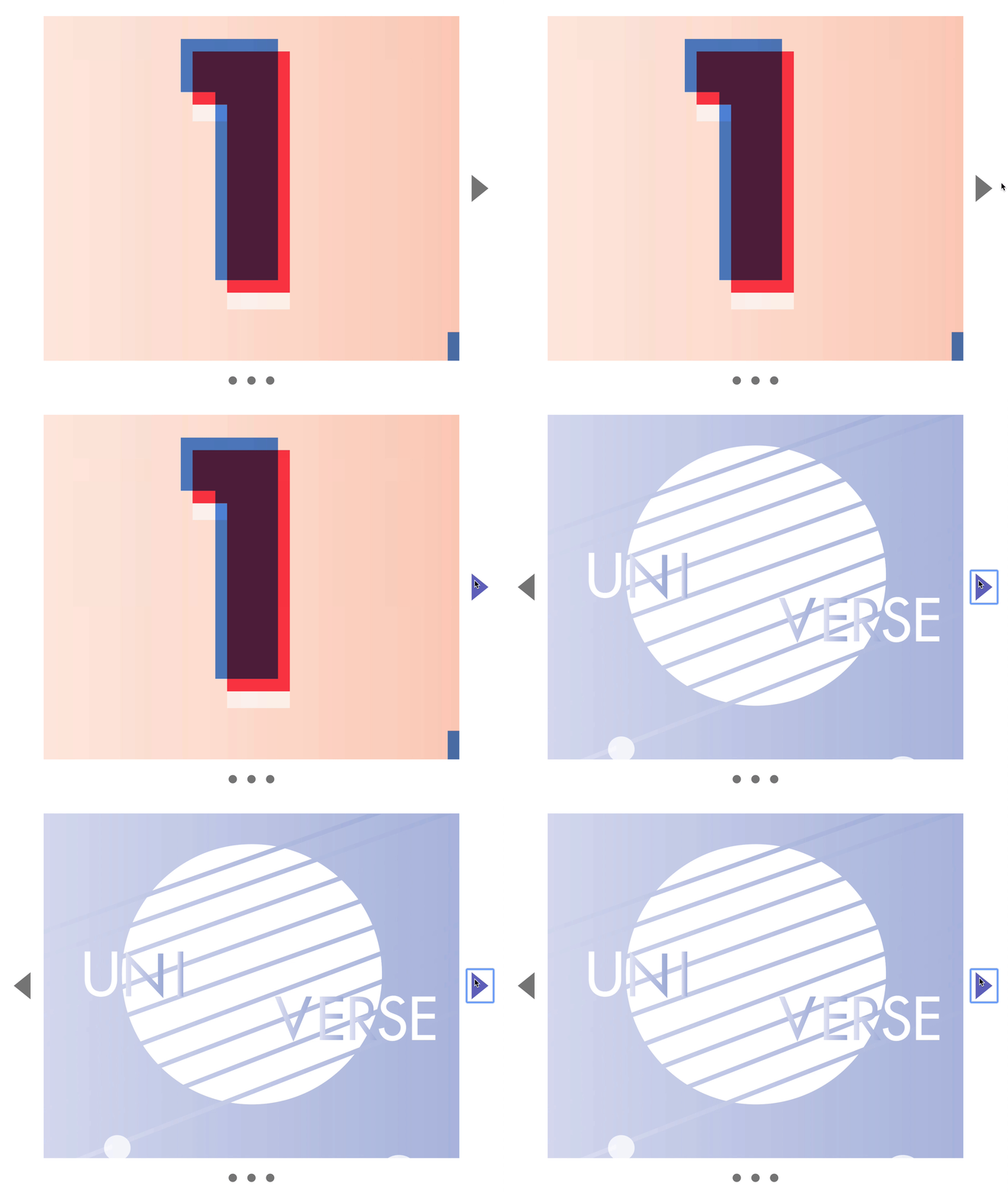
When the user clicks the next button for a second time, we show the third slide in the carousel. This third slide also the last slide in the carousel. User should not be able to move to a fourth slide (because it doesn’t exist). We need to hide the next button.
Here’s how we can hide the next button:
- When a user clicks the next button
- We check if there’s one more slide after the
nextSlide. - If there are no more slides, we know
nextSlideis the last slide. - If
nextSlideis the last slide, we hide the next button by adding thehiddenattribute.
nextButton.addEventListener('click', event => { // ... // Hides next button if (!nextSlide.nextElementSibling) { nextButton.setAttribute('hidden', true) }})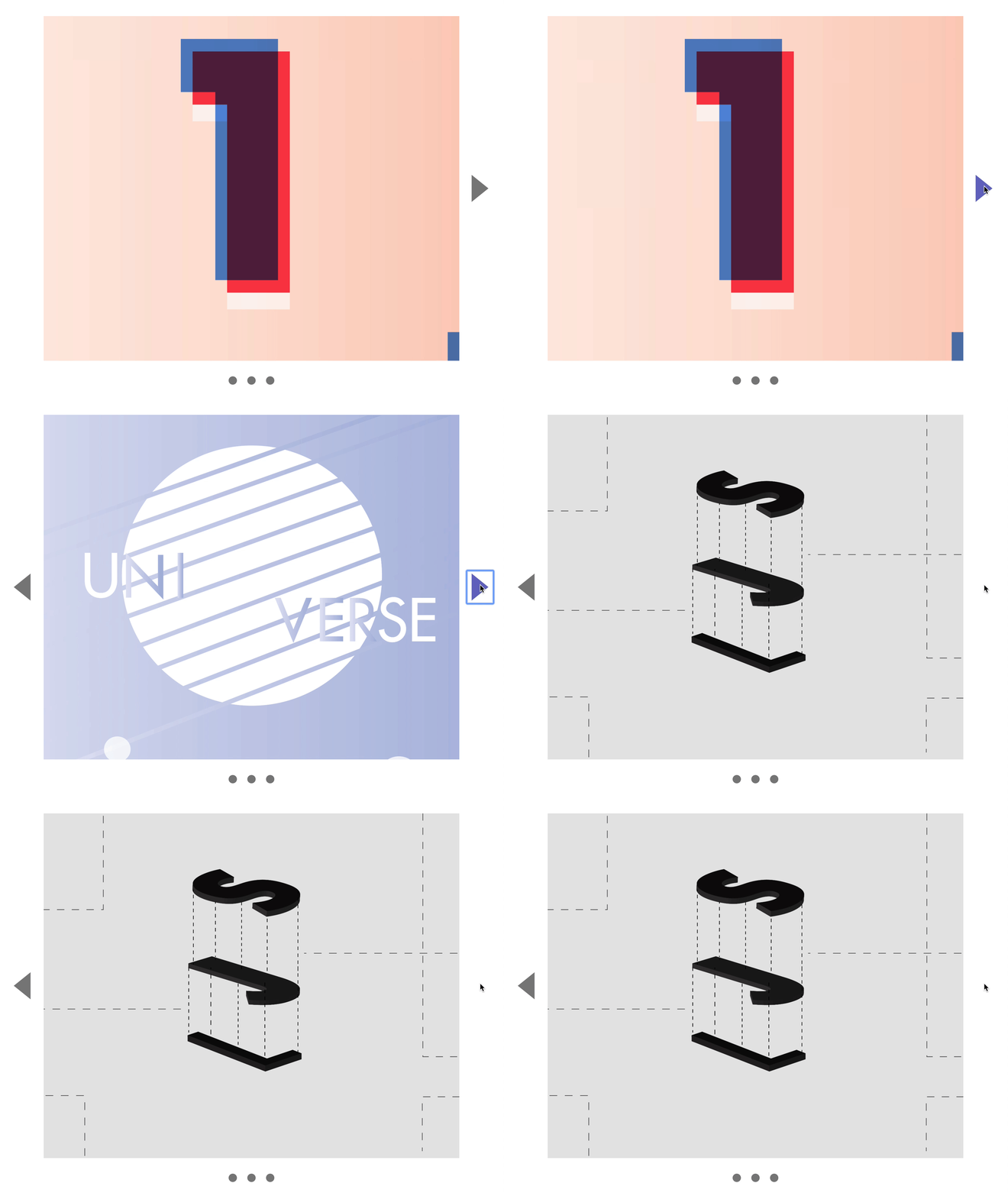
Now, if the user clicks the left button, we go back to the second slide. We must show the next button again (because they can move back to the third slide).
previousButton.addEventListener('click', event => { // ... // Shows next button nextButton.removeAttribute('hidden')})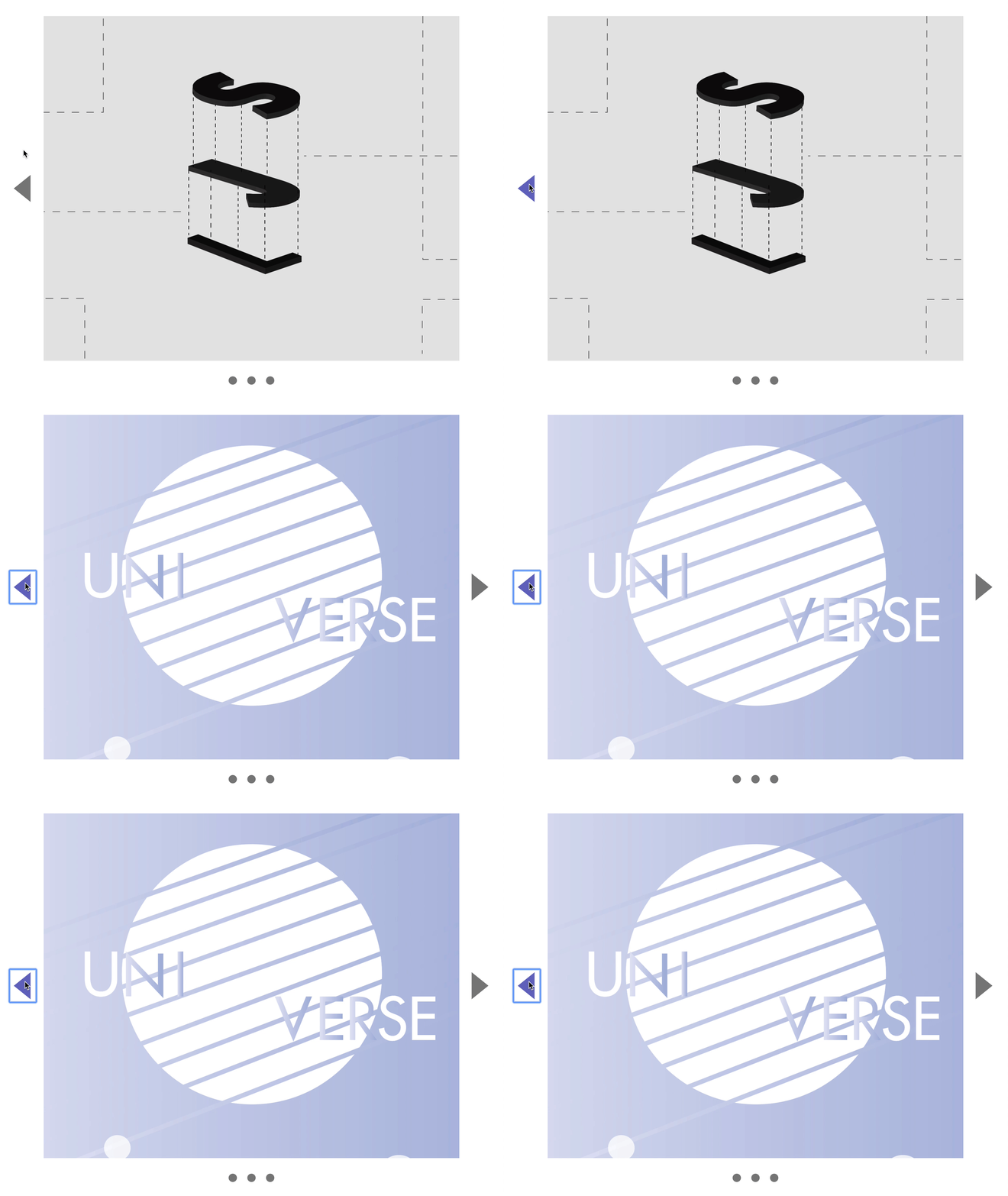
If the user clicks the left button again, they will arrive at the first slide. Here, we must hide the previous button again (because there are no more “previous” slides).
Here’s how we can hide the previous button:
- When a user clicks the previous button
- We check if there’s one more slide before the
previousSlide. - If there are no more slides, we know
previousSlideis the first slide. - If
previousSlideis the first slide, we hide the previous button by adding thehiddenattribute.
previousButton.addEventListener('click', event => { // ... // Hides previous button if (!previousSlide.previousElementSibling) { previousButton.setAttribute('hidden', true) }})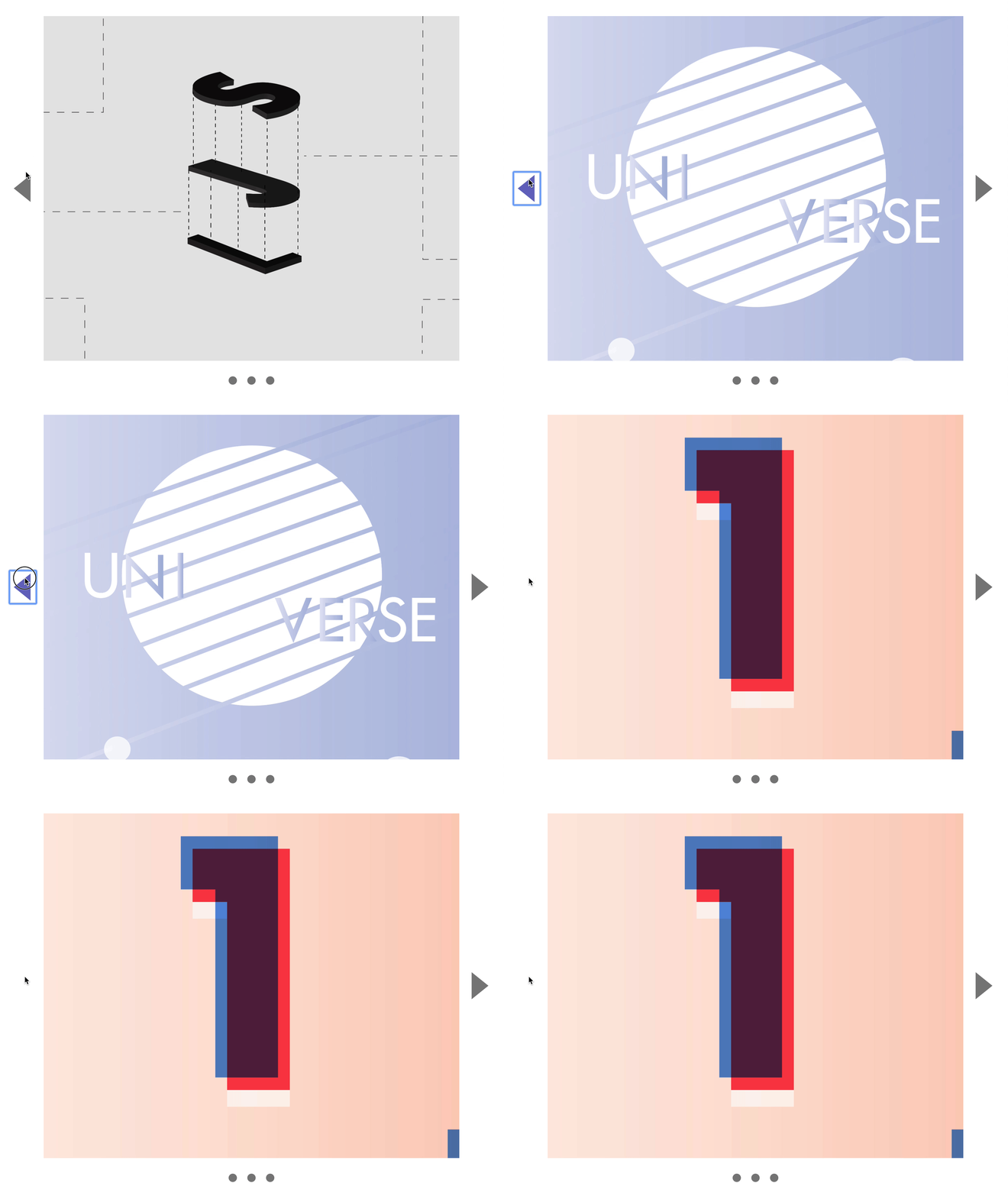
That’s it!
Welcome! Unfortunately, you don’t have access to this lesson. To get access, please purchase the course or enroll in Magical Dev School.
Unlock this lesson