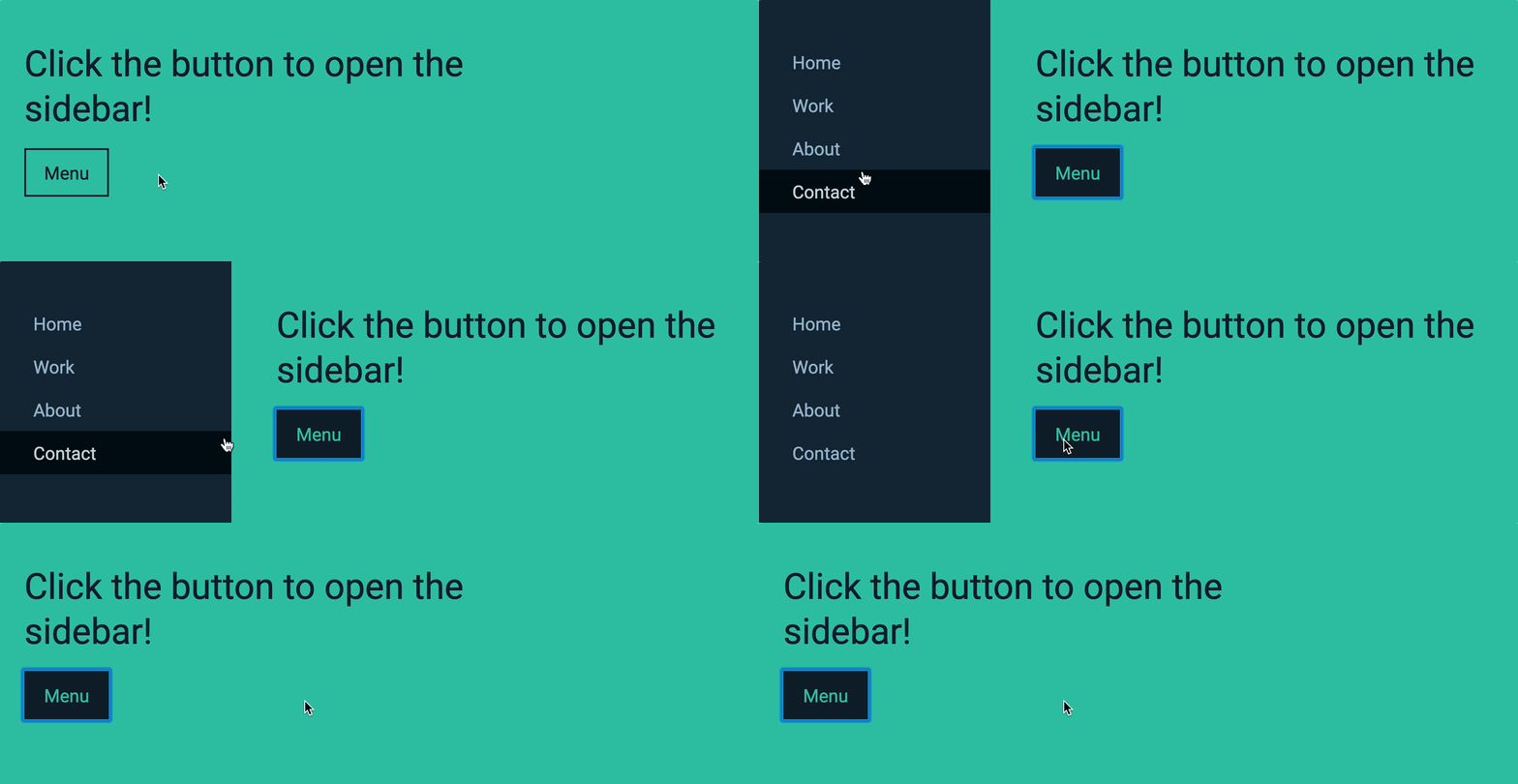
You’ll learn to build an off-canvas menu in this lesson. The off-canvas menu looks like this:
Quick note on Terminology
I will be using the <element> to mean HTML elements.
I will also use .class to an element that contains a class.
Examples:
<body>: Means the body element.testing: Means the element with thetestingclass. It also mean thetestingclass itself
Let’s begin building the component.
HTML for the off-canvas menu
An off-canvas menu is a menu that is placed outside the screen (or the canvas). It looks like this:

The HTML for this off-canvas menu will be:
<div class="offsite-container"> <nav class="nav"><!-- ... --></nav></div>
<div class="site-container"> <button> <span>Menu</span> </button> <!-- ... --></div>Making it work
To make this menu work, you need to push the website to the right when a user clicks the button for the first time.
When the user clicks the button for a second time, you push the website back to the left.
In short, you need to:
- Add an event listener to the button.
- Push screen to the right when button gets clicked.
- Push screen back when button gets clicked again.
Adding the event listener
First, we need to select the button with JavaScript. We can do this with querySelector.
const button = document.querySelector('button')Then, we add an event listener with addEventListener.
button.addEventListener('click', event => { console.log('push the screen!')})Pushing the screen
To push the screen to the right, we need to push BOTH .offsite-container and .site-container to the right. The best way to push stuff around in CSS is to use the transform property.
.offsite-container,.site-container { transform: translateX(14rem);}
We don’t want to push the containers when the website gets loaded. We only want to push the containers when the button is clicked.
The easiest way to tell whether the menu should be open is to add a class to <body>. If the class is present, we need to open the menu. Let’s call this class offsite-is-open.
Your CSS should become:
.offsite-is-open .offsite-container,.offsite-is-open .site-container { transform: translateX(14rem);}To open the menu, you can add offsite-is-open to <body> when the button gets clicked.
const button = document.querySelector('button')const body = document.body
button.addEventListener('click', event => { body.classList.add('offsite-is-open')})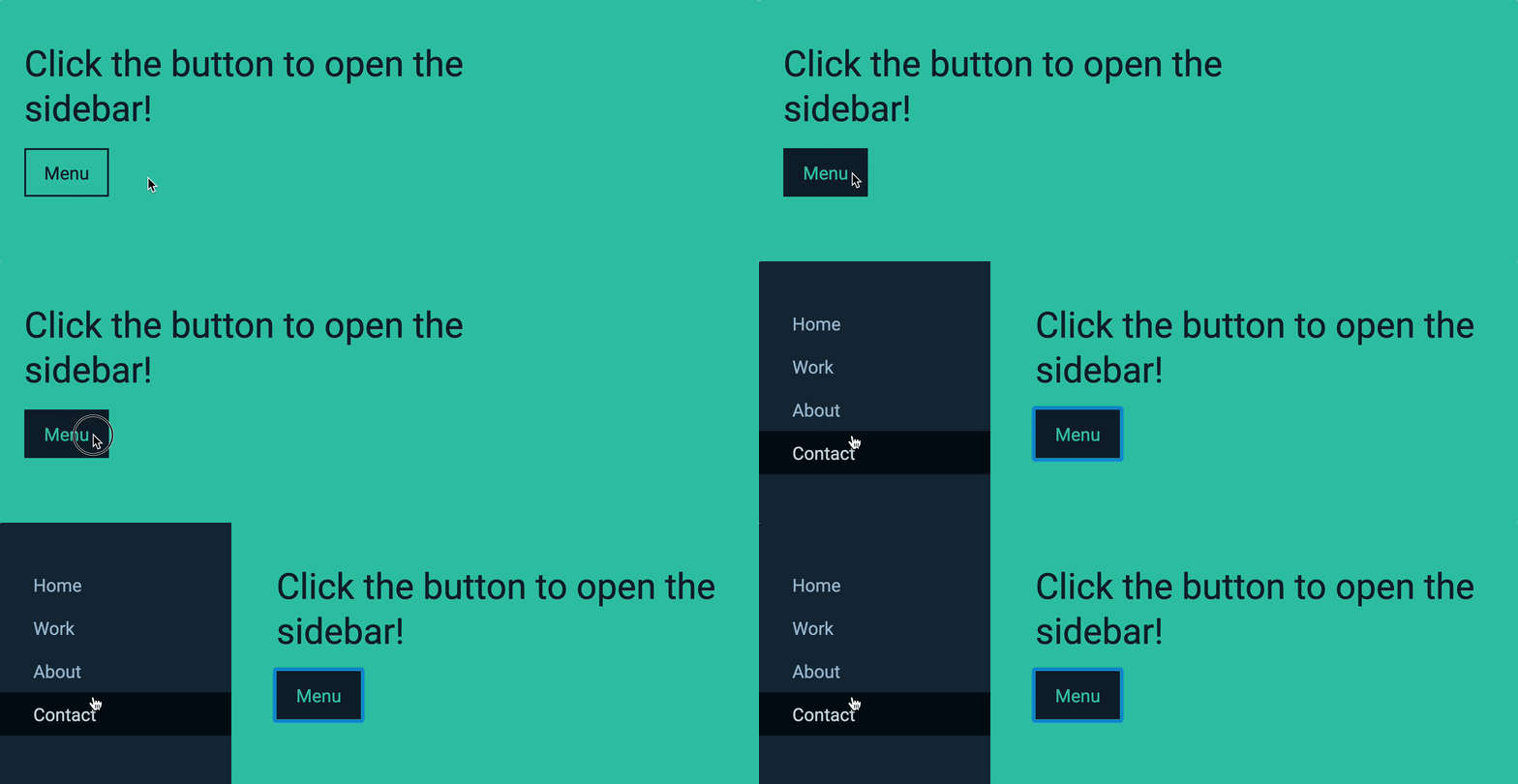
Pushing the containers back
When the button gets clicked for the second time, you want to push the screen back to the left. To do this, you remove offsite-is-open from <body>.
Here’s how to do it:
- Check whether
<body>has theoffsite-is-openclass. - If it has the class, remove the class.
- If it does not have the class, add the class.
We can check whether <body> has offsite-is-open with an if statement.
button.addEventListener('click', event => { if (body.classList.contains('offsite-is-open')) { // Remove .offsite-is-open to close the menu } else { // Add .offsite-is-open to open the menu }})We can then add/remove the class with classList.add and classList.remove.
button.addEventListener('click', event => { if (body.classList.contains('offsite-is-open')) { body.classList.remove('offsite-is-open') } else { body.classList.add('offsite-is-open') }})Here’s a simpler way. You can use classList.toggle to do the same thing as above.
button.addEventListener('click', event => { body.classList.toggle('offsite-is-open')})🙃.
Wrapping up
If you are thinking “WHAT?! JavaScript can be this easy?”, you’re right. JavaScript can be pretty easy once you know what to watch out for.
But it can be difficult too. You have much more to learn.
Take it slow. We’ll work through everything you need to learn to become a good JavaScript developer.
Exercise
Create the off-canvas menu on your own. You should be able to create it without referring back to this lesson.
Welcome! Unfortunately, you don’t have access to this lesson. To get access, please purchase the course or enroll in Magical Dev School.
Unlock this lesson