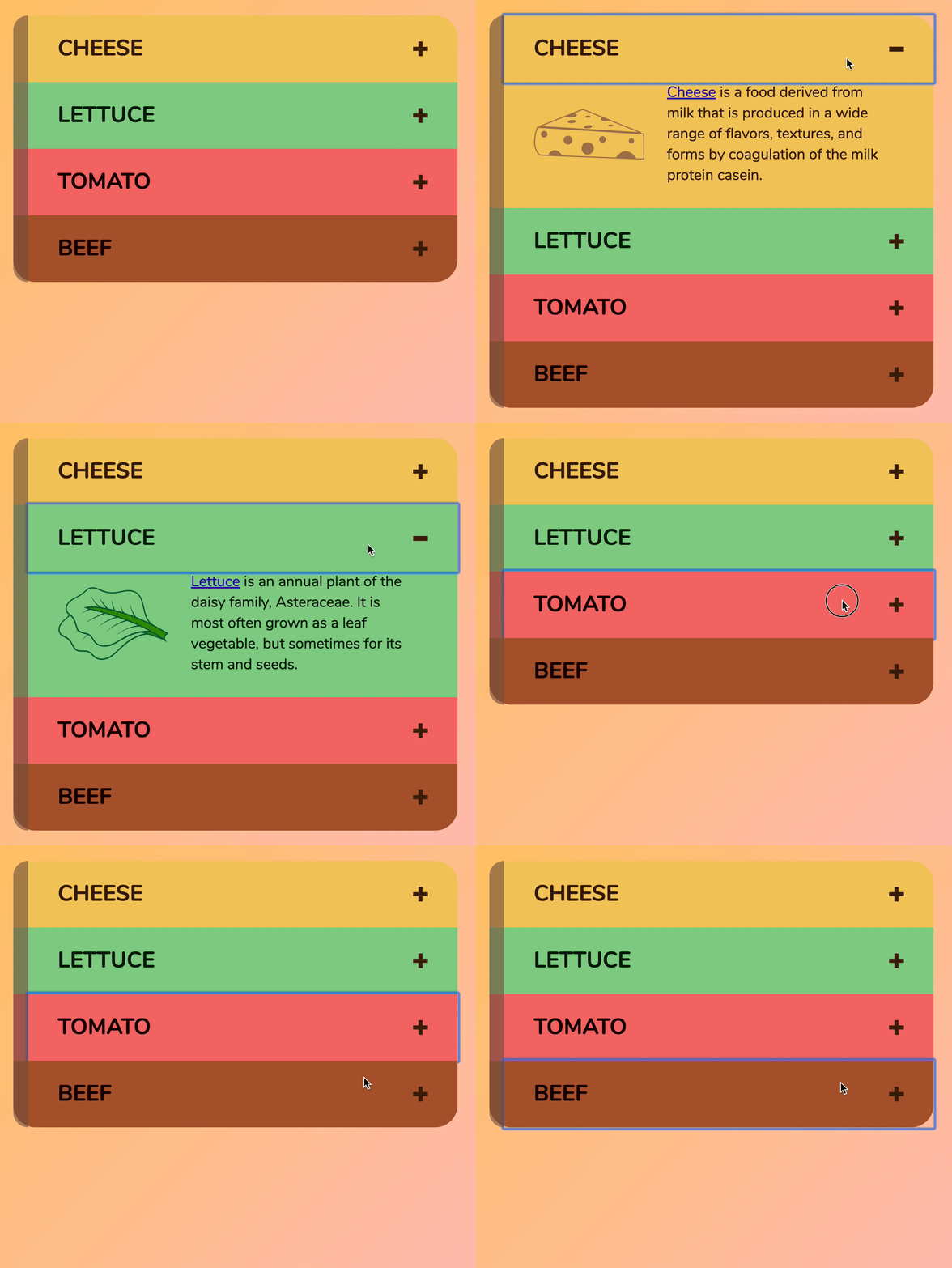
You’ll learn to build an accordion in this lesson. Accordions are components that lets you show or hide sections of information. They look like this:
HTML for the accordion
When an accordion is closed, you see only the header of the accordion. You don’t see anything else.

When the accordion is open, you see the contents of the accordion. Here, the first accordion is opened.

You want to keep the contents of your accordion close together. One easy way is to wrap them in an enclosing <div>.
<div class="accordion"> <div class="accordion__header">...</div> <div class="accordion__content">...</div></div>When the page loads, the accordion should be closed. We can hide the contents by setting display property to none. This CSS has been written for you.
/* Closes the accordion */.accordion__content { display: none;}The accordion header
When we click an accordion’s header, we want to open the accordion. Since we want to click the accordion’s header, we should wrap the header’s content in a <button> element. This lets us provide custom functionality (opening the accordion) with JavaScript.
In this case, I have <h2> and <button> in .accordion__header because:
- I used
<h2>to style the accordion’s text. <h2>inside<button>is not valid HTML.<button>inside<h2>is.
<header class="accordion__header"> <h2> <button> <span class="accordion__title">Cheese</span> <div class="accordion__indicator">...</div> </button> </h2></header>Opening the accordion
To open the accordion, we can add an is-open class to the .accordion. When is-open is present, we show .accordion__content by changing display to something other than none.
In this case, I’m going to set display to grid because I styled the contents with CSS Grid.
<!-- Opened accordion --><div class="accordion is-open">...</div>/* Opens the accordion */.accordion.is-open .accordion__content { display: grid;}
Why is-open and not accordion-is-open
When we built the Off-canvas menu and Modal, we added offsite-is-open and modal-is-open to <body>. If we don’t add “offsite” or “modal”, we won’t know what is opened.
<!-- What is open? --><body class="is-open"> <!--...--></body>In the case of accordions, is-open is enough because it’s quite obvious the accordion is opened.
<!-- It's obvious what is open --><div class="accordion is-open">...</div>Switching the indicators
Indicators show what would happen if you click on them:
- If you press
+, you will open the accordion - If you press
-, you will close the accordion
When the accordion is closed, we need to show the + icon. We also need to hide the - icon.
.indicator__plus { display: block;}
.indicator__minus { display: none;}When the accordion is opened, we need to show the - icon. We also need to hide the + icon.
.accordion.is-open .indicator__minus { display: block;}
.accordion.is-open .indicator__plus { display: none;}Opening the first accordion with JavaScript
Let’s say the user clicks on the first accordion’s header. When they click on this header, we want to show the first accordion’s contents.
We can do this by listening for a click event.
const firstAccordion = document.querySelector('.accordion')const firstAccordionHeader = firstAccordion.querySelector('.accordion__header')
firstAccordionHeader.addEventListener('click', event => { // Do something})To open the first accordion’s content, you add the is-open class to the first accordion. To close the first accordion’s content, you remove is-open from the first accordion.
firstAccordionHeader.addEventListener('click', event => { if (firstAccordion.classList.contains('is-open')) { firstAccordion.classList.remove('is-open') } else { firstAccordion.classList.add('is-open') }})You can also do the same thing with classList.toogle
firstAccordionHeader.addEventListener('click', event => { firstAccordion.classList.toggle('is-open')})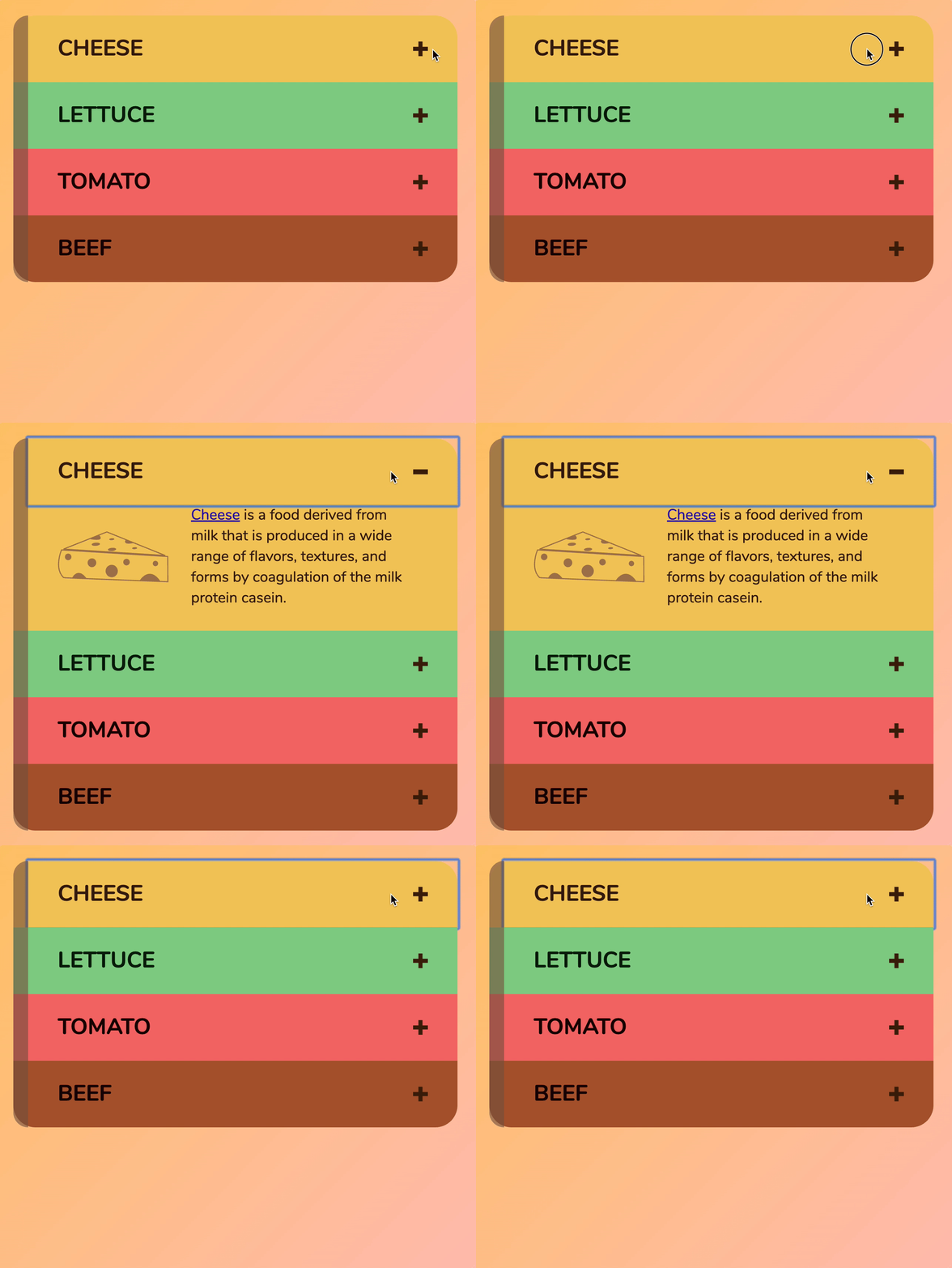
Opening other accordions with JavaScript
If you click on the second accordion, you want to open the second accordion’s content. For this to work, you need to repeat all the steps above.
First, we need to select the second accordion. You can select all accordions with document.querySelectorAll.
const accordions = document.querySelectorAll('.accordion')
// Finds first and second accordionconst firstAccordion = accordions[0]const secondAccordion = accordions[1]
// Find header for first accordion and second accordionconst firstAccordionHeader = firstAccordion.querySelector('.accordion__header')const secondAccordionHeader = secondAccordion.querySelector('.accordion__header')
// Adds event listeners to first and second accordion headerfirstAccordionHeader.addEventListener('click', event => { firstAccordion.classList.toggle('is-open')})secondAccordionHeader.addEventListener('click', event => { secondAccordion.classList.toggle('is-open')})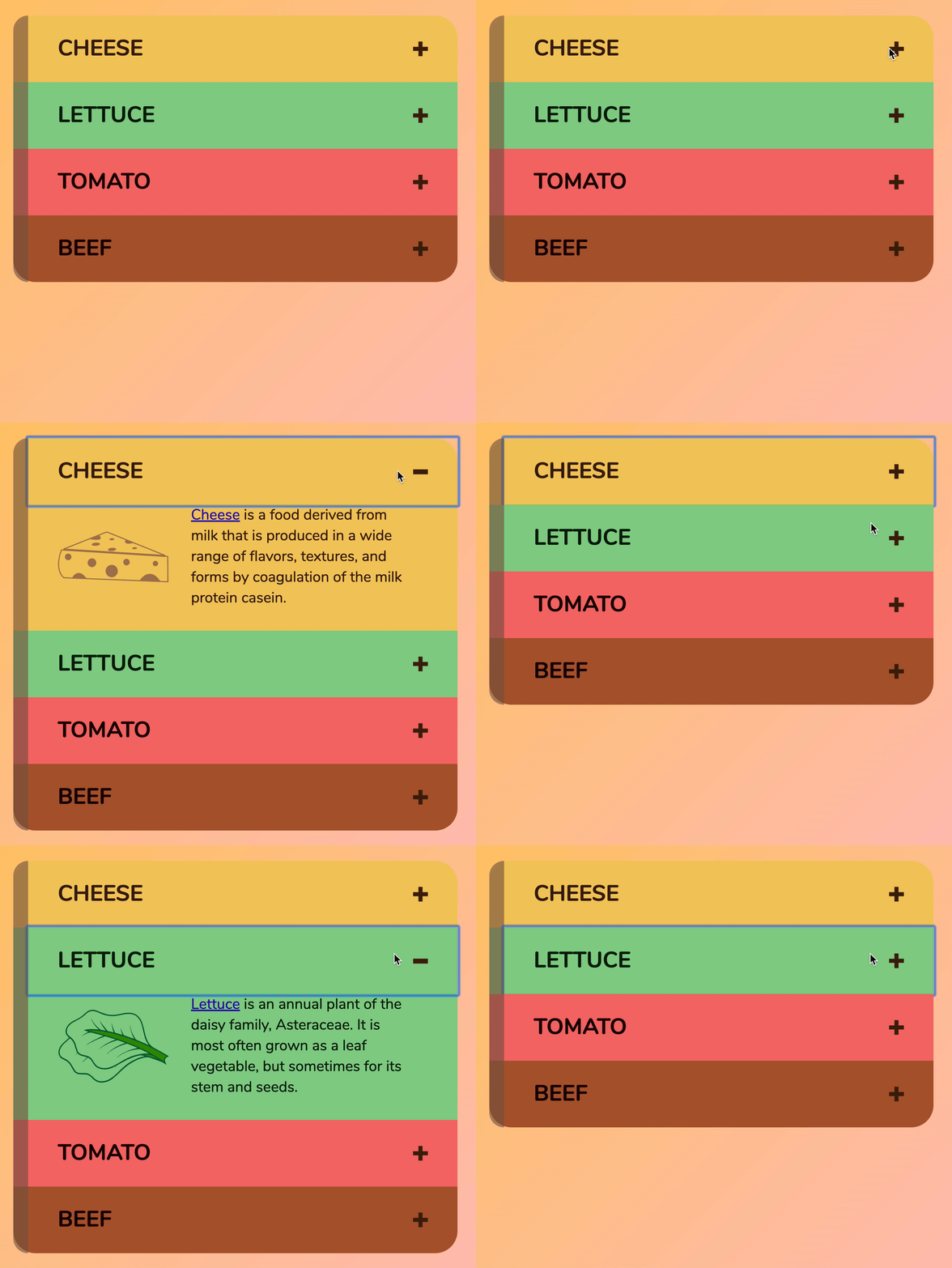
You can continue the same steps for all four accordions…
const accordions = document.querySelectorAll('.accordion')
// Finds each accordionconst firstAccordion = accordions[0]const secondAccordion = accordions[1]const thirdAccordion = accordions[2]const fourthAccordion = accordions[3]
// Find header for each accordionconst firstAccordionHeader = firstAccordion.querySelector('.accordion__header')const secondAccordionHeader = secondAccordion.querySelector('.accordion__header')const thirdAccordionHeader = thirdAccordion.querySelector('.accordion__header')const fourthAccordionHeader = fourthAccordion.querySelector('.accordion__header')
// Adds event listeners to all accordion headersfirstAccordionHeader.addEventListener('click', event => { firstAccordion.classList.toggle('is-open')})
secondAccordionHeader.addEventListener('click', event => { secondAccordion.classList.toggle('is-open')})
thirdAccordionHeader.addEventListener('click', event => { thirdAccordion.classList.toggle('is-open')})
fourthAccordionHeader.addEventListener('click', event => { fourthAccordion.classList.toggle('is-open')})Did you notice we did these things four times?
- Select one accordion
- Find the header in that accordion
- Add an event listener to the header we found
There’s a simpler way. We can use a forEach loop.
To use the forEach loop, we need to convert the results of querySelectorAll from a Nodelist into an Array. We can do this with Array.from.
const accordions = Array.from(document.querySelectorAll('.accordion'))Then, we use forEach to loop over all the accordions we found. For each accordion, we find its header, and we add an event listener to the header.
accordions.forEach(accordion => { // Find the accordion header const accordionHeader = accordion.querySelector('.accordion__header')
// Add event listener to the accordion header accordionHeader.addEventListener('click', event => { // Toggle the is-open class accordion.classList.toggle('is-open') })})Much simpler. Yeah? This is how you use a forEach loop.
Welcome! Unfortunately, you don’t have access to this lesson. To get access, please purchase the course or enroll in Magical Dev School.
Unlock this lesson