Hypertext Markup Language (HTML) is the language of the web. It provides context to the browser on how to structure the content you want to present. People often draw parallels between the web and print, and that may have been the case when the web first started out more than 30 years ago, but not any more.
Even though we still retain terms like “document” and “page” when talking about the web, we have to be aware that the web is a unique medium of its own, with its own set of quirks and characteristics to discover and work with.
It’s a beautiful language with vast documentation and extensive syntax, yet so simple that it can be learned in an afternoon, and so complex that it takes years to master.
As with all code that needs to be read by a computer program, HTML has a particular syntax for it to be parsed correctly. Below is a diagram showing the anatomy of an HTML element.
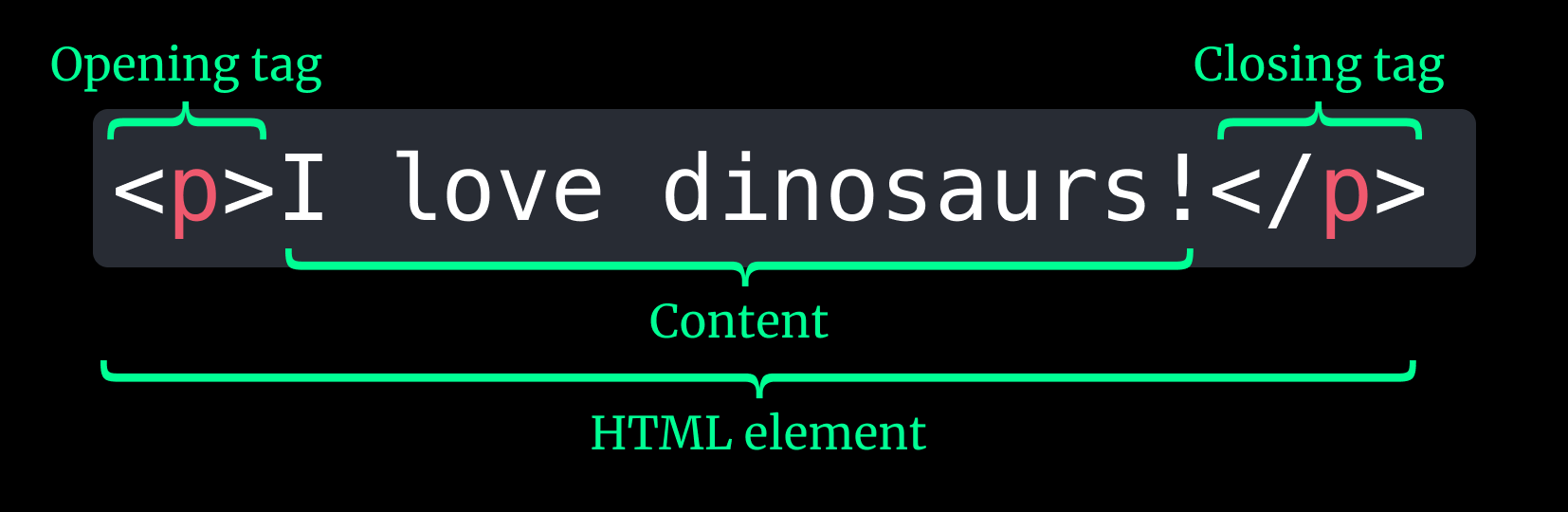
All elements start with an opening tag, which is the name of the element enclosed between angle brackets. This name can be used as a selector in CSS or JavaScript. Selectors are pretty important and they will be covered in detail when we talk about some key concepts of CSS in the next section.
There are more than a hundred HTML elements that are recognised by modern browsers today, and they each have properties that are meaningful to the browser. Using the appropriate tags help both humans and the browser understand the purpose of the content within them.
Below is an example of the structure of a simple HTML page:
<!doctype html><html lang="en">  <head>    <meta charset="utf-8" />    <meta name="viewport" content="width=device-width, initial-scale=1" />    <title>What is HTML? | Essential CSS</title>  </head>
  <body>    <h1>What is HTML?</h1>    <p>      Hypertext Markup Language (HTML) is the language of the web. It provides      context to the browser on how to structure the content you want to      present.    </p>  </body></html>
We will be going through each of these HTML tags, explaining how they work and why they are necessary. This fundamental knowledge will also help your understanding of how CSS works to style the content within these HTML tags.
You might also have noticed some tags have more than just a name, for example, the <html> tag also has lang="en". These are additional values are known as attributes, which are used to configure the elements or tweak their behaviour in certain ways. Some attributes are unique to certain elements, while others can apply to various different HTML elements.
Because there are so many different attributes, we will only talk about a few important ones. As you advance along your web development journey, you will encounter and learn about more HTML elements and their attributes.
Document type
In order for the browser to interpret your HTML files correctly, they must begin with the following tag:
<!doctype html>This is called a Doctype declaration. Having this at the start of your HTML file tells the browser to read the entire page in standards mode, which means browsers will render the page according to CSS specifications. And this is the recommended best practice today.
The <html> element
The element immediately following the doctype declaration is always the <html> element. It is also known as the root element or top-level element of a HTML document. There can only be one of it. And all other elements will be descendants of this root element.
The most important attribute for the <html> element is the lang attribute. This is the attribute that tells browsers what language the content of the website is, and this information is used in many places, from browsers’ built-in translation features, to search engine results as well as screen readers.
<html lang="ko"></html>There is a standardised list of language codes that browsers recognise and more guidance can be found on the W3C Internationalization (I18n) Activity website: https://www.w3.org/International/questions/qa-html-language-declarations
Document metadata
The <head> element
Content found the <head> element will never be directly displayed in your browser window, but they consist of important information about your website that is used in many other places.
This information is commonly referred to as metadata. Aside from that, you can also include links to other assets such as stylesheets and scripts (if you need them), or custom favicons in the <head> element.
Scripts can be included in other places on the document, and this will affect how they work and load on your page. We will not be covering this in major detail here.
The <meta> element
The <meta> element is an example of an empty element, also known as a void element. This means it does not have a closing tag, and the pertinent information is contained in attributes. There are five attributes that apply to the <meta> element, of which name and content are used together in the same tag.
The HTML specification defines a list of standard metadata names which the browser and search engines can then use for various purposes.
The charset attribute is important to declare because it tells the browser how to interpret the characters in your document. You should set it to utf-8 to ensure the widest compatibility across scripts and languages.
It is also highly encouraged that you set a viewport metatag and a description metatag, like so:
<meta name="viewport" content="width=device-width, initial-scale=1" /><meta name="description" content="A brief description of your website. This is what shows up on search engine results under your page title."/>The viewport metatag is relevant for mobile devices only, but setting it to the values above will ensure that your page is mobile-optimized by telling the browser to set the width of the page to the device width and scale the page correctly on first load.
Whatever you put as the content for the description metatag will be displayed on search engine results pages, so it’s meaningful to include that as well.
The <title> element
Setting the <title> tag that clearly describes the purpose of the page is very important because this is what shows up on browser tabs as well as search engine results. This is crucial for accessibility as well, as users of assistive technologies rely on the page title to determine if they should navigate into the page or not.
Sectioning elements
The <body> element
The <body> element represents the content of your web page and everything within it will be rendered in the browser window unless you choose to hide it with CSS (more on that when we talk about CSS). There can only be one <body> element on a page and all the content of your page should be nested within it.
Commonly used HTML elements
As mentioned earlier, there are more than a hundred HTML elements, each with their own set of characteristics that make them suited for particular purposes. However, there are also attributes that apply across different HTML elements as well. You don’t have to memorise them, but as you get more familiar with web development, knowledge of these attributes will start to come to you naturally.
You may come across the term “semantic” as you learn more about HTML elements. Semantics in the context of HTML elements, refer to the meaning or purpose of the element. For example, a heading element like a h1 represents the highest level of section headings available in HTML, and it should describe the overall purpose of the web page succinctly. Ideally, there should only be one h1 element on the page.
Other commonly used HTML elements include the Paragraph element (p), the different List elements (ul, ol, li), as well as the all purpose Content Division element (div), among many others.
All browsers come with default stylesheets that apply a basic set of CSS properties to these elements out-of-the-box. These are referred to as user-agent stylesheets. We will cover them in more detail in the subsequent chapters on CSS.
All the sectioning elements can have a class attribute and an id attribute (in addition to many others). These two attributes are significant when it comes to CSS because when used as selectors, they impact the specificity of the selector. The concept of specificity will be covered in its own dedicated section.
The full HTML standard, which you can refer to at https://html.spec.whatwg.org, covers all the available elements you can use when building websites and how they should behave. This is the standard that browser vendors base their implementations upon, although there are a handful of occasions where browser vendors might try something experimental in their alpha versions to test out some proposals as well.
Welcome! Unfortunately, you don’t have access to this lesson. To get access, please purchase the course or enroll in Magical Dev School.
Unlock this lesson