At its most basic level, CSS allows authors to tell the browser how the elements on the page ought to look like. To do that, you set the values of the different CSS properties to achieve look you had in mind.
Browsers recognise a defined syntax that parses CSS statements from your stylesheets and applies the styles onto the different HTML elements on your webpage. The formal specification written by the CSS working group for this purpose is the CSS Syntax Module Level 3.
There are 2 types of CSS statements:
- style rules
- at-rules
An at-rule starts with an at-keyword, which is an identifier starting with an @ symbol, e.g. @import, @media, @font-face, @keyframes and so on. The bulk of CSS you write will be specific to styling HTML elements on your web page, but there is also CSS that tells the browser to do things in more general terms, i.e. not with respect to any particular element.
At-rules fulfil this function, and also allows us to define conditional rules for CSS. The syntax for each at-rule is unique, and we will cover specific at-rules in detail in the upcoming sections of this course
A style rule, also known as a rule set, consists of a selector list which is associated with a list of CSS property declarations. This may sound like a lot of jargon but don’t worry, we will go through and explain each term in more detail.
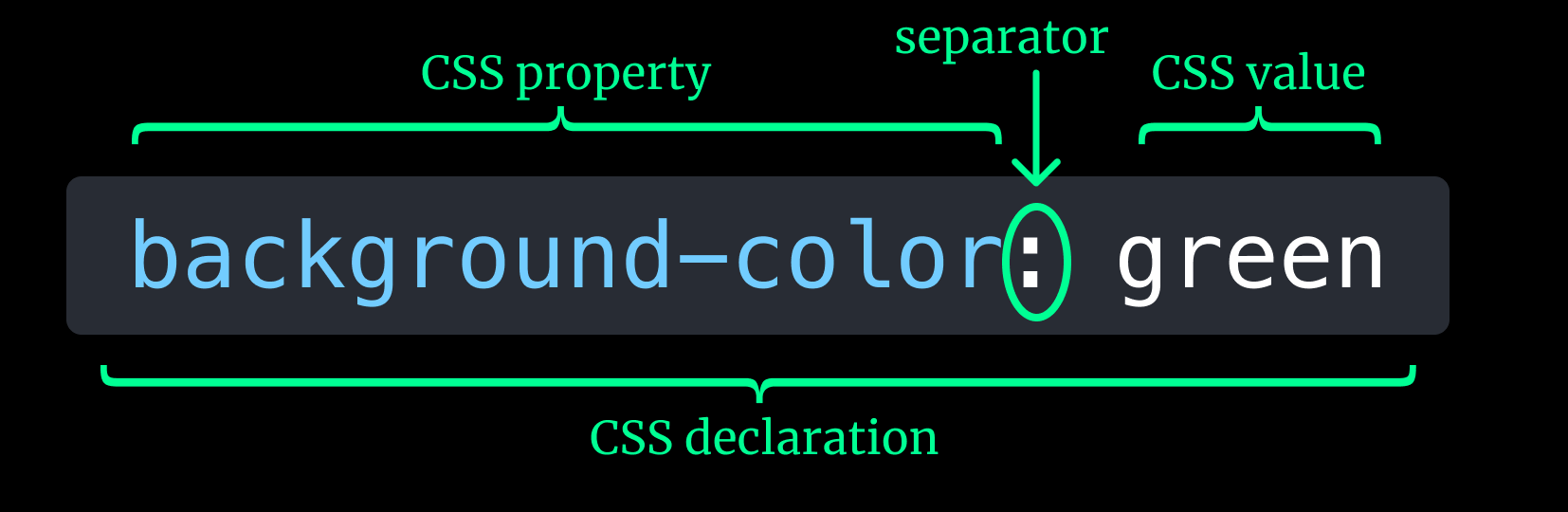
A property-value pair is known as a CSS property declaration. The property is a human-readable identifier that describes the feature being set. One thing to note is that CSS uses American spelling, so if you’re used to British spelling, this is something to look out for when you’re first starting out. Every property has their own set of valid values, which describe how the feature is dealt with by the browser.
In the example above, the declaration is telling the browser to set the background colour of an element to green.
There are more than 500 distinct property names and the list will continue to grow as CSS continues to evolve. When you use an invalid value, for example something like background-color: 3, the declaration is considered invalid by the browser and ignored altogether.
Multiple declarations can be grouped together within curly braces ({}) into CSS declaration blocks. In such situations, each declaration needs to be separated by a semi-colon (;).
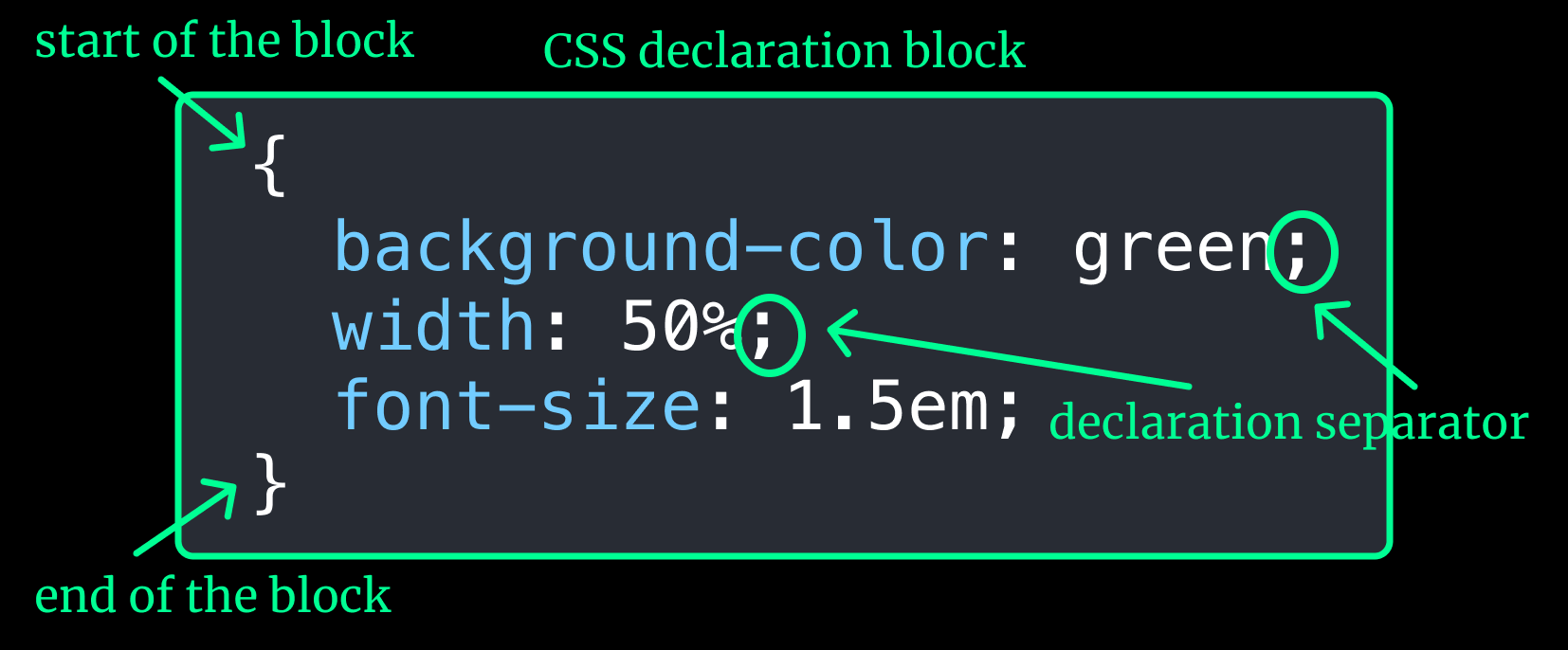
In theory, the last declaration in the above example, font-size: 1.5em, does not need a semi-colon at the end of it because there are no more declarations after. But often, developers will add the semi-colon anyway just in case more declarations need to be added in future, and there is a risk that you forget to add in the separator for the previous declaration.
Having just property-value pairs is not enough, because you still need to tell the browser which element to apply these declarations to. The syntax of CSS allows you to associate each declaration block with specific HTML elements by using CSS selectors. It is very important to understand how selectors work so we have a dedicated section explaining them in detail.
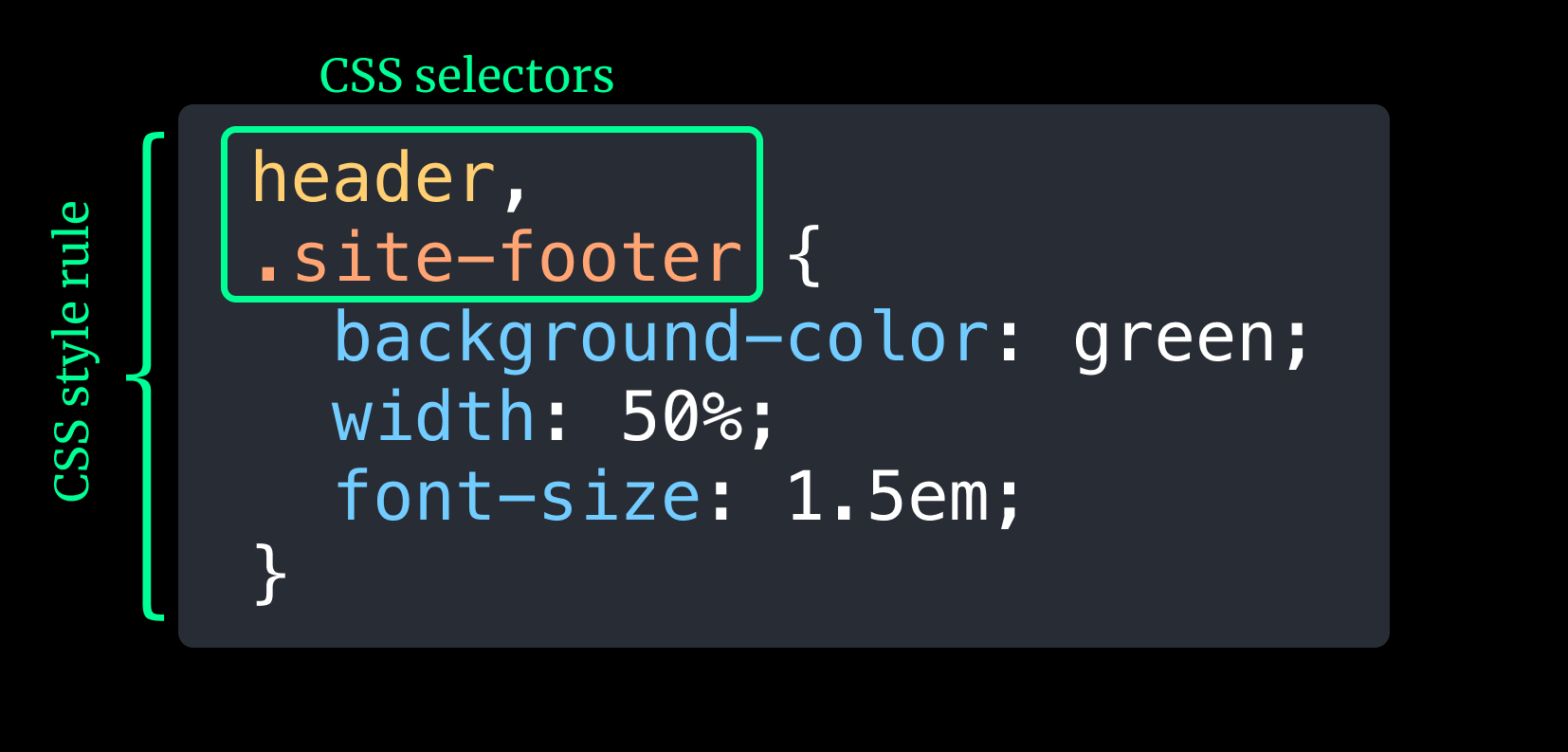
If you want multiple elements to share the same CSS property values, you can associate them with the CSS declaration block using a comma to separate each selector. This entire block of code consisting of the selector group with its associated declaration block is known as a style rule.
Out of the more than 500 CSS properties, some of them are shorthand properties. These are properties that allow you to simultaneously declare values for multiple CSS properties impacting a similar theme, e.g. background allows you to set the values for background-color, background-image, background-repeat, and background-position.
Shorthand properties can be convenient and save you some keystrokes, but you have to use them mindfully, because you may end up inadvertently resetting values that you did not intend to. Harry Roberts goes into detail in his article, CSS Shorthand Syntax Considered an Anti-Pattern, how this could cause you problems and introduce unexpected bugs.
On the other hand, there are also cases where the shorthand provides sensible default values, so the key here is being aware of exactly what values are being impacted when you are using shorthand properties.
Welcome! Unfortunately, you don’t have access to this lesson. To get access, please purchase the course or enroll in Magical Dev School.
Unlock this lesson